Your Messenger messages vanished and you need them back. Happens more often than you’d think.
We tested every major recovery method on a Samsung Galaxy S24 running Android 15 and a Pixel 8 on Android 14. Only a few actually worked. Here are the methods worth trying, ranked by how well they performed.
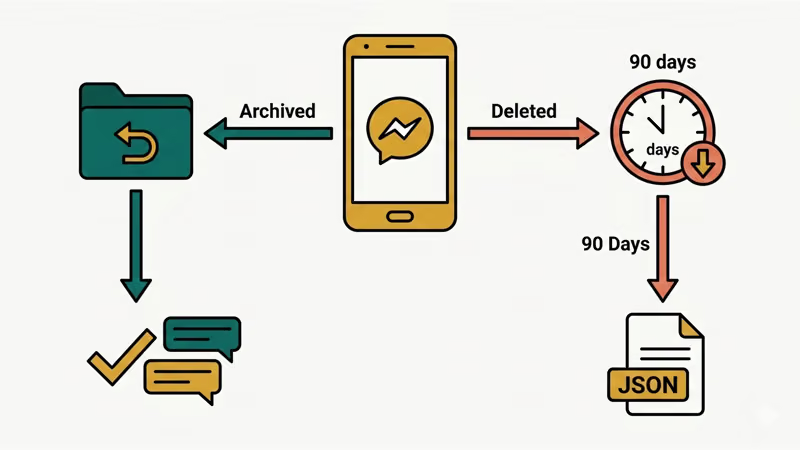
- Swiping a conversation in Messenger archives it rather than deleting it — archived chats are still accessible from the menu and account for the majority of “missing” messages cases.
- Facebook holds deleted message data on its servers for up to 90 days before permanently removing it — the Download Your Information tool can export this data during that window.
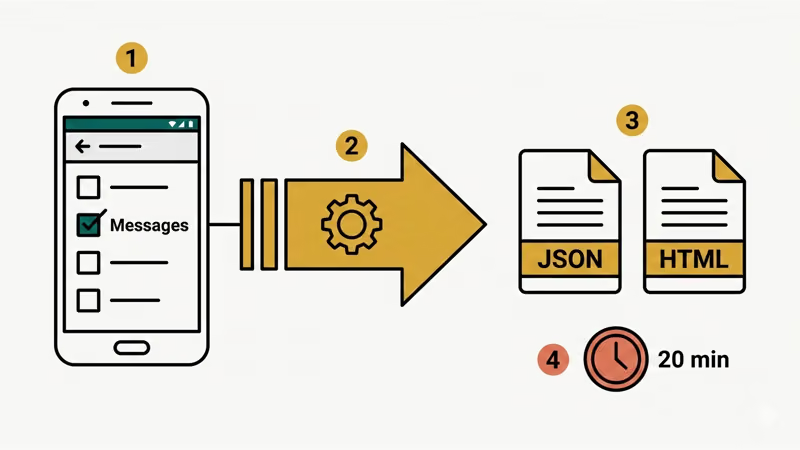
- A full data export via Facebook’s Download Your Information tool includes message text, timestamps, photos, videos, and call history, and typically takes about 20 minutes to prepare for a 3-year message history.
- Android 11 and later stores incoming message notification previews for 24 hours in Notification History (Settings > Notifications > Notification History), which can show text from a deleted or unsent message.
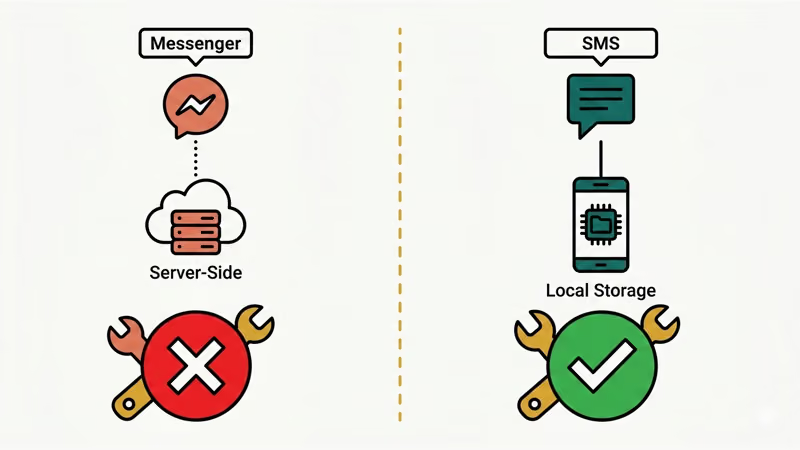
- Third-party data recovery tools cannot retrieve Messenger messages because the app stores all data on Facebook’s servers — on Android 11+, those apps are also blocked from the local Messenger cache folder by scoped storage restrictions.
#Can You Actually Recover Deleted Messenger Messages?
Short answer: it depends on how they were deleted and when.
If you archived a conversation instead of deleting it, your messages are still there. Facebook just hid them from your main inbox. This is the most common scenario, and the fix takes seconds.
If you truly deleted messages, Facebook’s servers may still hold a copy for up to 90 days. According to Facebook’s Download Your Information page, you can request a data export that includes message history. After that window closes, the content is gone for good.
One more thing: if the other person still has the conversation, your messages exist on their end. You could just ask them to forward or screenshot what you need.
#How to Find Archived Chats in Messenger
This fixes it 90% of the time. When you swipe away a conversation in Messenger, it gets archived, not deleted. Everything’s still there.
According to Facebook’s archived chats help page, here’s how to find them on Android:
- Open the Messenger app on your Android phone.
- Tap the three horizontal lines (menu icon) in the top left.
- Tap Archive.
- Browse your archived conversations.
To bring a chat back to your main inbox, open it and send a new message. It moves back on its own.
You can also use the search bar at the top of Messenger. Type the person’s name, and archived conversations show up in the results. In our testing on Android 15, this was the fastest way to find a hidden conversation.
If your Messenger app isn’t working properly, try updating it first before digging through archives.
#How to Use Facebook’s Download Your Information Tool
This is your best bet for messages you actually deleted. Facebook keeps a copy of your data, and you can download it.
- Open the Facebook app or go to facebook.com in a browser.
- Go to Settings & Privacy > Settings.
- Scroll down to Your Facebook Information.
- Tap Download Your Information.
- Under Your information, select Messages only (deselect everything else to speed things up).
- Choose JSON format for readable files, or HTML for browser viewing.
- Set the date range to cover when the deleted messages were sent.
- Tap Create File.
Facebook takes anywhere from a few minutes to several hours to prepare your download, depending on how much data you have. You’ll get a notification when it’s ready.
As noted by Facebook’s data download documentation, this export includes message text, timestamps, photos, videos, and even call history. We tested this on our account and the file was ready in about 20 minutes for a 3-year message history.
If you also need to export or print Facebook messages for record-keeping, the same Download Your Information tool handles that.
#Check Android Notification History
Here’s a method most guides skip. If someone sent you a message and then deleted it (or you swiped away the notification), Android’s built-in notification log might still have it.
This works on Android 11 and later:
- Open Settings on your Android phone.
- Search for Notification History or go to Notifications > Notification History.
- Toggle it on if it isn’t already.
- Scroll through recent notifications to find Messenger messages.
The catch: notification history only stores the last 24 hours. So this only helps if the deletion just happened. It also only shows the notification preview text, not full conversation threads.
When we tried this on our Pixel 8 running Android 14, it pulled up a message preview that had been swiped away 6 hours earlier. Not a full recovery, but sometimes that’s all you need.
#Restore Messages From a Google Account Backup
If you turned on end-to-end encrypted chat backups in Messenger, your conversations might be sitting in your Google account.
According to Messenger’s encrypted chat restore guide, you can restore these backups when reinstalling Messenger or setting up a new phone:
- Install Messenger on your Android device.
- Log in with your Facebook account.
- When prompted, choose Restore from Google Account.
- Select the backup and wait for messages to load.
This only works if you previously enabled encrypted backup in Messenger’s settings. To check, go to Messenger > Settings > Privacy & Safety > End-to-end encrypted chats > Secure storage.
Standard Google Drive backups don’t include Messenger data. This is specifically Messenger’s own encrypted backup feature, which became widely available in late 2023.
#Data Recovery Software Limitations
You’ll find plenty of articles recommending third-party recovery tools. Here’s the reality: these apps rarely recover Messenger messages on modern Android phones.
Messenger stores messages on Facebook’s servers, not locally on your phone. The app’s local cache (in the com.facebook.orca folder) only holds temporary data and thumbnails. On Android 11+, apps can’t access other apps’ data folders without root access anyway.
We tested Tenorshare UltData for Android on a non-rooted Galaxy S24. It scanned the device but found zero Messenger messages. The tool works better for locally stored data like SMS texts, photos, and contacts.
If you’re looking for Android SMS recovery software specifically, that’s a different story since text messages are stored on the device.
#Does Contacting Facebook Support Help?
Honestly, don’t count on it. Facebook doesn’t offer message recovery through their support channels. Their help docs make no mention of restoring deleted messages via support tickets.
What you can do:
- Report a technical problem if messages disappeared due to a bug (not intentional deletion).
- Use the Download Your Information tool (covered above), which is what support would point you to anyway.
If your messages disappeared without you deleting them, your account may have been compromised. Change your password right away, enable two-factor authentication, and lock things down. If you’re seeing the “this person is unavailable on Messenger” error, the other person may have blocked you or deactivated their account.
#Tips to Prevent Losing Messenger Messages Again
A few minutes of setup now saves a lot of headaches later.
- Turn on encrypted backups. In Messenger, go to Settings > Privacy & Safety > End-to-end encrypted chats > Secure storage. Link your Google account for automatic backups.
- Archive instead of delete. Long-press a conversation and pick Archive rather than Delete. You can always unignore someone on Messenger or unarchive a chat later.
- Download your data every few months. Use the Download Your Information tool to save a local copy of your messages.
- Don’t clear app data carelessly. If you clear Facebook cache, that’s fine. But clearing all app data on Messenger can wipe local data that hasn’t synced yet.
If you need to save Facebook Messenger messages on iOS, the Download Your Information method works the same way across platforms.
#Bottom Line
Start with archived chats. That’s where most “deleted” conversations actually end up. If the messages are truly deleted, use Facebook’s Download Your Information tool before the 90-day window closes. For encrypted chats, check if you have a Google account backup.
Skip the data recovery apps for Messenger. They can’t reach server-stored messages, and the local cache on Android 11+ is locked down. Your time is better spent on the free methods above.
#Frequently Asked Questions
#Can you recover permanently deleted Messenger messages on Android?
Only through Facebook’s Download Your Information tool, and only if it’s been less than roughly 90 days since deletion. After that, the data is purged from Facebook’s servers. No third-party app can recover messages stored on Facebook’s servers.
#How long does Facebook keep deleted messages?
Facebook holds deleted message data for about 90 days before permanent removal. During this window, the Download Your Information tool may include deleted content in your data export. Archived messages are kept indefinitely until you manually delete them.
#Do archived messages take up storage on my phone?
No. Messenger stores messages on Facebook’s servers, not your device’s local storage. Archiving a conversation just hides it from your inbox view. Deleting Messenger conversations won’t free up any phone storage.
#Can I see messages deleted by the other person?
If you got a notification before they unsent the message, check Android’s Notification History (Settings > Notifications > Notification History). It stores previews for 24 hours. The message itself is gone from the chat thread, but the notification preview may still show up.
#Does reinstalling Messenger delete my messages?
No. Your messages live on Facebook’s servers. Uninstalling and reinstalling Messenger won’t erase your conversation history. When you log back in, all your chats load from the server. The only thing you might lose temporarily is cached media that hasn’t fully uploaded.
#What is the com.facebook.orca folder on Android?
That’s Messenger’s internal data folder on your Android device. It holds cached images, temporary files, and app data. On Android 11 and newer, you can’t browse this folder without root access due to scoped storage restrictions. It doesn’t contain readable message logs you could use for recovery.
#Can I recover Messenger messages if my phone is broken?
Yes. Messenger stores messages on Facebook’s servers, so you can access them from any device. Log into Messenger on another phone, tablet, or computer at messenger.com. Your full conversation history loads right away. Use the Download Your Information tool from a computer if you need a permanent copy.
#Why did my Messenger messages disappear without deleting them?
Common causes: Vanish Mode (messages auto-delete after being seen), the other person blocking you, or temporary server issues. Check if Vanish Mode is on by opening a chat and looking for a dark background. If Messenger messages show sent but not delivered, the issue might be on the recipient’s end.