iPhone 'No SIM Card' Error: 9 Safe Checks and Fixes
Troubleshoot an iPhone 'No SIM Card' alert with separate eSIM and physical-SIM paths, carrier checks, updates, network reset, and service options.
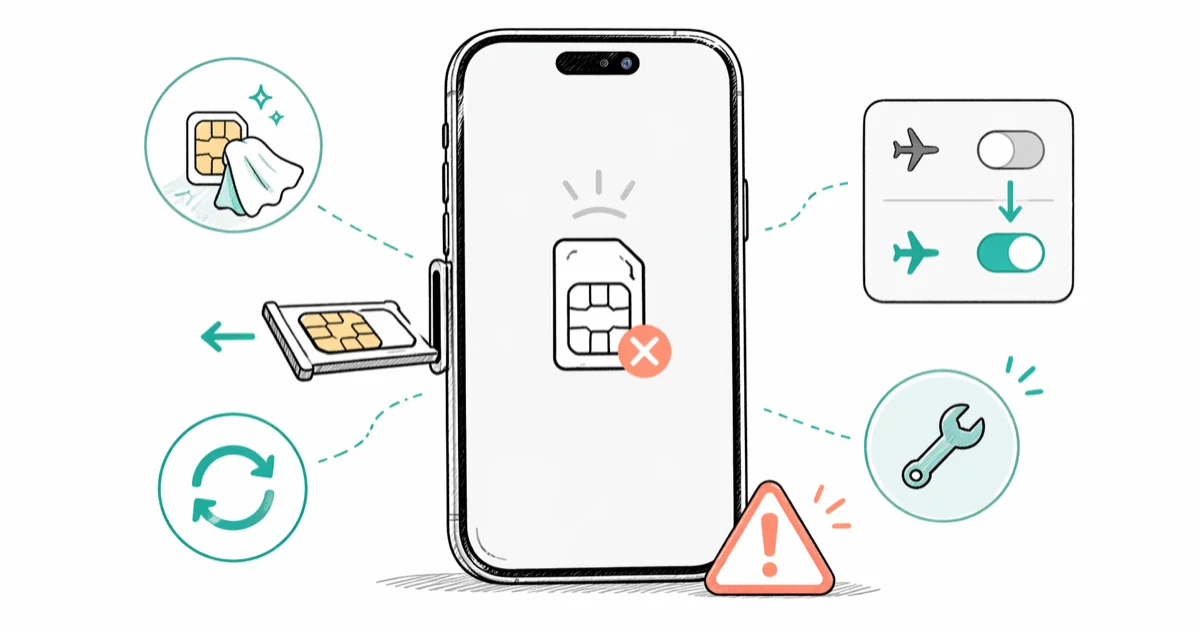
Quick AnswerConfirm that your carrier plan is active. For eSIM, contact the carrier; for a physical SIM, power off the iPhone and reseat the card with the proper eject tool.
The “No SIM Card Installed” alert means the iPhone isn’t detecting an active cellular identity. The correct first step depends on whether the device uses eSIM or a physical SIM, so don’t open a tray that your model doesn’t have.
Use these steps only for your own device and cellular account, or with explicit permission.
Unauthorized SIM or eSIM changes can violate privacy, carrier terms, or law.
- Confirm that the wireless plan is active before changing iPhone settings
- For eSIM, contact the carrier; for a physical SIM, reseat the card and tray
- Don’t blow into the SIM slot or insert an improvised sharp object
- Checking for an available iOS update is a low-risk step after the basic SIM checks
- Apple recommends testing another physical SIM before concluding the phone needs service
#Fix 1: Choose the eSIM or Physical-SIM Path
According to Apple’s No SIM checklist, an eSIM user should contact the carrier. If the iPhone has a physical SIM, power it off and reseat the card instead.
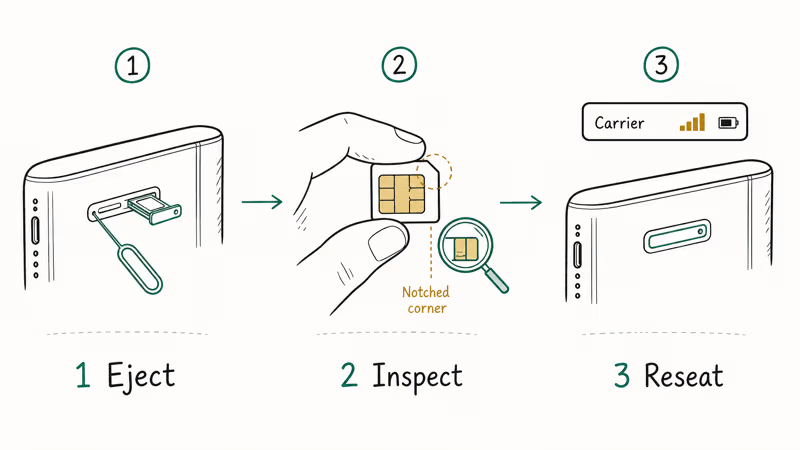
Use a proper SIM eject tool. Insert it straight into the tray hole and apply steady pressure; if the tray doesn’t release normally, stop and seek service instead of forcing it with a sharper object.
Inspect the SIM for scratches or debris. Wipe it only with a dry microfiber cloth.
Skip liquids. Put the card back in the tray with the notched corner aligned, close the tray completely, then power on and wait for the carrier name to return.
#Fix 2: Toggle Airplane Mode
Use Airplane Mode as a connection test after confirming the plan and SIM path.
Open Settings, switch Airplane Mode on, wait briefly, then switch it off again.
Watch the status bar for the carrier name and signal. You can also toggle Airplane Mode from Control Center.
#Why Does My iPhone Say “No SIM Card”?
The alert can reflect an inactive plan, eSIM provisioning, a physical SIM or tray issue, network settings, or cellular hardware. Use the checks below instead of assuming one cause:
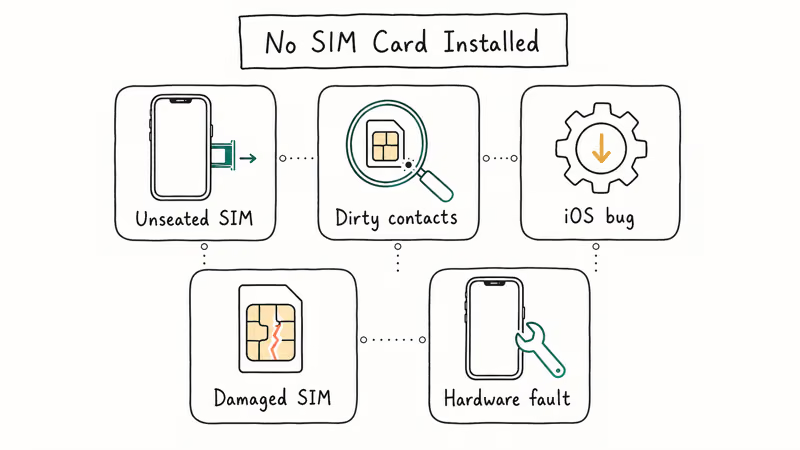
| Cause | Signs | Fix |
|---|---|---|
| Unseated SIM | Sudden error | Reseat SIM |
| Tray not seated | After handling | Reseat SIM and tray |
| Software issue | Basic checks fail | Check for update |
| Damaged SIM | Error on two phones | Replace SIM |
| Hardware fault | Nothing else works | Apple repair |
According to Apple’s No SIM troubleshooting checklist, you should confirm the line and lock status, restart the iPhone, check for a carrier settings update, and reseat a physical SIM. If the alert remains, Apple also suggests testing another SIM because the card may need replacement.
If the alert started after you switched providers, also check our guide on the iPhone “Network Not Available” error, which often shows up in the same scenarios.
#Fix 3: Restart Your iPhone
Restart and recheck the alert. Follow Apple’s restart guide for the button sequence used by your model.
Once the phone restarts, glance at the status bar to confirm the carrier name has returned.
#Fix 4: Inspect the Physical SIM and Tray
Skip this section on an eSIM-only iPhone. For a physical SIM, inspect the card and tray for visible damage and confirm that the tray closes completely and isn’t loose.
Don’t blow into the slot or insert anything. Ask Apple to inspect a bent tray.
#Fix 5: Check for a Carrier Settings Update
According to Apple’s carrier settings guide, these updates improve cellular connectivity and performance and can add support for carrier features.
Open Settings > General > About. If a carrier update is available, a prompt appears. Tap Update. Apple says installation takes less than one minute and you can keep using the device while it installs.
#Fix 6: Update iOS
According to Apple’s iPhone update steps, you should connect to Wi-Fi, open Settings > General > Software Update, and install an update if one is available. After the iPhone restarts, check whether the SIM alert returns.
#Does This Error Affect Unlocked iPhones?
A No SIM alert doesn’t prove carrier lock. Check Settings > General > About > Carrier Lock separately.
According to Apple’s unlock guide, No SIM restrictions means the iPhone is unlocked, and only the current carrier can unlock a locked iPhone.
To check your iPhone’s lock status, see our guide on how to check if your iPhone is unlocked without a SIM card. If you recently switched carriers, the new carrier may need to provision your line on their network. Our AT&T iPhone unlocking guide walks through the official request process if your phone came from AT&T.
#Fix 7: Try a Different SIM Card
For a physical SIM, Apple’s No SIM checklist says to test another SIM after reseating the original. Ask the carrier to perform the test or supply a replacement rather than assuming the iPhone is at fault. Our guide on SIM failure on iPhone covers related symptoms; an Invalid SIM alert has its own checks.
#Fix 8: Reset Network Settings
Reset Network Settings is a later software check because it removes saved network configuration.
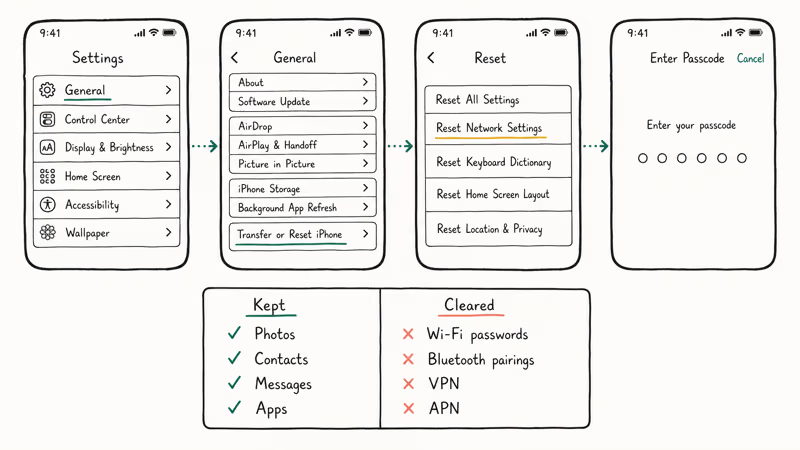
Go to Settings > General > Transfer or Reset iPhone > Reset > Reset Network Settings. According to Apple’s reset guide, this removes previously used networks and VPN settings that weren’t installed by a management profile. Reconnect to Wi-Fi afterward, then check the status bar. If you also see cellular data network errors, troubleshoot that symptom separately.
#Fix 9: Contact Apple Support
If the carrier confirms the plan, eSIM or physical SIM, and provisioning are correct but the alert remains, ask Apple to inspect the iPhone.
Book an appointment at your nearest Apple Store or through the Apple Support app. According to Apple’s iPhone repair pricing page, out-of-warranty service costs vary by model and depend on whether the issue is a single component or a logic-board repair. If your device is under warranty, AppleCare+, or a consumer-protection law in your region, the repair may be free.
#Bottom Line
First confirm the active plan and choose the correct eSIM or physical-SIM path. Then restart, check carrier settings, update iOS, and test another physical SIM through the carrier before resetting network settings or seeking hardware service.
#Frequently Asked Questions
Will resetting network settings delete my contacts or photos?
Apple says Reset Network Settings removes previously used networks and VPN settings not installed by management. It isn’t the erase-content option, but record the network details you’ll need to reconnect.
Can a software update cause the “No SIM Card” error?
The timing alone doesn’t prove that the update caused the alert. Restart, check for a newer iOS update, verify carrier settings, and ask the carrier to confirm the plan or eSIM before considering an erase or restore.
Why does my iPhone say “No SIM Card” after I dropped it?
On a physical-SIM model, power off and reseat the card, then check whether the tray closes completely. On an eSIM model, contact the carrier. If the tray, enclosure, or phone is visibly damaged, ask Apple to inspect it.
How do I know if my SIM card needs to be replaced?
Ask the carrier to test another compatible SIM. If another SIM works in the iPhone, the original card may need replacement; if no known-good SIM works, continue with carrier provisioning and Apple service checks.
Does the eSIM avoid the “No SIM Card” error?
An eSIM avoids tray and card-seating problems, but it doesn’t eliminate carrier-plan or provisioning issues. Apple’s No SIM checklist directs eSIM users to contact their carrier.
Can I use my iPhone without a SIM card?
Many Wi-Fi features can still work without an active cellular line, but mobile calls, SMS, and cellular data won’t work normally. Emergency-call availability without active service varies by country, network coverage, and local carrier support, so don’t rely on a blanket guarantee.
What if the SIM tray won’t eject?
Use the proper SIM eject tool straight into the tray hole. If the tray doesn’t release with normal steady pressure, stop; don’t substitute a thicker or sharper object. Ask Apple or an authorized service provider to open and inspect it.

Mac mini M6 vs M5 Pro: Which Model Should You Buy?
Mac mini M6 vs M5 Pro compared on price, memory, ports, displays, and real workloads. Find the better 2026 Mac mini for your desk and budget.

Apple Siri Settlement: Who Qualifies and How to Claim
Apple's $250 million Siri settlement covers iPhone 15 Pro and iPhone 16 models bought June 2024 to March 2025. See who qualifies and how claims work.

iOS 26.6.1 Security Update: What Apple Fixed and Who Gets It
Apple released iOS 26.6.1 on August 17 with 29 security fixes, including an IPSec interception bug. See what it patches, who gets it, and how to update.

iPhone Adaptive Power: How It Works and When to Use It
Learn how iPhone Adaptive Power works, which models support it, what it changes, and when Low Power Mode is still the better battery-saving choice.