iPad White Screen: Safe Restart, Zoom, and Recovery Steps
Troubleshoot an iPad white screen safely with Accessibility Zoom, Apple force-restart steps, recovery-mode Update, and clear service boundaries.
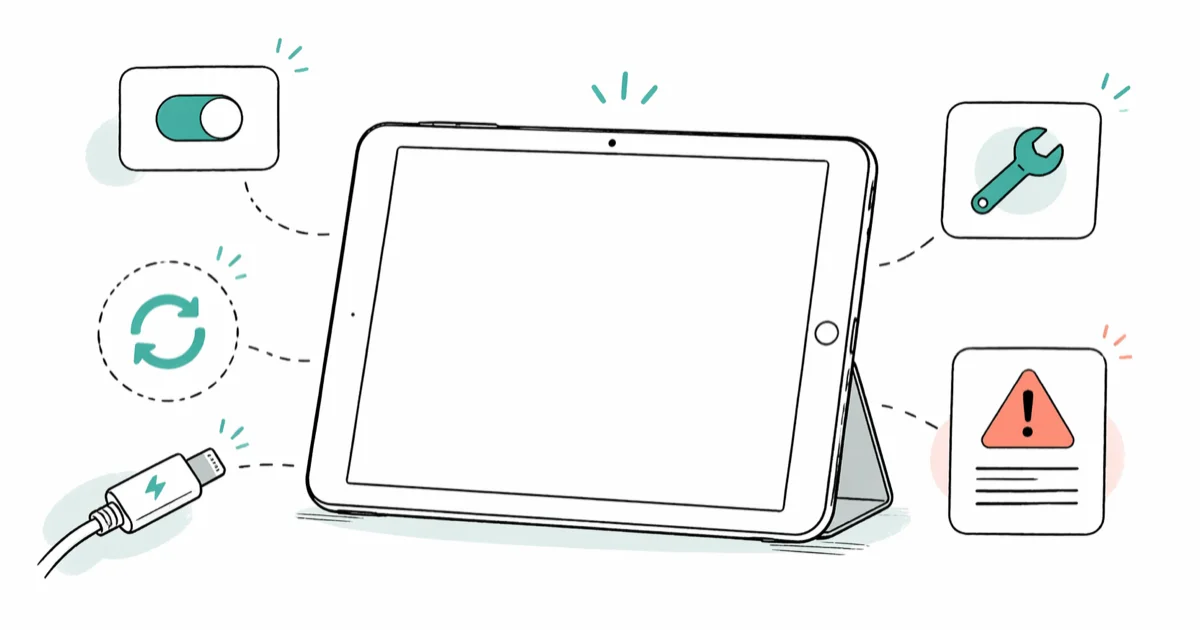
Quick AnswerIf touch still works, double-tap with three fingers to check Accessibility Zoom. If the iPad is unresponsive, force restart it; use recovery mode only when startup stays stuck, and try Update before Restore.
A white iPad screen is a symptom, not a diagnosis. It may be a magnified blank area, a frozen interface, or a startup failure. The screen alone doesn’t prove that an update failed or an internal cable is loose.
Use these steps only on your own device or one you are authorized to service. Start with the least destructive matching check.
- If touch still works, double-tap with three fingers to check Accessibility Zoom
- If the whole iPad is unresponsive, choose the force-restart sequence by whether it has a Home button
- Apple does not document a Home + Volume + Top “deeper reset” for this symptom
- For a startup failure, enter recovery mode and try Update before Restore
- Restore erases all data; Apple’s public iPad flow moves from recovery mode to service, not to consumer DFU steps
#Does the iPad Still Respond?
Try the top button, volume controls, and a three-finger gesture. Notice whether the screen changes, whether VoiceOver speaks, whether the iPad appears on a trusted computer, and whether the white screen appeared after a drop or liquid exposure.
Use those observations to choose a branch:
- The image is enlarged or moves with three fingers: Check Accessibility Zoom.
- Nothing on the screen responds: Force restart the iPad.
- The iPad restarts but can’t reach the Lock Screen: Use Apple’s startup and recovery instructions.
- The white screen follows physical damage or remains after Apple-supported steps: Request service.
Avoid naming a failed update, battery, logic board, or display connector unless diagnostics identify it. A blank screen can’t establish which component or process failed.
#Rule Out Accessibility Zoom
According to Apple’s magnified-screen support page, a three-finger double-tap zooms out when Home Screen items are magnified. The current iPad User Guide uses the same gesture to turn Zoom on or off.
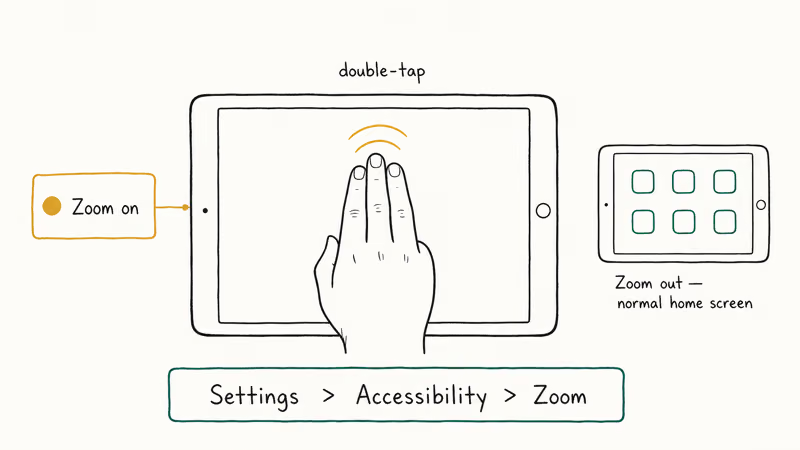
If the interface returns, turn off Zoom in Settings > Accessibility > Zoom unless you need it.
This check helps only when Zoom is active and the iPad still processes touch. It’s not a universal white-screen repair and does not prove that every responsive white area was caused by accessibility settings.
#Force Restart an Unresponsive iPad
According to Apple’s current frozen iPad page, there are separate sequences for devices with and without a Home button. Don’t choose by the iPad’s year, processor, or authentication method.
#iPad Without a Home Button
- Press and quickly release the volume button closest to the top button.
- Press and quickly release the volume button farthest from the top button.
- Press and hold the top button until the Apple logo appears.
#iPad With a Home Button
Press and hold the Home button and the top button together until the Apple logo appears.
Apple does not promise that this works within a fixed number of seconds or in a certain percentage of white-screen cases. Keep holding as the current instruction says, then release when the Apple logo appears.
If the iPad starts, back it up before further troubleshooting. Check whether the white screen belongs to one app, the whole interface, or startup. Our iPad freezing guide separates those cases and avoids treating one failed app as system corruption.
#Skip the Undocumented Three-Button Combo
The old article added Volume Up to Home + Top and called it a deeper reset.
Don’t replace the official two-button Home-button sequence with an extra volume button based on a community forum homepage. A forum index can’t verify a specific procedure, success rate, or hardware effect. Use the documented force restart above; if startup remains stuck, move to recovery mode.
#Use Recovery Mode for a Startup Failure
Recovery mode is appropriate when the iPad gets stuck during startup, displays a recovery screen, or can’t be updated normally. It’s not the next step merely because an app showed a white page.
Connect the iPad to Finder on Mac or Apple Devices on Windows.
Keep the cable connected while entering recovery mode:
- Without a Home button: Press and release the volume button closest to the top button, press and release the other volume button, then hold the top button. Keep holding past the Apple logo until the recovery-mode screen appears.
- With a Home button: Hold the Home and top buttons together and keep holding until the recovery-mode screen appears.
When the computer offers Update or Restore, try Update first. Apple’s page specifically recommends Update for an iPad stuck during startup. Update attempts to reinstall iPadOS without the factory-restore erasure.
If the download takes long enough for the iPad to leave recovery mode, allow the download to finish, then repeat the documented sequence. Don’t turn a published download timeout into an estimate for how long the repair itself should take.
#Understand What Restore Changes
According to Apple’s iPad recovery guide, Restore reinstalls iPadOS and erases all data.
A factory restore isn’t a harmless “full reinstall.” Check for a current iCloud or computer backup while the device is usable. Apple’s separate factory-restore page says it removes all information and settings and installs the latest software. Before choosing it, read what Restore changes on an Apple device and confirm the backup you intend to use.
Don’t promise that Update always preserves every item or that Restore always repairs a white screen. Storage, cable, download, account, accessory, and hardware problems can interrupt the process. If a computer backup is unavailable or failing, review our computer-backup troubleshooting guide before erasing a responsive device.
#Skip Consumer DFU Instructions
Apple’s current public iPad troubleshooting pages document force restart, recovery mode, Update, Restore, and service. They don’t send readers from a failed recovery attempt into a timed consumer DFU button sequence.
The former steps on this page included exact eight- and five-second holds and claimed that DFU bypasses the normal boot loader. Those claims were not supported by the cited Apple pages and made a destructive restore easier to trigger by mistake, so they have been removed.
If recovery mode can’t update or restore the iPad, if a required button is broken, or if the computer can’t recognize it, Apple’s current guidance is to request service. Don’t keep experimenting with undocumented timing sequences on a device that may contain the only copy of important data.
#When Does the White Screen Need Service?
Arrange service when:
- the iPad remains unresponsive after the documented force restart;
- recovery mode can’t update or restore it;
- a required button, port, cable connection, or display is physically damaged;
- the white screen started after a drop, bend, liquid exposure, swelling, or impact; or
- the display is blank but the iPad continues making sounds or appearing on a computer.
These observations justify inspection, not a remote diagnosis of a loose ribbon cable or failed logic board. Don’t open the iPad or press on the display to reseat parts.
Apple’s iPad service page asks for the exact model and issue before showing an estimate. Apple says it must inspect the product for a personalized final fee, and authorized providers can set their own fees. A universal price range or fixed deductible doesn’t belong here. Our iPad Pro charging guide covers the separate case where a blank screen follows a charging failure.
The same page describes in-person and mail-in service and gives the applicable service guarantee. Check current coverage and the estimate shown for your device rather than using a price copied from another model, country, or AppleCare plan.
#What Does the White Screen Actually Prove?
You can infer only a few things without diagnostics:
- If three-finger double-tap restores the normal view, Accessibility Zoom was involved.
- If a force restart restores normal operation, the device had been unresponsive, but the restart does not identify why.
- If the iPad can’t finish startup and Update succeeds in recovery mode, the supported software path resolved the startup state.
- If the problem follows physical damage or survives supported software steps, inspection is appropriate.
You can’t infer that lost Wi-Fi interrupted an update, that a display cable came loose, or that a battery is dead just from a white image. Keeping the language at the symptom level prevents readers from paying for the wrong repair or erasing data unnecessarily.
#After the iPad Starts Again
- Make a fresh backup while the device is responsive.
- Open
Settings>General>Software Updateand review any available update. - Check
Settings>General> iPad Storage for a Storage Almost Full alert and device-specific recommendations. - Note which app or action preceded the white screen.
- If the device was unusually hot or cold, let it return to Apple’s normal operating range before heavy use or charging.
Don’t create a fixed update deadline or waiting period. Apple’s iPadOS update guide recommends backing up and following the Software Update screen; it doesn’t say that every white screen comes from skipped updates. If a restore later asks for credentials you don’t know, don’t turn that into an unsupported iPad factory-reset workaround.
#Bottom Line
Use Zoom, restart, or recovery based on what the iPad can still do.
Remove undocumented three-button and DFU sequences from the decision path. Restore erases data, fixed repair prices drift, and a white screen alone can’t diagnose an internal cable or logic board. For the iPhone version of this symptom, use the model-specific iPhone white-screen guide.
#Frequently Asked Questions
Can a force restart erase the iPad?
No. A force restart is different from selecting Restore or Erase All Content and Settings. The destructive choice is Restore, which Apple’s recovery guide says reinstalls iPadOS and erases all data.
Does three-finger double-tap work on every white screen?
No. It helps when Accessibility Zoom is active and the iPad still responds to touch. If nothing changes, use the frozen-device sequence that matches the presence of a Home button.
Should I hold Home, Volume Up, and the top button together?
No Apple page cited here documents that as a deeper reset. On an iPad with a Home button, Apple’s force restart uses Home + top button. Recovery mode also begins with those documented buttons while the iPad is connected to a computer.
Will recovery-mode Update erase my data?
Update is the non-factory-restore option Apple tells readers to try first for a startup failure. Even so, keep a current backup whenever the device is usable. Selecting Restore is different: Apple says Restore erases all data.
Should I try DFU if recovery mode fails?
Apple’s current public iPad flow sends a failed recovery-mode case or broken-button case to service. This guide therefore does not provide timed DFU instructions or present DFU as a routine consumer step.
How much will Apple charge for a white-screen repair?
The amount depends on the exact iPad, coverage, location, and what inspection finds. Use Apple’s current iPad service estimator or an authorized provider’s quote; don’t rely on a universal price range or deductible.

Pixel 11 vs Pixel 10: What Changed and Who Should Upgrade
Pixel 11 vs Pixel 10: same screen and camera resolution, new Tensor G6, 25W wireless, and Gemini Intelligence. Here is who should actually upgrade.

Verizon Not Receiving Texts? How to Fix It in 9 Steps
Verizon not receiving texts? Fix it in 9 steps: check Message Blocking in My Verizon, reset network settings, deregister iMessage, and call support.

Pixel Battery Drain: What Google's July Fix Really Covers
Google marked the Pixel idle battery drain bug fixed in July, but only some phones got the patch. Here is who is covered, who is not, and what to try.

iPhone Stuck on EDGE? How to Get 5G or LTE Back (2026)
iPhone stuck on EDGE with crawling data? Here's why the E icon appears, which settings force 5G or LTE back, and when the problem is your carrier.