Fix iPad Is Disabled Connect to iTunes Error (2026)
Fix a disabled iPad with Apple's current on-device reset or recovery mode steps, then restore a backup without trusting any unlock-tool claims.
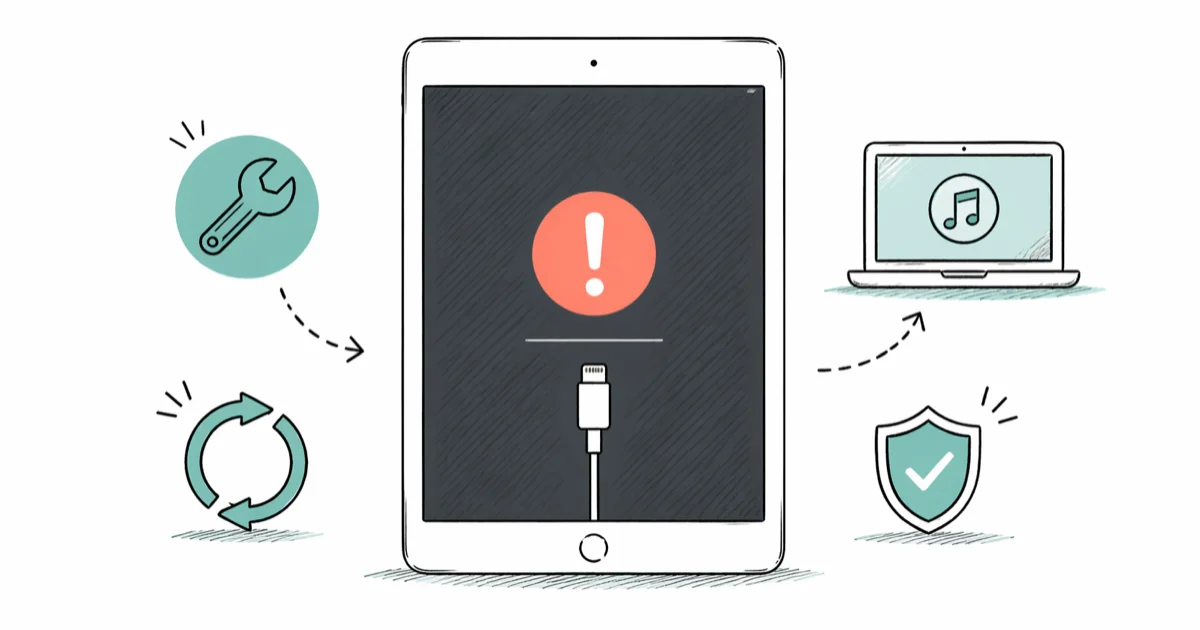
Quick AnswerTry the Forgot Passcode option on the iPad first. If it is unavailable, connect the iPad to a Mac or Windows PC, enter recovery mode, and choose Restore in Finder or Apple Devices.
The legacy “iPad is disabled, connect to iTunes” alert appears as iPad Unavailable or Security Lockout on newer software. Try Apple’s on-device reset first; otherwise, use recovery mode on a Mac or Windows PC.
Only reset an iPad you own or are authorized to manage. A reset doesn’t remove Activation Lock, organizational management, or someone else’s ownership rights.
- Try the lock-screen Forgot Passcode? option before using a computer
- On-device reset requires a network connection, Find My, and the linked Apple Account
- Recovery mode uses Finder on Mac or Apple Devices on Windows
- Resetting deletes the data and settings currently on the iPad
- Activation Lock still requires the linked Apple Account or an authorized support path
#What Does “iPad Is Disabled” Mean?
Repeated wrong passcode entries can put an iPad into an unavailable or Security Lockout state. Apple doesn’t publish the old fixed attempt-and-timer ladder on its current reset pages, so don’t rely on a chart that promises a particular delay or a final attempt count.
The device passcode protects local access; the Apple Account remains the ownership credential after reset.
The old 111766 citation was an Apple One page, not lockout documentation.
#How Can You Reset the iPad Without a Computer?
According to Apple’s current on-device reset guide, the lock-screen route is available on iPadOS 15.2 or later when Find My was enabled, the iPad has a cellular or Wi-Fi connection, and you know the Apple Account and password linked to it. On iPadOS 15.2 or iPadOS 16, the button can appear as Erase [Device] instead.
- From the Lock Screen, enter the passcode until the unavailable screen offers Forgot Passcode?.
- Tap Start [Device] Reset on the Security Lockout screen.
- Enter the linked Apple Account password to sign out.
- Tap Erase [Device] and confirm.
- When the iPad restarts, set it up and restore an available backup.
If that option is absent, stop guessing and move to the computer method.
#Reset a Disabled iPad With a Mac or PC
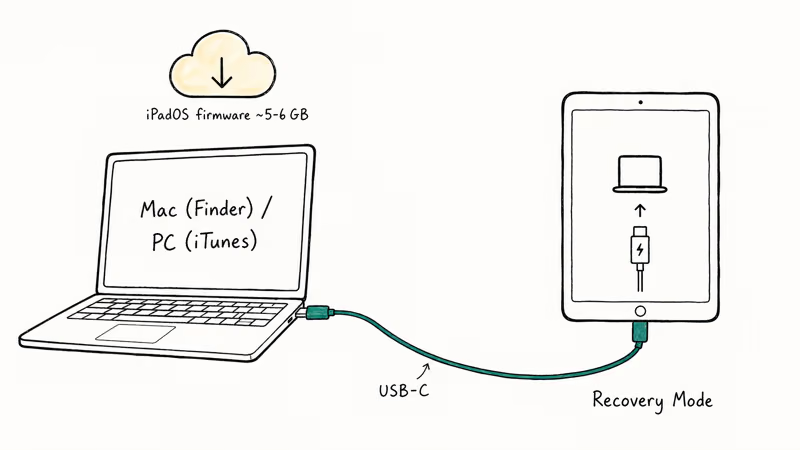
Apple’s current iPad recovery-mode guide states that Mac and Windows PC recovery requires a cable and an internet connection. Allow time for the computer to download the current software.
#Turn Off the iPad
- Disconnect the iPad if it’s already attached to the computer.
- On a model without a Home button, hold a volume button and the top button until the power-off slider appears. On a model with a Home button, hold the top button.
- Drag the slider, then wait until the iPad is fully off.
#Enter Recovery Mode
- Connect the iPad to the computer with the cable.
- For an iPad without a Home button, press and quickly release the volume button closest to the top button, do the same with the other volume button, then hold the top button.
- For an iPad with a Home button, hold the Home and top or side buttons together.
- Keep holding through the Apple logo. Release only when the computer-and-cable recovery screen appears.
These button sequences replace the old instruction to hold one button while plugging in the cable, which doesn’t describe Apple’s current no-Home-button flow.
#Choose Finder or Apple Devices
On a Mac, open Finder and select the iPad under Locations. On Windows, open Apple Devices, select the iPad, and use the General view if shown. Choose Restore when the computer offers Restore or Update.
If the iPad exits recovery mode during a long download, let the download finish and repeat the sequence.
If the computer can’t see the device, verify the cable and port before repeating the button sequence. Our guide to an iPhone stuck in recovery mode explains the same connection checks; for a restore error rather than a passcode problem, use the recovery-mode restore guide.
#Restore Data and Handle Activation Lock
Apple’s recovery page states that the reset deletes current data and settings, including the passcode.
Restoring removes the passcode, not Activation Lock. Apple’s Activation Lock guide confirms that the owner needs the Apple Account and password used to set up the device, an authorized organization’s administrator, or a support request backed by proof of purchase.
Don’t buy a used disabled iPad until the seller removes it from their account. If the setup screen requests an account the seller can’t provide, follow the legitimate Activation Lock removal paths rather than treating a firmware restore as an ownership workaround.
For a plain-language explanation of what a restore changes, see what Restore iPhone means; the erase-and-reinstall principle is the same for iPad.
#Avoid Unsupported Unlock Claims
Commercial tools often describe a guided firmware restore as a special passcode-removal feature. They can’t change Apple’s Activation Lock ownership requirement, and exact model, version, completion-time, or “no data loss” claims need current vendor proof for the device in front of you.
If the buttons don’t respond or recovery mode never appears, Apple directs the owner to service.
A school or business iPad belongs with its administrator. Trying to remove management can breach policy and expose organizational data.
If a similar message appears on a phone, use the platform-specific iPhone unavailable guide. For a working iPad that simply freezes during normal use, follow iPad freezing checks instead of erasing it.
#Bottom Line
Try Forgot Passcode? on the unavailable screen when the iPad meets Apple’s requirements. Otherwise, connect it to Finder on a Mac or Apple Devices on Windows, enter recovery mode with the current button sequence, and choose Restore. Expect the reset to erase current data and keep Activation Lock in place.
#Frequently Asked Questions
How many wrong attempts disable an iPad?
Apple’s current reset pages don’t provide a universal fixed ladder. Stop guessing once the iPad shows an unavailable or Security Lockout screen and use the documented reset choices.
Can I reset a disabled iPad without a computer?
Yes, when Forgot Passcode? or Erase [Device] appears and the iPad meets Apple’s network, Find My, software, and Apple Account requirements.
Does recovery mode erase the iPad?
Yes. Apple says the process deletes the data and settings, including the forgotten passcode. A usable backup is the recovery path for data afterward.
Do I still need iTunes on Windows?
Apple’s current instructions use the Apple Devices app on Windows. Finder handles the restore on Mac.
What if the iPad leaves recovery mode during the download?
Let the software download finish, turn off the iPad, and repeat the recovery-mode button sequence. Apple specifically documents this case for a download that runs longer than the recovery screen remains active.
Will a restore remove Activation Lock?
No. Setup can still require the Apple Account previously linked to the iPad. An organization can involve its administrator; an owner with proof of purchase can use Apple’s support-request path.
Can a third-party tool recover the data without the passcode?
Don’t treat that claim as guaranteed. Apple’s documented reset paths erase the current data, and a commercial restore wrapper doesn’t create a backup that wasn’t already available.

Mac mini M6 vs M5 Pro: Which Model Should You Buy?
Mac mini M6 vs M5 Pro compared on price, memory, ports, displays, and real workloads. Find the better 2026 Mac mini for your desk and budget.

Apple Siri Settlement: Who Qualifies and How to Claim
Apple's $250 million Siri settlement covers iPhone 15 Pro and iPhone 16 models bought June 2024 to March 2025. See who qualifies and how claims work.

iOS 26.6.1 Security Update: What Apple Fixed and Who Gets It
Apple released iOS 26.6.1 on August 17 with 29 security fixes, including an IPSec interception bug. See what it patches, who gets it, and how to update.

iPhone Adaptive Power: How It Works and When to Use It
Learn how iPhone Adaptive Power works, which models support it, what it changes, and when Low Power Mode is still the better battery-saving choice.