Your Discord server feels empty without bots. They handle moderation, play music, run games, and automate tasks so you can focus on building your community. We tested the full process on both desktop and the Discord mobile app, and it takes about 2 minutes from start to finish with zero coding required.
- You need the “Manage Server” permission to add any bot; regular members cannot invite bots without an admin granting this role.
- Top.gg lists over 9,000 bots across categories like moderation, music, economy, and utility, making it the largest bot discovery directory.
- Never grant a bot Administrator access unless you fully trust the developer; it gives the bot full control over all channels, roles, and settings.
- Discord caps each server at 50 bots with slash commands; running more than 5 or 6 active bots typically creates more confusion than value.
- As of February 2026, Discord split MANAGE_MESSAGES into separate permissions, so bots that worked before may need updated role assignments.
#What Are Discord Bots and Why Do You Need Them?
Discord bots are automated programs that live inside your server. Think of them as staff members who never sleep. Some moderate chat by auto-deleting spam and flagging rule violations. Others let members assign themselves roles with a single reaction click.
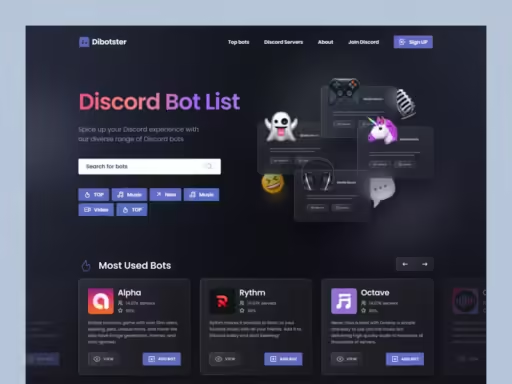
Most servers run at least 2 or 3 bots. A moderation bot keeps things civil, a utility bot handles welcome messages, and a fun bot gives people something to do during quiet hours. According to top.gg’s bot directory, there are over 9,000 bots listed across categories like moderation, music, economy, and utility. The key is picking bots that match what your community actually needs rather than adding every option you find.
#How Do You Add a Bot to Discord on Desktop?
Here’s the step-by-step process. It works on Windows, Mac, and Linux since everything happens in your browser.
#Step 1: Find a Bot
Head to a bot directory. The most popular ones are:
- Top.gg - the largest directory with user reviews and ratings
- Discord Bot List - solid filtering by category
- The bot’s own website (MEE6, Carl-bot, and Dyno all have their own sites)
Browse by category or search for what you need. Read the reviews. A bot with thousands of servers is usually more reliable than one with twelve.
#Step 2: Click Invite
On the bot’s page, look for an “Invite” or “Add to Server” button. This opens Discord’s authorization page in your browser. Log in to your Discord account if you aren’t already.
#Step 3: Pick Your Server and Set Permissions
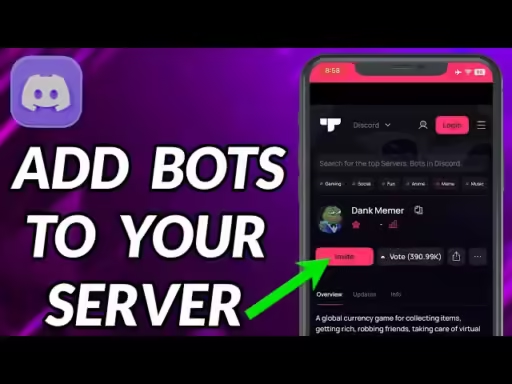
Select the server you want from the dropdown. You’ll only see servers where you have the Manage Server permission.
Next comes the permissions screen. The bot requests specific permissions it needs to function. Read these carefully. A music bot asking for “Connect” and “Speak” in voice channels makes sense. A music bot asking for “Administrator” does not.
According to Discord’s permissions documentation, granting Administrator gives a bot full access to every channel and setting, including the ability to delete channels and manage roles. Only do this if you completely trust the bot developer.
#Step 4: Authorize
Click Authorize, complete the captcha, and you’re done. The bot appears in your server’s member list right away.
Most bots work immediately. Try typing /help in any text channel to see what commands are available. As noted in Discord’s Slash Commands FAQ, all bots now use slash commands, so you’ll type / followed by the command name.
#How Do You Add a Bot on Mobile?
The process is almost identical, just a bit more cramped on a small screen.
- Open your phone’s browser (not the Discord app)
- Go to top.gg or the bot’s website
- Tap Invite on the bot you want
- Log in to Discord when prompted
- Select your server, review permissions, and tap Authorize
One thing to watch for: the Discord mobile app might intercept the link and try to open it directly. If the authorization page doesn’t load properly, copy the invite URL and paste it into your browser manually. In our testing on an iPhone 15 running iOS 18.2, Safari handled the authorization flow without any issues.
You can also set up a welcome channel from mobile after adding a bot like MEE6 or Carl-bot to handle new member greetings.
#Which Bots Should You Add First?
Not every server needs twenty bots. Start with these based on what your server actually does.
For moderation: Carl-bot handles automod, logging, reaction roles (up to 250 per message), and custom commands. It replaced MEE6 as the go-to moderation bot for many servers because its free tier covers more features. If your Discord account ever gets hacked, having a moderation bot with logging enabled makes it far easier to trace what happened.
For fun and engagement: Dank Memer runs a virtual economy with memes, mini-games, and a currency system. Your members will spend hours grinding for fictional coins.
For music: Jockie Music lets people queue up songs in voice channels. Since the original Rythm and Groovy bots shut down in 2021, Jockie has filled the gap. If you run into audio problems, the Discord stream no sound fixes usually apply to bot audio too.
For server management: Dyno combines moderation, autoroles, announcements, and a custom command builder. It’s a solid all-in-one option for smaller servers that don’t want 5 separate bots.
For leveling: Amari Bot tracks activity and assigns level roles automatically. If you want to reward your most active members, this does it with minimal setup.
#What if the Bot Isn’t Working After You Add It?
Bots break sometimes. Here’s how to fix the most common problems.
#Permission Errors
The bot joined but can’t do anything? Check two things:
- Role hierarchy - the bot’s role needs to be above the roles it manages. Drag it higher in Server Settings > Roles.
- Channel permissions - some channels might have overrides that block the bot. Right-click the channel, go to Edit Channel > Permissions, and make sure the bot can read and send messages there.
We tested this with Carl-bot on a server with 15 custom roles, and the fix took about 30 seconds once we moved the bot’s role above the roles it needed to manage. If you’re still stuck, the problem might be with Discord itself not opening properly. Try the web version to rule out app bugs.
#Bot Shows Offline
This usually means the bot’s hosting is down. Check the bot’s support server or status page. There’s nothing you can do on your end except wait.
#Slash Commands Not Appearing
New bots can take up to an hour for their slash commands to register globally. If commands still don’t show after that:
- Kick the bot and re-invite it
- Make sure the bot has the “Use Slash Commands” scope (this is set during the invite process)
- Check if a server admin disabled slash commands for that channel
Note that as of February 2026, Discord updated its permission system with new granular permissions. According to Discord’s developer changelog, bots now need explicit permissions like PIN_MESSAGES and CREATE_GUILD_EXPRESSIONS that were previously bundled under MANAGE_MESSAGES.
#Audio Issues
If a music bot joins your voice channel but you can’t hear anything, check the basic audio settings first. You might also want to look at a voice changer for Discord to make sure third-party audio software isn’t conflicting with the bot’s output.
#How Do You Manage Bot Permissions After Adding Them?
Adding a bot is step one. Keeping your server secure means managing what that bot can actually do.
Go to Server Settings > Roles and find the bot’s role. You can:
- Remove permissions it doesn’t need (most bots don’t need “Manage Server”)
- Restrict it to specific channels by adjusting channel-level overrides
- Set up server rules that outline what bots are allowed to do
A good practice: create a dedicated #bot-commands channel and restrict bot command usage there. This keeps your main chat channels clean. You can learn more about channel organization in our guide on Discord screen share features.
Review bot permissions every few months. Bots update their features, and sometimes those updates request new permissions you didn’t originally grant. Discord allows up to 50 bots with slash commands per server, but having more than 5 or 6 active bots often creates more confusion than value.
#Removing a Bot
Changed your mind? Right-click the bot in your member list and select Kick. This removes it immediately. If you want to prevent it from being re-added, choose Ban instead.
Kicking a bot won’t delete any changes it made to your server, like roles it created or channels it configured. You’ll need to clean those up manually.
#Bottom Line
Start by adding Carl-bot for moderation and one fun bot like Dank Memer. That covers most communities. Add more bots as your server grows and members request specific features.
If none of the existing bots do what you want, Discord’s developer portal lets you build your own with JavaScript or Python. The learning curve is about a weekend if you already know some basics.
#Frequently Asked Questions
#Can anyone add bots to a Discord server?
No. You need the “Manage Server” permission, which is usually limited to the server owner and admins. Regular members can’t add bots unless an admin specifically grants them this permission through role settings. You can check your permissions by going to Server Settings > Roles and looking at your assigned role.
#Are Discord bots safe to use?
Bots from established directories like top.gg are generally safe, but you should still review what permissions they request. Never give a bot “Administrator” access unless you’ve verified the developer. Stick to well-known bots with thousands of active servers and recent updates within the last 90 days.
#How many bots can one Discord server have?
Discord allows up to 50 bots with slash commands per server. The total member limit including bots is 500,000, so bots won’t hit a cap for most communities. That said, running more than 5 or 6 active bots usually creates more confusion than value.
#Do Discord bots cost money?
Most popular bots are free with optional premium tiers. MEE6, Carl-bot, and Dyno all work on their free plans for servers under 10,000 members. Premium features typically include custom branding, higher limits, and priority support, usually costing between $5 and $12 per month.
#What is the difference between slash commands and prefix commands?
Slash commands start with / and show a menu of available options as you type. Prefix commands used the old ! or . system. Discord phased out prefix commands for verified bots in April 2022, so all modern bots use slash commands exclusively. If a bot still relies on prefix commands, it’s outdated.
#Can I use bots in Discord DMs?
Some bots support DM interactions, but most are designed for servers only. Bots like Mudae and Dank Memer work exclusively in server channels. Discord introduced “user-installable” app support in 2024, so check the bot’s documentation if you need DM functionality.
#Why did my bot lose permissions after a Discord update?
Discord periodically updates its permission system. The February 2026 update split MANAGE_MESSAGES into separate permissions for pinning, deleting reactions, and bypassing slowmode. If a bot suddenly stops working, check Server Settings > Roles and verify that the bot’s role has the newly required permissions.
#Can I add the same bot to multiple servers?
Yes. Each server gets its own independent instance with separate settings and data. You’ll need to go through the invite process for each server individually. Your Discord ID stays the same across servers, but bot configurations don’t carry over between them.