Googledrivesync.exe: Is It Safe or Should You Remove It?
Learn what googledrivesync.exe is, whether it is safe, how to verify its location, and how to fix common errors with this Google Drive sync file.
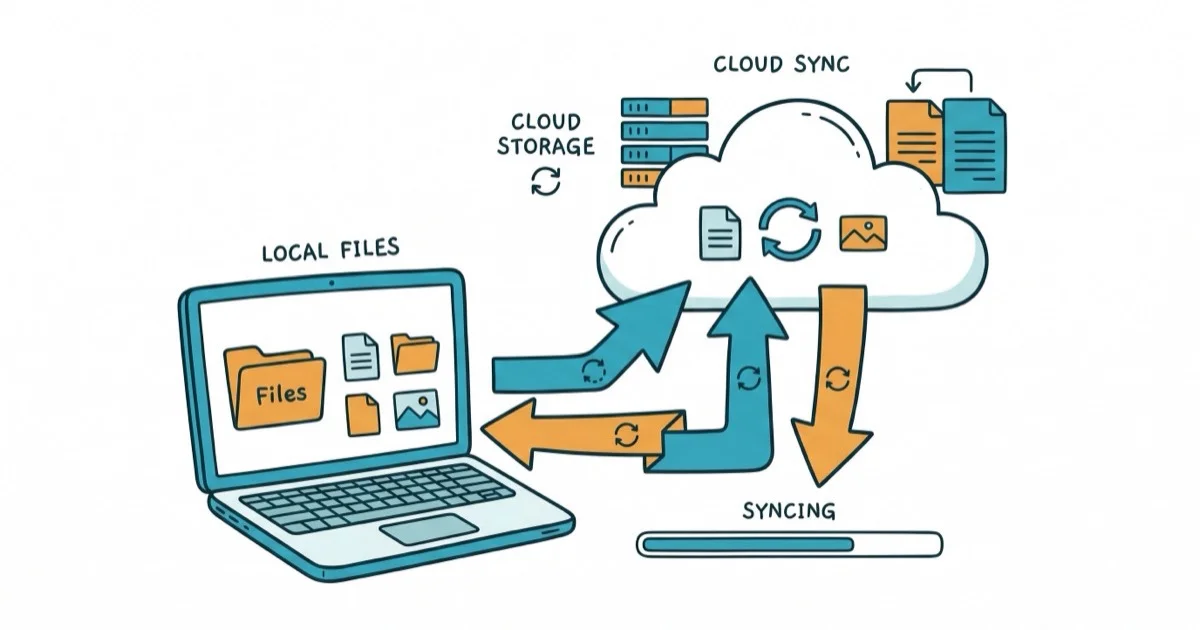
Quick AnswerGoogledrivesync.exe is a legitimate executable file that belongs to Google Drive desktop sync. It is safe when located in its default Program Files directory, but if you find it running from an unusual path like C:\Windows\System32, it could be malware disguising itself under that filename.
Seeing an unfamiliar .exe file on your Windows PC can feel alarming, and googledrivesync.exe is one that triggers questions for many users.
This file is tied to Google Drive’s desktop sync functionality, but whether it’s safe depends entirely on where it’s running from and how it got there. This guide covers identifying, verifying, and troubleshooting this file.
- Googledrivesync.exe is a legitimate Google Drive sync file under 922 KB
- The file belongs in Program Files, not C:\Windows or System32
- Malware can disguise itself as googledrivesync.exe in system directories
- Use Task Manager or Process Explorer to verify its location and signature
- Google replaced this app with Drive for Desktop in October 2021
#Googledrivesync.exe Overview and Purpose
Googledrivesync.exe is an executable file associated with Google’s older desktop sync application, formerly known as Google+ Auto Backup and later as Backup and Sync. The file handles the background process that keeps your local files synchronized with your Google Drive cloud storage.
The file is commonly reported as a small Google sync executable rather than a large standalone application.
Google’s support page confirms that Backup and Sync was retired on October 1, 2021 and replaced with Google Drive for Desktop. If you still see googledrivesync.exe, you’re running the legacy app and should update to the current version.
Google’s Drive for desktop settings guide confirms that the app supports differential uploads, sending only the changed parts of an edited file rather than the whole thing, which cuts the bandwidth each sync uses.
If you’ve encountered other Windows executable questions, you might find our guide on Google Update.exe helpful for understanding another common Google process. Our article on YourPhone.exe on Windows 10 covers a similar topic with Microsoft’s phone linking feature.
#Is Googledrivesync.exe Safe to Keep on Your Computer?
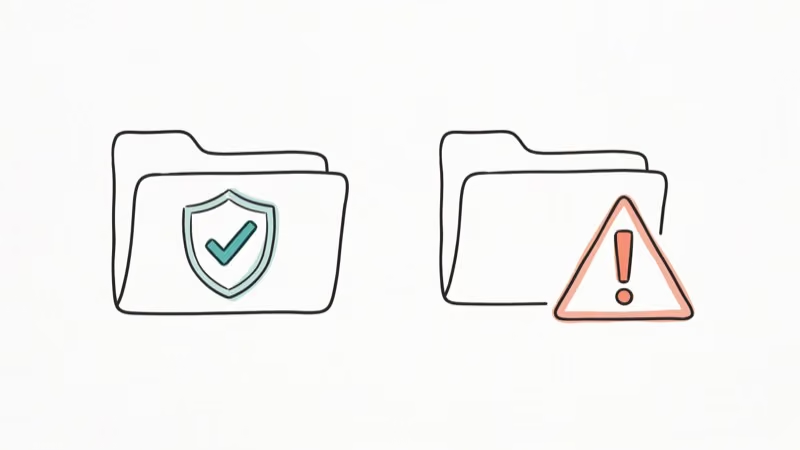
The file itself is safe when it’s the genuine Google-signed version sitting in its correct directory. The risk comes when malware impersonates googledrivesync.exe by copying itself to a system folder.
The legitimate file path is:
C:\Program Files\Google\Drive\googledrivesync.exeor on older installations:
C:\Windows\Installer\{A50DE037-B5C0-4C8A-8049-B0C576B313D1}\GPUploader.exeFor the authentic file, the important checks are a Google LLC digital signature and a location inside the Google Drive Program Files directory.
How to check using Task Manager:
- Press Ctrl + Shift + Esc to open Task Manager and find googledrivesync.exe under “Processes.”
- Right-click the process, select “Open file location,” and verify the path matches the directories listed above.
How to check using Process Explorer:
Download Microsoft’s Process Explorer for a more detailed view. It displays a “Verified Signer” column. Legitimate Google files show “Google LLC” as the signer. If you see “Unable to Verify,” treat the file as suspicious.
Any copy of googledrivesync.exe found in C:\Windows, C:\Windows\System32, or C:\Temp should be treated as potential malware. Real Google Drive sync never installs itself in those locations.
#Common Error Messages for Googledrivesync.exe
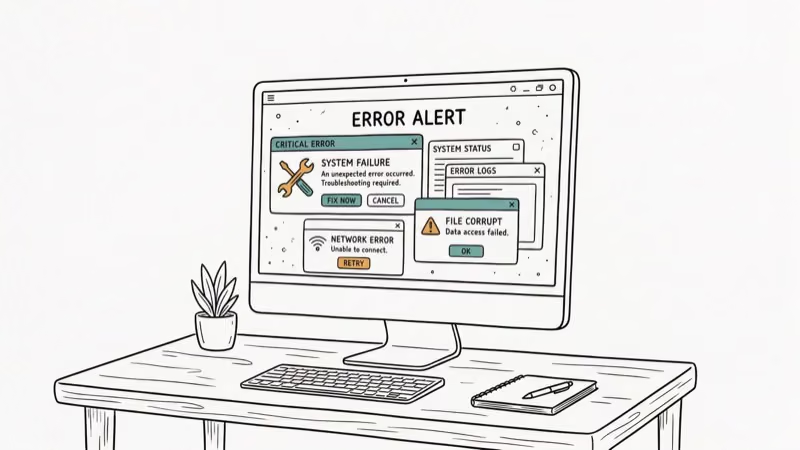
When googledrivesync.exe isn’t working correctly, Windows displays specific error messages that point to the underlying problem. Here are the most common ones:
- Application Error or Has stopped working: Corrupted file, software conflict, or low memory.
- Not a valid Win32 application: Damaged file or architecture mismatch.
- Can’t find googledrivesync.exe: Deleted, quarantined, or wrong install path.
- Faulting application path: Repeated crash logged in Windows Event Viewer.
Microsoft’s guide to repairing apps in Windows states that the 2 main fixes, repairing or resetting the app, resolve most .exe errors, which usually stem from corrupted installations, conflicting software, or missing system files rather than the executable itself.
#How Can You Fix Googledrivesync.exe Errors?
Start with the least invasive fixes and escalate only if the problem persists.
Run a system file check. Open Command Prompt as administrator and type sfc /scannow. This scans all protected system files and replaces corrupted ones, which can help when the error comes from damaged Windows components.
Clean your disk. Press Win + R, type cleanmgr, and run Disk Cleanup to remove temporary files and old Windows Update data.
Run DISM repair. For Windows 10 and 11, open an elevated Command Prompt and run:
DISM.exe /Online /Cleanup-Image /RestoreHealthThis repairs the Windows component store and fixes persistent application errors that SFC alone can’t resolve.
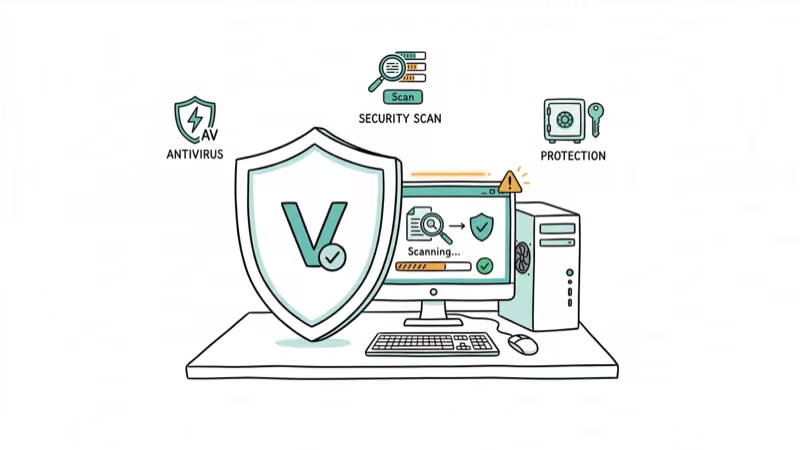
Check for malware. Run a full scan with Windows Defender or your preferred antivirus. Also try Malwarebytes for a second-opinion scan since malware disguised as googledrivesync.exe won’t always trigger your primary antivirus.
Reinstall Google Drive. If errors continue after all the steps above, uninstall Google Drive completely through Settings > Apps > Installed Apps, then download the latest Google Drive for Desktop. The new version replaces googledrivesync.exe with a modern sync engine and removes the legacy process from current installs.
For other Windows system errors, our guide on fixing the Bad Pool Caller error walks through similar diagnostic steps, and our article on fixing SSL errors covers certificate-related issues that sometimes accompany corrupted system files.
Lost work during a crash? See recovering unsaved Excel files.
#Preventing Future Googledrivesync.exe Problems
The simplest long-term fix is upgrading to Google Drive for Desktop, which replaced the legacy Backup and Sync app. The newer client uses a different executable entirely, so googledrivesync.exe disappears from your system after the upgrade.
Set Windows Update to install automatically. Many .exe errors stem from outdated system components that Microsoft patches regularly. Keeping your OS current prevents the DLL conflicts and registry corruption that trigger application errors.
Run weekly antivirus scans rather than relying solely on real-time protection. Some malware variants disguise themselves as legitimate executables and only get flagged during full system scans. Windows Defender’s scheduled scan feature handles this automatically if you enable it in Settings > Privacy & Security > Windows Security.
#When to Keep or Remove Googledrivesync.exe
It depends on whether you’re still using the legacy Google Drive sync app.
Keep it if: You’re actively using Backup and Sync or an older Google Drive desktop client, the file is in its correct location, and it’s digitally signed by Google.
Remove it if: You’ve already upgraded to Google Drive for Desktop (the current app doesn’t use this file), the file is in an unexpected location, or Process Explorer can’t verify its signature.
To remove the old sync app safely, go to Settings > Apps > Installed Apps, find “Backup and Sync from Google” or “Google Drive,” and click Uninstall. Don’t just delete the .exe file manually since that can leave behind registry entries and orphaned files.
After uninstalling, restart your computer and check Task Manager to confirm googledrivesync.exe no longer appears in the process list.
#Bottom Line
Googledrivesync.exe is a legitimate Google file in most cases, but its age makes it worth investigating. Google discontinued the app that uses it back in October 2021, so finding it still running on your system usually means you’re overdue for an update to Google Drive for Desktop.
If the file sits in Program Files with a valid Google signature, it’s harmless. Otherwise, run a malware scan. Either way, upgrading removes it.
#Frequently Asked Questions
Can I reinstall googledrivesync.exe after removing it?
Yes. Installing any version of Google Drive desktop sync restores the file. However, Google now distributes Google Drive for Desktop, which uses a different executable. If you install the current version, googledrivesync.exe won’t reappear since it’s been replaced by a newer sync engine.
Will removing googledrivesync.exe delete my Google Drive files?
No. Your cloud-stored files remain in your Google Drive account regardless of what happens to the local executable. Removing the sync app only stops the automatic sync between your computer and the cloud. You can still access all files through drive.google.com.
Does googledrivesync.exe work on Mac?
No. The .exe format is Windows-only. Mac users get a .dmg installer for Google Drive for Desktop with a different process name.
Can I choose which folders googledrivesync.exe syncs?
Yes. The older Backup and Sync app and the current Google Drive for Desktop both let you select specific folders for sync. Open the app preferences, go to the sync settings, and check or uncheck folders to control what gets synced locally.
How much RAM does googledrivesync.exe normally use?
Memory usage stays modest during normal sync. If you see it consuming over 200 MB, that’s abnormal and could indicate a stuck sync operation or a corrupted cache that needs clearing.
Is googledrivesync.exe the same as Google Drive for Desktop?
They’re different apps. Googledrivesync.exe belonged to Backup and Sync, which Google retired. Google Drive for Desktop replaced it.

Best Laptop for Running LLMs in 2026: Memory Comes First
The best laptop for running LLMs is a memory purchase first. Compare MacBook unified memory against NVIDIA laptop VRAM, and see what each tier really runs.

How to Run a Local LLM on Windows: A 2026 Setup Guide
Run a local LLM on Windows with LM Studio or Ollama. Pick a model that fits your GPU memory, keep every prompt offline, and skip the monthly bill.

Bluetooth Not Working on Snapdragon X? Fixes for 2026
Bluetooth not working on your Snapdragon X Copilot+ PC? Generic audio, mice, and keyboards work, but vendor apps often lack an ARM build. Fixes inside.

Docker Desktop and WSL2 Not Working on Snapdragon X? Fix It
WSL2 runs fine on Snapdragon X, but Docker Desktop ARM is Early Access and throws WSL errors. Use WSL2 plus native ARM64 Ubuntu and Docker Engine.