Clipchamp Review: Is It Worth It? Plus 4 Alternatives
Honest Clipchamp review covering its free editor limits, export quality, and 4 stronger alternatives for video compression and editing in 2026.
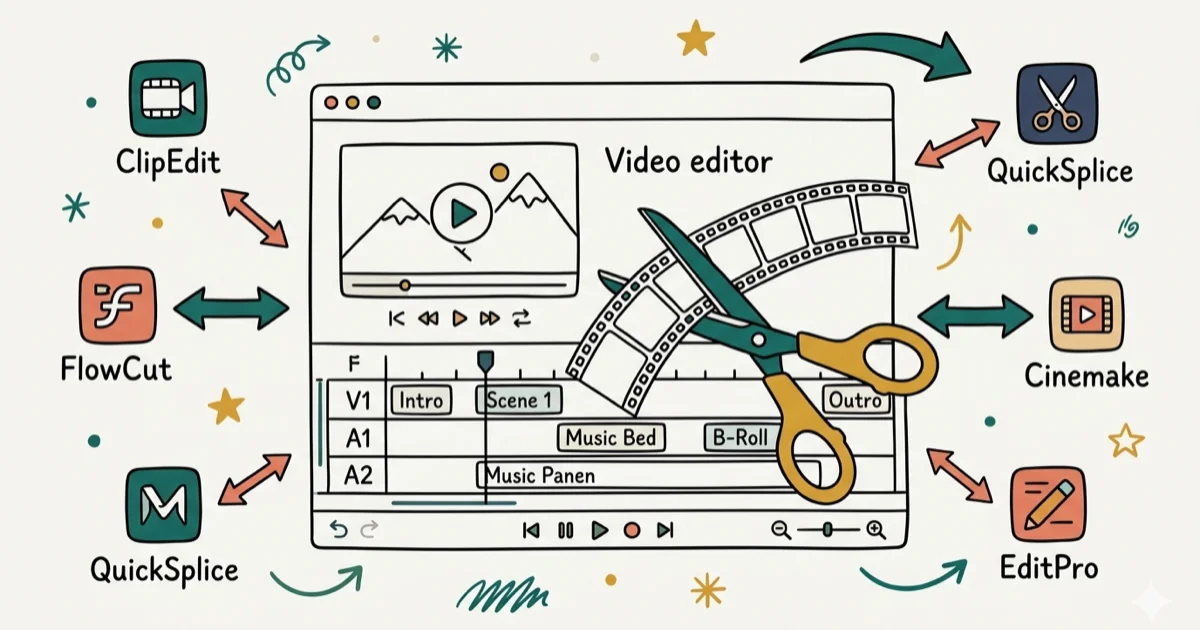
Quick AnswerClipchamp is a free browser-based video editor owned by Microsoft, but it lacks advanced features and exports at limited resolution on free plans. Better alternatives include Wondershare UniConverter, Media.io, HandBrake, and DaVinci Resolve.
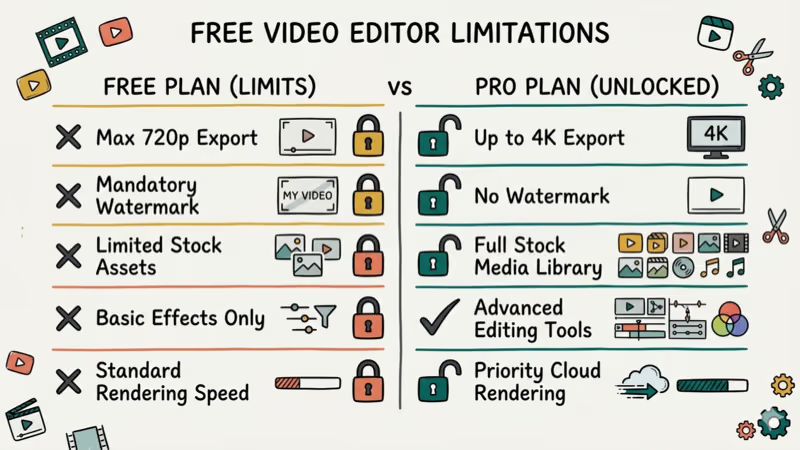
Clipchamp is Microsoft’s free browser-based video editor that promises quick editing without software downloads. Its drag-and-drop timeline works fine for simple cuts, but the free plan’s 1080p export cap and watermark limitations push many users toward dedicated alternatives.
Use video-editing tools only with your own device, your own account, and media you are authorized to edit or publish. Uploads may include faces, voices, client files, or copyrighted clips, so stay within legal privacy boundaries, follow license terms, and get consent before editing or sharing someone else’s footage online.
- Clipchamp’s free tier caps exports at 1080p and adds watermarks to premium templates
- Video compression through Clipchamp takes noticeably longer than desktop tools like HandBrake
- Wondershare UniConverter supports over 1,000 formats and handles batch processing that Clipchamp can’t
- HandBrake delivers open-source video transcoding with no file size limits or account requirements
- DaVinci Resolve offers professional-grade color correction and audio editing completely free
#Clipchamp Features and Limitations
Clipchamp handles basic video editing, compression, and format conversion directly in your browser. Microsoft acquired Clipchamp in 2021 and bundled it into Windows 11, making it the default video editor for millions of PC users.
The tool covers trimming, cropping, rotating, and adding text overlays. It also provides stock footage, templates, and basic audio tools.
Clipchamp can handle a 5-minute 1080p clip without crashing, but browser-based rendering is slow on a mid-range laptop. That’s considerably slower than HandBrake on the same file.
#How to Compress a Video in Clipchamp
-
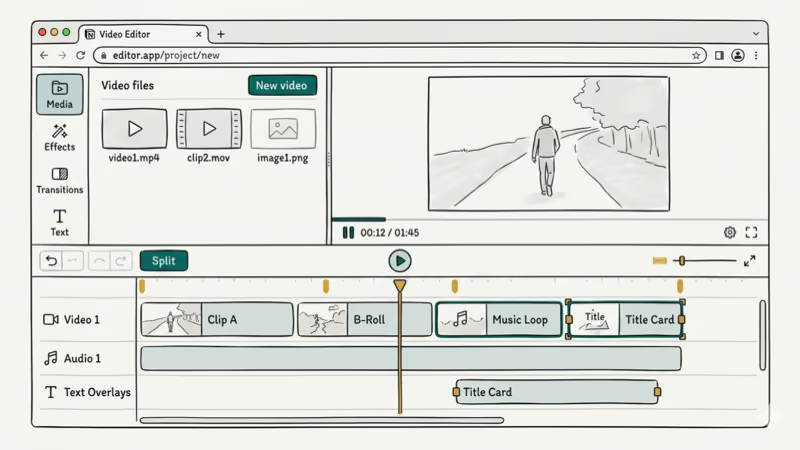
Open the Clipchamp editor and sign in with your Microsoft account. You can also use a Google or Facebook login.
-
Click Import media to load your file.
-
Drag the clip onto the timeline, then trim, crop, or split as needed. Add text overlays or transitions from the sidebar if you want them.
-
Click Export and pick your resolution.
-
Wait for the browser-based rendering to finish, then download the compressed file to your computer. Rendering speed depends heavily on your internet connection and the clip’s length.
#Clipchamp’s Biggest Drawbacks
A few pain points stand out across regular use of the editor:
-
Resolution ceiling: free users max out at 1080p.
-
Slow rendering: browser-based processing runs noticeably slower than native desktop apps, especially with longer clips, where rendering can take considerably longer than the clip itself.
-
Limited format support: no ProRes, MKV, or professional codecs.
-
Account requirement: you must sign in with a Microsoft account before doing anything, which adds friction compared to tools like HandBrake that don’t need an account at all.
-
No batch processing: each video requires individual treatment.
-
Basic audio tools: there’s no multi-track audio mixing or advanced noise reduction, so you’ll need a separate tool for anything beyond simple volume adjustments.
According to PCMag’s Clipchamp review, the editor earns a middling rating, with reviewers noting that export speeds lag behind desktop alternatives. Clipchamp is best treated as Microsoft’s lightweight built-in editor rather than a full desktop NLE replacement.
#Wondershare UniConverter as a Desktop Alternative
Wondershare UniConverter stands out as the most full-featured alternative. It’s desktop software for Windows and Mac that handles compression, conversion, and editing without browser limitations.
Some links on this page are affiliate links, which means fone.tips may earn a commission at no extra cost to you.
UniConverter supports over 1,000 video and audio formats. It can shrink file sizes by adjusting resolution, bitrate, and codec without destroying visual quality, often taking a multi-gigabyte MP4 down to a few hundred megabytes while keeping the video crisp at 720p.
#Key Features
- Batch processing for converting dozens of files at once
- 90x faster GPU-accelerated encoding compared to software rendering
- Built-in editor with trimming, watermarks, subtitles, and effects
- Video downloader that grabs clips from over 10,000 sites
- DVD burning and screen recording tools included
- Real-time preview so you can check quality before committing
For anyone who regularly compresses or converts video, UniConverter’s speed advantage alone justifies the switch from Clipchamp. If you’re working with AVI files specifically, UniConverter handles that format natively.
#Which Free Alternatives Are Worth Trying?
#Media.io
Media.io is a web-based compressor that doesn’t require sign-up or installation. It handles both audio and video files, supports common formats like MP4, MOV, and AVI, and produces clean output without watermarks. The catch: it processes one file at a time, so it’s best for occasional use rather than bulk work.
#HandBrake
HandBrake is open-source video transcoding software that runs on Windows, Mac, and Linux. According to HandBrake’s official documentation, the tool supports batch scanning, queue processing, and advanced encoding presets.
It handles virtually any input format and exports to MP4 or MKV. There’s no file size limit, no account required, and zero cost.
#DaVinci Resolve
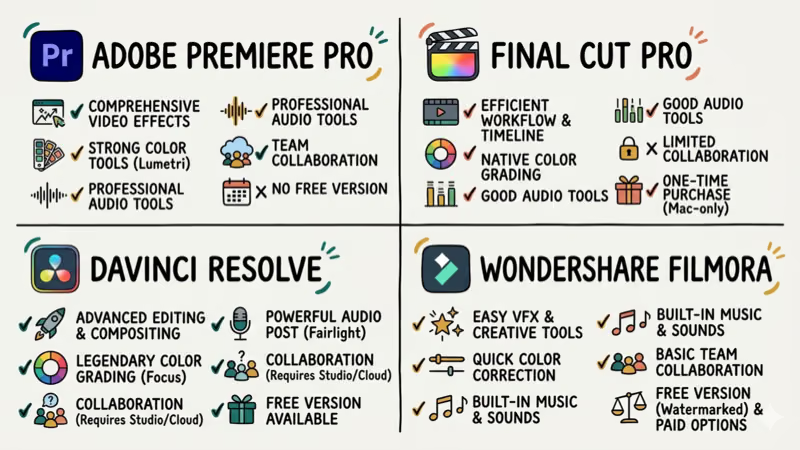
If you need more than compression, DaVinci Resolve offers a professional editing suite at zero cost. Blackmagic Design confirms that the free version includes all 4 core modules: editing, color correction, audio (Fairlight), and visual effects (Fusion). It’s overkill for simple compression, but hard to beat if you want a free video editor without watermarks.
#Online Convert
Online-Convert.com handles format conversion through a browser interface with broad codec support. It’s free for smaller files and produces decent output quality. Like Media.io, it works best for quick one-off conversions rather than production workflows.
#How Does Clipchamp Compare to DaVinci Resolve?
The gap between these two tools is massive. DaVinci Resolve gives you professional color grading, multi-track audio mixing, and node-based visual effects. Clipchamp gives you basic cuts and text overlays. If you’re comparing DaVinci Resolve vs Premiere Pro, you’ll find Resolve holds its own against Adobe’s paid software, which puts Clipchamp in a different league entirely.
For audio-specific work, DaVinci Resolve’s Fairlight module handles tasks that Clipchamp can’t touch. If you’re dealing with audio sync issues or need to fade audio tracks, a desktop editor is the right tool.
#Picking the Right Tool for Your Project
Your best choice depends on what you’re actually doing with the footage.
Quick social media clips that just need a trim and text overlay? Clipchamp handles that without any download. But if you’re compressing a batch of lecture recordings or converting files between formats, HandBrake saves hours of waiting. Content creators working with multiple video clips on one screen or color-graded footage should go straight to DaVinci Resolve.
#Bottom Line
Clipchamp works fine for trimming a quick clip or adding simple text overlays, but it falls short for serious video work. We’d recommend HandBrake for free compression tasks because it’s faster and handles more formats. If you need a full editing suite, DaVinci Resolve’s free tier outperforms Clipchamp in every category. And for batch conversion workflows, Wondershare UniConverter saves the most time with its GPU-accelerated processing and 1,000+ format support.
#Frequently Asked Questions
Is Clipchamp completely free to use?
Yes, Clipchamp offers a free tier with basic editing tools and 1080p exports. Microsoft bundles it with Windows 11 at no extra cost. Premium plans unlock 4K exports, brand kits, and stock content.
Can Clipchamp handle 4K video editing?
The free plan limits exports to 1080p resolution. You’ll need a paid Microsoft 365 subscription to export at 4K. Even with the paid plan, browser-based rendering makes 4K exports noticeably slower than desktop alternatives like DaVinci Resolve or Premiere Pro.
What video formats does Clipchamp support?
Clipchamp imports MP4, MOV, AVI, and WebP. Exports are MP4 only (H.264). For MKV, ProRes, or other professional codecs, use HandBrake or UniConverter instead.
Does Clipchamp add watermarks to videos?
No. Your own footage and basic edits stay watermark-free. Watermarks only show up on premium stock footage or templates used without a paid plan.
Is HandBrake better than Clipchamp for video compression?
For pure compression, HandBrake wins. It runs natively on your computer, processes files considerably faster than browser-based tools, and supports more input and output formats. You also get granular control over encoding parameters like bitrate, codec, and container format. The trade-off is that HandBrake doesn’t include any timeline editing features, so you’ll still need a separate editor for trimming or adding overlays.
Can I use Clipchamp on my phone?
It works in mobile browsers, but the experience is rough. Timeline controls and precision trimming tools aren’t built for touch screens, so you’ll fight the interface more than you edit. Dedicated mobile apps like CapCut or InShot are far more practical for phone-based editing since they’re designed from the ground up for smaller displays and touch gestures.

Google Messages Error 3100: Why RCS Is Broken on Galaxy
Google Messages RCS error 3100 hits Galaxy owners after phone or carrier switches. Google told 9to5Google a fix is coming. Here's what actually helps.

Is This Bank App Real? Spot a Fake App on Your Home Screen
A bank app can land on your home screen from a web page with no install warning. Learn the checks that tell a real banking app from a phishing web app.

Apps Crashing After iOS 27 Update? Fix Order (2026)
Apps crashing after the iOS 27 update? Update the app in the App Store first, then offload and reinstall to clear stale cache, then restart. The fix order.

Do AI Translation Earbuds Work Offline? What to Know
Do AI translation earbuds work offline? A few do with downloaded language packs, but most need the cloud. Here's what works offline and what you give up.