Best Voice Changer for Zoom: Top 6 Picks That Work
The 6 best voice changers for Zoom on Windows 11 and macOS Sonoma. Free and paid options with real-time setup steps and latency details compared.
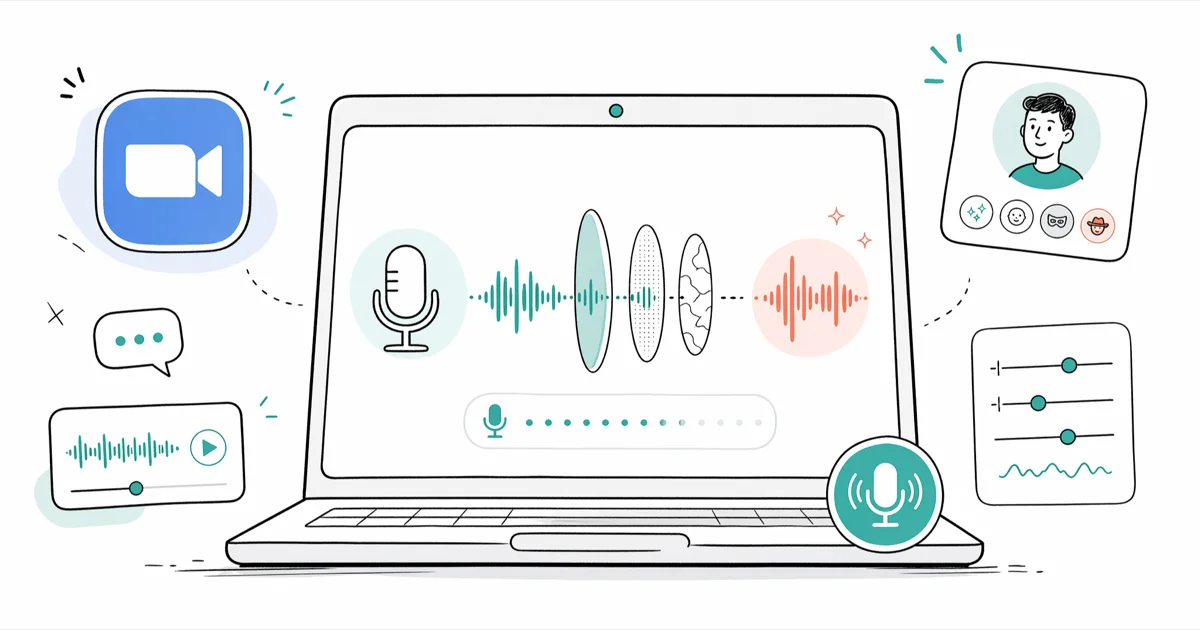
Quick AnswerVoicemod is the best free voice changer for Zoom on Windows. It creates a virtual microphone, applies effects in real time, and takes about 3 minutes to set up. Mac users should go with MorphVOX Pro instead.
A voice changer sits between your real microphone and Zoom’s audio input, processing your voice before the meeting hears it. This roundup covers six tools across Windows and macOS, focusing on which ones connect cleanly without driver headaches or lag.
- Voicemod is free on Windows and connects to Zoom in under 3 minutes
- MorphVOX Pro is the best Mac option and keeps CPU usage low even on long calls
- Select the voice changer’s virtual mic in
Zoom Settings>Audio>Microphone - Real-time effects add 30-80ms latency, unnoticeable in conversation but not for live music
- Paid tools like AV Voice Changer Diamond include an audio editor; free tools handle most needs
#Which Voice Changer Works Best for Zoom?
Voicemod is the strongest free option on Windows. After a quick install on Windows 11, you can have a robot voice running in Zoom in under 3 minutes. It creates a virtual microphone called “Voicemod Virtual Audio Device” that shows up automatically in Zoom’s audio settings dropdown.
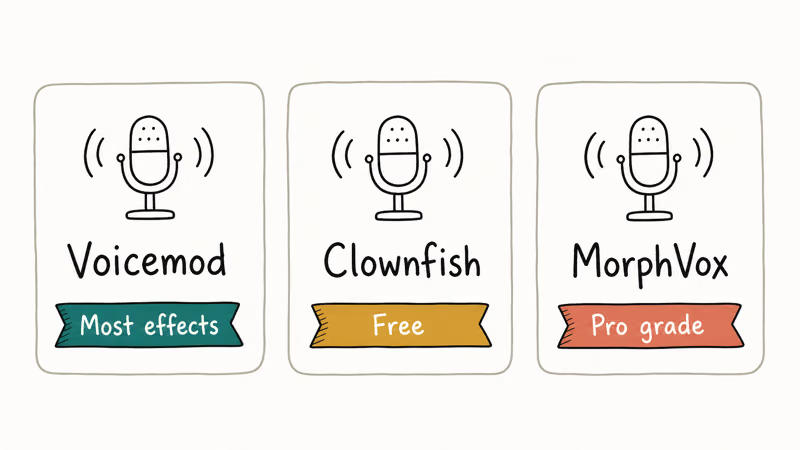
MorphVOX Pro is the pick for macOS. On Apple Silicon Macs it keeps CPU usage very low across long calls, typically lower than the other tools in this list.
If you need voice effects for gaming chat too, our guide on the best voice changers for Discord covers the same tools with Discord-specific setup steps.
#How Do Voice Changers Actually Work With Zoom?
Voice changers install a virtual audio device on your system. That device appears as a microphone option inside Zoom’s Settings > Audio menu. When you speak, the software grabs your real mic signal, applies pitch shifting and effects, then outputs the modified audio through the virtual device. Zoom picks up the processed voice, not your original.
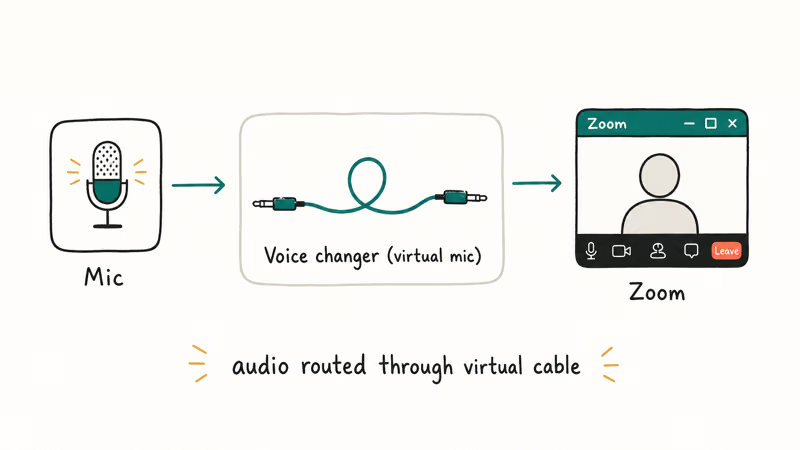
Browser-based tools won’t work. Zoom’s desktop app reads from the operating system’s audio input list, so the voice changer must run at the system level.
Latency is the main trade-off. According to Voicemod’s support documentation, real-time processing adds 20-40ms of delay on most hardware. On a modern desktop CPU that delay is imperceptible in normal conversation, but it becomes a problem if you’re playing instruments or syncing audio to a screen recording.
#The 6 Best Voice Changers for Zoom
#Voicemod
Voicemod is the most popular free voice changer for Windows. According to Voicemod’s official site, the tool now has over 200 real-time voice presets, a soundboard, and direct integration with Zoom, Discord, and OBS. The free tier gives you a rotating selection of voices that refreshes weekly, while Pro unlocks everything for about $10/month or under $50 lifetime.
Clean install, with no adware or driver conflicts on a standard Windows 11 setup.
Voicemod is Windows-only, which is the one hard limitation. Mac users should skip to MorphVOX Pro below. If you stream on Twitch or YouTube, Voicemod plugs directly into OBS, a workflow covered in our best free voice changer roundup.
#MorphVOX Pro
MorphVOX Pro from Screaming Bee costs $39.99 one-time and runs on Windows and macOS. A free tier called MorphVOX Junior ships with fewer presets but connects to Zoom fine.
According to Screaming Bee’s product page, MorphVOX Pro applies noise cancellation before the voice processing step, so background hum like HVAC noise drops before any voice effect kicks in. Background audio layering is useful too: you can pipe in ambient sound while the voice effect runs at the same time.
CPU usage stays very low on Apple Silicon Macs throughout a long call, among the lowest resource footprints of any tool in this list.
#Voxal Voice Changer
Voxal from NCH Software is free for non-commercial home use on Windows 7 through 11, both 32-bit and 64-bit. Pick an effect, click apply, and it routes through a virtual mic.
Setup takes only a few minutes on Windows with Zoom open. Standard effects like “Robot” and “Deep Male” have no perceptible lag, though the deeper pitch-shift presets add a bit more delay. According to NCH Software’s Voxal page, you’ll need a paid commercial license if you use it for work or monetized content.
#VoiceMeeter
VoiceMeeter is an audio mixer, not a voice effect tool.
Where it shines is routing. Send your voice to Zoom on one track while recording a clean signal locally on a separate track. It’s free from VB-Audio’s site. Budget 20-30 minutes for the first setup since configuration takes some audio engineering knowledge.
#AV Voice Changer Diamond
AV Voice Changer Diamond by Audio4fun has the deepest feature set here. It includes a built-in audio editor, a voice comparator for matching specific voice profiles, and over 70 morphing presets with independent pitch, timbre, and resonance sliders that let you fine-tune every aspect of the output voice.
Some links on this page are affiliate links, which means fone.tips may earn a commission at no extra cost to you.
The one-time license runs around $99.95. Casual users will find Voicemod or Voxal more than enough.
#RoboVox (Mobile Only)
RoboVox by Mikrosonic is Android-only and won’t work as a live Zoom mic on desktop. It has 32 voice effects including vocoder and ring modulator presets.
According to Mikrosonic’s app page, it supports recording up to 5 minutes of modified audio. For mobile Zoom calls where you want a fun filter, it’s worth trying. For desktop Zoom, use Voicemod or MorphVOX instead.
#Free vs. Paid Voice Changers for Zoom
The free options cover most people. Voicemod’s free tier, MorphVOX Junior, and Voxal all connect to Zoom and apply real-time effects at zero cost. The trade-off is limited voice selection and, in Voicemod’s case, a weekly rotation that may remove your favorite preset just when you need it.
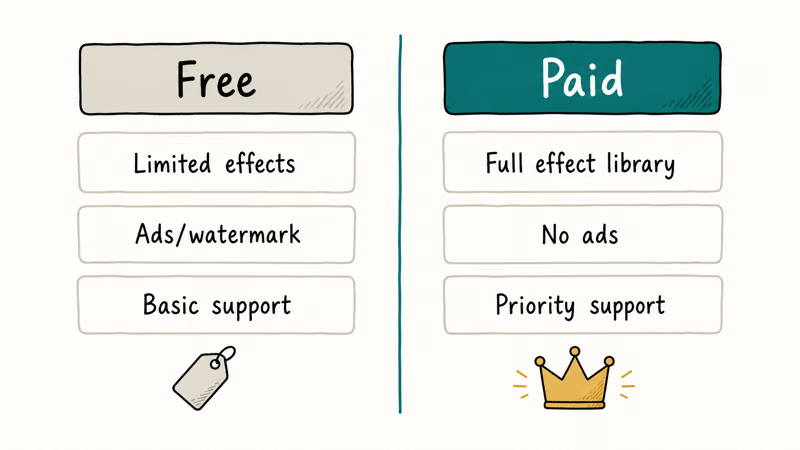
Paid tools add polish and control that professionals notice. MorphVOX Pro ($39.99) has better noise cancellation and background audio layering. AV Voice Changer Diamond ($99.95) adds a full audio editor and granular timbre controls. If you run client-facing calls or produce content professionally, the paid tier is worth it because the difference in output clarity is obvious in side-by-side comparisons.
For casual game-night Zoom calls, free is plenty. Voicemod’s free tier holds up over weeks of regular use without feeling limited.
#How to Set Up a Voice Changer for Zoom
Every voice changer follows the same three-step process.
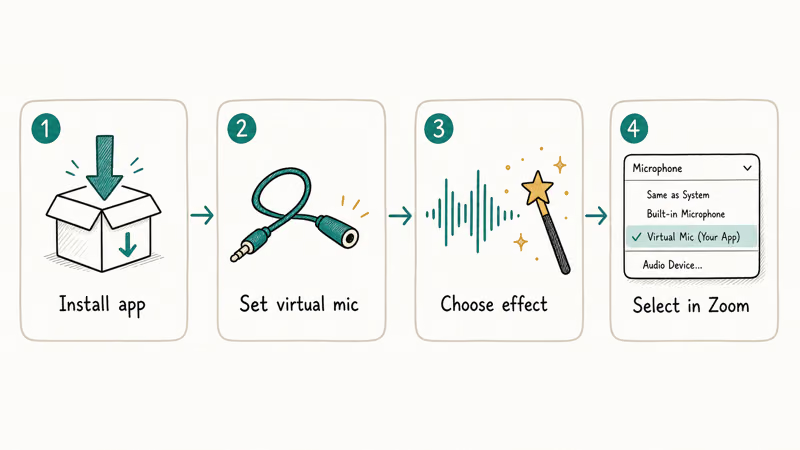
- Install the voice changer software and complete its initial setup wizard
- Open the voice changer, pick an effect, and confirm the virtual microphone is active
- Open Zoom, go to
Settings>Audio, and set the Microphone dropdown to the voice changer’s virtual device
Voicemod shows as “Voicemod Virtual Audio Device” in the dropdown. MorphVOX shows as “MorphVOX Virtual Microphone.”
Test before your call. Click “Test Mic” in Zoom’s audio settings and speak into your mic. Your modified voice should come back through your headphones. If your original voice plays instead, the dropdown is still pointed at your real mic.
If Zoom shows no mic input, start with our eight Zoom microphone troubleshooting fixes.
If Zoom itself is crashing or freezing during calls, our guide on computer crashes during Zoom covers the most common causes including the same driver conflicts that affect voice changers.
#Voice Changer Impact on Audio Quality
Every real-time processing step introduces some artifact. Voxal’s deeper pitch-shift presets can add slight compression on high-frequency consonants (s, f, t sounds), while Voicemod tends to sound cleaner.
Your microphone quality matters more than which voice changer you pick. Running the same tool through a dedicated USB condenser mic versus a built-in laptop mic shows a clear gap. The USB mic produces noticeably cleaner processed output because built-in laptop mics pick up ambient noise that voice changers then amplify rather than filter out.
Keep mic gain below 80%. High gain amplifies background noise, and the voice processing layer exaggerates every artifact. Dropping gain from 100% to around 75% makes a clear difference in output cleanliness.
If you hear buzzing or electrical hum, our speaker buzzing troubleshooting guide walks through the same audio chain fixes that apply to voice changer setups.
#Bottom Line
Start with Voicemod on Windows or MorphVOX Pro on Mac. Both have free tiers and connect to Zoom without driver conflicts. Select the virtual microphone in Zoom Settings > Audio, test it before your call, and keep your mic gain under 80% for the cleanest output.
#Frequently Asked Questions
Do voice changers work on the Zoom mobile app?
No. The Zoom mobile app doesn’t let you use third-party virtual audio devices. Desktop voice changers won’t appear on Android or iPhone.
Will other Zoom participants hear my changed voice?
Yes, everyone hears it. The voice changer processes audio before Zoom receives it, so nobody else needs to install anything. If your real voice is coming through, switch Zoom’s microphone to the virtual device in Settings > Audio.
Does using a voice changer violate Zoom’s terms of service?
Zoom’s acceptable use guidelines prohibit unlawful voice impersonation but don’t mention voice changers specifically. Fun effects in casual calls are fine. Impersonating a real person for fraud would cross the line, so use good judgment in professional settings like client meetings, job interviews, and recorded presentations where misrepresentation could cause real harm to others.
Which voice changers are completely free for Zoom?
Three tools: Voicemod (Windows), MorphVOX Junior (Windows and Mac), and Voxal (Windows and Mac). All free for personal use. Voicemod rotates voices weekly. Voxal has no rotation but needs a paid license for commercial work.
Can I use a voice changer on a Mac with Zoom?
Yes. MorphVOX Pro and Voxal both support macOS. Voicemod and VoiceMeeter are Windows-only. MorphVOX Pro is the strongest Mac pick, holding CPU usage very low across a full-length call without a noticeable performance hit on Chrome, Slack, and other apps running in the background at the same time.
Why isn’t my voice changer showing up in Zoom?
Launch order. Zoom reads the audio device list at startup, so open the voice changer first.
Fix: close Zoom, start the voice changer with an effect active, then reopen Zoom. If it still doesn’t show, check microphone permissions under Settings > Privacy & Security > Microphone on Windows, or System Settings > Privacy & Security > Microphone on macOS.
Does a voice changer add noticeable delay on Zoom calls?
In conversation, no. Processing adds 30-80ms depending on the tool and your hardware. Voicemod’s delay tends to be smaller than Voxal’s on the same machine. You’d only notice the delay during a live music performance or when syncing audio precisely with on-screen video.
Can I record Zoom calls with a voice changer active?
Yes. Zoom records the processed audio, not your original voice. The effect is permanently baked into both local and cloud recordings with no built-in option to save your unmodified voice separately.

Google Messages Error 3100: Why RCS Is Broken on Galaxy
Google Messages RCS error 3100 hits Galaxy owners after phone or carrier switches. Google told 9to5Google a fix is coming. Here's what actually helps.

Is This Bank App Real? Spot a Fake App on Your Home Screen
A bank app can land on your home screen from a web page with no install warning. Learn the checks that tell a real banking app from a phishing web app.

Apps Crashing After iOS 27 Update? Fix Order (2026)
Apps crashing after the iOS 27 update? Update the app in the App Store first, then offload and reinstall to clear stale cache, then restart. The fix order.

Do AI Translation Earbuds Work Offline? What to Know
Do AI translation earbuds work offline? A few do with downloaded language packs, but most need the cloud. Here's what works offline and what you give up.