iPhone Microphone Not Working? 8 Proven Fixes (2026)
Fix iPhone microphone not working during calls or recordings. 8 proven methods covering hardware, settings, and iOS fixes that work in 10 minutes.
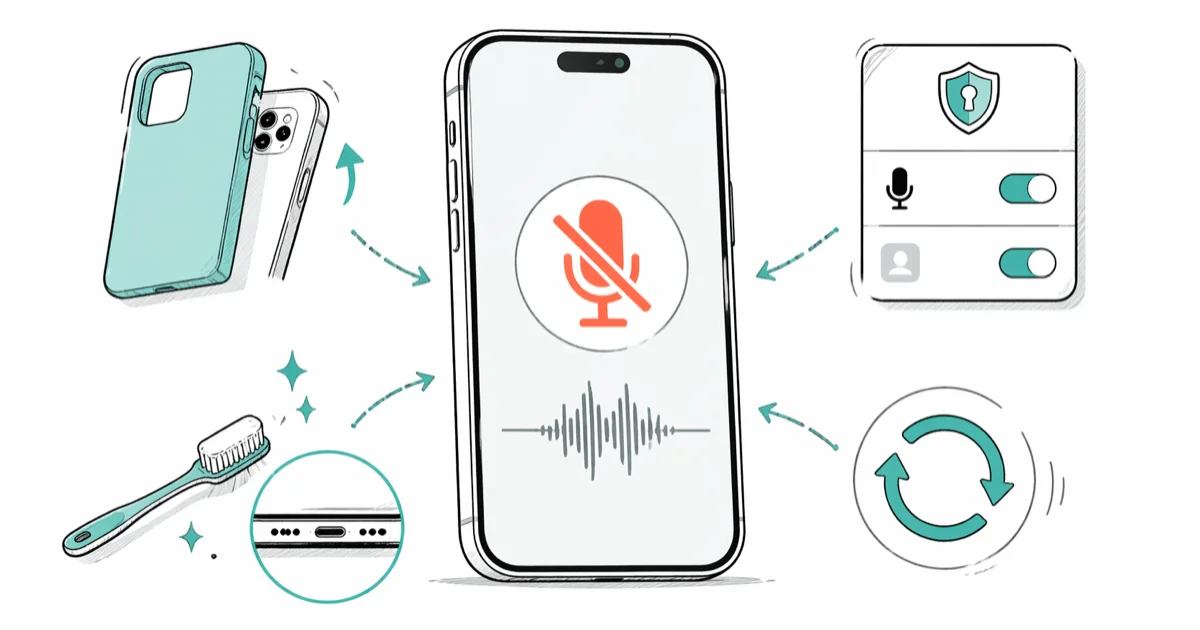
Quick AnswerTake your case off, brush the bottom microphone port with a soft, dry toothbrush, and restart your iPhone. If callers still can't hear you, open Settings, tap Privacy and Security, then Microphone, and confirm app permissions are turned on.
Your iPhone microphone has stopped picking up your voice on calls, voice memos, or Siri requests. Don’t assume the hardware is dead yet.
Check the three usual suspects first: a clogged mic port, a Bluetooth device that hijacked your audio input, or an app permission flipped off after an iOS update. The eight fixes below work through those in order, and a 30-second toothbrush sweep plus a restart clears most cases on its own.
- Your iPhone has three microphones (bottom, front, rear) and any one can fail while the other two still work
- A connected AirPods case or car Bluetooth system silently routes your voice away from the built-in mic
- Pocket lint inside the bottom mic port is the most common physical cause of muffled calls
- Voice Memos confirms in 5 seconds whether your microphone hardware is actually broken
- Reset All Settings clears stuck audio routing without erasing photos, messages, or apps
#How to Test Your iPhone Microphone in 60 Seconds
Before you try a single fix, find out which microphone is actually broken. Your iPhone has three of them.
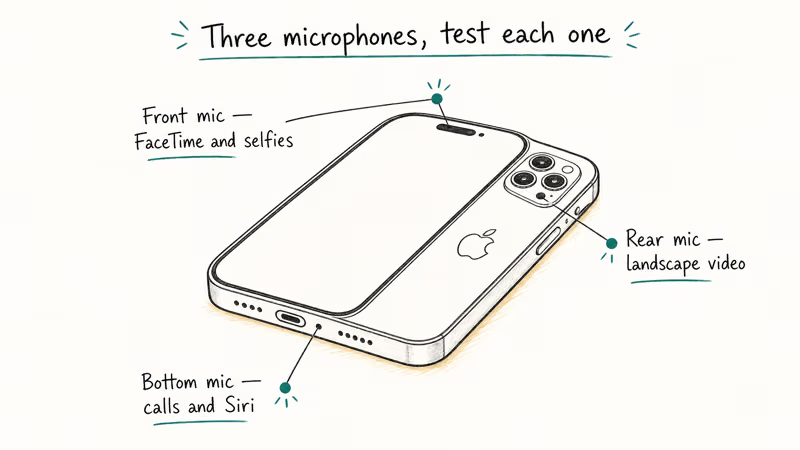
The bottom microphone handles phone calls and Siri. Open Voice Memos, hit the red record button, count to five out loud, then tap the waveform to play it back. If you hear yourself clearly, this mic works.
Next to the earpiece slot lives the front microphone, which handles FaceTime, speakerphone, and selfie videos. Open the Camera app, switch to the front-facing lens, record a short video while talking, then play it back from your Photos library.
The rear microphone lives near the back camera and records audio for landscape video. Flip back to the rear camera, record again, and listen.
When “calls are quiet” but the front and rear mics record fine, the bottom mic is the one at fault, which usually points to debris at the charging-port end rather than a hardware failure. Test all three before you change anything.
#How Do You Fix a Muffled or Silent iPhone Microphone?
Work through these eight fixes in order. The first three solve most cases.
#1. Pull Off Your Case and Brush the Mic Ports
Phone cases block the pinhole microphones more often than you’d guess, especially thick rugged cases like OtterBox Defender models or aftermarket cases with lazy cutouts.
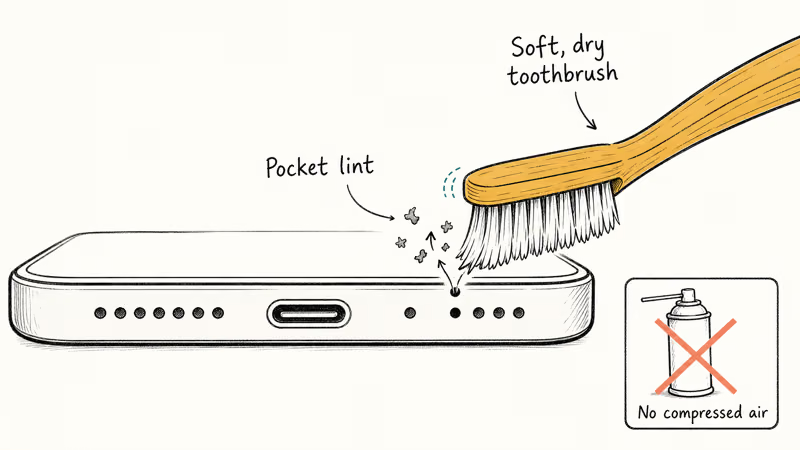
Take the case off. Look at the bottom edge of your iPhone next to the Lightning or USB-C port. You’ll see a tiny pinhole, and that is the primary microphone. Two more pinholes sit near the back camera (rear mic) and beside the earpiece (front mic).
Run a clean, dry, soft-bristled toothbrush across each opening using light pressure. Sweep, don’t jab. Skip compressed air; the pressure can push lint deeper or rupture the microphone membrane.
According to Apple, 3 cleaning materials are explicitly forbidden near the openings: liquid sprays, household cleaners, and any inserted object. See Apple’s iPhone cleaning guidelines for the full list. The only authorized contact for the body is a soft, lint-free cloth.
When pocket lint is the culprit, brushing the bottom mic can take a Voice Memos test recording from hissing and distant to crisp and full-volume after just a few seconds of cleaning. That single step is often the whole fix.
#2. Disconnect Bluetooth Audio Devices
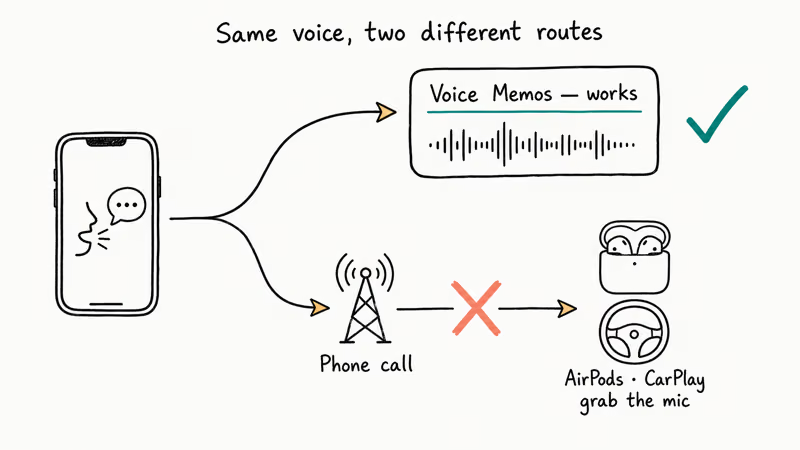
Your iPhone might be sending audio to a Bluetooth device you completely forgot about. AirPods sitting in their case, a car infotainment system you connected to once, or an old Bluetooth speaker on a shelf can all grab the microphone input the moment they pair.
Swipe down from the top-right corner to open Control Center. Long-press the connectivity card, then tap the Bluetooth icon to turn it off. Try a Voice Memos recording again right away.
If the mic suddenly works with Bluetooth disabled, a paired device was stealing the input. Go to Settings, tap Bluetooth, and tap the (i) next to anything you don’t actively use to forget the device. If your AirPods mic isn’t working even when AirPods are the active device, that is a separate problem covered in detail there.
#3. Restart Your iPhone
A restart clears stuck audio sessions. iOS sometimes locks itself into a routing state where it thinks a Bluetooth device or call session is still active when it’s not.
Press and hold the side button along with either volume button until the “slide to power off” prompt appears. Drag the slider, wait about ten seconds, then press the side button again to turn the phone back on.
A restart can resolve a microphone issue that survives case removals and a port cleaning, since the real culprit is often a frozen audio session left over from something like a CarPlay disconnect rather than the mic itself.
#4. Check Microphone Permissions for Each App
Individual apps need explicit permission to access your microphone, and iOS occasionally resets these toggles after major updates.
Go to Settings, scroll down to Privacy and Security, then tap Microphone. You’ll see every app that has ever requested mic access. Make sure the toggle is green for the apps where you actually need it: Phone, FaceTime, WhatsApp, Zoom, Voice Memos, Siri, and any third-party recording or call app you use.
If the Phone app records you fine but Zoom or WhatsApp meetings sound silent, this is almost always the cause. Microphone permissions can reset silently across major iOS upgrades, so it’s worth re-checking the toggles after one.
#5. Update iOS to the Latest Version
Apple ships microphone fixes inside point releases regularly. Audio routing fixes have appeared in multiple iOS 17 and iOS 18 release notes, and the pattern continues.
Go to Settings, then General, then Software Update. Install whatever is offered. Plug in to power before you start so the phone doesn’t abort the install.
When a microphone problem starts immediately after an update, waiting a week and installing the next point release often fixes it more reliably than any manual workaround.
#Why Calls Sound Silent While Voice Memos Works
Call-only microphone problems usually point to network configuration, not hardware damage. If Voice Memos records you fine but callers still can’t hear you, work through these.
#Wi-Fi Calling Conflicts
When Wi-Fi Calling isn’t working properly, it can cause one-way audio: you hear the other person, but they hear nothing. Toggle it off at Settings, then Phone, then Wi-Fi Calling, and try the call again over your carrier signal.
#Carrier Network Glitches
A flaky tower handoff can mimic a dead microphone. Toggle airplane mode on for ten seconds, then off, and let the phone latch onto a fresh tower. If you regularly get no service on iPhone, the underlying signal problem is what is killing your call audio, not the mic.
#Phone Noise Cancellation in Quiet Rooms
Apple’s Phone Noise Cancellation is supposed to reduce background hum during voice calls. The setting can suppress your voice in extremely quiet environments because the algorithm decides your speech is ambient noise. According to Apple’s accessibility audio settings documentation, Phone Noise Cancellation can be toggled off at Settings, then Accessibility, then Audio and Visual, then Phone Noise Cancellation, which immediately stops the algorithm from suppressing voice input on calls.
If callers complain that your voice cuts in and out only on speakerphone, this setting is the most common cause. Turning it off usually stops the drop-outs right away.
#How Do You Reset Audio Settings Without Losing Data?
When the targeted fixes don’t work, Reset All Settings is the nuclear option that doesn’t erase content. It restores Bluetooth pairings, Wi-Fi passwords, VPN configs, and audio routing preferences to factory defaults while leaving photos, messages, contacts, and apps untouched.
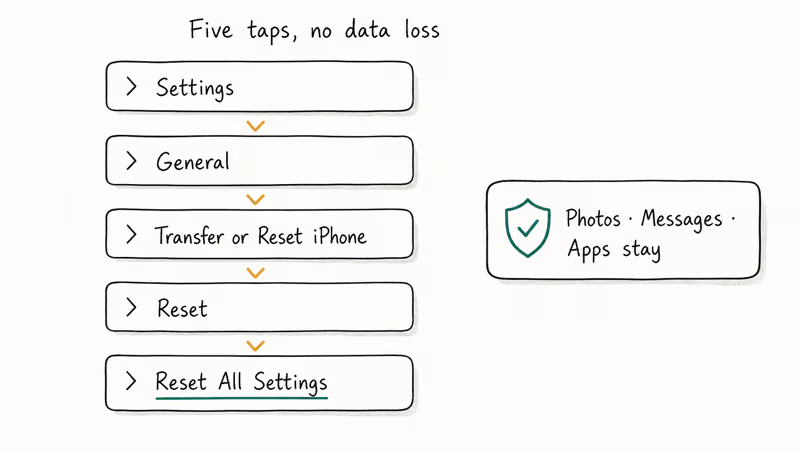
Go to Settings, then General, then Transfer or Reset iPhone, then Reset, then Reset All Settings. Enter your passcode and confirm twice. Your iPhone reboots and lands on the Lock Screen in about a minute.
You’ll need to reconnect to your home Wi-Fi, re-pair Bluetooth headphones and your car, and re-grant location permissions to a few apps. None of your data leaves the device.
Reset All Settings can fix a microphone problem that survives restarts, a port cleaning, and permission audits, because the real culprit is often a stale audio routing flag left behind by a crashed recording app. The reset and re-pair process takes only a few minutes, which is faster than waiting for a Genius Bar slot.
#Using an External Microphone as a Stopgap
Yes, and an external mic doubles as a useful diagnostic. If a plug-in mic works but the built-in does not, hardware damage is confirmed.
You can connect a microphone to your iPhone using a Lightning or USB-C adapter depending on your model. Lavalier clip-on mics start around $15 to $25 on Amazon and produce noticeably cleaner audio than the built-in microphone, especially for podcasts or interviews. Apple’s wired EarPods (Lightning or USB-C) also work as a stopgap for calls; the inline microphone bypasses the broken built-in mic entirely.
If you are getting no sound in your screen recordings, that is a Control Center setting, not a microphone hardware issue, so check the Screen Recording toggle in Control Center before you blame the mic.
#When to Take Your iPhone in for Repair
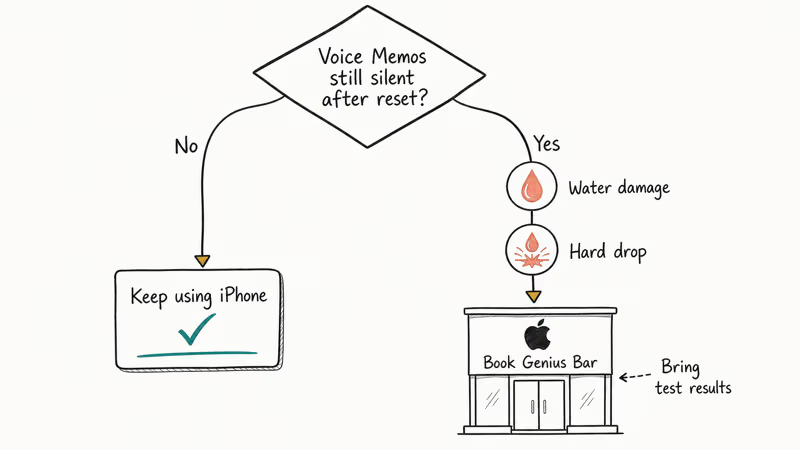
If the microphone fails after every software fix, the hardware is likely damaged. According to iFixit’s iPhone troubleshooting wiki, the three usual causes of permanent mic failure are water exposure that corrodes the diaphragm, a hard drop that detaches the microphone flex cable, and long-term debris compaction inside the port. The wiki recommends matching the symptom to one of those three before opening the device.
Check your warranty status at Settings, then General, then About, and look for the Limited Warranty or AppleCare+ entry. AppleCare+ covers most hardware defects with a small service fee. Out-of-warranty microphone repairs are quoted by your specific iPhone model on Apple’s iPhone repair pricing page; newer models cost more than older ones, and the front and rear mics are usually bundled with other repairs since they sit on shared flex cables.
Before your appointment, back up your iPhone to iCloud or to a Mac, then write down which of the three microphones failed your Voice Memos and Camera tests. Handing the technician that information up front skips a 20-minute diagnostic queue at the Genius Bar.
If your iPhone speaker isn’t working on calls at the same time, you may be looking at a logic-board issue rather than separate component failures, which changes the repair quote significantly.
#Bottom Line
Brush the microphone ports, turn Bluetooth off, and restart the iPhone. That sequence clears most cases, including many of those reported on the Apple Community forums.
If only specific apps can’t hear you, fix permissions in Settings, then Privacy and Security, then Microphone. If Voice Memos still records nothing after Reset All Settings, book a Genius Bar appointment. At that point, no amount of software cleanup brings the mic back.
#Frequently Asked Questions
Why can nobody hear me on iPhone calls but I can hear them?
A clogged bottom microphone or a Bluetooth device routing your voice elsewhere. Turn off Bluetooth in Control Center, brush the bottom mic port, then call back. If a Voice Memos recording sounds clean, the hardware is fine and the issue is on the network or carrier side, so toggle airplane mode to refresh your cellular connection.
How do I know if my iPhone microphone is broken?
Test all three microphones separately. Use Voice Memos for the bottom mic, a front-camera video for the front mic, and a rear-camera video for the rear mic. If none of them record audio after you’ve brushed the ports, restarted the phone, and reset all settings, the microphone hardware is damaged and needs professional repair from Apple or an Apple Authorized Service Provider.
Can water damage affect the iPhone microphone?
Yes. Water corrodes the microphone diaphragm and the surrounding flex cable contacts. After a soak, dry the phone for at least 24 to 48 hours before testing, and never use a hair dryer or stuff it in rice. If voice quality is permanently muffled after the phone is dry, the diaphragm is damaged and needs replacement.
Does updating iOS fix microphone problems?
It often does. Apple regularly ships audio routing fixes inside point releases, and a microphone bug introduced by one version is frequently patched within a few weeks. If your problem started right after an update, check Settings, then General, then Software Update for a newer build before you spend time on manual troubleshooting.
Why does my iPhone microphone work in some apps but not others?
App permissions. Go to Settings, then Privacy and Security, then Microphone, and check the toggles. An app with its toggle off can’t use the mic regardless of how the system microphone is set. This is the single most common cause of “Zoom is silent but Phone calls work” reports.
Can a screen protector block the microphone?
Rarely, but possible. The microphones sit on the edges, not the screen surface, so most flat protectors are fine. Full-body wrap protectors and thick tempered glass with edge coverage can partially block the front microphone next to the earpiece. Peel the protector off to test, and if voice quality jumps, switch to a protector with proper sensor cutouts.
How much does it cost to fix an iPhone microphone?
Apple’s quoted out-of-warranty pricing varies by model on the iPhone repair page; newer Pro models are at the top end, older models at the bottom. Independent repair shops typically charge less but use third-party parts. AppleCare+ reduces the cost to a flat service fee that is far below the out-of-warranty quote.
Should I clean my iPhone microphone with isopropyl alcohol?
No. Apple’s cleaning guidance only authorizes 70% isopropyl wipes on hard, non-porous surfaces of the body, and warns against putting any liquid into the openings. Liquid inside the microphone hole damages the diaphragm. Stick to a soft, dry brush for the port itself.

Mac mini M6 vs M5 Pro: Which Model Should You Buy?
Mac mini M6 vs M5 Pro compared on price, memory, ports, displays, and real workloads. Find the better 2026 Mac mini for your desk and budget.

Apple Siri Settlement: Who Qualifies and How to Claim
Apple's $250 million Siri settlement covers iPhone 15 Pro and iPhone 16 models bought June 2024 to March 2025. See who qualifies and how claims work.

iOS 26.6.1 Security Update: What Apple Fixed and Who Gets It
Apple released iOS 26.6.1 on August 17 with 29 security fixes, including an IPSec interception bug. See what it patches, who gets it, and how to update.

iPhone Adaptive Power: How It Works and When to Use It
Learn how iPhone Adaptive Power works, which models support it, what it changes, and when Low Power Mode is still the better battery-saving choice.