iPhone Group Messaging Not Working: 9 Proven Fixes
iPhone group messaging not working? Fix it in minutes with 9 proven steps covering iMessage, MMS, network, and carrier settings on iOS 17 and 18.
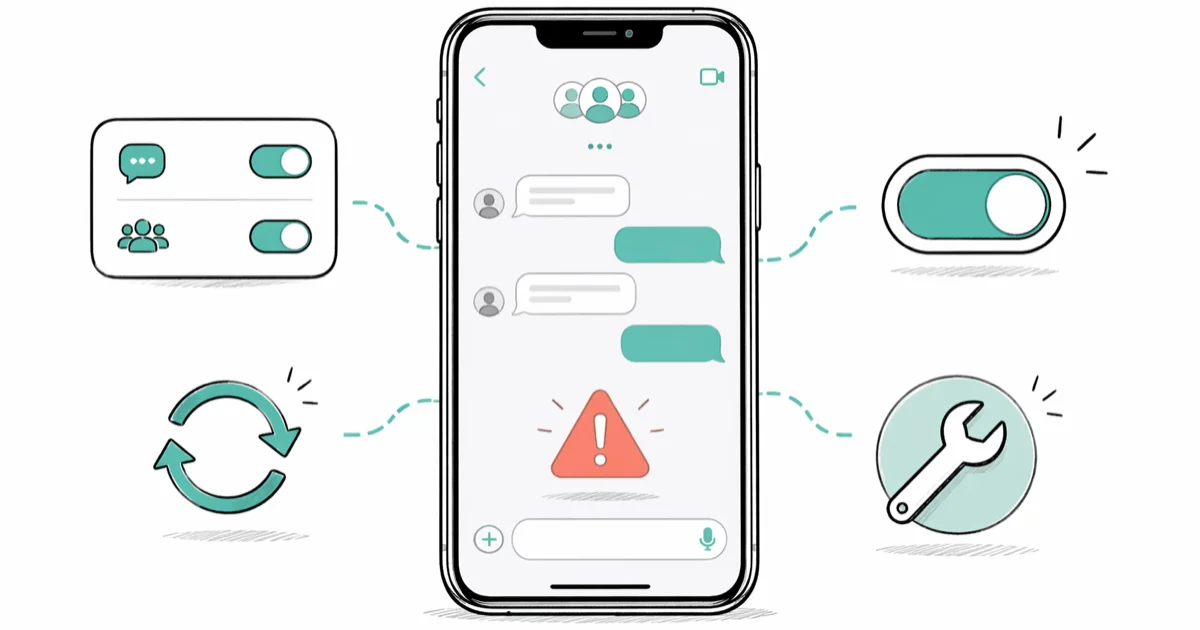
Quick AnswerOpen Settings > Messages and confirm iMessage, MMS Messaging, and Group Messaging are all on. If they are, toggle them off, wait 10 seconds, and turn them back on. That single sequence resolves most group chat failures on iOS 17 and iOS 18.
iPhone group messaging not working hits without warning, and these steps assume your own device and account. Every fix below applies to current iPhones on iOS 17 and iOS 18 across the major US carriers. The cause almost always traces to a toggle, a stale cellular session, or a carrier lookup that needs refreshing.
- Three toggles control everything: iMessage, MMS Messaging, and Group Messaging in Settings → Messages
- Toggling iMessage off, waiting 10 seconds, then back on clears most stuck group chats in under a minute
- MMS Messaging must be on for any group containing an Android phone or a contact without iMessage
- Resetting network settings preserves messages and photos but wipes Wi-Fi passwords and Bluetooth pairings
- A green-bubble group splitting into individual texts means MMS is off or your carrier plan doesn’t include MMS
#Check the Three Messages Toggles First
Open Settings → Messages and find three switches stacked together. iMessage sits at the top, MMS Messaging appears under SMS/MMS, and Group Messaging lives directly below MMS. All three need to be green for an iPhone to send group chats reliably. Flipping Group Messaging off, counting to ten, and turning it back on often revives a chat that has been stuck on “Sending…” for days.
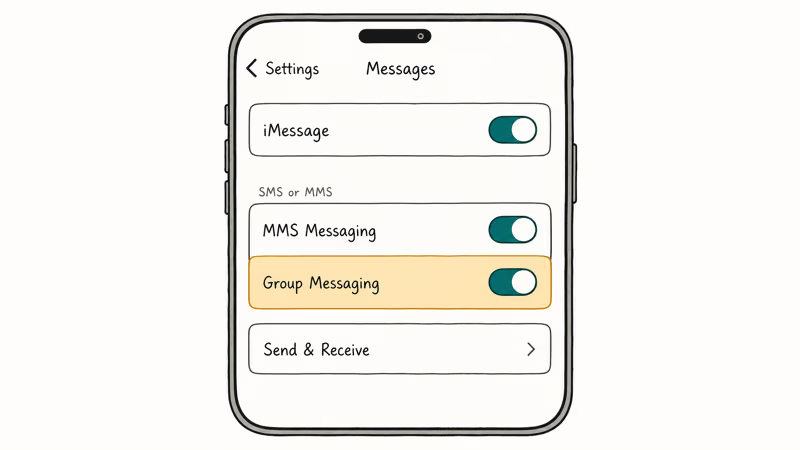
Order matters when you toggle.
Toggling Group Messaging alone usually fixes nothing.
Toggling iMessage off, waiting until “Waiting for activation…” clears, then toggling it back on triggers a fresh registration with Apple, and delivery typically resumes within a minute. According to Apple’s iMessage support page, iMessage requires that both your phone number and Apple ID be verified, and re-registration clears stale phone-number associations that block group sends.
The same page states that 1 active phone number is the minimum requirement to receive iMessage on a given device.
If you also notice iMessage failing in one-to-one chats, the bigger iMessage not working playbook covers activation errors, server status, and Apple ID resets in more depth.
#Why Are My Group Messages Splitting Into Individual Texts?
This is the classic green-bubble problem. iPhones send group messages as iMessage when every member uses iMessage on an active Apple ID. Add one Android contact, or one iPhone where iMessage is signed out, and the entire thread falls back to MMS. If MMS is off, iOS gives up on a single group thread and fans the message out as separate one-to-one texts.
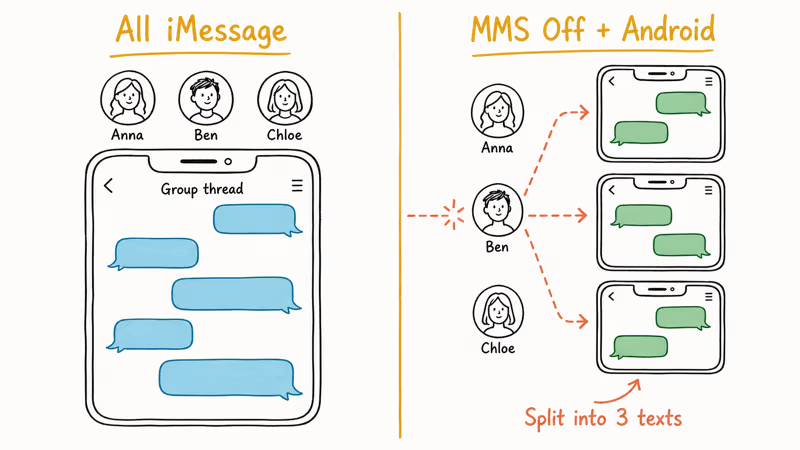
The behavior is easy to reproduce with two iPhones and one Android phone. With MMS on across the iPhones, the group stays one shared green-bubble thread. Turning MMS off on one iPhone makes that phone send separate texts. Turning MMS back on restores the shared thread almost immediately.
Carrier matters too. Some prepaid plans on Cricket and Mint Mobile ship without MMS by default and need a customer-service call to enable it.
If you recently switched carriers and group messages started splitting, that’s the first thing to check. To push borderline contacts onto iMessage where possible, see how to change a text message to iMessage and force a re-detection.
#Toggle Airplane Mode to Reset the Cellular Session
Network glitches cause far more group message failures than people expect. Airplane Mode tears down the current cellular session and rebuilds it without erasing any settings, contacts, or messages. It’s the lowest-cost fix on this list, and it works often enough to be worth running before anything else.
Run the toggle in three steps.
Swipe into Control Center and tap the airplane icon. Wait a full 10 seconds, then tap it again to turn Airplane Mode off. The phone reattaches to the tower with a fresh PDP context, and stuck “Sending…” messages either deliver or fail outright within about 20 seconds. A stuck group chat often clears within seconds of the cellular session reattaching.
If the toggle does nothing after two tries, the issue isn’t a cellular handshake. Move on to network reset. While you’re at it, if your iPhone won’t connect to Wi-Fi either, that points to a broader connectivity problem worth ruling out next.
#Reset Network Settings Without Wiping Messages
Resetting network settings is heavier than Airplane Mode but lighter than restoring the phone. It clears Wi-Fi passwords, Bluetooth pairings, VPN configurations, APN data, and cellular preferences. It doesn’t touch messages, photos, contacts, or apps.
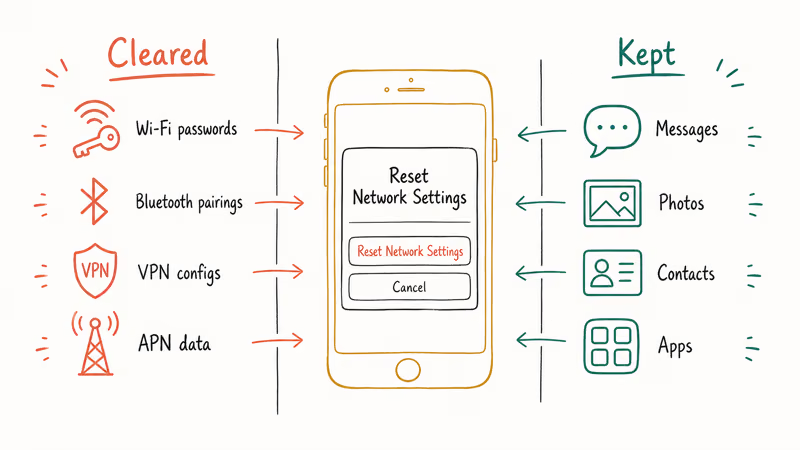
Go to Settings → General → Transfer or Reset iPhone → Reset → Reset Network Settings, enter your passcode, confirm twice, and let the phone reboot. After it comes back, reconnect to your home Wi-Fi, re-pair any Bluetooth accessories you rely on, then send a test group message to confirm the fix took. The whole sequence takes a couple of minutes, but it strips every saved network, so plan to sign back into the Wi-Fi you use most.
A persistent MMS attachment failure (group photos hanging at “Downloading…”) often clears after a network reset even when Airplane Mode and iMessage toggles have had no effect for days. Plan ahead, though. You’ll have to retype every Wi-Fi password the phone has saved.
#Force Quit Messages and Reopen the App
The Messages app sometimes hangs on a corrupted draft or a stuck delivery state. Force quitting clears its in-memory state and reloads from disk. That’s enough to fix transient bubbles that say “Not Delivered” with no other error.
According to Apple’s force-quit guide, the gesture works on every iPhone running iOS 12 or later: swipe up from the bottom of the screen and pause halfway up on iPhones with Face ID. Find the Messages card in the App Switcher and swipe it up off the top of the screen. On iPhones with a Home button, double-press Home and swipe Messages up the same way.
Wait 5 seconds before reopening Messages.
The fresh launch will pick up any queued group sends and either deliver them or surface a clearer error. If your apps aren’t downloading at the same time, the bigger system probably needs a restart, not a force quit.
#Update iOS and Carrier Settings
Outdated iOS releases ship known iMessage bugs, and outdated carrier profiles ship known MMS bugs. Apple patches messaging issues in roughly half of all point releases, and carriers push silent MMS profile updates several times a year.
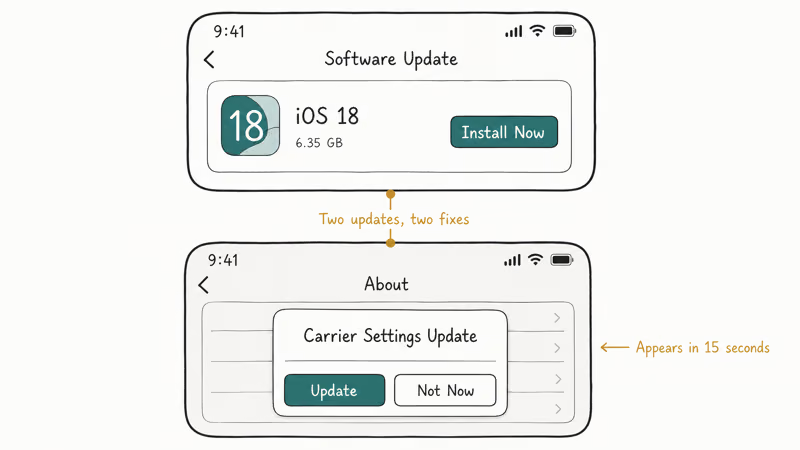
Check Settings → General → Software Update for iOS. Check Settings → General → About for carrier updates: a popup appears within 15 seconds if one is pending. Apple’s carrier settings documentation confirms that 1 carrier-profile install can address messaging, data, and calling regressions in a single step. The same page states carriers may push these updates automatically, but checking manually surfaces them faster.
A carrier profile update can restore group MMS on iPhones that have been splitting threads for a week. These profiles install quickly with no reboot required. Always install carrier updates the moment they appear.
#Delete the Group Conversation and Recreate It
Long-lived group threads occasionally corrupt their local cache. If one specific group is broken while every other group works fine, the thread itself is the problem. Not your phone, not your account.
Recreate it.
Swipe left on the broken group in your Messages list and tap Delete.
Open a fresh New Message, type the same contacts back in, and send a quick “testing this thread” line. Recreating doesn’t affect the thread on anyone else’s phone, so they’ll see your test as a new conversation alongside the old one.
Recreating a long-lived thread can fix a member who could see other people’s messages but not yours. The corruption seems tied to thread length in many cases, though that’s hard to prove. Recreation takes only a few moments end to end.
#Can Hardware Problems Cause Group Message Failures?
Rarely, but yes. A damaged SIM card, a misseated SIM tray, a failing antenna, or a baseband processor fault can disrupt MMS. If every software fix on this page produces no change, hardware moves up the suspect list.
Watch for two or more symptoms together.
Signs that point to hardware include regular one-to-one texts also failing on cellular, calls dropping in places that used to have signal, “No Service” or “Searching…” flickering when the phone is stationary, and a SIM card failure on iPhone warning the phone never used to show.
If you see two or more of those symptoms together, treat the messaging issue as a symptom rather than the cause, and move directly to hardware triage.
Book hardware diagnostics next.
Apple’s hardware service options page lists 3 intake paths: in-store, mail-in, and on-site for some businesses. In-store diagnostics test antenna performance, SIM-reader continuity, and baseband health. If your cellular data is not working at the same time as group messages, mention both symptoms when you book.
#Sign Out of iMessage and Sign Back In
If nothing else has worked, deregister iMessage and let it reactivate from scratch. Go to Settings → Messages → Send & Receive, tap your Apple ID at the top, and choose Sign Out. Wait a full 30 seconds, then tap your Apple ID again and sign back in.
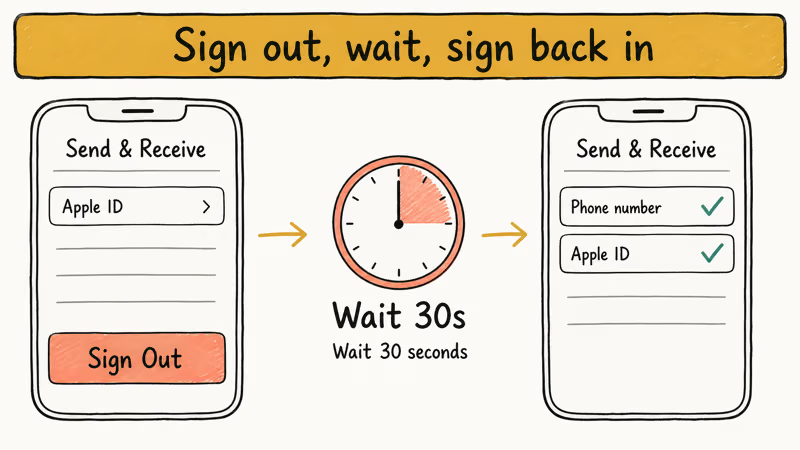
This forces Apple’s iMessage servers to refresh the binding between your phone number and your Apple ID. When group messages have been arriving hours late, this step often gets the next test message through almost instantly, and the delay tends not to come back.
T-Mobile’s iMessage troubleshooting guide recommends signing out and back in as the fix when iMessage activation fails or messages route incorrectly between Apple ID and phone number. After signing back in, send a test message to your group. A blue bubble means iMessage is healthy. A green bubble means iMessage is fine but at least one group member isn’t on iMessage.
#Bottom Line
Start with the three Settings → Messages toggles, then Airplane Mode, then network reset. Those three steps resolve the large majority of group messaging failures. If the problem is one specific group, jump straight to deleting and recreating that thread. If group messaging is failing alongside cellular calls or one-to-one texts, skip the toggles and book hardware diagnostics.
#Frequently Asked Questions
Why do my group messages work on Wi-Fi but not on cellular?
Your cellular plan probably doesn’t include MMS, which is required for any group containing a non-iMessage user. Call your carrier to verify MMS is active on the line.
Can I send group messages to Android users from my iPhone?
Yes, through MMS. Toggle MMS Messaging on under Settings → Messages. Green bubbles mean MMS is doing its job and the message is reaching Android phones, even if it doesn’t look as polished as iMessage. Photos and group replies route through your carrier rather than Apple, which is why a weak cellular signal on any one Android device can stall the entire thread for everyone.
Why did my group chat suddenly stop working after an iOS update?
iOS updates sometimes flip messaging toggles back to default or introduce short-lived bugs that get patched in the next point release. Open Settings → Messages, confirm iMessage, MMS Messaging, and Group Messaging are all on, and toggle iMessage off and back on. That sequence resolves most post-update group chat failures within a minute.
How many people can be in an iPhone group message?
iMessage groups support up to 32 participants. MMS group limits are set by your carrier and typically run between 10 and 20 participants, with Verizon and AT&T historically capping at 20.
Why can some people in my group see messages but others can’t?
Mixed iMessage and Android groups cause this. iOS routes the same message through iMessage to Apple users and through MMS to Android users, and a weak signal on any one Android phone delays the MMS leg. There is no fix from your end. The slow leg has to catch up on its own.
Does resetting network settings delete my text messages?
No. Network reset only clears Wi-Fi passwords, Bluetooth pairings, VPN configurations, and cellular preferences. Your messages, photos, contacts, calendar, and apps stay intact. The only inconvenience is retyping Wi-Fi passwords on every network you use.
Why do group messages say Not Delivered even though I have signal?
The iMessage server may be temporarily unavailable, or your iMessage registration is out of sync with Apple. Toggle Airplane Mode on for 10 seconds, then off. If that doesn’t clear it, sign out of iMessage in Settings → Messages → Send & Receive and sign back in to force a fresh registration.
Should I restore my iPhone to fix group messaging?
Only as a last resort. A full restore through Finder or iTunes wipes everything and reinstalls iOS from scratch, which takes 20 to 40 minutes plus restore-from-backup time. Try every other method in this guide first, and if you do restore, back up to iCloud and to a computer beforehand.

iPhone Adaptive Power: How It Works and When to Use It
Learn how iPhone Adaptive Power works, which models support it, what it changes, and when Low Power Mode is still the better battery-saving choice.

How to Transfer Data to a New iPhone Without iCloud
Move everything to your new iPhone without iCloud: Quick Start device-to-device transfer, wired migration, and encrypted Finder or iTunes backups.

Group Text Not Working on iPhone? 8 Fixes That Work
Group text not working on iPhone? Turn on MMS Messaging and Group Messaging, check iMessage vs SMS routing, and fix mixed Android group chats fast.
Best Power Bank for iPad in 2026: Pro, Air, and Mini
Best power bank for iPad in 2026. Compare mAh tiers and USB-C PD wattage for iPad Pro, Air, and mini, plus airline Wh math, cables, and travel tips.