Fix "Your Windows License Will Expire Soon" (5 Methods)
Fix "Your Windows license will expire soon" with 5 proven methods: slmgr rearm, activation troubleshooter, Group Policy, key re-entry, and registry edit.
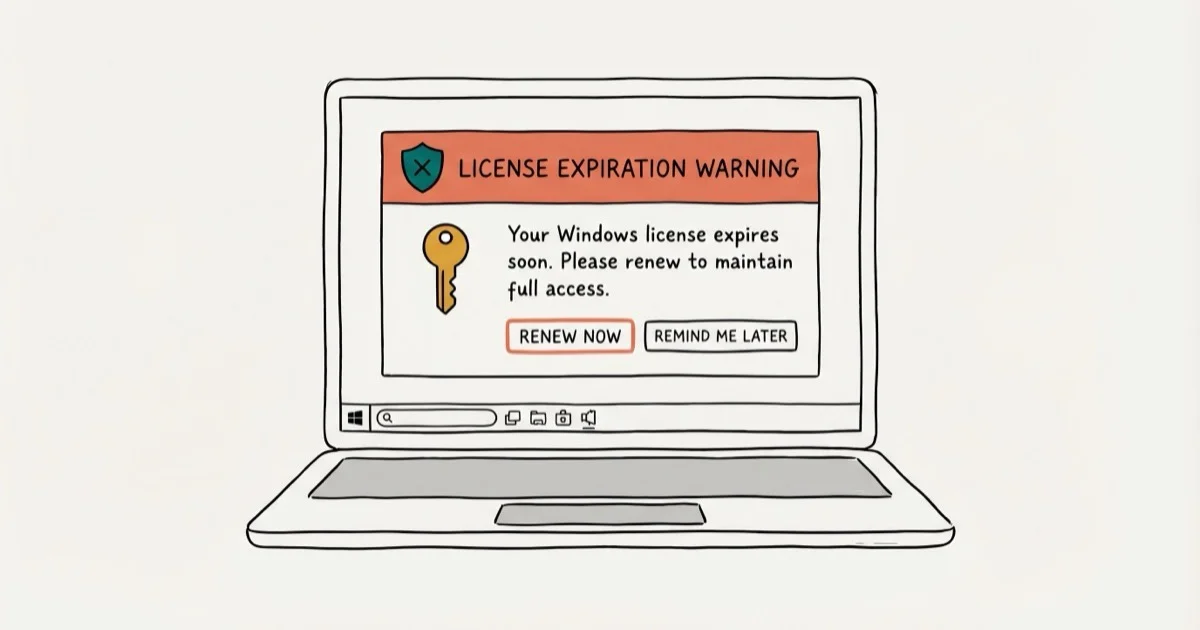
Quick AnswerOpen Command Prompt as administrator, run slmgr -rearm, then restart your PC to reset the Windows activation timer. The expiration warning clears on reboot for most legitimately licensed copies of Windows 10 and 11.
The “Your Windows license will expire soon” error catches most people off guard after a feature update or a hardware swap. Every method in this guide is intended for your own computer running a properly purchased copy of Windows. Five recovery paths cover the common causes, and on a legitimately licensed copy each one clears the warning within a single reboot.
- The slmgr -rearm command resets the activation grace timer on a legitimately licensed copy and the warning disappears after one reboot
- Windows sometimes flags a valid license as unverified after a hardware change, a cached SLUI token expiry, or a delayed feature update sync
- The built-in Activation troubleshooter in Settings contacts Microsoft servers directly and re-links your digital license when a previous method skipped a step
- Disabling the Windows License Manager Service stops the popup loop but also blocks legitimate activation checks until you turn it back on
- A retail product key retrieved with the OA3xOriginalProductKey command can be re-entered from Settings in under two minutes to force a fresh activation handshake
#Why Does the “Your Windows License Will Expire Soon” Error Appear?
The error almost always comes from a desync between your local activation state and the Microsoft activation servers, not from a truly expired license. According to Microsoft’s Windows activation support page, activation status can flip after a significant hardware change, after reinstalling Windows, or when the Software Licensing Service fails to contact Microsoft on schedule, and in those cases the digital license on file is still valid.
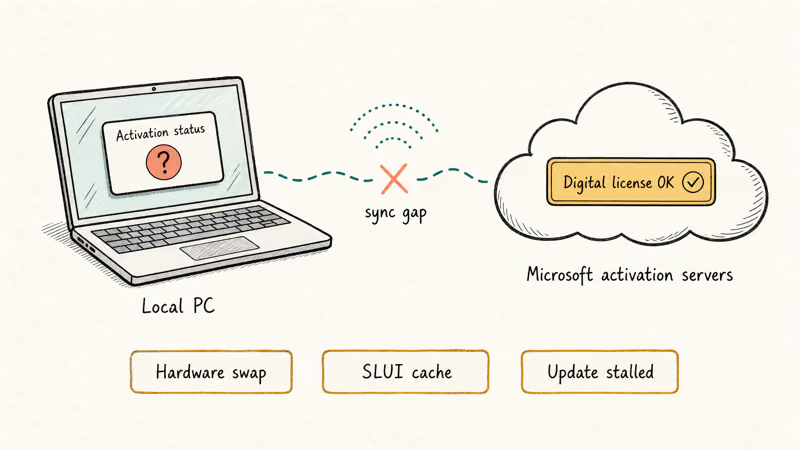
Two common triggers are swapping the boot SSD and a stalled cumulative update that blocks the SLUI service from syncing. Neither requires a fresh install or a third-party activator to recover, and both usually clear in under ten minutes.
Use these steps only on a PC you own or administer.
#How Do You Fix the License Error With the Slmgr Rearm Command?
The quickest fix is the slmgr -rearm command, which resets the activation grace period for an existing license. The command finishes quickly, and on a legitimately licensed copy the expiration banner is gone after the forced restart. The whole process, from pressing Ctrl + Alt + Del to logging in on a fully activated desktop, takes only a few minutes.
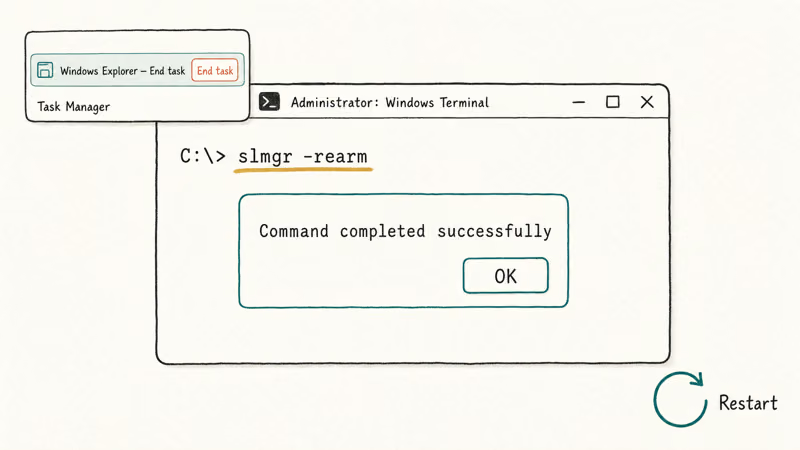
- Press Ctrl + Alt + Del and open Task Manager.
- Under the Processes tab, right-click Windows Explorer and select End Task.
- Click File > Run New Task, type explorer.exe, and click OK to rebuild the desktop.
- Press Windows + X, pick Windows Terminal (Admin) or Command Prompt (Admin).
- Type slmgr -rearm, press Enter, then restart when Windows prompts you.
If slmgr -rearm returns an error that you’ve hit the maximum rearm count (the retail limit is three per image), try slmgr -upk instead. That removes the current product key without erasing the license record, letting you re-enter the key in the next method.
The same toolkit can help when you’re chasing a separate Windows Update error 0x800705b4, since both faults share the SLUI cache.
#Use the Built-In Activation Troubleshooter (Official First)
Microsoft’s Activation troubleshooter is the official fix path. Try it first on any internet-connected PC, because it contacts Microsoft’s servers, matches your hardware hash against your digital license, and in many cases silently re-applies the key without any manual input, which means no command line, no registry edit, and no risk of breaking an unrelated service while you recover.
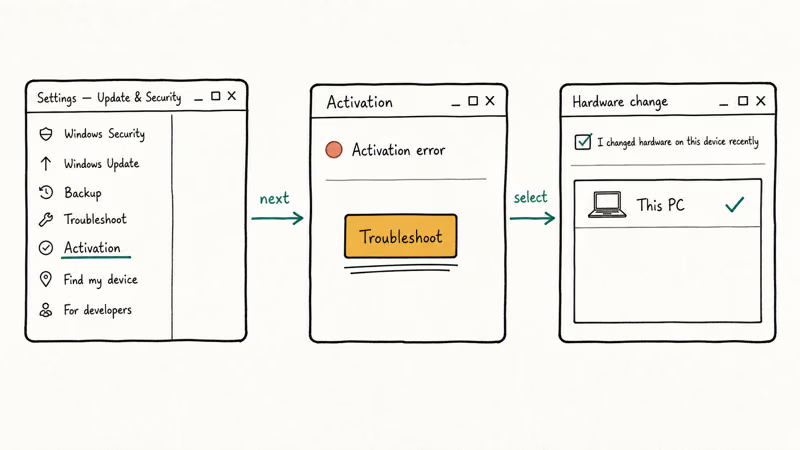
- Press Windows + I to open Settings.
- Go to Update & Security > Activation on Windows 10, or System > Activation on Windows 11.
- If Windows shows an activation error, click Troubleshoot.
- Sign in with the Microsoft account attached to the license when prompted.
- Select I changed hardware on this device recently if a hardware swap triggered the warning, then pick your PC from the device list.
Microsoft’s reactivation guide states that 1 active Microsoft account paired with the original digital license lets the troubleshooter reassociate that license with a new motherboard, SSD, or CPU on the same PC.
When it works, skip every other method below.
The troubleshooter also works alongside fixes for Windows Update database errors that can block activation syncs before the hardware hash even reaches Microsoft.
#Change the Group Policy to Stop Forced Restarts
If the warning keeps returning between attempts, tame the forced-restart loop first so you can work without interruption. This setting is on Windows 10 Pro, Windows 10 Enterprise, Windows 11 Pro, and Windows 11 Enterprise.
Home editions don’t ship with gpedit.msc and should skip this one.
- Press Windows + R, type gpedit.msc, and click OK.
- Go to Computer Configuration > Administrative Templates > Windows Components > Windows Update.
- Open No auto-restart with logged on users for scheduled automatic updates installations.
- Set it to Enabled, click Apply, then OK.
Group Policy alone doesn’t clear the expiration error. It just stops Windows from rebooting your PC every two to three hours while you work through the other steps.
If the PC is also running low on free memory, resolve that first, since low-memory conditions can stall the Software Protection Platform Service long enough to fail an activation handshake.
#Disable the Windows License Manager Service (Short-Term Relief)
Disabling the license manager service stops the popup loop immediately. It also blocks every future activation check until you turn it back on. Treat this as a pause button, not a fix. It’s the fallback for Windows Home laptops where the Group Policy editor isn’t available, and the warning stops within a minute of disabling the service.
Warning: turning off these services also halts Windows Update. Re-enable both the moment you have applied a real fix from one of the other sections.
- Press Windows + R, type services.msc, and click OK.
- Scroll down to Windows License Manager Service and double-click it.
- Change Startup type to Disabled. If the service is running, click Stop, then Apply > OK.
- Repeat the same steps for the Windows Update service.
Turn both services back to Automatic as soon as you reactivate.
If the activation banner still appears after that, cross-check that your license is properly recognized by Microsoft before assuming the fix held. The next method handles that step.
#Retrieve and Re-Enter Your Product Key
Re-entering your key forces the Software Licensing Service to talk to Microsoft again and re-link the digital license. According to Microsoft’s volume activation planning guide, OEM keys injected into UEFI firmware can be retrieved through the OA3xOriginalProductKey command and reused on the same device, and retail keys work the same way through Settings > Activation.
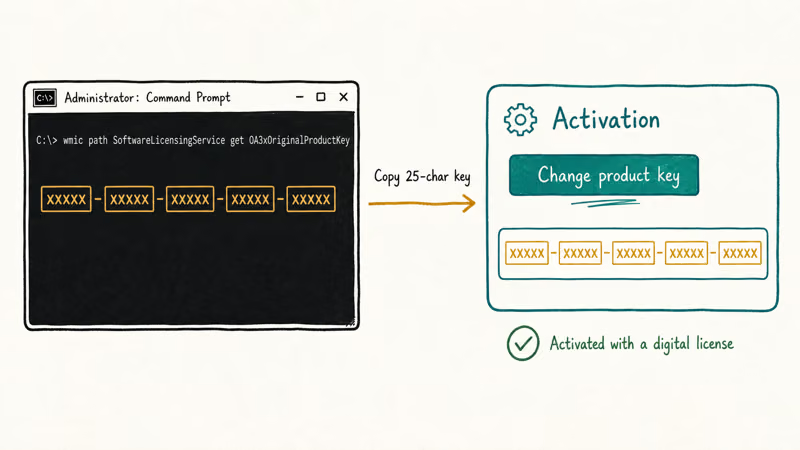
- Open Command Prompt as administrator.
- Run: wmic path SoftwareLicensingService get OA3xOriginalProductKey
- Copy the 25-character key that appears. Store it in a password manager before you continue.
- Press Windows + I > Update & Security > Activation (Windows 11: System > Activation).
- Select Change product key, paste the key, and click Next.
Windows should show “Activated with a digital license” within ten seconds on a connected network.
If the field is blank after step 2, your PC may use a retail key tied to your Microsoft account instead of a UEFI-embedded OEM key. Check the Activation page for “Activated with a digital license linked to your Microsoft account.” For a deeper walk-through of the status screens, see our guide to activating Windows 10.
#Edit the Registry to Block Activation Tickets
This registry edit tells Windows to stop generating new activation tickets, which prevents the license expiration popup from reappearing. It’s the most stubborn fix on this list. Back up the registry first: a single bad edit can leave the PC unbootable, and you don’t want to chase a BOOTMGR is missing error on top of an activation problem.
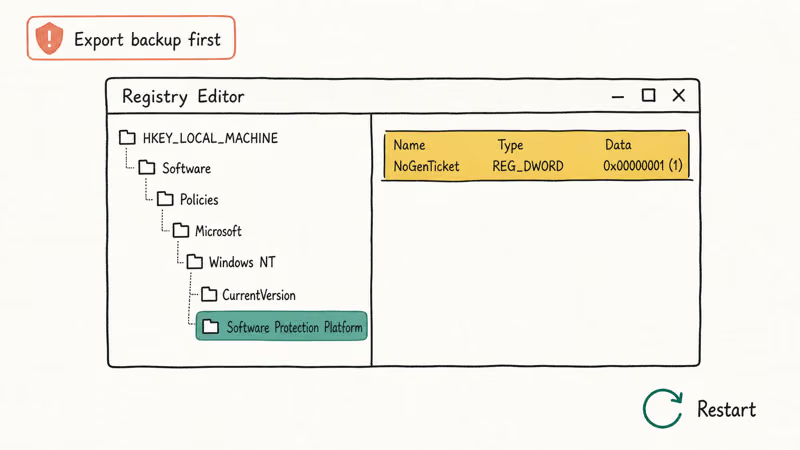
- Press Windows + R, type regedit, and click OK.
- Click File > Export, choose All, name the backup, save it somewhere safe, and click Save.
- Open Command Prompt as administrator and run this single command:
reg add "HKLM\Software\Policies\Microsoft\Windows NT\CurrentVersion\Software Protection Platform" /v NoGenTicket /t REG_DWORD /d 1 /f- Restart the PC.
The NoGenTicket key tells the Software Protection Platform Service to stop minting fresh activation tickets. That is what generates the popup. On a legitimately licensed copy the key is harmless.
If something else breaks after the edit (display brightness controls, power options, or other Settings panes can behave oddly after registry tweaks like brightness on Windows 10), import the backup from step 2 to roll the change back.
#Preventing the License Error From Returning
Once the popup is gone, a few habits keep it that way. According to the Microsoft Support Windows Update FAQ, Windows 10 and 11 receive monthly security updates on the 2nd Tuesday of each month, and the Software Protection Platform Service re-synchronizes alongside those cumulative updates, which keeps the activation state current with Microsoft.
- Install cumulative updates promptly. The warning often reappears when a Patch Tuesday sits idle for over a month and the next feature update stacks on top of it.
- Save your product key somewhere safe. Run the wmic command once, paste the output into a password manager, and print a copy for the notebook you keep with the PC. You’ll need it after a hardware swap.
- Check activation after any hardware change. Go to Settings > Update & Security > Activation (or System > Activation on Windows 11) and confirm it shows “Activated with a digital license.” Run this check after swapping the motherboard, SSD, CPU, or GPU.
- Stick with Microsoft’s official recovery paths. Third-party “activators” and KMS bypass tools violate Microsoft’s software license terms, trigger antivirus flags, and in some cases install unwanted software alongside the activation patch.
#Bottom Line
Start with the Activation troubleshooter inside Settings. It’s Microsoft’s official path and resolves the error at the server side without a single command. If the troubleshooter doesn’t apply (no internet, or the warning appeared after a clean install you haven’t signed into yet), run slmgr -rearm from an elevated Command Prompt and reboot.
Reserve the registry edit for PCs where the popup survives every other fix, because the NoGenTicket key masks the underlying desync rather than repairing it.
Skip Group Policy entirely on Windows Home editions. It doesn’t ship there, and the remaining four methods cover every Home scenario, including clean installs and a CPU-and-motherboard swap where the digital license reattaches through the troubleshooter.
#Frequently Asked Questions
What happens if I ignore the license expiration warning?
Windows keeps working but shows an “Activate Windows” watermark. Once the grace timer hits zero, your PC restarts every two to three hours, which makes sustained work impossible.
Can I still use Windows if my license expires?
Yes, with restrictions. File access works; the restart loop does not.
How do I check when my Windows license expires?
Run slmgr.vbs /xpr in an elevated Command Prompt.
Can I transfer my Windows license to a different computer?
It depends on the license type: retail licenses can move to new hardware after you deactivate the old PC, but OEM licenses are tied to the motherboard they shipped with, and Microsoft’s software license terms limit cross-device transfers to retail and volume agreements.
What should I do if none of these methods work?
Contact Microsoft Support, or run slui 4 to trigger phone activation.
Does this error mean my Windows copy isn’t genuine?
Not necessarily. Run slmgr.vbs /dli from an elevated Command Prompt and check the License Status line. If it reads “Licensed,” your copy is legitimate and the warning is just a verification desync, not a piracy flag, which is why Microsoft ships the Activation troubleshooter as the first-line fix for this exact scenario and keeps rolling it into fresh Windows 11 builds alongside the standard Activation pane, so the same one-click recovery path works identically on Home, Pro, and Enterprise editions.

Best Laptop for Running LLMs in 2026: Memory Comes First
The best laptop for running LLMs is a memory purchase first. Compare MacBook unified memory against NVIDIA laptop VRAM, and see what each tier really runs.

How to Run a Local LLM on Windows: A 2026 Setup Guide
Run a local LLM on Windows with LM Studio or Ollama. Pick a model that fits your GPU memory, keep every prompt offline, and skip the monthly bill.

Bluetooth Not Working on Snapdragon X? Fixes for 2026
Bluetooth not working on your Snapdragon X Copilot+ PC? Generic audio, mice, and keyboards work, but vendor apps often lack an ARM build. Fixes inside.

Docker Desktop and WSL2 Not Working on Snapdragon X? Fix It
WSL2 runs fine on Snapdragon X, but Docker Desktop ARM is Early Access and throws WSL errors. Use WSL2 plus native ARM64 Ubuntu and Docker Engine.