AirShou Not Working? Use iOS Screen Recording Instead (2026)
AirShou stopped working because the sideloaded app is abandoned. Use the iOS Screen Recording toggle in Control Center, or a verified alternative.
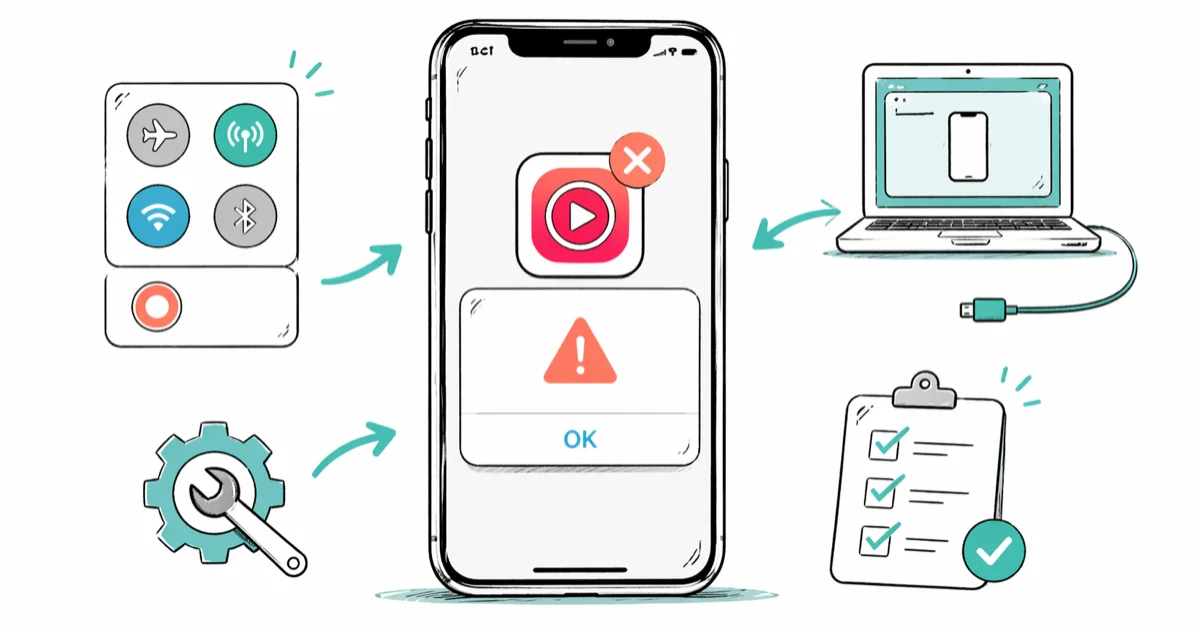
Quick AnswerAirShou is defunct because the sideloaded app lost its enterprise certificate and hasn't been updated since 2019. Add the Screen Recording toggle to Control Center on iOS 11 or later and record natively, or use a vetted alternative like QuickTime over USB.
If AirShou isn’t working on your iPhone in 2026, the honest fix is to stop using AirShou. The sideloaded app has been abandoned for years. Its enterprise signing certificate has been revoked multiple times, and Apple has closed the loopholes that let non-App Store recorders work without jailbreak. The good news: every iPhone running iOS 11 or later has a built-in screen recorder that does everything AirShou used to do, plus mic audio for voice-over.
This guide applies only to a device or account you own.
- AirShou was never on the App Store; its enterprise certificates have been revoked
- iOS 11 added a native Screen Recording toggle that records 1080p at 30 fps
- Long-press the Screen Recording button to capture microphone audio for voice-over
- QuickTime on a Mac records iPhone screens over USB-C or Lightning in full quality
- “No jailbreak” sideloaded recorders in 2026 are unsafe and stop working within days
#Why Is AirShou Not Working Anymore?
AirShou was built in 2016, when iOS 9 had no built-in screen recorder. The app was distributed outside the App Store through enterprise certificates and installers like BuildStore, TutuApp, and later AltStore. That distribution model is what Apple killed.
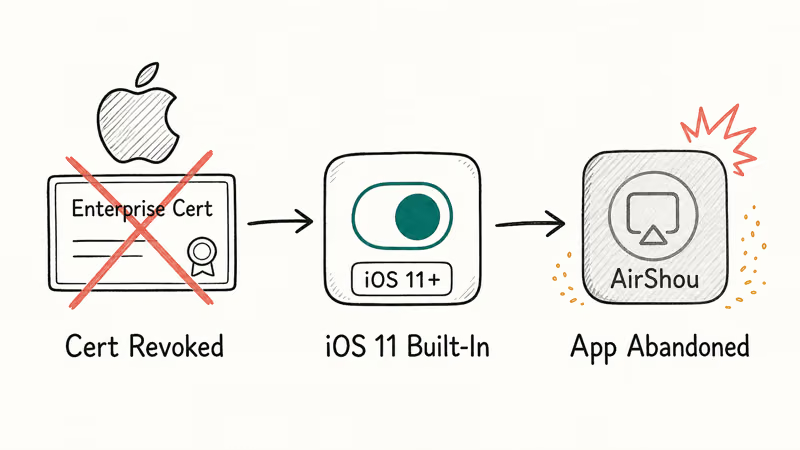
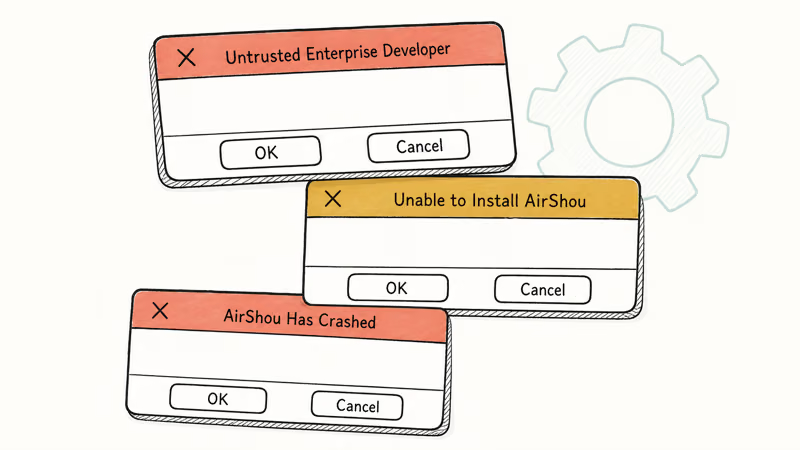
Current AirShou installers commonly fail with “Untrusted Enterprise Developer.” That certificate warning is the exact wall Apple uses to block apps that abuse enterprise distribution.
Three things broke AirShou, and none can be fixed from the user side:
- Enterprise certificate revocation. Apple has repeatedly revoked the certificates sideloaded versions rely on. Once revoked, the app refuses to launch.
- iOS 11 made it redundant. Apple released the Screen Recording toggle in 2017, giving every user a recorder at the OS level.
- Developer inactivity. AirShou’s last meaningful update shipped years ago and hasn’t been recompiled for current iOS SDKs.
Current AirShou copies don’t install cleanly. Either the installer fails after accepting the profile, or iOS refuses to trust the developer certificate on first launch. If your copy installed a year ago and suddenly stopped working, the certificate was revoked at Apple’s end.
The same collapse hit other sideloaded recorders.
If your device also has boot or responsiveness problems alongside the install failure, our iPhone won’t turn on after an iOS update guide walks through a separate recovery checklist.
#The iOS Native Screen Recorder Replaces AirShou Completely
Every iPhone and iPad running iOS 11 or later has the Screen Recording feature Apple introduced in 2017. It records the full display, saves to Photos as an MP4, and supports microphone audio for voice-over. Setup takes under a minute.
#Add the Screen Recording Button to Control Center
- Open
Settings>Control Centeron your iPhone. - Scroll down to More Controls.
Tap the green + next to Screen Recording to add it to the active list. Drag the right-side handle if you want to reorder the toggle to the top.
#Start a Recording
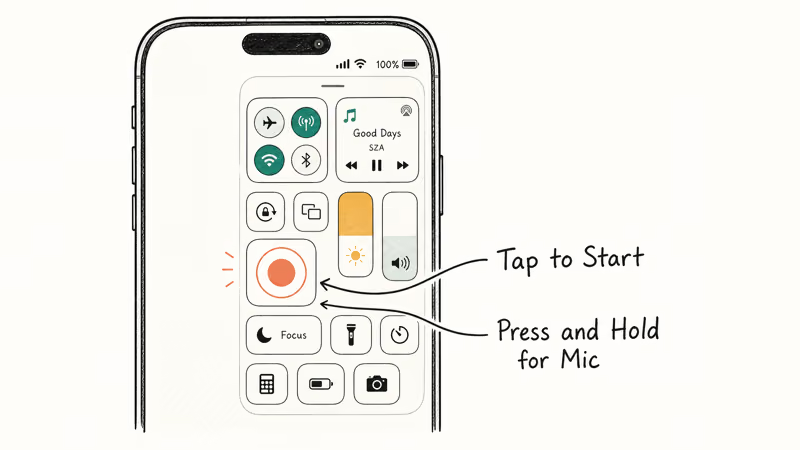
- Open Control Center (swipe down from the top-right on Face ID iPhones, or up from the bottom on Home button models).
- Tap the solid circle inside a ring.
Wait three seconds for the countdown, then capture whatever you need. To stop the recording, you can tap the red status bar at the top of the screen and confirm the stop in the pop-up, or you can reopen Control Center and tap the Screen Recording button a second time to end the session manually.
The clip lands in your Photos app under Recents. File size depends on duration, resolution, frame rate, and HEVC settings, so check iPhone Storage before long recordings.
#Record Audio From the Microphone
Game commentary, tutorials, and reaction videos need your voice as well as system audio. The button supports both.
Open Control Center and press and hold the Screen Recording button. In the panel, tap Microphone so the icon turns red, then tap Start Recording.
The microphone icon stays on for future recordings until you turn it off the same way. Apple’s screen recording support page confirms that the built-in recorder requires iOS 11 or later and captures system and microphone audio in one clip.
Need to send the iPhone display to a TV? Our best screen mirroring apps roundup covers it.
#What if the Built-in Recorder Has Its Own Problems?
The native recorder is stable. Three limits still catch people out, though, and each has a concrete fix that doesn’t require anything beyond the Settings app and a minute of attention.
#The Screen Recording Button Is Missing
The button was never enabled. Go to Settings > Control Center > More Controls and add it.
On iOS 18, Apple moved Control Center customization slightly. You may see Add a Control instead of a green plus, but the behavior is the same.
#Recording Has No Sound From the App
iOS silences the recorder if your phone is in Silent Mode.
Toggle the ringer switch up, or turn off Silent in Control Center, and start again. System audio follows the ringer; microphone audio is separate.
#Recording Fails in Certain Apps
Streaming apps like Netflix, Disney+, and HBO Max produce a black screen when recorded because of FairPlay DRM. Banking apps and Apple Pay prompts also block capture. iOS enforces this at the system level, so no sideloaded recorder (including AirShou when it worked) could bypass it legally.
If you need high-quality iPhone footage for a presentation or tutorial, the cleanest path is QuickTime Player on a Mac. Plug the iPhone into the Mac. Open QuickTime, choose File > New Movie Recording, click the arrow next to the record button, and pick the iPhone as the video source. According to Apple’s QuickTime user guide, QuickTime saves the recording directly to the Mac as a MOV file.
#Legitimate Alternatives to AirShou in 2026
AirShou promised two things that attracted users: it recorded without jailbreak, and it worked before iOS had a native option. Both problems are solved now. Here’s what we recommend if the built-in recorder doesn’t fit your workflow.
#QuickTime Player (Mac, Free)
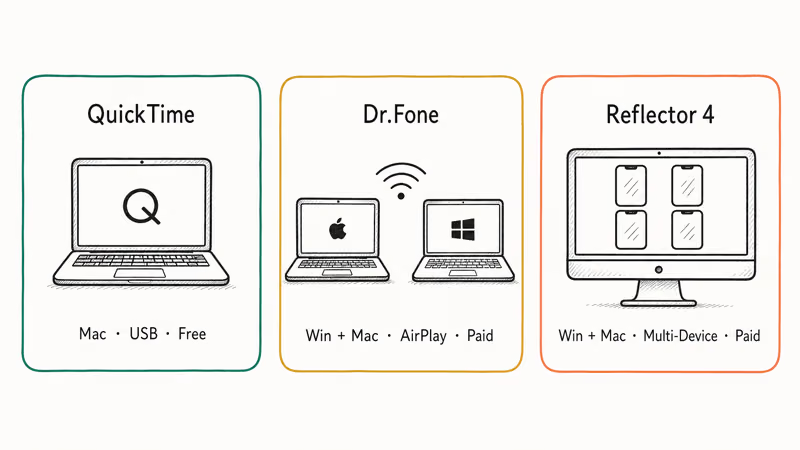
- Records iPhone screens at full resolution over USB.
- Exports MOV files you can trim, convert, or edit.
Free.
#Wondershare Dr.Fone iOS Screen Recorder (Windows + Mac)
Some links on this page are affiliate links, which means fone.tips may earn a commission at no extra cost to you.
- Works on Windows as well as macOS, which QuickTime can’t.
- Uses AirPlay, so no cable is required once both devices share Wi-Fi.
- Paid tool with a free trial; check the current price on the vendor page.
#Reflector 4 (Windows + Mac, Paid)
- A mirroring and recording app that has been around since 2011.
- Records the iPhone screen over AirPlay with an optional multi-device layout.
One-time license fee; free trial available.
For a cross-platform recorder that handles desktop screens and webcam too, our Screencast-O-Matic review walks through the trade-offs. If you want to mirror and record without a router nearby, screen mirroring without Wi-Fi covers the USB and peer-to-peer options that still work on iOS 18.
#System Audio From the iPhone Itself
For captures that only need the iPhone, stick with the native recorder. It has the least setup because it doesn’t require a Mac, AirPlay, a desktop app, or a sideloaded profile.
The others are only worth the trouble if you need the recording on a desktop immediately or you’re on Windows.
#Common AirShou Install Errors and What They Mean
Three install errors account for most AirShou failures in 2026. Knowing the message helps you confirm the sideload is dead, not something you can fix.
#“Untrusted Enterprise Developer”
iOS shows this when you launch an app signed with a certificate Apple has revoked. In previous years you could work around this by going to Settings > General > VPN & Device Management and tapping Trust on the profile. That option no longer appears for revoked AirShou certificates, because the certificate itself has been invalidated at Apple’s end.
#“Unable to Install AirShou”
This is the generic App Store or installer failure. It usually means the IPA file you downloaded is corrupt, the signing profile has expired, or the installer service (BuildStore, TutuApp) has been shut down. Re-downloading won’t help.
#“AirShou Has Crashed” on Launch
When AirShou opens and immediately quits, the app is running on an iOS version it was never compiled against. iOS 17 and 18 dropped APIs AirShou depends on, so the runtime crashes during initialization. No amount of cache clearing or re-installs fixes this.
#Sideloading AirShou or Its Clones Isn’t Safe Today
A few sites still advertise AirShou, AirShou IPA, or AirShou Pro with “no jailbreak required” claims. Don’t trust them.
These installers often fail outright or install profiles that iOS flags as untrusted. Some profiles carry adware. A few download follow-on apps that ask for broad permissions like location and contacts.
Apple’s guide to device management and profiles recommends removing any unknown configuration profile from Settings > General > VPN & Device Management. That’s the right move if you’ve already installed one.
If a sideload attempt has left your iPhone stuck on the boot screen, our iPhone white screen of death fix walks through the recovery. Short version: the built-in iOS Screen Recorder does everything AirShou did, and more. There’s no upside to chasing a sideload that’ll break again in weeks.
#Bottom Line
Add the Screen Recording button to Control Center and use the native iOS recorder: it ships on every iPhone running iOS 11 or later and doesn’t need an enterprise certificate. If you need Windows support, Dr.Fone iOS Screen Recorder is the cleanest paid alternative; on a Mac, QuickTime over USB records at full iPhone resolution for free. Stop trying to install AirShou. The app has been dead since 2019.
#Frequently Asked Questions
Is AirShou still available on the App Store?
No. AirShou was never on the App Store.
Can I record my iPhone screen without jailbreaking?
Yes. Since iOS 11, every iPhone has a built-in Screen Recording toggle in Control Center that captures video and optional microphone audio. You don’t need to jailbreak the device, install a profile, or sideload anything to use it.
Why does the iOS screen recorder produce a black video on Netflix or Disney+?
Streaming services use FairPlay DRM to prevent recording. iOS enforces the block at the system level, so every recorder (native, sideloaded, or desktop) captures a black screen for DRM-protected video. It isn’t a bug you can fix, and no third-party tool can bypass this without breaking copyright law. The fix is not technical; if you legitimately need the content offline, use the streaming app’s built-in download feature where it exists.
How long can the built-in iOS screen recorder record for?
Storage is the only limit. A 1-hour 1080p clip uses around 1.5 GB with HEVC encoding, so check Settings > General > iPhone Storage before starting.
Does the built-in recorder capture FaceTime or phone calls?
The recorder captures video of the FaceTime UI but not the other person’s audio, because FaceTime mutes the call-recording pathway. Standard phone calls have the same block. Use an external recorder or your Mac if you need call audio, and confirm you’ve got consent from both parties.
Why does my screen recording have no sound at all?
Silent Mode silences system audio in recordings. Flip the side switch up, or turn off Silent in Control Center.
What is the best free alternative to AirShou for Windows users?
There isn’t a fully free, reliable iPhone recorder on Windows. Dr.Fone and Reflector both offer free trials and use AirPlay over Wi-Fi. If cost matters more than convenience, borrow a Mac and use QuickTime over USB: it’s free, ships with macOS, and records at full iPhone resolution.

Mac mini M6 vs M5 Pro: Which Model Should You Buy?
Mac mini M6 vs M5 Pro compared on price, memory, ports, displays, and real workloads. Find the better 2026 Mac mini for your desk and budget.

Apple Siri Settlement: Who Qualifies and How to Claim
Apple's $250 million Siri settlement covers iPhone 15 Pro and iPhone 16 models bought June 2024 to March 2025. See who qualifies and how claims work.

iOS 26.6.1 Security Update: What Apple Fixed and Who Gets It
Apple released iOS 26.6.1 on August 17 with 29 security fixes, including an IPSec interception bug. See what it patches, who gets it, and how to update.

iPhone Adaptive Power: How It Works and When to Use It
Learn how iPhone Adaptive Power works, which models support it, what it changes, and when Low Power Mode is still the better battery-saving choice.