Excel not responding is one of those problems that always hits at the worst possible time — mid-spreadsheet, before a save. The good news is that most freezes trace back to a handful of fixable causes, and you rarely need to reinstall Office to solve it.
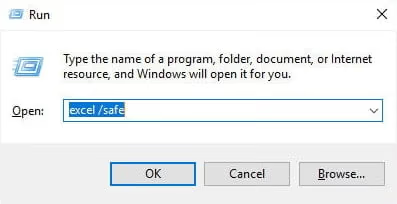
- Launching Excel in Safe Mode (type “excel /safe” in Run) instantly disables all add-ins and reveals whether one is causing the freeze.
- COM add-ins are the most common culprit behind random Excel freezes, especially after Office updates.
- Files with more than 100,000 rows or complex array formulas can overwhelm Excel on PCs with less than 8 GB of RAM.
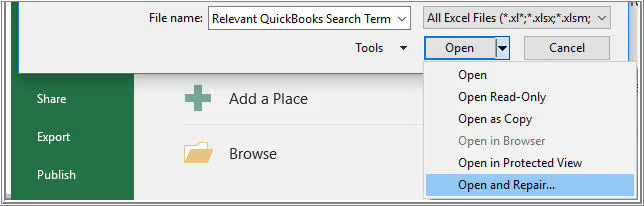
- The “Open and Repair” option (File > Open > arrow next to Open) recovers most corrupted workbooks without data loss.
- AutoRecover saves a version every 10 minutes by default, so check File > Info > Manage Workbook before assuming your work is gone.
#Introduction
Microsoft Excel is a powerful tool used by millions for data analysis, financial modeling, and various business operations. However, even the most reliable software can encounter issues, and one of the most frustrating problems users face is when Excel stops responding or freezes. This comprehensive guide will explore the causes of this issue and provide step-by-step solutions to get your Excel back on track.
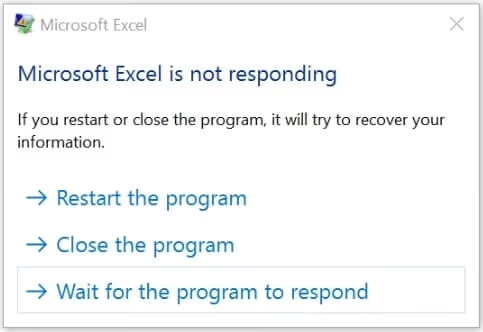
When Excel becomes unresponsive, it can manifest in several ways:
- The program freezes and doesn’t respond to any input
- You see the dreaded “Excel is not responding” message
- The Excel window turns white or gray
- You’re unable to save your work or perform any actions
These issues not only hinder productivity but can also lead to data loss if not addressed promptly. Understanding the causes and solutions is crucial for anyone who relies on Excel for their daily work.
#Common Causes of Excel Freezing or Not Responding
Several factors can contribute to Excel becoming unresponsive:
- Outdated Software: Running an older version of Excel or Windows can lead to compatibility issues and bugs that cause freezing.
- Large File Sizes: Excel files with extensive data sets or complex calculations can overwhelm the program, especially on computers with limited resources.
- Add-in Conflicts: Third-party add-ins or extensions can sometimes conflict with Excel’s core functionality, leading to performance issues.
- Insufficient System Resources: If your computer lacks adequate RAM or processing power, Excel may struggle to perform complex operations.
- Corrupted Excel Files: Damaged or corrupted Excel files can cause the program to freeze when attempting to open or work with them.
Understanding these common causes is the first step in effectively troubleshooting and resolving Excel’s unresponsiveness.
#Basic Troubleshooting Steps
Before diving into more advanced solutions, try these basic troubleshooting steps:
#1. Update Excel and Windows
Keeping your software up-to-date is crucial for optimal performance and security. Microsoft regularly releases updates that fix bugs and improve functionality.
To update Excel:
- Open any Office application
- Go to File > Account
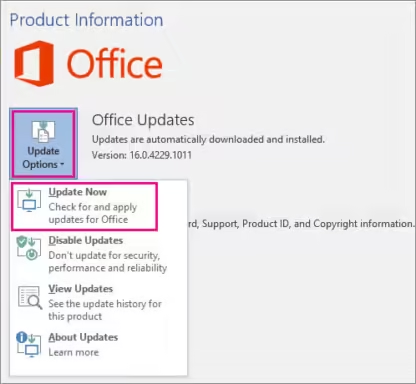
- Click on “Update Options” and select “Update Now”
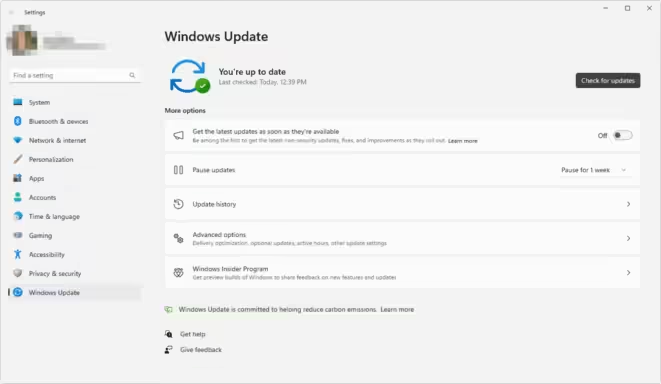
For Windows updates:
- Go to Settings > Update & Security
- Click on “Check for updates”
#2. Disable Add-ins
Add-ins can enhance Excel’s functionality, but they can also cause conflicts. To disable add-ins:
- Start Excel in Safe Mode by typing “excel /safe” in the Run dialog (Windows key + R)
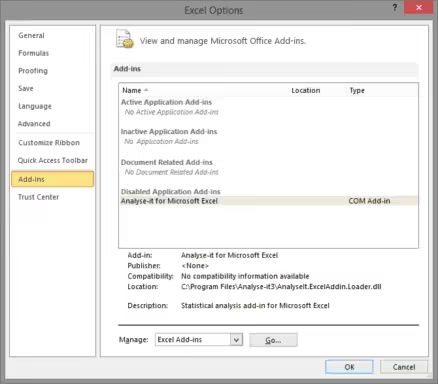
- Go to File > Options > Add-Ins
- Select “COM Add-ins” from the Manage dropdown and click “Go”
- Uncheck all add-ins and click OK
- Restart Excel normally and check if the issue persists
#3. Run Excel in Safe Mode
Running Excel in Safe Mode disables all add-ins and custom settings, which can help identify if these elements are causing the problem.
To start Excel in Safe Mode:
- Press Windows key + R to open the Run dialog
- Type “excel /safe” and press Enter
If Excel works fine in Safe Mode, the issue is likely related to an add-in or custom setting.
#4. Close Background Processes
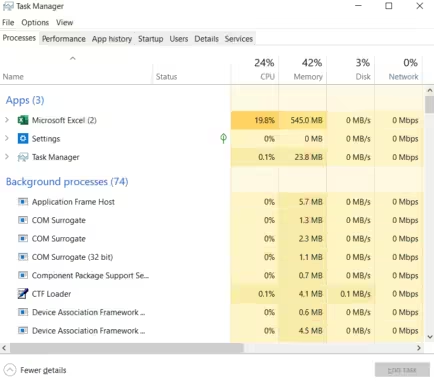
Other programs running in the background can consume system resources, affecting Excel’s performance. Use Task Manager to close unnecessary applications:
- Press Ctrl + Shift + Esc to open Task Manager
- Review running applications and background processes
- Close any non-essential programs to free up resources
#5. Restart Excel and Your Computer
Sometimes, a simple restart can resolve temporary glitches:
- Save your work if possible and close Excel
- Restart your computer to clear memory and reset all processes
- Reopen Excel and check if the issue is resolved
#Advanced Troubleshooting Techniques
If basic troubleshooting doesn’t resolve the issue, try these more advanced techniques:
#1. Repair Corrupted Excel Files
Excel has a built-in repair tool for damaged files:
- Open Excel and go to File > Open
- Navigate to the problematic file
- Click the arrow next to the Open button and select “Open and Repair”
If this doesn’t work, you may need to decrypt the Excel file or unprotect the Excel sheet without a password using specialized tools.
#2. Check and Fix Broken External Links
Broken links to external data sources can cause Excel to freeze:
- Go to Data > Edit Links
- Select any broken links and click “Change Source” to update them
- If links are no longer needed, click “Break Link”
#3. Adjust Excel Performance Settings
Optimize Excel’s settings for better performance:
- Go to File > Options > Advanced
- Under “Formulas,” uncheck “Enable multi-threaded calculation”
- Under “Display,” check “Disable hardware graphics acceleration”
#4. Reinstall Microsoft Office
If issues persist, a clean installation of Office may be necessary:
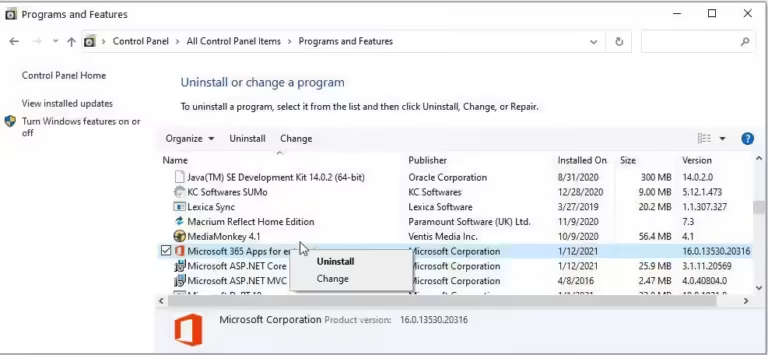
- Uninstall Microsoft Office from Control Panel
- Download the latest version from Microsoft’s official website
- Install the new version and apply all updates
#5. Use Microsoft’s Built-in Repair Tools
Microsoft offers several tools to diagnose and fix Office-related issues:
- Use the Microsoft Support and Recovery Assistant
- Run the Office Repair tool from Control Panel > Programs > Uninstall a program
If you’re experiencing similar issues with other Microsoft Office applications, such as Word not responding, these tools can help resolve those problems as well.
#Preventive Measures
To minimize the chances of encountering “Excel Not Responding” issues in the future:
- Keep Software Updated: Regularly check for and install updates for Excel and Windows.
- Manage File Sizes: Break large workbooks into smaller files when possible.
- Enable Auto-Save: Use Excel’s AutoRecover feature to save work automatically.
- Limit Add-ins: Only use necessary add-ins and keep them updated.
- Optimize System Resources: Ensure your computer meets Excel’s system requirements and consider upgrading hardware if needed.
#When to Seek Professional Help
If you’ve tried all the above solutions and still encounter issues, it may be time to seek professional assistance:
- Persistent Issues: If problems continue despite troubleshooting, consult IT support.
- Data Recovery: For critical data loss, consider professional data recovery services.
- Complex Errors: Some errors may require specialized knowledge to resolve.
- Microsoft Support: Utilize Microsoft’s official support channels for advanced issues.
- Community Forums: Engage with Excel communities for peer support and advice.
#FAQ Section
Q1: Why does Excel freeze when I open a specific file? A1: This could be due to file corruption, large file size, or complex calculations within the file. Try opening the file in Safe Mode or use the “Open and Repair” option.
Q2: Can antivirus software cause Excel to stop responding? A2: Yes, some antivirus programs can interfere with Excel. Try temporarily disabling your antivirus and see if the issue resolves. If it does, consider adding Excel to your antivirus exceptions list.
Q3: How can I prevent Excel from crashing with large datasets? A3: Use data management techniques like splitting data into separate sheets, using tables instead of ranges, and avoiding excessive formulas that reference entire columns.
Q4: Will repairing Microsoft Office delete my Excel files? A4: No, repairing Office doesn’t affect your files. However, it’s always a good practice to back up important files before performing any system repairs.
Q5: How do I recover unsaved work if Excel crashed? A5: Excel’s AutoRecover feature may have saved a version of your work. Check File > Info > Manage Workbook > Recover Unsaved Workbooks to see if your work was auto-saved.
#Conclusion
Excel not responding can be a frustrating experience, but with the right approach, most issues can be resolved quickly. By understanding the common causes, applying both basic and advanced troubleshooting techniques, and implementing preventive measures, you can minimize downtime and ensure a smoother Excel experience.
Remember, proactive maintenance is key to preventing many Excel issues. Keep your software updated, manage your files effectively, and don’t hesitate to seek help when needed. With these strategies in place, you’ll be well-equipped to handle any Excel challenges that come your way.
Stay curious and continue learning about Excel’s features and best practices. The more you understand about this powerful tool, the better prepared you’ll be to overcome any obstacles and maximize your productivity.
If you’re experiencing similar issues with other applications, such as Discord not opening or Google Chrome crashing, many of these troubleshooting techniques can be applied to those situations as well. For gaming-related issues like screen tearing, there are specific solutions available that can enhance your overall computer experience.