How to Fix ERR_CACHE_MISS Error in Google Chrome Fast
Fix ERR_CACHE_MISS in Chrome with 7 proven methods: cache clearing, extension fixes, DNS flush, and Chrome reset. Step-by-step for Windows and Mac.
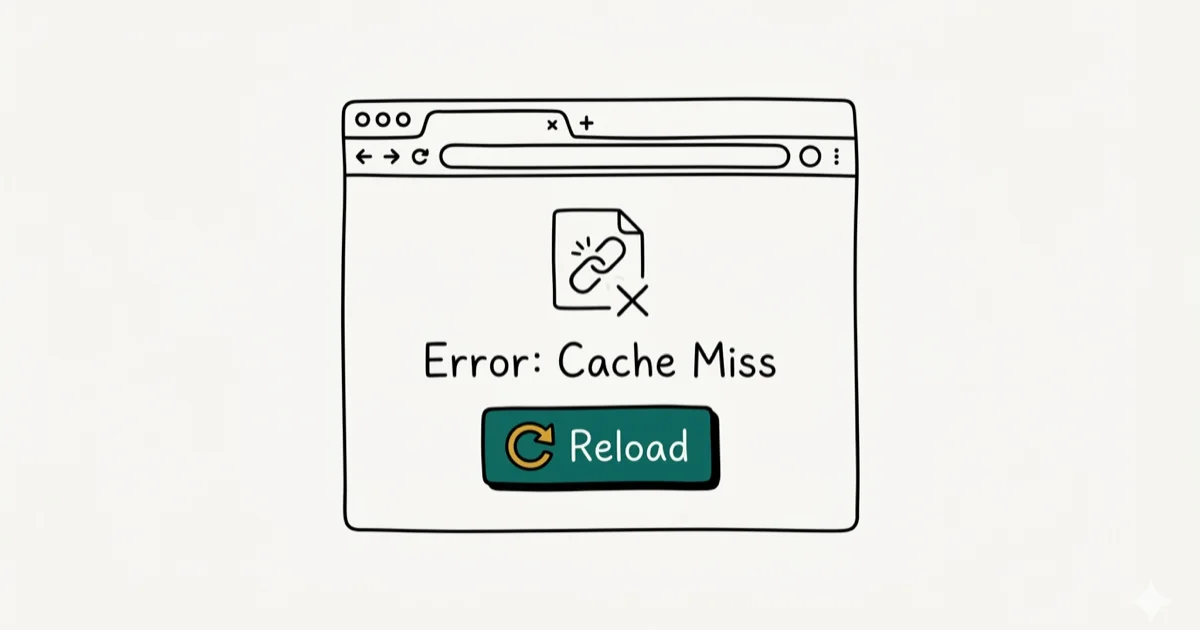
Quick AnswerERR_CACHE_MISS usually means Chrome tried to resubmit a form that lost its cached data. Press F5 to reload, or clear Chrome cache via Settings > Privacy and security > Clear browsing data. Hard-reload with Ctrl+Shift+R on Windows or Cmd+Shift+R on Mac if a simple reload does not work.
When Chrome shows ERR_CACHE_MISS, it stopped loading a page because the browser expected cached data that was no longer available. This happens most often after submitting a form or navigating backward through pages. The fix is usually to target the cause: reload a stale page, clear corrupted cache, disable a conflicting extension, or reset Chrome after simpler steps fail.
Before changing these settings, use the steps only on your own device, computer, or account, or with explicit permission from the owner. Unauthorized access can violate law, privacy rights, and platform terms, so don’t use this guide to bypass someone else’s controls. When available, start with the official support option, built-in settings menu, or vendor documentation before trying manual fixes, especially if the device or account belongs to work, school, or another person.
- ERR_CACHE_MISS appears when Chrome can’t find the cached data it needs, most often on form pages
- Hard reload (Ctrl+Shift+R) resolves the error without deleting browsing data
- Clearing Chrome cache and cookies fixes corrupted cached files
- Ad blockers and privacy extensions often trigger this error by stripping request headers
- Resetting Chrome settings restores default caching behavior as a last resort
#Understanding ERR_CACHE_MISS in Chrome
This error shows up in four main scenarios, and the cause determines which fix works fastest.
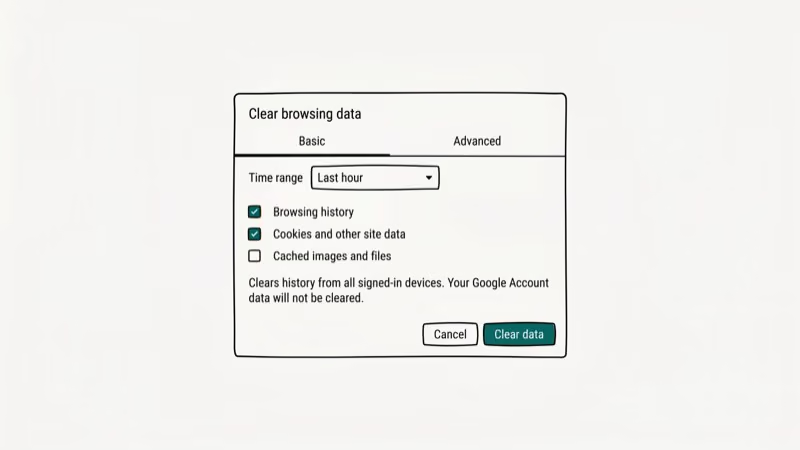
Form submission pages. When you fill out a form and submit it, Chrome stores the form data in its cache. If you reload or navigate back to that page, Chrome tries to resubmit using that cached data. If the cache entry is gone (cleared, expired, or lost), you get ERR_CACHE_MISS instead of the expected resubmission.
Back-and-forward navigation. Pages that generate dynamic content on every request sometimes fail when Chrome tries to serve a cached version that no longer matches what the server expects.
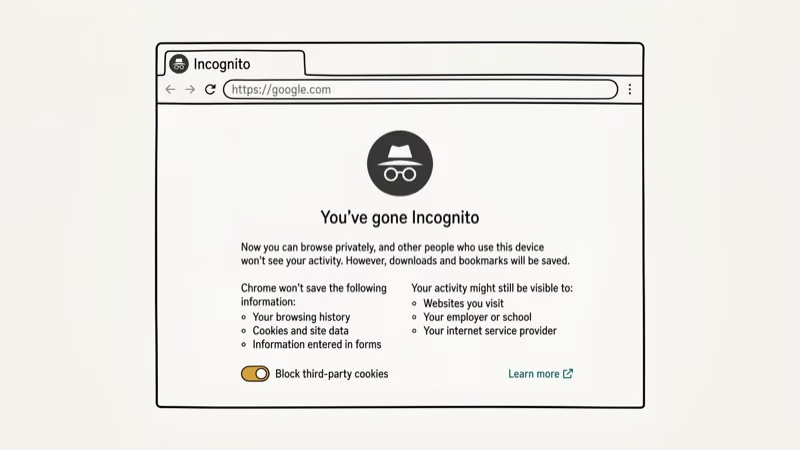
Browser extensions. Ad blockers, privacy tools, and VPN extensions can interfere with Chrome’s caching mechanism by stripping or modifying request headers that Chrome uses to validate cached entries. If the error disappears in Incognito, disable the affected extension in regular browsing.
Outdated Chrome or corrupted browser data. According to Google’s Chrome release blog, Chrome ships security and bug fix updates every 4 weeks, with minor patches between major releases. Running an outdated version leaves known caching bugs active.
#What Is the Fastest Fix for ERR_CACHE_MISS?
A hard reload forces Chrome to bypass its local cache and request a fresh copy directly from the server. This is the fastest fix.
On Windows: Press Ctrl + Shift + R or hold Ctrl while clicking the reload button.
On Mac: Press Cmd + Shift + R or hold Cmd while clicking reload.
Alternatively, open Developer Tools with F12, right-click the reload button, and select Empty cache and hard reload. That option wipes the page’s cache entry before reloading, which is more thorough than the keyboard shortcut.
If you’re on a form page and pressing reload shows a “Confirm Form Resubmission” dialog, click Continue to let Chrome resubmit the data. That dialog is normal behavior when Chrome detects you’re on a POST request page.
#Clear Chrome Cache and Cookies
Corrupted or stale cache files can prevent Chrome from correctly validating page requests. Clearing them forces a clean slate.
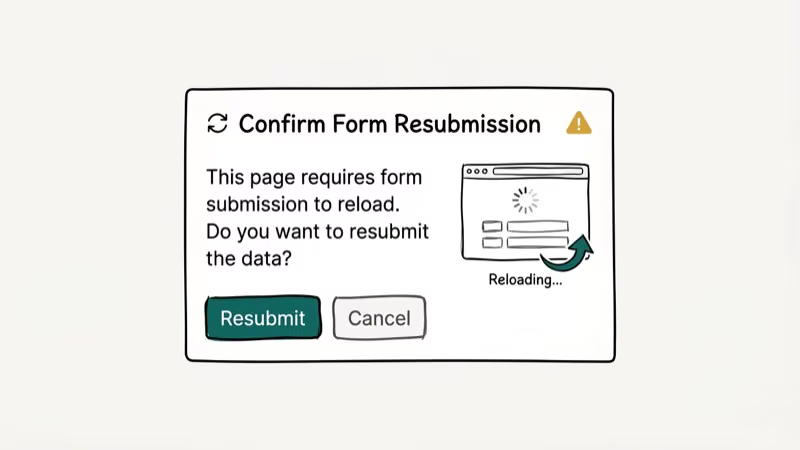
Press Ctrl + Shift + Delete on Windows or Cmd + Shift + Delete on Mac to open the Clear browsing data panel. Set the time range to All time, check Browsing history, Cookies and other site data, and Cached images and files, then click Clear data and restart Chrome.
After clearing cache, reload the affected page before changing deeper settings. If you’re also experiencing Chrome running slowly or other browsing issues, clearing cache often fixes those at the same time.
For Android users, you can follow a similar process to clear cache and cookies on Android.
#Do Browser Extensions Cause ERR_CACHE_MISS?
Extensions with network access can modify outgoing requests or strip headers, which breaks Chrome’s cache validation mechanism. Privacy-focused extensions are the most common culprits because they actively interfere with request headers.
To test whether an extension is causing the error:
Press Ctrl + Shift + N on Windows or Cmd + Shift + N on Mac to open an Incognito window, then try loading the problem page.
Incognito mode disables all extensions by default. If the page loads fine in Incognito, an extension is causing ERR_CACHE_MISS in regular mode. Chrome’s webRequest API documentation states that over 1 million extensions use this API to intercept HTTP requests, including the cache validation headers that Chrome sends with each page load. That makes extension conflicts a plausible cause when cache clearing doesn’t help.
If the error disappears in Incognito, go to chrome://extensions/ and disable extensions one by one until the error stops. Re-enable the others.
#Update or Reset Chrome
If the above fixes don’t work, Chrome itself may be the issue.
Updating Chrome: Go to the three-dot menu and select Help > About Google Chrome. Chrome checks for updates and installs them automatically. Restart after updating.
Google’s Chrome Help Center recommends updating Chrome as the first step for any persistent browsing error. Chrome ships major updates every 4 weeks, plus weekly security patches.
Resetting Chrome: Go to Settings > Advanced > Reset and clean up, then click Restore settings to their original defaults. This disables extensions and clears temporary data. Your bookmarks, history, and saved passwords stay intact. That combination can clear persistent cache errors after reload, cache clearing, and extension checks fail.
#Flush DNS to Fix Persistent Cache Errors
ERR_CACHE_MISS is primarily a browser-side error, but stale DNS cache occasionally contributes when Chrome fails to connect to the correct server IP for a page it expects to load from cache.
On Windows: Open Command Prompt and run ipconfig /flushdns. You’ll see “Successfully flushed the DNS Resolver Cache.”
On Mac: Open Terminal and run sudo dscacheutil -flushcache; sudo killall -HUP mDNSResponder. Enter your password when prompted.
Also clear Chrome’s internal DNS cache: type chrome://net-internals/#dns in the address bar and click Clear host cache, then go to chrome://net-internals/#sockets and click Flush socket pools. For other network-related Chrome errors, our guide on ERR_ADDRESS_UNREACHABLE covers the full set of DNS and network fixes.
#Use Chrome Developer Tools to Diagnose the Error
Developer Tools shows you exactly which request is failing and why, which helps confirm whether the issue is a cache conflict, a network block, or something else.
Press F12 to open Developer Tools. Click the Network tab, check Disable cache at the top of the panel, then reload the page.
With cache disabled, Chrome fetches every resource fresh from the server. If the page loads with cache disabled but fails with cache enabled, the issue is a corrupted cache entry. Clear browsing data as described above to fix it.
You can also check the Console tab while Developer Tools is open. ERR_CACHE_MISS errors often appear there alongside details about which specific resource triggered the failure, which narrows down whether an extension or a particular third-party script is the culprit. If you run into JavaScript errors alongside caching problems, our guide on fixing JavaScript errors covers the Console tab in more detail.
#Bottom Line
Start with a hard reload (Ctrl+Shift+R). If that doesn’t work, clear Chrome’s browsing data. Test in Incognito to rule out extensions.
Update Chrome if you haven’t recently. Reset Chrome settings for persistent cases. The ERR_CONNECTION_RESET error has different causes, but many of the same DNS and network fixes apply if Chrome shows connection errors after you’ve cleared the cache.
#Frequently Asked Questions
Can ERR_CACHE_MISS affect specific websites only?
Yes. Sites with complex caching behavior, dynamic content, or strict form resubmission rules are most affected. E-commerce checkout pages and login flows show this error most frequently.
Is ERR_CACHE_MISS a security issue?
No. It’s a technical caching mismatch, not a security warning. Unlike SSL certificate errors, this error doesn’t indicate a threat to your data. You can safely use the hard reload fix or clear cache without any security risk.
How often should I clear my browser cache?
Every 4-6 weeks works for most people. Clear it immediately if you’re hitting ERR_CACHE_MISS or seeing stale pages.
Can a VPN cause ERR_CACHE_MISS?
Yes. VPN extensions and desktop VPN clients both modify Chrome’s network requests. Disconnect your VPN and test in Incognito to confirm.
If the error disappears without the VPN, the client is stripping cache-related headers before Chrome can validate them. Try switching to a different server, or disable only the VPN browser extension rather than the desktop client.
Are there Chrome flags that prevent this error?
No flag directly prevents ERR_CACHE_MISS, but you can experiment with cache-related flags at chrome://flags. Searching for “cache” shows options related to HTTP cache behavior. Most users don’t need to touch these; clearing browsing data and disabling conflicting extensions is more reliable.
Why does ERR_CACHE_MISS appear on form pages specifically?
Form submissions use HTTP POST requests. Chrome caches the POST data so users can resubmit if needed. When that cached data is cleared or expires, Chrome can’t regenerate it and shows ERR_CACHE_MISS instead of allowing the resubmission. The fix is to go back to the form and fill it out again rather than trying to reload the confirmation page.
Does ERR_CACHE_MISS affect mobile Chrome?
Yes. On Android, go to Chrome Settings > Privacy and security > Clear browsing data and follow the same steps. The Incognito test also works on mobile—tap the three dots and select New Incognito Tab.

Best Laptop for Running LLMs in 2026: Memory Comes First
The best laptop for running LLMs is a memory purchase first. Compare MacBook unified memory against NVIDIA laptop VRAM, and see what each tier really runs.

How to Run a Local LLM on Windows: A 2026 Setup Guide
Run a local LLM on Windows with LM Studio or Ollama. Pick a model that fits your GPU memory, keep every prompt offline, and skip the monthly bill.

Bluetooth Not Working on Snapdragon X? Fixes for 2026
Bluetooth not working on your Snapdragon X Copilot+ PC? Generic audio, mice, and keyboards work, but vendor apps often lack an ARM build. Fixes inside.

Docker Desktop and WSL2 Not Working on Snapdragon X? Fix It
WSL2 runs fine on Snapdragon X, but Docker Desktop ARM is Early Access and throws WSL errors. Use WSL2 plus native ARM64 Ubuntu and Docker Engine.