Device Association Framework Provider Host: Fix High CPU
Fix Device Association Framework Provider Host high CPU in Windows with 4 proven methods: driver updates, malware checks, and troubleshooting tips.
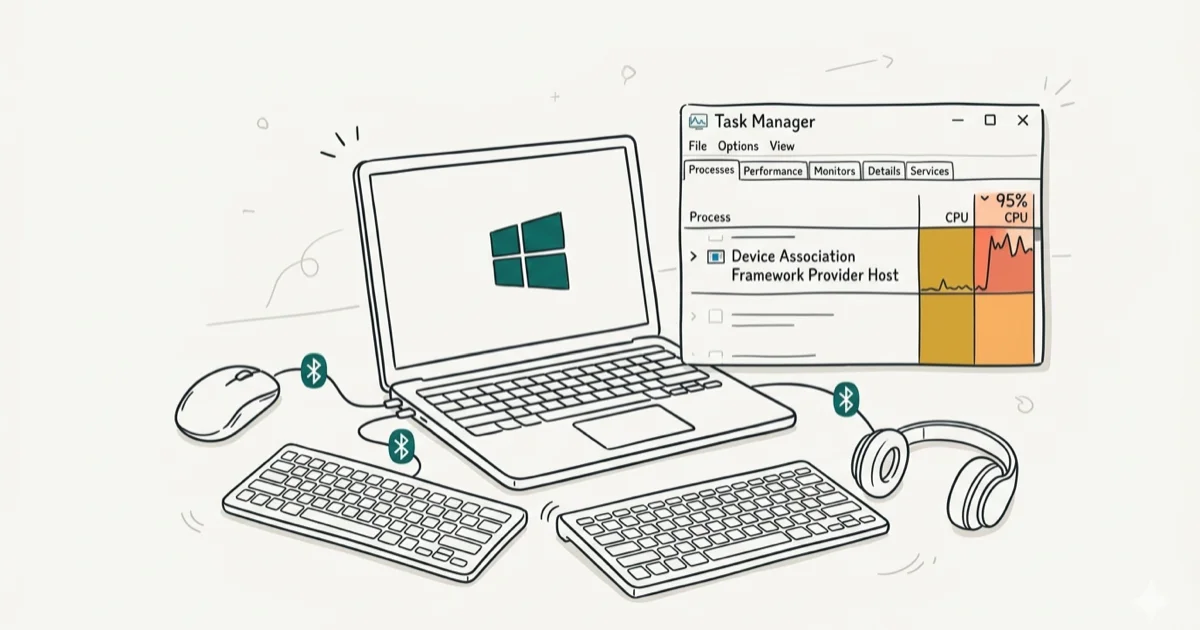
Quick AnswerDevice Association Framework Provider Host (dasHost.exe) is a Windows service that manages wired and wireless device connections. When it uses high CPU, the cause is usually a faulty device driver, a stuck Bluetooth pairing, or malware disguised as the process. Updating drivers in Device Manager or running a malware scan fixes the problem.
The Device Association Framework Provider Host (dasHost.exe) can spike to noticeably high CPU usage on Windows PCs without any obvious reason. The fixes below focus on the usual causes: faulty device drivers, stuck Bluetooth pairings, Windows update gaps, and malware impersonation.
- DasHost.exe manages all wired and wireless device connections in Windows
- Normal CPU usage for this service is 0% with memory below 10 MB
- Faulty or misconfigured device drivers are the most common cause of high CPU
- Malware can disguise itself as dasHost.exe in a different folder
- You can’t permanently disable this service without breaking device connectivity
#Understanding Device Association Framework Provider Host
Device Association Framework Provider Host, listed as dasHost.exe in Task Manager, handles the pairing and management of all connected devices on your PC.
According to Microsoft’s PnP-X documentation, the Windows device association framework helps network-connected devices be discovered, associated, and installed as if they were bus-connected. That’s the safer way to think about dasHost.exe: it participates in device association, so removing or disabling it is the wrong fix.
When dasHost.exe works normally, it sits at 0% CPU and uses about 8-10 MB of RAM. If you see it consuming more than that in Task Manager, something is wrong with a connected device, its driver, or the process itself has been replaced by malware.
On an idle Windows PC, dasHost.exe should sit near 0% CPU and use only a small amount of memory. Sustained activity points to a device, driver, or security issue that needs troubleshooting.
#Why Does DasHost.exe Use So Much CPU?
The service jumps to high CPU usage when it gets stuck in a loop trying to communicate with a device that isn’t responding correctly.

Misconfigured device drivers. A yellow exclamation mark in Device Manager means dasHost.exe keeps retrying a broken connection indefinitely, which is why CPU usage climbs steadily and stays elevated until you either fix the driver or disable the device entirely through the manager interface.
Stuck Bluetooth pairings. Stale pairing data causes dasHost.exe to loop indefinitely. Stale pairings are one of the most common triggers for persistent dasHost.exe CPU spikes.
Malware impersonation. Some malware replaces dasHost.exe with a crypto miner that runs from a different folder.
Windows Update gaps. When Windows doesn’t have the latest driver updates, peripheral communication protocols fall out of sync, forcing dasHost.exe to work harder to bridge version mismatches between the OS and device firmware.
If you’re seeing similar issues with other system processes, check our guides on wsappx high CPU and WMI Provider Host high CPU.
#How Do You Fix High CPU From DasHost.exe?
The four methods below cover every common cause. Start with Method 1.
#Driver and Hardware Fixes
#Method 1: Check for Faulty Hardware in Device Manager
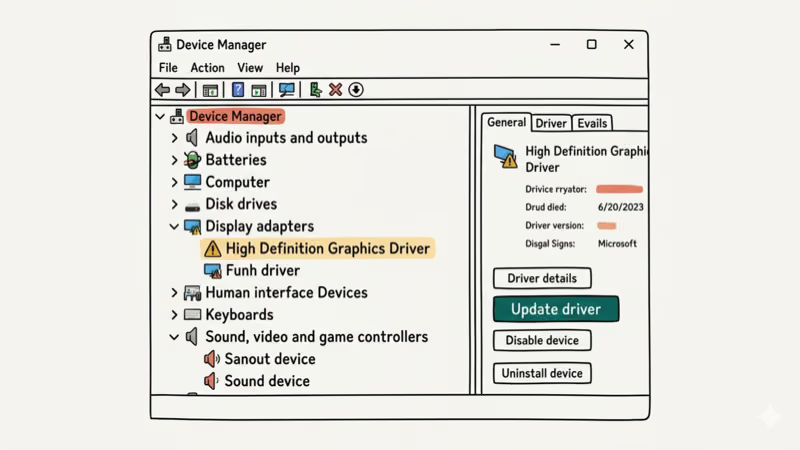
A device with a broken or missing driver is the most common trigger. Open Device Manager by pressing Windows + S and typing “Device Manager.”
Scan through each category looking for devices with a yellow exclamation mark, which indicates a driver problem. Right-click the flagged device and select Update driver > Search automatically for drivers. If no update is found, visit the manufacturer’s website and download the correct driver manually.
If you don’t plan to use the flagged device anytime soon, right-click it and select Disable device instead. This stops dasHost.exe from trying to communicate with it, which immediately drops CPU usage.
Bluetooth adapters and Wi-Fi cards are common trouble spots here. If a flagged adapter isn’t needed right now, disabling it in Device Manager can stop dasHost.exe from repeatedly trying to communicate with broken hardware.
If you’re dealing with other driver-related errors, our guide on the Bluetooth peripheral device driver issue covers a related troubleshooting approach.
#Method 2: Update Windows and All Device Drivers
Windows Update delivers driver patches alongside OS updates. Go to Settings > Windows Update > Check for updates and install everything available, then restart.
If Windows Update doesn’t resolve the issue, update drivers manually. Open Device Manager, right-click each device with an exclamation mark, and select Update driver. Choose Search automatically first. If that fails, download the driver from the manufacturer’s website and use Browse my computer for drivers to point to the file.
According to Microsoft’s driver-update instructions, Windows Update normally downloads driver updates for hardware such as network adapters, printers, scanners, and video cards, and Device Manager can update or reinstall drivers when needed. Keeping the Service Host Local System and related services updated at the same time prevents cascading resource issues.
#System and Security Fixes
#Method 3: Kill the Process Temporarily via Task Manager
You can’t permanently disable dasHost.exe without losing all device connectivity. But killing it temporarily gives you a quick CPU break while you work on a permanent fix.
Press Ctrl + Shift + Esc to open Task Manager, find Device Association Framework Provider Host in the list, right-click it, and select End task.
The process restarts on its own or after you reboot. If CPU usage stays normal after the restart, the problem was a temporary glitch. If it spikes again, move on to the driver or malware fixes.
You can also check whether the similar TiWorker.exe process is contributing to high resource usage, since Windows Update processes sometimes run alongside dasHost.exe.
#Malware Detection and Removal
#Method 4: Scan for Malware Impersonating DasHost.exe
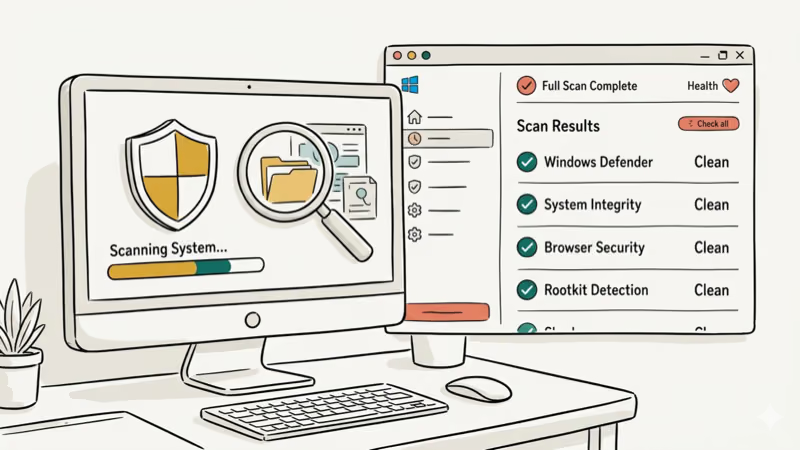
Malware authors disguise their payloads as legitimate Windows processes. Here’s how to verify yours is real.
Open Task Manager, find Device Association Framework Provider Host, right-click it, and select Open file location. The legitimate file lives at C:\Windows\System32\dasHost.exe. If the folder is anything else, delete the suspicious .exe file immediately and run a full scan through Windows Security > Virus & threat protection > Scan options > Full scan.
Run a full scan with updated definitions before trusting the machine again. According to Microsoft’s Windows Security page, Windows Security uses real-time protection to scan what you download or run and gets security updates through Windows Update. If Defender doesn’t find anything but you’re still suspicious, try a second-opinion scanner like Malwarebytes.
For related issues with suspicious processes, our guide on desktop window manager high CPU explains a similar troubleshooting approach.
#Bottom Line
Check Device Manager first. A device with a yellow exclamation mark is the most likely culprit behind dasHost.exe high CPU usage, and updating or disabling that device’s driver usually fixes the problem in under a minute. If all drivers look clean, verify the file location of dasHost.exe to rule out malware. The legitimate process always runs from C:\Windows\System32 and should sit at 0% CPU when no new devices are being paired.
#Frequently Asked Questions
Is it safe to end Device Association Framework Provider Host in Task Manager?
Yes, ending it temporarily is safe. Your connected devices may stop working until the process restarts on reboot.
Can I disable Device Association Framework Provider Host permanently?
You shouldn’t. Disabling it permanently prevents Windows from recognizing any wired or wireless devices, including USB drives, Bluetooth headphones, and Wi-Fi adapters. The trade-off isn’t worth the minor CPU savings.
How much CPU should dasHost.exe normally use?
Zero percent during idle. Brief spikes to 1-2% happen when pairing a new device, but anything sustained above 5% points to a driver or malware problem.
Does Device Association Framework Provider Host affect gaming performance?
If dasHost.exe is using a large share of CPU, it can reduce frame rates and cause stuttering in games. Fixing the underlying driver issue restores that CPU headroom, especially in CPU-bound titles.
Why does dasHost.exe start using high CPU after waking from sleep?
Windows re-initializes all device connections after waking. If a Bluetooth device is out of range, dasHost.exe gets stuck retrying. Remove stale pairings from Settings > Bluetooth & devices.
How can I tell if dasHost.exe is malware?
Check the file location through Task Manager. Right-click the process, select “Open file location,” and verify the path reads C:\Windows\System32. Any other path means the file is fake and should be deleted immediately before running a full Windows Defender scan.

Best Laptop for Running LLMs in 2026: Memory Comes First
The best laptop for running LLMs is a memory purchase first. Compare MacBook unified memory against NVIDIA laptop VRAM, and see what each tier really runs.

How to Run a Local LLM on Windows: A 2026 Setup Guide
Run a local LLM on Windows with LM Studio or Ollama. Pick a model that fits your GPU memory, keep every prompt offline, and skip the monthly bill.

Bluetooth Not Working on Snapdragon X? Fixes for 2026
Bluetooth not working on your Snapdragon X Copilot+ PC? Generic audio, mice, and keyboards work, but vendor apps often lack an ARM build. Fixes inside.

Docker Desktop and WSL2 Not Working on Snapdragon X? Fix It
WSL2 runs fine on Snapdragon X, but Docker Desktop ARM is Early Access and throws WSL errors. Use WSL2 plus native ARM64 Ubuntu and Docker Engine.