Best GameCube Emulators for PC, Mac, and Mobile (2026)
Compare the 5 best GameCube emulators for PC, Mac, and mobile in 2026. Dolphin leads with 1080p support and near-perfect game compatibility.

Quick AnswerDolphin is the best GameCube emulator overall, running nearly every game at 1080p or higher with full controller support on Windows, Mac, and Linux.
GameCube emulators have come a long way since the early days of choppy framerates and broken audio. This guide compares the main options for Windows, Mac, Linux, Android, and iOS so you can choose the most practical emulator for 2026.
- Dolphin Emulator runs 99% of GameCube games at 1080p or higher on Windows, Mac, and Linux
- A dual-core CPU at 3.0 GHz and 4 GB RAM is the minimum for smooth GameCube emulation
- Save states let you pick up exactly where you left off, even mid-level
- Only Dolphin and SuperGCube are actively maintained in 2026, the other three are abandoned
- Dolphin also doubles as a Wii emulator, giving you access to two console libraries in one app
#What Is the GameCube Console?
The GameCube is a console that Nintendo released worldwide in 2001 and 2002. According to Wikipedia’s GameCube entry, Nintendo sold 21.74 million GameCube units worldwide before discontinuing it in 2007. The console’s game library was different from what PS2 and Xbox players had access to.
Up to 4 players could play the GameCube at once, and some popular games it’s known for include:
-
Super Smash Bros
-
Mario Kart
-
The Legend of Zelda
-
Resident Evil 4
-
Animal Crossing
-
Super Monkey Ball
And there were also a number of well-known series such as NBA, Need for Speed, Tony Hawk, James Bond 007, and of course, FIFA. It’s been over a decade since Nintendo chose to cease GameCube sales, but this console has been a staple in the gaming industry.
When the best GameCube emulators were being released online, the popularity surrounding this console’s games came back.
A great thing about these emulators is that there are options for Windows, Mac, iPhones (iOS), and Android devices.
#How Does a GameCube Emulator Work?
An emulator recreates the GameCube’s hardware environment in software, letting you run games on a PC, Mac, or phone that wasn’t built for them. The challenge is translating the GameCube’s custom IBM PowerPC CPU and ATI GPU instructions into something your modern hardware understands.
Dolphin is the most practical choice for modern systems because it handles GameCube hardware translation far better than older abandoned emulators. The other emulators struggle with commercial games because they haven’t been updated to handle modern operating systems and graphics APIs.
#5 Best GameCube Emulators
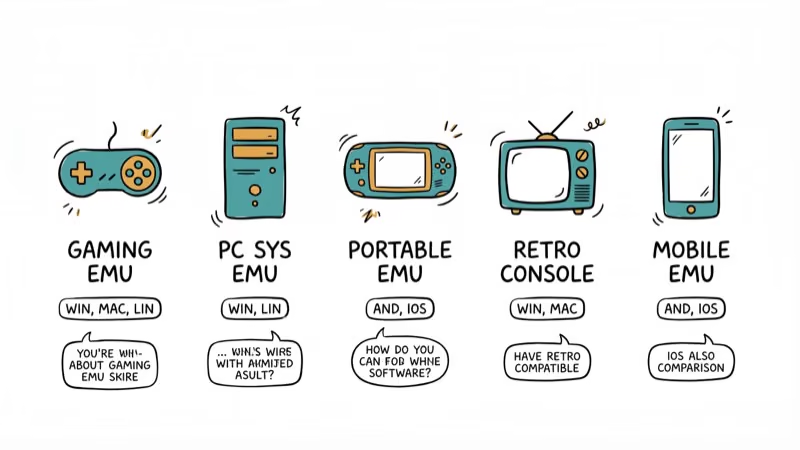
You now have some background information on what the best GameCube emulators do and what they are. Below are the five best emulators for you to check out.
If you’re into card games alongside emulation, check out games like Hearthstone.
##1. Dolphin Emulator
Dolphin Emulator is the gold standard for GameCube emulation. According to Dolphin’s official compatibility list, over 3,800 games are rated “playable” or “perfect” as of 2026, making it the most compatible GameCube emulator by a wide margin. It’s free to use, and as long as you have a semi-powerful computer, you can enjoy playing GameCube games. As the emulator became popular, the developers improved its performance and made it double as a Wii emulator.
It can render games at a crisp 1080p resolution or higher, but if your computer isn’t as high-end as you’d like, you can lower the internal resolution in settings.
Pretty much any commercial game can be played flawlessly on Dolphin, and since it’s an open-source development, constant improvements are being made by the official developers and avid GameCube fans. Windows, Mac, and Linux users can install this impressive emulator.
#Pros
-
It runs fast and relatively smoothly
-
Capable of showing a 1080p picture
-
You can save the emulator’s state and pick up where you left off by reloading it
-
Gamers can connect their Wii controller or nunchucks
-
Open source allowing input from talented GameCube players
-
It acts as a GameCube emulator and a Wii emulator
#Cons
- It’s still a work in progress
For other retro console emulation, check out how to use the NeoGeo emulator. You can also explore SNES fighting games for even more retro gaming.
Collectors can also browse our roundup of the rarest GameCube games.
##2. SuperGCube Emulator
SuperGCube is another popular GameCube emulator that focuses on accuracy and compatibility. It aims to provide an authentic gaming experience by emulating the hardware as faithfully as possible.
SuperGCube supports a wide range of GameCube games and offers features like save states and gamepad customization.
#Pros
-
This emulator’s main purpose is to be developed well enough to run commercial games
-
Provides high-quality graphics and audio tracks
-
Easy to set up and play GameCube games with
-
Compatible with Windows, Mac, and Linux computers
#Cons
-
Still a work in progress which has led to inconsistent bugs, glitches, and crashing
-
Not fully capable of playing commercial games
##3. GCEMU Emulator
Next up is a slightly unusual entry that hasn’t actually been officially released. GCEMU was an upcoming GameCube emulator that got a lot of attention for one reason above all others.
To make sure the emulator ran smoothly even on low-end computers, it used a unique compilation algorithm.
With that in mind, many gamers were excited to see the finished product. Unfortunately, that day never came, and in 2005, the developers announced their intentions to stop developing it. All we’ve got now is the incomplete version.
#Pros
-
Very fast and runs smoother than most emulators
-
Built with an impressive emulation algorithm
#Cons
-
Incomplete and therefore lacks a lot of essential features
-
Prone to crashing and generally not a stable program
##4. Whine Cube Emulator
Another notable GameCube emulator is the Whine Cube Emulator. After preparing the emulator, you can run any compatible DOL or ELF file without the graphics or audio being distorted.
One big downfall to this emulator is that it doesn’t support commercial games. Therefore, you’ll only be able to play custom games that were uploaded by other gamers.
Errors are a common occurrence when first setting up a GameCube emulator. It’s no surprise that a built-in debugging feature makes it easier to pinpoint exactly why one of your GameCube games isn’t working properly. With this information, you can fix the emulator and start enjoying video games.
#Pros
-
It runs fast and smooth, even on older computers
-
Provides high-quality graphics and audio
-
Easy to configure and includes a control-changing menu
-
It supports any Primitive HLE system
#Cons
-
Unstable and infrequently crashes
-
Users must enable debugging every time they need to use it
-
There have been no updates to Whine Cube Emulator since 2008
-
Unable to run commercial GameCube video games
##5. Dolwin Emulator
Dolwin Emulator is a legacy emulator that can run smoothly on powerful PCs, but it isn’t as reliable or current as Dolphin.
Unlike the other best GameCube emulator Dolphin, you’ll need a high-end gaming computer. If you’re using an average laptop or your gaming computer is older than most, give this one a miss.
The user-friendly interface is incredibly easy to navigate, making it simple to change the settings and prepare it for gaming. With the high-level emulation that Dolwin Emulator is capable of, you can run almost any GameCube game you want.
Take note of the fact that it’s been a while since this emulator had an update, so there may be some performance issues.
#Pros
-
It runs smoothly with minimal frame drops on powerful computers
-
It supports 1080p and fullscreen gameplay
-
User-friendly GUI makes it easy to configure the emulator and controls
#Cons
-
Only a suitable GameCube emulator if you have a high-end gaming PC
-
Unable to run commercial games
#Comparison of GameCube Emulators
Here is a brief comparison of the aforementioned GameCube emulators:
EmulatorFeaturesCompatibilityPerformanceDolphinExtensive featuresHighExcellentSuperGCubeAccuracy-orientedHighGoodGCEmuPromising developmentModerateTBDWhineCubeLightweight and efficientModerateGoodDolwinUser-friendly interfaceModerateGood
#System Requirements
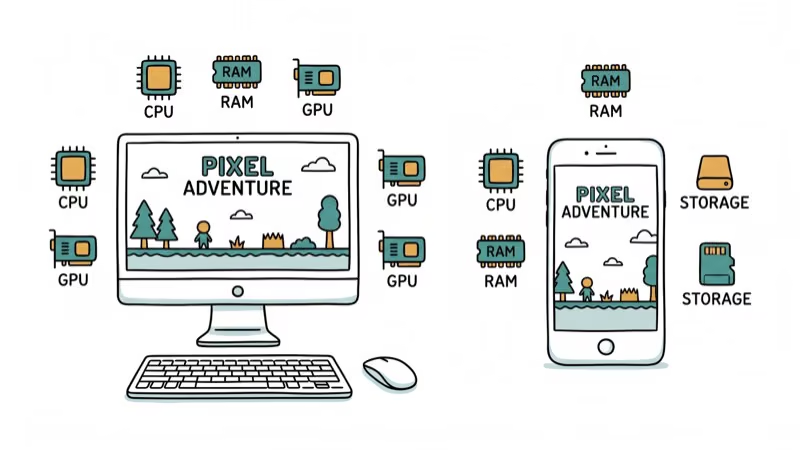
To run GameCube emulators smoothly, your system should meet the following minimum requirements:
-
Operating System: Windows 7 or above, macOS, or Linux
-
Processor: Dual-core CPU clocked at 2.0 GHz or higher
-
RAM: 4 GB or more
-
Graphics Card: OpenGL 3.0 or DirectX 11 compatible
-
Storage: 100 MB for emulator installation and game ROMs
#How to Install and Use a GameCube Emulator
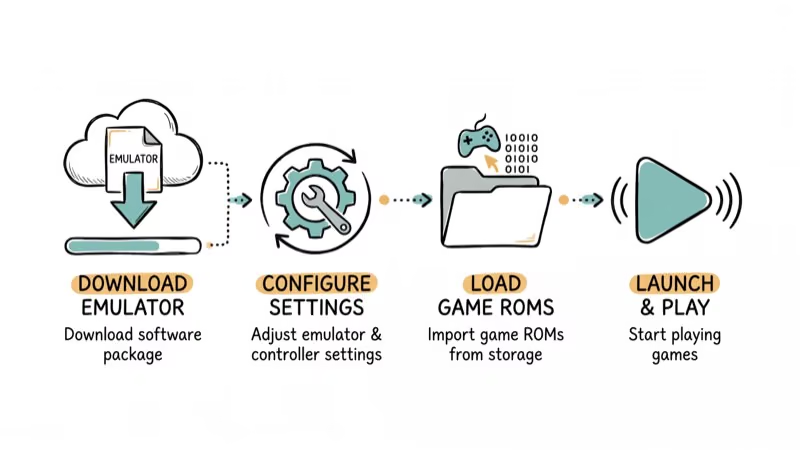
Installing and using a GameCube emulator may vary depending on the specific emulator and operating system. However, the general steps are as follows:
-
Download the emulator from its official website.
-
Install the emulator by following the on-screen instructions.
-
Obtain GameCube game ROMs legally.
-
Open the emulator and configure the settings, including graphics, audio, and controls.
-
Load the GameCube game ROM within the emulator.
-
Enjoy playing the game on your device.
#Legal Considerations
While emulators themselves are legal, downloading copyrighted game ROMs without owning the original is illegal in most jurisdictions. The Electronic Frontier Foundation states that personal backup copies of games you own are generally protected under fair use, but distributing or downloading ROMs from third-party sites violates copyright law. Support game developers by purchasing legitimate copies.
#Enhancing the Emulation Experience
To enhance your GameCube emulation experience, consider the following tips:
-
Use high-quality game ROMs from reputable sources.
-
Configure graphics settings for improved visual fidelity.
-
Connect a compatible game controller for an authentic feel.
-
Explore additional features like cheat codes and texture packs.
-
Stay up-to-date with the latest emulator versions for bug fixes and new features.
#Bottom Line
Dolphin Emulator is the only GameCube emulator you need in 2026. It runs virtually every game at 1080p or higher, supports save states and controller customization, and works across Windows, Mac, and Linux. The other emulators on this list are either abandoned, limited to homebrew games, or too unstable for regular use. Start with Dolphin and you’ll be playing Super Smash Bros. Melee within 10 minutes of downloading it.
#Frequently Asked Questions
Can I use GameCube controllers with emulators?
Yes. Connect an original GameCube controller via a USB adapter like the Mayflash 4-port adapter, and Dolphin will recognize it automatically. You can also use Xbox, PlayStation, or Switch Pro controllers with custom button mapping. Check our GameCube controller guide for adapter recommendations.
Are GameCube emulators legal?
Emulators themselves are legal in most jurisdictions. Downloading copyrighted game ROMs without owning the original disc is illegal. If you own physical GameCube discs, you can legally rip them for personal use with a Wii console running homebrew software.
Can GameCube emulators run on smartphones?
Yes. Dolphin has an official Android app that runs well on phones with Snapdragon 870 or better processors. iPhone users can sideload Dolphin through AltStore. Performance varies by device, but flagship phones from 2023 onward handle most games at full speed. If you’re into mobile gaming, see how to play Pokemon on Android for related emulation guides.
Are all GameCube games compatible with Dolphin?
Nearly all of them. Dolphin’s compatibility database rates over 95% of the GameCube library as “playable” or “perfect.” A small number of titles have minor graphical glitches, and a handful don’t boot at all, but those are rare edge cases.
Can I play multiplayer games using GameCube emulators?
Yes. Dolphin supports local multiplayer with multiple controllers, and its Netplay feature lets you play online with other Dolphin users. Netplay works best on wired connections and requires both players to run the same Dolphin version and game ROM.
What’s the best computer spec for GameCube emulation?
A dual-core CPU at 3.0 GHz and 4 GB RAM is the bare minimum. For smooth 1080p emulation with enhancements, a quad-core CPU at 3.5 GHz or higher, 8 GB RAM, and a dedicated GPU with OpenGL 4.4 support is a better target.

Fortnite Stuck on the Loading Screen? Fix It in 2026
Fortnite stuck on the loading screen? Check server status, fix the Windows N Media Pack and DirectX 11 on PC, clear the console cache, and verify files.

Minecraft Keeps Crashing? Java and Bedrock Fixes (2026)
Minecraft keeps crashing on startup or mid-game? Update your GPU driver, remove mods on Java, and reinstall Gaming Services on Bedrock. Fixes for both.

Pokemon GO Not Loading? Fix the Loading Screen 2026
Pokemon GO not loading or stuck on the Pokeball? Check server status, fix automatic date and time, grant location permission, clear the cache, and update.

PS5 Controller Not Charging? 9 Fixes That Work (2026)
DualSense not charging? Swap the cable, use a rear port in Rest Mode, clean the USB-C port, and check power settings. 9 fixes for a dead PS5 controller.