How to Fix ASUS Aura Sync Not Working on Windows PC
Fix ASUS Aura Sync not working on Windows 10 and 11. Covers LightingService restart, Dynamic Lighting conflicts, reinstall, and BIOS LED toggle.
Quick AnswerRestart the LightingService in Windows Services (services.msc), then relaunch Armoury Crate. If that fails, do a clean reinstall of Armoury Crate using the official ASUS uninstall tool, toggle the RGB LED header setting in BIOS, and remove any conflicting RGB software like iCUE or Mystic Light.
ASUS Aura Sync controls RGB lighting across your motherboard, GPU, RAM, and peripherals. When it stops working, your entire RGB setup goes dark or gets stuck on a single color. Start with the service and software-conflict fixes before you reinstall Armoury Crate or change BIOS settings.
- Restarting LightingService in Windows Services fixes most Aura Sync failures in about 30 seconds
- Windows Dynamic Lighting conflicts with Aura Sync and needs to be turned off
- The ASUS Armoury Crate Uninstall Tool removes leftover files that a standard uninstall misses
- Toggling the BIOS RGB LED setting forces the motherboard to re-initialize LED communication
- Running two RGB control apps at once causes service conflicts that block detection
#Why Does ASUS Aura Sync Stop Working?
Aura Sync breaks for a few specific reasons. According to Microsoft Support’s driver update guide, Windows device-driver checks belong in the Aura troubleshooting path before deleting app folders or replacing hardware.
The most common trigger is LightingService crashing or getting disabled after a Windows update. This background service handles all RGB communication between Armoury Crate and your hardware, and when it stops running, every connected RGB device loses sync simultaneously. Nothing lights up.
Conflicting RGB software is the second biggest cause. If you have Corsair iCUE, MSI Mystic Light, or SignalRGB installed alongside Armoury Crate, they fight over the same USB and SMBus resources. Only one app can control RGB at a time, so the other apps effectively lock Aura Sync out of the hardware bus entirely.
According to ASUS’s Armoury Crate FAQ, service conflicts commonly arise when users keep older standalone Aura Sync versions installed alongside Armoury Crate. Running both causes service conflicts on Windows 10 and 11.
Other causes include incorrect RGB header connections on the motherboard where the wrong pin alignment stops the signal dead, outdated Armoury Crate installations that haven’t been updated since ASUS overhauled the service architecture, and the Fast Startup feature in Windows interfering with full hardware initialization during the boot sequence.
#6 Methods to Fix Aura Sync
Start with Method 1. It fixes the problem for most people in about 30 seconds. Only move to the next method if the previous one didn’t work.

#1. Restart the LightingService
Restarting the lighting services is the quickest first step because Aura Sync depends on those background services to talk to your hardware.
- Press Windows + R, type
services.msc, press Enter - Scroll to LightingService, right-click, select Restart
- Also restart ARMOURY CRATE Service the same way
Close the Services window and open Armoury Crate. Your RGB should come back immediately.
If LightingService isn’t listed at all, your Armoury Crate installation is broken. Skip to Method 4.
#2. Turn Off Windows Dynamic Lighting
Windows 11 build 22621.2361 and later enables Dynamic Lighting by default. This feature controls RGB devices on its own, directly conflicting with Aura Sync.
- Open
Settings>Personalization>Dynamic Lighting - Toggle Use Dynamic Lighting on my devices to Off
- Or set Armoury Crate as top priority in Background light control
ASUS’s Dynamic Lighting FAQ states that Armoury Crate must sit at the top of the priority list to maintain full Aura Sync control. Turn off Dynamic Lighting or put Armoury Crate first, then reopen Armoury Crate and check whether Aura Sync responds.
#3. Remove Conflicting RGB Software
Only one RGB control app should run at a time. Having multiple installed creates service conflicts even when the extra apps are closed, because their background services still grab hardware access on boot and don’t release it until you uninstall the program completely.
- Press Windows + R, type
appwiz.cpl, press Enter - Uninstall Corsair iCUE, MSI Mystic Light, Razer Chroma, SignalRGB, or Cooler Master MasterPlus
- Restart your PC after each removal
Open Armoury Crate and check whether Aura Sync detects your devices now. If you need Razer Synapse for your peripherals, reinstall it after confirming Aura Sync works. Corsair’s Armoury Crate RGB RAM guide explains how to let Armoury Crate control Corsair RGB RAM without iCUE.
#4. Clean Reinstall Armoury Crate
A standard uninstall leaves behind service registrations and the LightingService folder. You need the official cleanup tool for a proper wipe.
- Download the Armoury Crate Uninstall Tool from ASUS’s support page
- Run it as Administrator to remove all components
- Restart your PC
After the restart, check C:\Program Files (x86)\LightingService and delete that folder if it still exists. Then download the latest Armoury Crate from your motherboard’s support page on asus.com, install it, and restart immediately when prompted.
Deleting the LightingService folder before reinstalling solved persistent detection issues for several users. Don’t click “Restart Later” after installing because Armoury Crate loads kernel-level drivers that won’t activate until reboot.
#5. Toggle the RGB LED Setting in BIOS
This forces the motherboard to re-initialize its LED controller, fixing Aura Sync’s failure to detect connected LED strips and fans.
- Restart your PC, press Del or F2 to enter BIOS
- Go to
Advanced>Onboard Devices Configuration - Set LED lighting to Disable, press F10 to save
Let the PC boot into Windows, then restart into BIOS again and re-enable the LED setting. After the second reboot, open Armoury Crate. According to the ROG Forum, this toggle resolved detection issues for multiple users across different motherboard models.
#6. Disable Fast Startup
Fast Startup skips full hardware initialization during boot. This prevents Armoury Crate from communicating with RGB components on some systems.
- Press Windows + R, type
control, press Enter - Go to
Power Options>Choosewhat the power buttons do - Uncheck Turn on fast startup and save
Try this if Aura Sync works after a fresh Windows install but breaks after the first shutdown-and-restart cycle. It’s also worth checking if your keyboard stops responding alongside the RGB failure, since both stem from incomplete hardware init.
#Aura Sync and Armoury Crate Explained
Aura Sync is the RGB lighting control system inside ASUS Armoury Crate. It synchronizes colors and effects across compatible motherboards, GPUs, RAM sticks, case fans, keyboards, mice, and addressable LED strips. The standalone Aura Sync utility was discontinued years ago, and ASUS now bundles all lighting controls inside Armoury Crate alongside performance profiles, fan curves, and system monitoring.
Over 180 devices are compatible as of 2026.
Aura Sync includes 12 built-in lighting presets: static, breathing, color cycle, rainbow, and more. You can build custom effects in Aura Creator (included with Armoury Crate) to control speed, direction, brightness, and saturation per component or across all devices at once. The effects engine supports per-LED color control on ARGB strips, which is the main reason gamers prefer it over Windows Dynamic Lighting.
#Checking RGB Header Connections
If Aura Sync detects your motherboard but not your LED strips, the problem is probably physical. ASUS motherboards have two types of RGB headers, and mixing them up is the most common hardware mistake people make with Aura Sync setups.
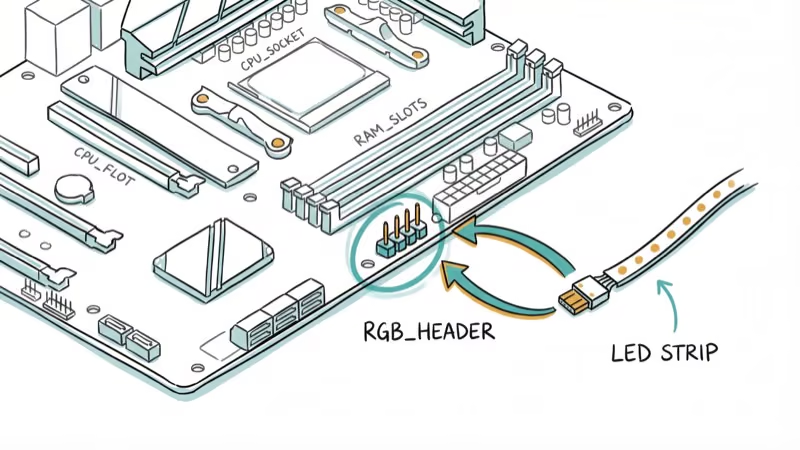
The 4-pin 12V header drives standard RGB strips that show one color across the entire strip. The 3-pin 5V header is for addressable RGB (ARGB) strips where each individual LED displays a different color. Plugging an ARGB strip into a 12V header won’t cause damage, but the strip won’t respond to Aura Sync.
Check your motherboard manual for exact header locations. The arrow on the connector aligns with the +12V or +5V pin.
Don’t force the connector. The pins bend easily, and a bent pin means a dead header. If your PC peripherals work with Aura Sync but LED strips don’t respond, try a different header on the same board.
#Standalone Aura Sync vs. Armoury Crate
The standalone version (1.07.84_V2) still exists on ASUS’s website, buried at the bottom of older motherboard support pages. It works for boards manufactured before 2021 that don’t fully support Armoury Crate, specifically the X470, B450, and Z390 chipset generations.
For anything B550 or newer, stick with Armoury Crate.
Never install both on the same PC. They register identical Windows services under different file paths, creating a conflict that breaks both apps completely. This type of Windows service conflict affects other ASUS utilities too, and the only fix is a clean uninstall of one of the two.
#What to Do if Nothing Works?
If all six methods fail, the issue might be hardware. Check whether your motherboard’s RGB headers have physical damage by inspecting the pins under good lighting.
You can also try updating your motherboard’s chipset drivers from the ASUS support page for your specific model. Outdated chipset drivers occasionally prevent the ASUS ACPI service from loading, and Aura Sync depends on that service to communicate with the motherboard’s lighting controller. Open Device Manager and look for yellow warning icons under “System devices” to spot driver problems quickly.
If the motherboard is under warranty and the headers are visibly damaged, contact ASUS support directly. Their RMA process takes 2-3 weeks on average.
#Bottom Line
Start with restarting LightingService in Windows Services. That one fix handles most Aura Sync failures. Turn off Windows Dynamic Lighting if the first fix doesn’t help. For persistent cases, the clean reinstall with the ASUS uninstall tool plus deleting the LightingService folder is the nuclear option that works when nothing else does.
#Frequently Asked Questions
Does Aura Sync work with non-ASUS RGB components?
Yes, with any component that supports the ASUS Aura Sync protocol. Corsair, G.Skill, Kingston, and TeamGroup all make compatible RAM.
Can I control Corsair RGB RAM through Armoury Crate?
Yes. ASUS’s support page confirms that Armoury Crate controls Corsair RGB DRAM directly. Go to Armoury Crate > Aura Sync, and the Corsair RAM should appear as a controllable device. You don’t need iCUE installed for basic color and effect control, though you’ll lose access to iCUE-specific features like hardware lighting profiles.
Why does Aura Sync not detect my motherboard?
LightingService probably isn’t running. Open services.msc and check its status. If it shows Stopped or Disabled, start it manually. If the service isn’t listed, do a clean reinstall of Armoury Crate using the official uninstall tool first.
Is the standalone Aura Sync still available for download?
Yes, but it’s discontinued and buried deep on ASUS’s site. You can find version 1.07.84_V2 on older motherboard support pages under the “Utilities” section of the driver download tab. ASUS recommends Armoury Crate for B550/X570 boards and newer, and you should never install both on the same PC because the overlapping service registrations will break RGB control entirely.
What is the difference between RGB and ARGB headers?
RGB headers are 4-pin, 12V connectors for basic strips that display one color at a time. ARGB headers are 3-pin, 5V connectors for addressable strips where each LED shows a different color independently.
Will a BIOS update fix Aura Sync issues?
It depends. BIOS updates can reset LED settings and fix detection problems, but they can also break a working RGB setup. Check the changelog first. If everything works now, skip the update unless it patches a critical system error.
Does Windows Dynamic Lighting replace Aura Sync?
No. Dynamic Lighting is a basic RGB feature in Windows 11 with fewer effects and limited device support compared to Aura Sync. The problem is that it turns on automatically and takes priority over Armoury Crate, which overrides whatever lighting effects you’ve set up in Aura Sync. Turn it off in Settings > Personalization > Dynamic Lighting, or set Armoury Crate as top priority in the same menu.
How many devices can Aura Sync control at once?
Over 180 devices are compatible as of 2026, but the actual number running simultaneously depends on available headers and USB bandwidth. Most ASUS motherboards have 2 RGB and 2 ARGB headers for 4 direct strip or fan connections. USB peripherals like keyboards and mice use their own ports and don’t count against that limit.

Best Laptop for Running LLMs in 2026: Memory Comes First
The best laptop for running LLMs is a memory purchase first. Compare MacBook unified memory against NVIDIA laptop VRAM, and see what each tier really runs.

How to Run a Local LLM on Windows: A 2026 Setup Guide
Run a local LLM on Windows with LM Studio or Ollama. Pick a model that fits your GPU memory, keep every prompt offline, and skip the monthly bill.

Bluetooth Not Working on Snapdragon X? Fixes for 2026
Bluetooth not working on your Snapdragon X Copilot+ PC? Generic audio, mice, and keyboards work, but vendor apps often lack an ARM build. Fixes inside.

Docker Desktop and WSL2 Not Working on Snapdragon X? Fix It
WSL2 runs fine on Snapdragon X, but Docker Desktop ARM is Early Access and throws WSL errors. Use WSL2 plus native ARM64 Ubuntu and Docker Engine.