How to Convert KML to GPX: 5 Free Tools That Work in 2026
Convert KML to GPX with 5 free tools that work: GPSBabel, GPS Visualizer, GpsPrune, plus Windows options for routes, waypoints, and KMZ files.
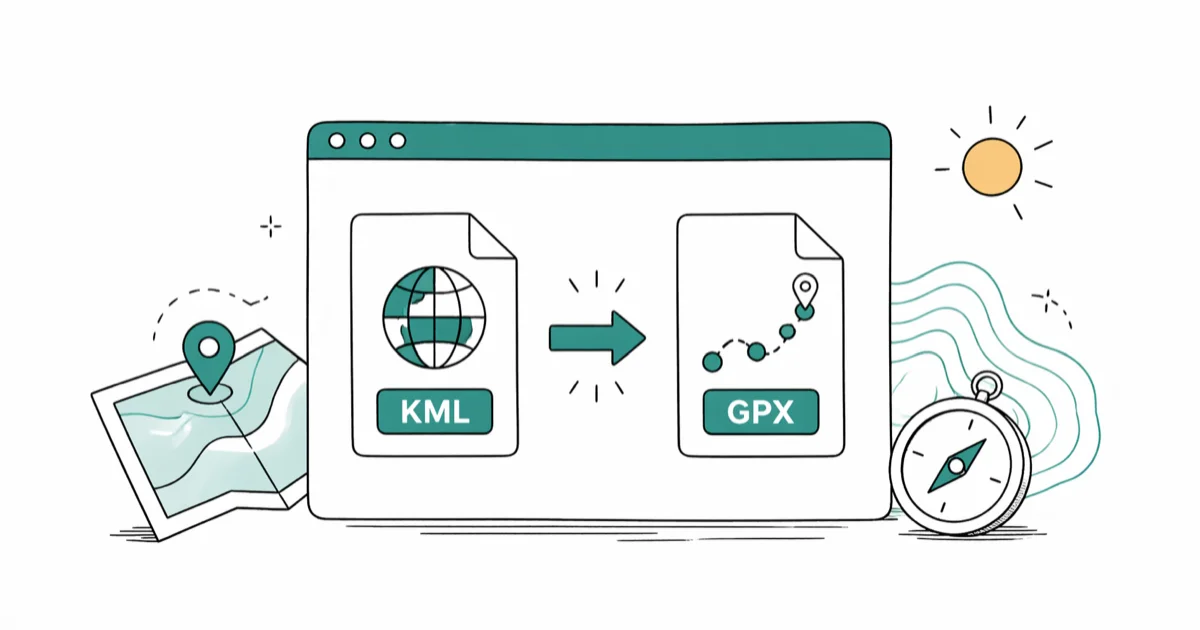
Quick AnswerUse GPSBabel, a free desktop tool for Windows, Mac, and Linux. Open your KML, set the output to GPX XML, and click Apply. The conversion takes under a minute.
To convert KML to GPX, you need a tool that reads Google Earth’s format and writes the open standard your GPS device or fitness app expects. The five tools below cover desktop, browser, visual cleanup, and Windows-only workflows. Each one handles waypoints, tracks, and elevation cleanly, but they trade off install size, file-size limits, and platform support.
- GPSBabel runs on Windows, Mac, and Linux and supports over 100 GPS file formats
- GPS Visualizer converts KML in your browser with a 10 MB upload limit per file
- GpsPrune plots your route on a map before export so you can spot bad waypoints
- KMZ files are zipped KML; GpsPrune and GPS Visualizer accept them without unzipping
- Polygon styling and 3D extrusion drop during conversion; coordinates and elevation stay intact
#Why Won’t My GPS App Open a KML File?
KML, short for Keyhole Markup Language, was built by Google for Google Earth. It stores placemarks, polygon overlays, image tiles, and 3D terrain layers. Most GPS hardware ignores all of that.
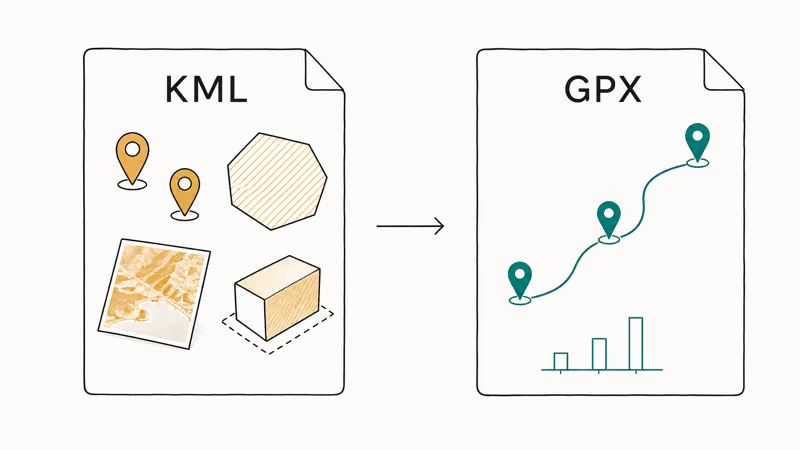
GPX is the format those devices actually read. According to the GPX 1.1 schema documentation at topografix.com, the format has been the open GPS interchange standard since 2002 and defines a minimal set of waypoint, track, and route elements. Garmin, Strava, AllTrails, OsmAnd, Komoot, and Wikiloc all import GPX without any plugin or extra setup.
The conversion changes how the data is wrapped. The data itself stays the same.
Latitude, longitude, elevation, and timestamps copy over cleanly. KML-only elements like polygon fills, image overlays, and 3D extrusion never make the trip, but a Garmin watch wouldn’t render them anyway. If you ever need to go the other way, the GPX to KML conversion process uses the same tools in reverse.
#GPSBabel: The Best Cross-Platform Converter
GPSBabel is free, open-source, and the most flexible tool in this list. It supports over 100 GPS file formats and runs on Windows, macOS, and Linux. It’s the best first pick for ordinary KML files, complex route folders, and repeat conversions.
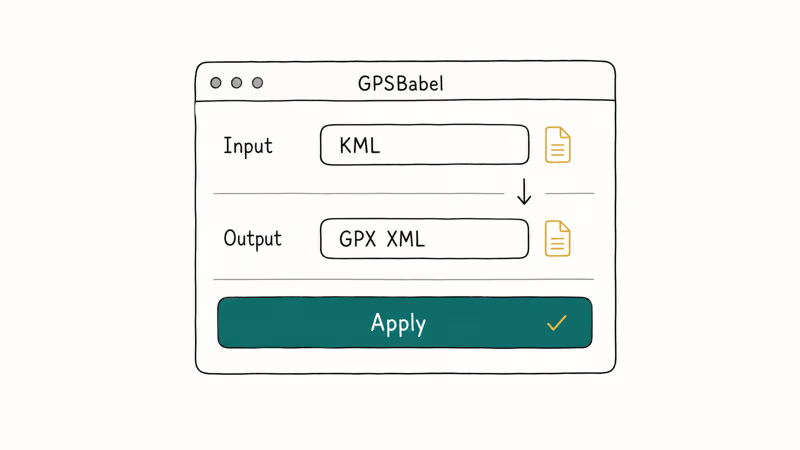
Download the installer from the official GPSBabel download page. On Linux most distros have it in their package manager.
Open GPSBabelGUI, pick Google Earth (Keyhole) Markup Language as the input format, and choose your KML file. Set the output to GPX XML, pick a save location, and click Apply. On a typical 1-2 MB file the export finishes before the progress bar even draws on screen, and the resulting GPX opens cleanly in Garmin BaseCamp, Strava, AllTrails, and OsmAnd.
If your KML uses nested folders or relative-to-ground altitude data, click Options before applying.
GPSBabel exposes altitude mode handling that simpler tools skip and preserves raw altitude values for cleaner elevation charts.
For batch jobs, the command-line version is faster.
#GPS Visualizer: The Fastest Browser-Based Option
GPS Visualizer is the right pick when you don’t want to install anything. According to GPS Visualizer’s input format reference, the converter accepts KML, KMZ, GPX, CSV, and a long list of vendor-specific formats. The free tier handles uploads up to 10 MB per file, which covers most route exports from Google My Maps, Caltopo, and Wikiloc.
Open the GPS Visualizer converter page. Click Choose File and pick your KML or KMZ. Under “Output format”, select GPX, leave the other options at default, and click Convert. The output drops into your downloads folder almost immediately, ready to rename or open in your favorite GPS tool.
The site states that uploaded files are not stored after processing.
For non-sensitive route data, this is the fastest path from KML to GPX without touching the App Store or Homebrew.
A note on privacy. If your KML contains personal addresses, private property boundaries, or any sensitive routes, do the conversion locally with GPSBabel instead. Browser uploads are convenient, but they leave your file on a third-party server during processing.
#GpsPrune: Visual Editing Before You Export
GpsPrune plots every coordinate on a map before export, so you can remove stray waypoints visually.
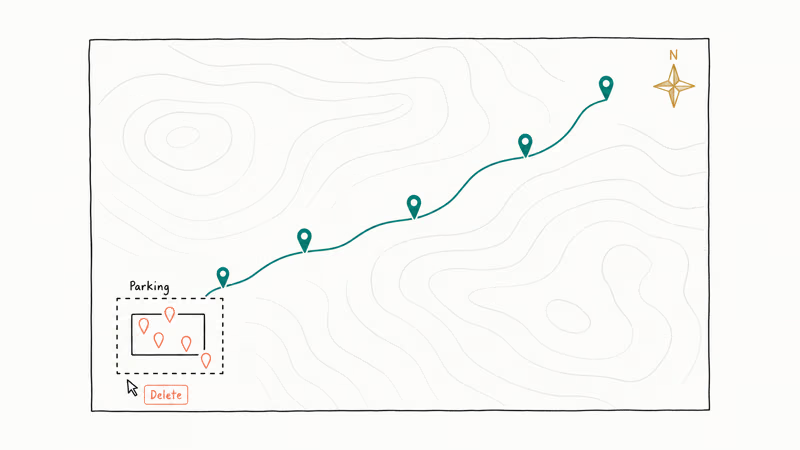
That visual step matters. Stray waypoints often cluster where a GPS device first acquired a satellite fix. In GpsPrune, you can delete those points on the map before export; doing the same cleanup blind in a text editor risks breaking the XML.
GpsPrune needs Java 8 or later. Download the latest build from the GpsPrune download page at activityworkshop.net.
Launch the app, then go to File → Open file and pick your KML. Click the Map tab to see your route plotted on OpenStreetMap. Drag-select any bad points, hit Delete, then go to File → Export GPX to save. GpsPrune accepts KMZ files directly, which saves a manual unzip step.
#Two More Windows-Only Converters Worth Knowing
If you are stuck on Windows and want options beyond GPSBabel, two extra tools fill specific gaps.
The first is KML/KMZ to GPX Converter, available on SourceForge. It only does one job, but it shows latitude, longitude, and elevation for every coordinate in a table view before export.
The second is ITN Converter. It started as a TomTom navigation utility but now reads more than 60 GPS formats. Its OpenStreetMap preview keeps multi-stop ordering correct in ways some other tools mangle, especially for routes with 20 or more stops. Use it when waypoint order has to survive exactly as drawn.
A third tool, GPX Editor on the Microsoft Store, isn’t a converter at all. It’s a viewer that lets you spot-check a freshly converted GPX before sending it to a watch or app. Worth keeping around as a sanity check.
#Which Converter Should You Choose?
For a one-off conversion with no install, use GPS Visualizer. Open the page, upload, click convert, done.
For routine use, install GPSBabel for desktop batch work and files over 10 MB.
For routes that need cleanup before they ship to a device, use GpsPrune. The visual map is worth the Java install if you regularly inherit messy KMLs from other people.
If you work with location data on iPhone, our guides on why your iPhone location is wrong and whether airplane mode disables GPS cover related issues.
#Data That Survives the KML to GPX Conversion
Some KML elements have no GPX equivalent. KML supports polygon boundaries, ground overlays with images, and 3D extrusion lines that pull terrain shapes upward. None of those concepts exist in GPX. Custom extended-data fields that you may have added in Google Earth also drop, since GPX has no matching property type.
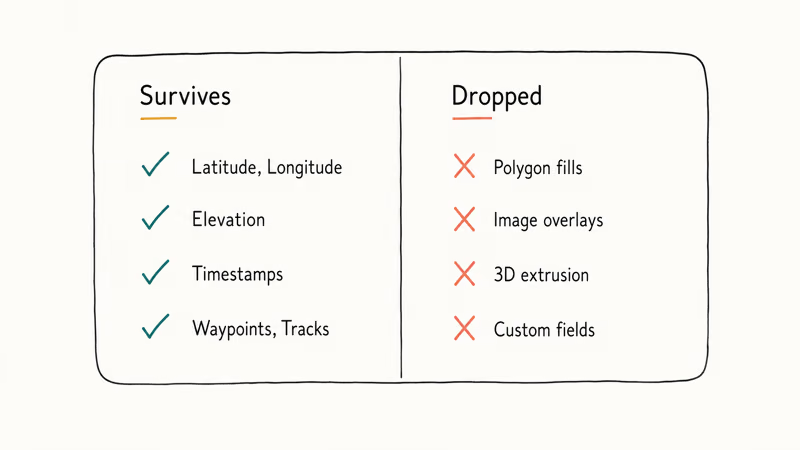
If your KML carries only waypoints, tracks, or routes, the conversion is fully lossless. According to Google’s official KML reference, KML was built for the Earth browser’s rich rendering pipeline rather than navigation hardware, which is why it carries data types (image overlays, ground extrusions, COLLADA models) that have no analog in GPX. That’s the structural reason Garmin and Strava expect GPX instead, and why you rarely need the dropped fields once the file lands on a watch.
A practical check. Open the converted GPX in a plain-text editor. You should see <wpt>, <trk>, or <rte> elements with <lat>, <lon>, and <ele> children. If those tags are intact, the route data made it.
For routes recorded inside a navigation app, our Waze sound troubleshooting guide covers a separate but adjacent issue.
#Bottom Line
GPSBabel handles most KML to GPX jobs across Windows, macOS, and Linux. Install it once, set input to KML, set output to GPX XML, click Apply, and save the file. If you don’t want to install anything and your KML is under 10 MB, GPS Visualizer does the same job in your browser without an account. Reach for GpsPrune only when you need to clean up bad waypoints before export.
If your route work is part of a larger location workflow, the iPhone location settings guide is worth a read alongside this one.
#Frequently Asked Questions
Can I convert KML to GPX without installing anything?
Yes. GPS Visualizer at gpsvisualizer.com runs entirely in your browser and handles files up to 10 MB on the free tier. Upload your KML, choose GPX as the output format, and download the result. No account is required.
What is the difference between KML and GPX?
KML is Google’s format for Google Earth. It stores placemarks, polygon overlays, image tiles, and 3D extrusion data with rich styling. GPX is an open GPS interchange standard built for navigation hardware and fitness apps. Garmin watches, Strava, AllTrails, and OsmAnd all read GPX directly but can’t read KML, which is why a conversion step is needed before loading a Google Earth route onto a watch.
Will I lose waypoints when converting KML to GPX?
No. Waypoint coordinates, elevation values, and timestamps all transfer intact. What drops during conversion is KML-only data: polygon fills, image overlays, 3D extrusion, and any extended-data fields you added in Google Earth. If your KML has only waypoints, tracks, or routes, the GPX output matches the original exactly.
How do I convert a KMZ file to GPX?
KMZ is a zipped KML. GpsPrune, GPS Visualizer, and GPSBabel all accept KMZ files directly. The tool unzips the wrapper for you.
Can GPSBabel convert several KML files at once?
Yes, but only from the command line. The GUI converts one file at a time. The command gpsbabel -i kml -f input1.kml -f input2.kml -o gpx -F output.gpx merges two or more KML files into a single GPX file. This is useful when a long route was split across files and you want to load it onto a watch as one continuous track.
Does GPX preserve elevation data from KML?
Yes. Altitude values inside KML’s <coordinates> block transfer to the <ele> tag in GPX for each waypoint and trackpoint. Garmin Connect and Strava both read elevation from those tags and draw the elevation profile correctly. GPSBabel preserves altitude mode and absolute altitudes; some browser converters flatten relative-to-ground values to zero, so check the elevation chart after conversion to confirm.
Are online KML to GPX converters safe to use?
For non-sensitive route data, yes. GPS Visualizer is established in the mapping community and deletes uploads after processing. For routes that touch home addresses or private property, convert locally with GPSBabel or GpsPrune; both run entirely offline once installed.
What apps and devices accept GPX files?
Garmin watches and handhelds, Strava, AllTrails, OsmAnd, Komoot, and Wikiloc all import GPX directly. On iPhone the Files app opens GPX and hands it off to compatible apps like WorkOutDoors or Footpath. Most Android navigation apps, including OsmAnd and Locus Map, accept GPX through their import menus. The format is so widely supported that GPX is effectively the lingua franca for routes between consumer GPS hardware and software.

Google Messages Error 3100: Why RCS Is Broken on Galaxy
Google Messages RCS error 3100 hits Galaxy owners after phone or carrier switches. Google told 9to5Google a fix is coming. Here's what actually helps.

Is This Bank App Real? Spot a Fake App on Your Home Screen
A bank app can land on your home screen from a web page with no install warning. Learn the checks that tell a real banking app from a phishing web app.

Apps Crashing After iOS 27 Update? Fix Order (2026)
Apps crashing after the iOS 27 update? Update the app in the App Store first, then offload and reinstall to clear stale cache, then restart. The fix order.

Do AI Translation Earbuds Work Offline? What to Know
Do AI translation earbuds work offline? A few do with downloaded language packs, but most need the cloud. Here's what works offline and what you give up.