How to Fix "Kernel Is Not Seandroid Enforcing" on Samsung
Fix "kernel is not seandroid enforcing" on Samsung Galaxy. Flash stock firmware with Odin or Smart Switch. Step-by-step guide for Galaxy S and Note.
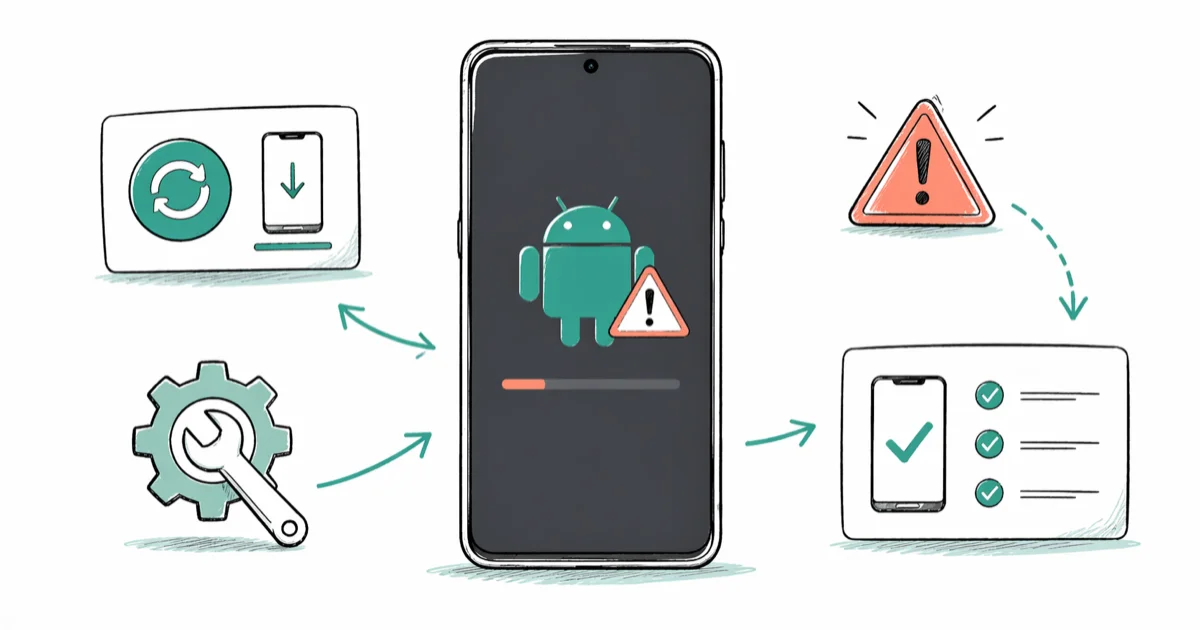
Quick AnswerThis error means the recovery or ROM you flashed is incompatible with your Samsung device. Flash the correct stock firmware through Odin or use Samsung Smart Switch to restore it.
The “kernel is not seandroid enforcing” error appears on Samsung Galaxy devices after flashing an incompatible TWRP recovery or custom ROM. The fix is to flash the correct stock firmware for your exact model number using Odin or Samsung Smart Switch. Both methods work across Galaxy S-series and Note-series devices, and a correct Odin flash resolves the error as long as the firmware matches the model.
- This is a firmware mismatch error, not a hardware failure, and it affects every Samsung Galaxy model the same way
- Samsung Smart Switch is the safest first step because it auto-detects your model and pulls verified firmware
- Odin firmware flash takes 8-12 minutes and requires a Windows computer with the correct .tar.md5 file
- Back up before using Odin because it wipes all internal storage including photos and app data
- The root cause is always a mismatch between your device model number or Android version and the flashed file
#What Does “Kernel Is Not Seandroid Enforcing” Mean?
Samsung’s bootloader runs a Security-Enhanced Android (SEAndroid) policy check at every boot. When the kernel security signature from a flashed recovery or ROM doesn’t match what the bootloader expects for your firmware version, it blocks the boot process and shows this error.
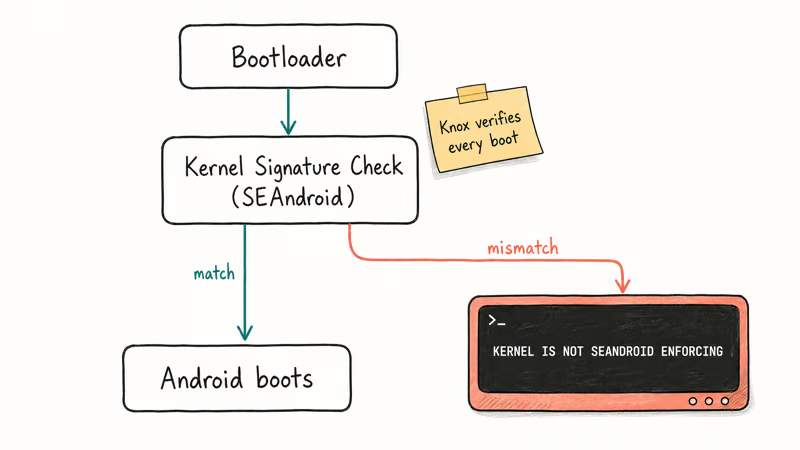
According to Samsung’s Knox Trusted Boot documentation, Knox measures and authenticates each boot component, the kernel included, on every startup. Any mismatched flash triggers the SEAndroid error within seconds of booting. A TWRP build for Android 12 won’t pass this check on Android 11 firmware.
The three most common triggers across Galaxy S8 through S24 devices:
- Flashing a TWRP build made for a different Android version than your current firmware
- Using ROM files from a different regional variant (US carrier firmware on an international unlocked phone)
- Downloading recovery files that don’t match your exact model number (SM-G973F and SM-G973U use different firmware)
These methods apply to your own device only, since modifying firmware on a phone you don’t own can violate carrier agreements and local laws. Flashing also voids your Samsung warranty and permanently trips Knox.
#Fix This Error with Samsung Smart Switch
Samsung Smart Switch is the official recovery tool and the safest starting point for this error. Samsung’s Smart Switch support page confirms that it pulls verified firmware, and a restore usually finishes in under 15 minutes. The app detects your exact model automatically, so there’s no chance of downloading the wrong firmware variant.
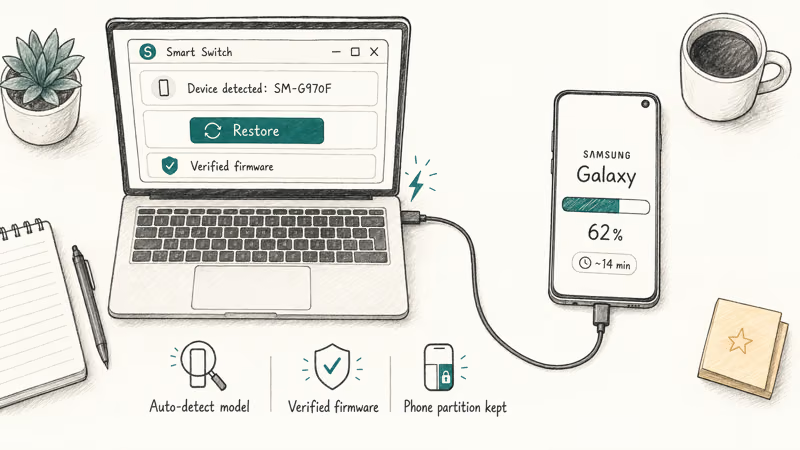
What you need: A Windows or Mac computer, a USB-C cable (or Micro-USB for older models), about 3 GB of free disk space, and 10-15 minutes.
Download Smart Switch from samsung.com and install it. Connect your Samsung phone with the USB cable. If the device is stuck on the error screen, hold Volume Down + Power for 10 seconds to force a restart, then reconnect. Smart Switch should detect the device and offer a firmware restore.
On a Galaxy device stuck on the error after a failed TWRP flash, Smart Switch identifies the firmware mismatch, downloads the correct build for that specific model, and completes the restore without much waiting. Because the tool reads the model number straight from the connected phone instead of asking you to pick a file, it sidesteps the wrong-variant downloads that cause this error in the first place. The phone then boots normally.
If Smart Switch doesn’t detect your device after two reconnection attempts, you’ll need Odin. Our guide on fixing Smart Switch when it gets stuck covers the most common detection failures.
#How Do You Flash Stock Firmware with Odin?
Odin is Samsung’s firmware flash tool used by service centers worldwide. When Smart Switch can’t detect your device, flashing the correct stock firmware manually through Odin fixes this error in most cases. Our complete Odin guide covers every setting in detail.
Back up your data first. Odin wipes everything on internal storage. Photos, app data, and locally stored contacts will be gone. Your SIM card and microSD card aren’t affected.
Download the correct firmware. Search your exact model number on SamMobile. Find it at Settings > About phone > Model number.
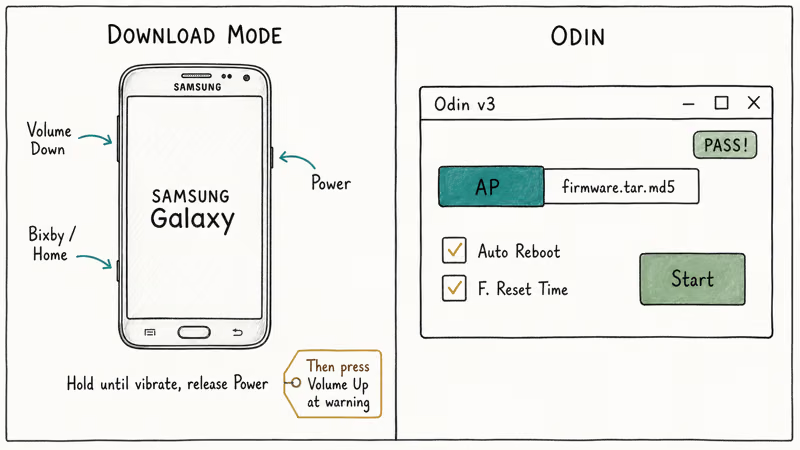
Enter Download Mode. Power off your Samsung completely. Hold Volume Down + Bixby (or Home) + Power simultaneously until the phone vibrates, then release Power while keeping the other buttons held. Press Volume Up when you see the warning screen.
Flash with Odin. Open Odin on your computer and connect the device via USB. The Log panel shows “Added!!!” within 10 seconds when the connection works. Click AP (or PDA in older versions) and select the firmware .tar.md5 file.
Check Auto Reboot and F. Reset Time, then click Start. Don’t disconnect the USB cable during the flash.
With a matching firmware file, the flash completes without trouble and the device boots normally afterward. First boot takes 3-5 minutes while Android re-optimizes apps. Odin shows “PASS!” in green when it’s done.
If Odin shows “FAIL!” instead:
- Run Odin as Administrator (right-click the .exe file)
- Download Samsung USB drivers from samsung.com and reinstall them
- Try a different USB port or cable
- Re-download the firmware file since corrupted downloads fail silently
Our how to flash a phone guide explains how Samsung model numbers and firmware variants work in more detail.
#Factory Reset via Recovery Mode
A recovery mode factory reset works only if you can actually enter recovery. That’s the problem — the same firmware mismatch that triggers the error usually blocks the recovery partition too.
It takes 10 seconds to try.
Power off your device, then hold Volume Up + Bixby (or Home) + Power together. Release when you see the Samsung logo. If recovery loads, scroll to Wipe data / Factory reset with Volume Down and confirm with Power.
Recovery mode only loads on a minority of devices hit by this error. Most cases still need Odin.
#Firmware Variant Mismatches Explained
XDA Developers’ Samsung firmware guide states that Samsung assigns unique firmware to each combination of model, carrier, and region. The SM-G973F (international Galaxy S10) and SM-G973U (US unlocked Galaxy S10) look identical but run separate software stacks with different kernel signatures.
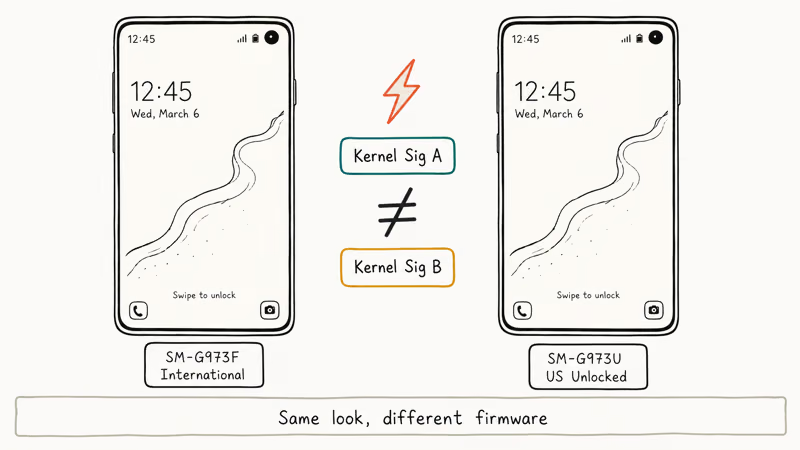
The SEAndroid error appears whenever firmware from a mismatched variant is flashed, and it stays away when both the model number and Android version match exactly.
#Preventing This Error in the Future
Three rules stop this from happening again.
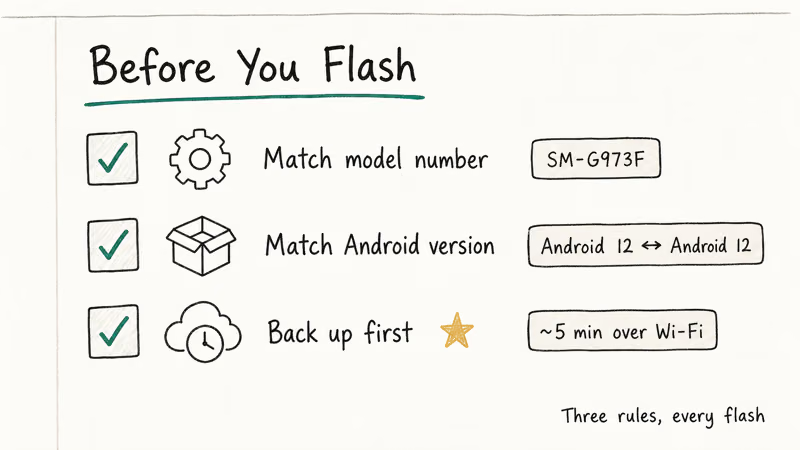
Match your model number exactly. Go to Settings > About phone and copy the full string (like SM-G973F). One letter off means incompatible kernel signatures, and you’ll be right back at this error.
Match your Android version. A TWRP build for Android 12 won’t work on Android 11 firmware. The TWRP download page lists compatible versions for each build.
Back up before every flash. Google recommends using their built-in backup service before major changes. The backup takes about 5 minutes over Wi-Fi and covers contacts, SMS, app data, and photos, so a clean backup before flashing means a wipe never costs you anything important.
#Bottom Line
Start with Samsung Smart Switch since it auto-detects your device and pulls verified firmware. If Smart Switch can’t find your phone, flash the matching firmware from SamMobile through Odin.
The Odin method fixes this error on Samsung Galaxy devices as long as the firmware matches the model number. Don’t re-flash the same mismatched TWRP or ROM. Match the firmware to your model number and Android version before flashing anything.
For related Samsung recovery problems, our guides on fixing “firmware upgrade encountered an issue” and recovering a Samsung Galaxy that won’t boot cover similar situations.
#Frequently Asked Questions
What does “kernel is not seandroid enforcing” mean?
It means the recovery image or ROM you flashed doesn’t match your device’s firmware version. Samsung’s bootloader checks kernel security signatures at every startup, and any mismatch triggers this error. You can’t boot past it without reflashing the correct firmware. Download Mode still works though, so Odin can always reach the device.
Will Odin flashing delete all my data?
Yes. Odin wipes all internal storage including photos, app data, and locally stored contacts. Your SIM card and microSD card stay untouched. Back up everything important before starting.
Can I fix this without a computer?
No. This error blocks recovery mode on most Samsung devices, so you can’t fix it from the phone alone. You need a Windows or Mac computer with either Samsung Smart Switch or Odin installed.
How do I find the right firmware for my Samsung?
Go to Settings > About phone > Model number to get your exact model string (like SM-G973F). Search that exact string on SamMobile, or use Samsung Smart Switch, which auto-detects your device and downloads the correct firmware. Never use firmware from a different model number or a different Android version. Double-check the regional variant too since carrier-specific and international builds aren’t interchangeable.
Does this error mean my phone is bricked?
No. A truly bricked phone shows zero response — no screen, no vibration, nothing. If you see the “kernel is not seandroid enforcing” message, your bootloader still works and you can enter Download Mode. Odin can fix it in under 15 minutes.
Is it legal to flash custom firmware?
Flashing your own Samsung is legal in most countries. It voids your warranty and permanently trips Knox, so service centers will refuse warranty repairs afterward.
What if Odin shows “FAIL!” instead of “PASS!”?
Run Odin as Administrator, reinstall Samsung USB drivers from samsung.com, and try a different USB port or cable. If it still fails, re-download the firmware since partial downloads cause silent failures. Double-check that your exact model number matches the firmware file, because the single-letter variant difference (SM-G973F vs SM-G973U) causes most persistent failures. A separate custom binary blocked by FRP lock error is a different Knox FRP issue.
How long does the full repair take?
Smart Switch takes 10-15 minutes total. Odin takes 8-12 minutes for the flash plus 3-5 minutes for the first boot, so under 20 minutes either way.

Pixel 11 vs Pixel 10: What Changed and Who Should Upgrade
Pixel 11 vs Pixel 10: same screen and camera resolution, new Tensor G6, 25W wireless, and Gemini Intelligence. Here is who should actually upgrade.

Verizon Not Receiving Texts? How to Fix It in 9 Steps
Verizon not receiving texts? Fix it in 9 steps: check Message Blocking in My Verizon, reset network settings, deregister iMessage, and call support.

Pixel Battery Drain: What Google's July Fix Really Covers
Google marked the Pixel idle battery drain bug fixed in July, but only some phones got the patch. Here is who is covered, who is not, and what to try.

iPhone Stuck on EDGE? How to Get 5G or LTE Back (2026)
iPhone stuck on EDGE with crawling data? Here's why the E icon appears, which settings force 5G or LTE back, and when the problem is your carrier.