How to Fix the iPhone I Glitch on iOS 17 and iOS 18
Fix the iPhone I glitch that replaces the letter I with weird symbols. Update iOS, reset the keyboard dictionary, or disable predictive text.
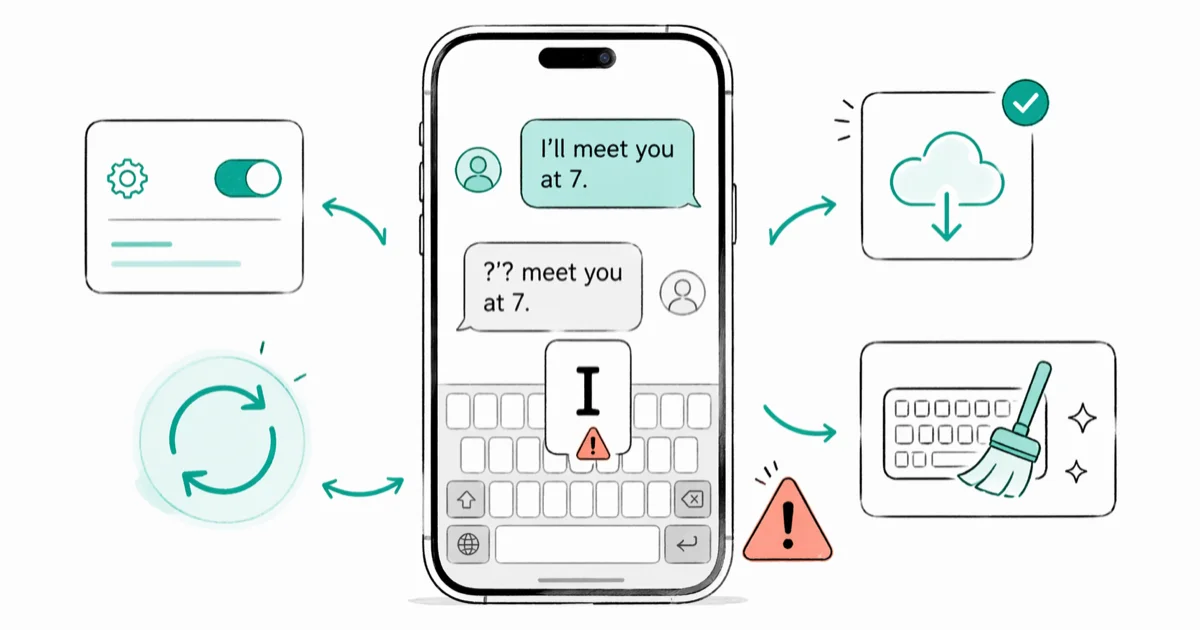
Quick AnswerThe iPhone I glitch replaces the letter I with a question mark symbol or random characters in texts and apps. Updating iOS or resetting the keyboard dictionary fixes it permanently.
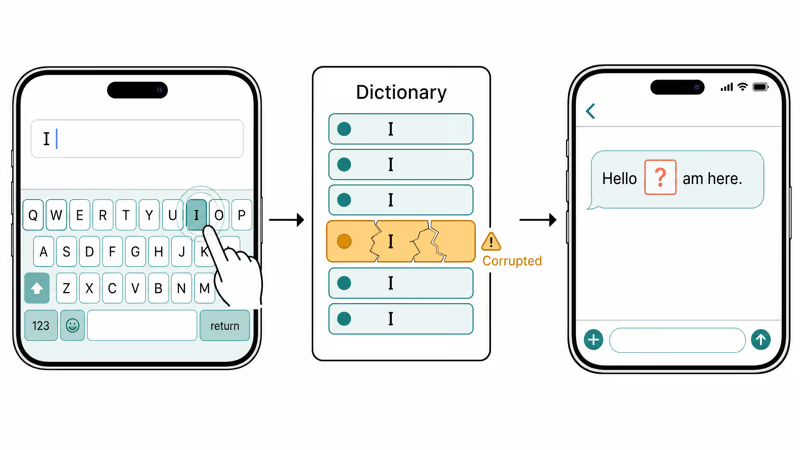
The iPhone “I” glitch turns every uppercase letter I into a garbled character like “A[?]” or a question mark box in messages, emails, and notes on your own phone. Apple traced this to a single corrupted entry in the autocorrect system that swaps I for an unrenderable Unicode pair. Resetting the keyboard dictionary removes that corrupted autocorrect entry.
- The I glitch is a corrupted autocorrect entry that replaces the capital letter I with a Unicode symbol your phone can’t render
- Apple originally patched the bug in iOS 11.1.1 within 5 days of public release
- Resetting the keyboard dictionary clears the entry in about 15 seconds and keeps your contacts, messages, and apps untouched
- A manual text replacement that maps lowercase i to capital I is a working stopgap for users who can’t update right now
- The glitch is purely software, has no link to malware, and never damages iPhone hardware
#What Causes the iPhone I Glitch?
Apple’s autocorrect system maintains a dictionary of learned words and substitutions that grows as you type. The I glitch happens when a corrupted entry tells the system to replace the capital letter “I” with a Unicode character your phone can’t display properly. The result looks like “A[?]” or a box with a question mark inside.
According to Apple’s official statement on the I bug, iOS 11.1 introduced the bug on November 2, 2017, and Apple shipped iOS 11.1.1 just 5 days later as a targeted fix.
Similar autocorrect corruption can resurface on any iOS version when the keyboard dictionary picks up a damaged entry during an update or restore. Backup-and-restore cycles, jailbreak rollbacks, and beta-to-stable downgrades are common reintroduction paths. The dictionary file lives outside iCloud sync, so a clean install on a new iPhone usually starts fresh, while restoring an encrypted backup carries the corruption forward into the new device.
The glitch only fires on the capital I. Lowercase “i” displays normally, which means every sentence starting with “I”, “I’m”, or “I’ll” shows the garbled text while words like “fish” or “icing” stay clean.
#Update iOS to Fix the I Glitch
Updating is the fastest permanent fix. Apple’s patches target the corrupted autocorrect entry directly, so the glitch disappears on the first reboot after the update.
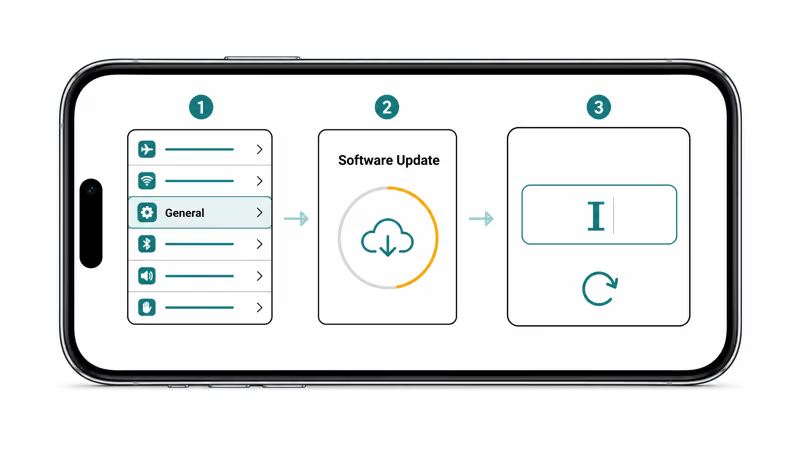
Open Settings > General > Software Update.
Download and install any pending update. The full process takes 10-20 minutes on a stable Wi-Fi connection, and the device restarts once on its own.
Updating iOS is the first permanent fix because Apple’s patches target the autocorrect bug at the system level. If your iPhone is stuck on verifying update, toggle Airplane Mode on and off, then trigger the download again from the same screen.
Every iOS point release ships keyboard and autocorrect fixes even when the release notes don’t call them out. If the update process fails with a cellular update error, connect to Wi-Fi and try again from Settings instead of relying on the carrier connection.
#How Do You Reset the Keyboard Dictionary?
A dictionary reset wipes every learned word and autocorrect entry, including the corrupted “I” record. Your phone falls back to Apple’s default dictionary and starts learning again from your typing.
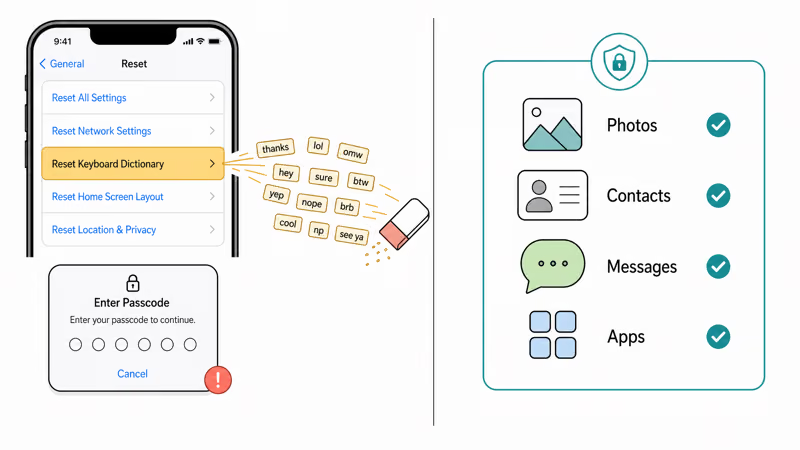
Go to Settings > General > Transfer or Reset iPhone > Reset > Reset Keyboard Dictionary. Enter your passcode. That’s the whole flow, and it takes about 15 seconds end to end.
Your texts, contacts, photos, and apps stay untouched. Autocorrect just feels generic for a few days while the keyboard relearns your patterns.
Apple’s reset options documentation confirms that the keyboard dictionary reset wipes only learned words and shortcuts, not personal data or system settings. The page lists this option as one of seven scoped resets, sitting between Reset Network Settings and Reset Home Screen Layout in the menu.
#Add a Manual Text Replacement
Can’t update right now? A manual text replacement overrides the corrupted autocorrect entry with a clean substitution your dictionary will trust.
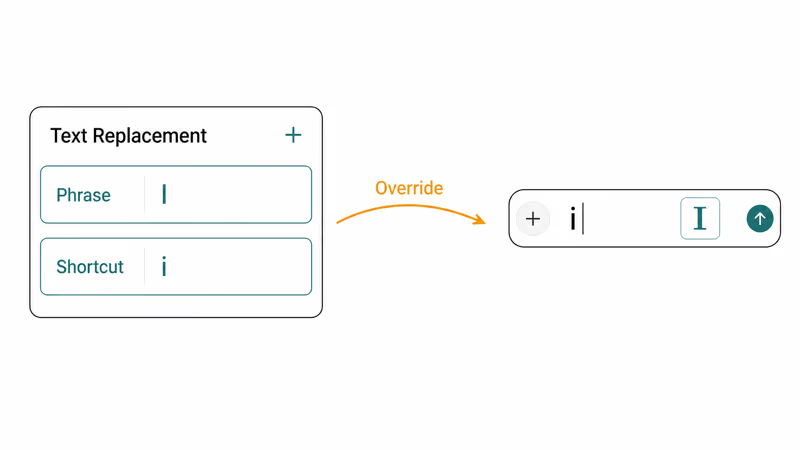
Go to Settings > General > Keyboard > Text Replacement. Tap the + button in the top right corner. In the Phrase field, type a capital I. In the Shortcut field, type a lowercase i.
That’s it. Every time you type “i” and the keyboard auto-capitalizes, the phone applies your manual replacement instead of the corrupted entry.
This is a bandage, not a cure. The corrupted entry still lives in the dictionary, and a few apps with their own input pipelines bypass text replacement entirely. Plan to update iOS or reset the dictionary when you can spare 15 seconds for a real fix.
#Restart Your iPhone to Clear Cached Data
A restart helps, but only temporarily. It clears cached autocorrect data without removing the corrupted dictionary entry, so the glitch usually returns within an hour.
Force restart on iPhone 8 and later: press Volume Up, then Volume Down, then hold the Side button until the Apple logo appears.
After the restart, open Notes and type a capital I. If it displays correctly, the restart cleared the cached glitch. If the garbled character returns after a few minutes of typing, the dictionary entry is still corrupted and you need one of the permanent fixes above.
A restart can buy you time for a meeting or a long text thread, but it doesn’t remove the corrupted dictionary entry. If your iPhone keyboard isn’t working at all after the restart, that’s a separate issue worth investigating before the I glitch.
#Turn Off Predictive Text
Disabling predictive text stops the autocorrect engine from substituting characters, which prevents the I glitch from triggering. The trade-off is losing every word suggestion and auto-completion at the same time.
Go to Settings > General > Keyboard and toggle off Predictive Text. Toggle off Auto-Correction on the same screen for a complete override.
Your typing speed will drop because you lose word completions across every app. Most people find this too inconvenient for daily use, so treat it as a diagnostic step rather than a permanent fix. If turning off predictive text stops the glitch, you’ve confirmed the problem lives in the autocorrect dictionary and a reset will fix it cleanly.
People who deal with autocorrect problems regularly sometimes prefer to keep these toggles off long term. That’s a personal preference. The dictionary reset is still the better fix for this specific glitch.
#Prevent the I Glitch From Returning
Keep your iPhone updated. Apple states that 5 days was the turnaround on the original I glitch fix, and most autocorrect bugs get patched within weeks of discovery.
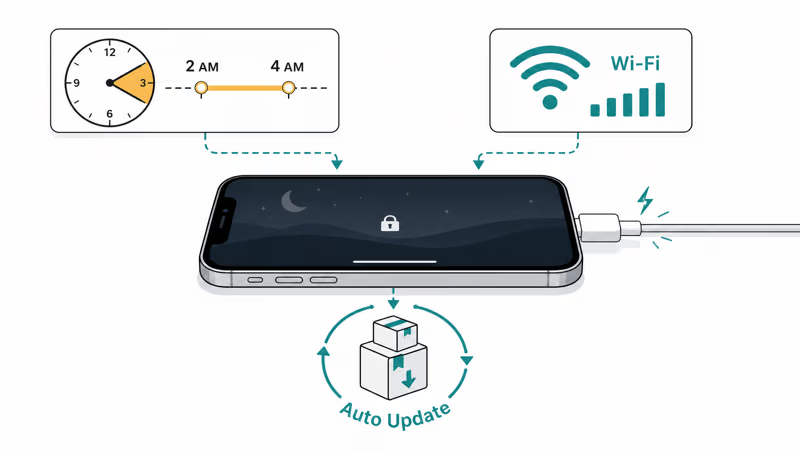
Go to Settings > General > Software Update > Automatic Updates and turn on both Download iOS Updates and Install iOS Updates. Your iPhone will pull and install updates overnight while charging on Wi-Fi. According to Apple’s automatic update guide, automatic installs apply between 2 AM and 4 AM device time when the iPhone is plugged in and locked.
Don’t restore old backups onto newer iOS versions unless you have to. Corrupted dictionary entries travel inside iCloud and iTunes backups and can reintroduce the glitch the moment you restore. If the I glitch returns after a backup restore, reset the keyboard dictionary again and the entry is gone.
If your iPhone has ghost touch issues that cause random characters to appear in any app, that’s a hardware problem unrelated to the I glitch. The I glitch is purely software, the ghost touch is screen hardware, and the fixes don’t overlap. The same goes for an iPad keyboard that stops working on iPadOS, where the dictionary reset still applies but the underlying causes can include hardware failure on the Smart Connector.
#Bottom Line
Update iOS first. Apple already patched this bug in iOS 11.1.1, and every subsequent update reinforces the fix with refreshed autocorrect data. If you can’t update today, reset the keyboard dictionary in 15 seconds or add a manual text replacement as a stopgap until the next iOS release lands on your device.
The I glitch is annoying but harmless. It doesn’t damage your phone, corrupt your messages permanently, or signal anything beyond a single broken entry in the autocorrect dictionary.
#Frequently Asked Questions
Does the I glitch affect all iPhone models?
Yes. It’s a software bug in the iOS autocorrect system, not a hardware defect. Any iPhone running an affected iOS version can hit it, from the iPhone 6s through the iPhone 16 series.
Will the I glitch corrupt my sent messages permanently?
No. Once you fix the glitch, new messages display correctly on your screen. Old sent messages may still show the corrupted character on the recipient’s end until they update iOS as well, since the broken character is rendered client-side and not stored as a permanent transformation in the message thread.
Can I fix the I glitch without updating iOS?
Yes. Resetting the keyboard dictionary removes the corrupted entry entirely, and adding a manual text replacement overrides it. Both work without an iOS update. The dictionary reset is the better choice because it eliminates the root cause, while the text replacement just masks the problem and some apps still show the garbled character because they use their own input layer.
How long does resetting the keyboard dictionary take?
About 15 seconds. The phone doesn’t even restart. Autocorrect suggestions will feel generic for a few days until the keyboard relearns your typing patterns.
Does the I glitch affect third-party keyboards like Gboard?
Not usually. Third-party keyboards use their own dictionaries and autocorrect systems, so they don’t read from the corrupted iOS dictionary entry. If you’re using Gboard or SwiftKey and still see the glitch, the problem is at the system level and updating iOS is the only fix.
Can the I glitch come back after fixing it?
Yes, but only if you restore an old backup containing the corrupted dictionary entry. Reset the keyboard dictionary again after restoring and the glitch disappears.
Is the I glitch a sign of malware or hacking?
No. The I glitch is a well-documented Apple autocorrect bug with zero connection to malware, spyware, or unauthorized access. Apple confirmed the cause publicly within days of the bug’s first appearance.
Does Siri also show the I glitch?
Siri’s text-to-screen display can show the garbled character because the captioned transcript pulls from the same corrupted system dictionary that drives autocorrect. Siri’s voice output stays clean and the spoken word “I” comes through correctly regardless of the dictionary state. Lock screen Siri suggestions, dictation results, and the on-screen response captions are the visible surfaces affected; resetting the keyboard dictionary clears all three at once.

Mac mini M6 vs M5 Pro: Which Model Should You Buy?
Mac mini M6 vs M5 Pro compared on price, memory, ports, displays, and real workloads. Find the better 2026 Mac mini for your desk and budget.

Apple Siri Settlement: Who Qualifies and How to Claim
Apple's $250 million Siri settlement covers iPhone 15 Pro and iPhone 16 models bought June 2024 to March 2025. See who qualifies and how claims work.

iOS 26.6.1 Security Update: What Apple Fixed and Who Gets It
Apple released iOS 26.6.1 on August 17 with 29 security fixes, including an IPSec interception bug. See what it patches, who gets it, and how to update.

iPhone Adaptive Power: How It Works and When to Use It
Learn how iPhone Adaptive Power works, which models support it, what it changes, and when Low Power Mode is still the better battery-saving choice.