ETD Control Center: What It Is and How to Fix Its Issues
Learn what ETD Control Center is, why it causes high CPU usage on Windows laptops, and 4 proven methods to disable or fix the etdctrl.exe process.
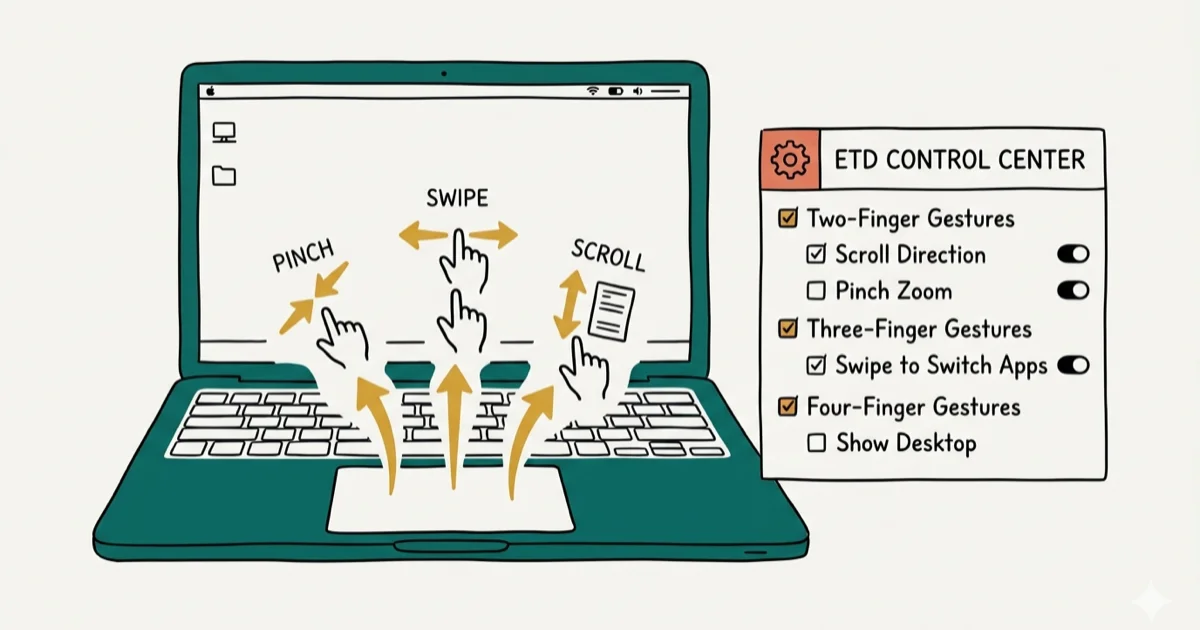
Quick AnswerETD Control Center is the ELAN touchpad driver utility that runs in the background on most Windows laptops. You can safely disable it from the Task Manager Startup tab or update the touchpad driver through Device Manager to fix high CPU usage and not-responding errors.
ETD Control Center is a touchpad driver utility built by ELAN Microelectronics that comes preinstalled on many Windows laptops. Most fixes are simple: disable it from Startup, update the touchpad driver, or remove conflicting gesture utilities.
- ETD Control Center (etdctrl.exe) is a legitimate ELAN touchpad driver, not malware
- Disabling it from Task Manager’s Startup tab stops it at boot without losing basic touchpad function
- Outdated ELAN drivers are the top cause of “not responding” and high CPU errors
- Updating the driver through Device Manager is the most reliable fix for performance and not-responding errors
- Removing ASUS Smart Gesture eliminates the most common driver conflict on ASUS laptops
#ETD Control Center Explained
ETD Control Center is the software behind your laptop’s ELAN touchpad. It enables advanced gestures like pinch-to-zoom, two-finger scrolling, and three-finger swipe --- features that make the touchpad work more like a smartphone screen.
The process runs as etdctrl.exe in the background. You won’t see it on your desktop, but it’s visible in Task Manager under the Processes tab. Microsoft’s documentation on startup apps states that some apps can start automatically when you sign in, which is why background utilities like ETD Control Center may load at boot. Disabling unused startup items frees both RAM and CPU cycles.
ELAN Microelectronics Corp developed this utility. It ships preinstalled on laptops from ASUS, Lenovo, Dell, HP, and Acer. Under normal conditions, it should use little memory and stay barely noticeable.
#Should You Delete or Disable ETD Control Center?
You don’t need ETD Control Center for basic mouse clicks and cursor movement. Those functions come from the standard Windows touchpad driver.
Disabling the process is completely safe. Your touchpad still works for everyday tasks like clicking, dragging, and basic scrolling. Multi-finger gestures may stop because those features depend on the ELAN utility.
Don’t delete it outright. Removing the ELAN driver entirely can create issues if you ever want those gesture features back. Disabling at startup keeps the files intact for later reactivation, which takes about 10 seconds through Task Manager’s Startup tab.
If you’re experiencing problems like high CPU usage from other Windows processes, disabling unnecessary startup programs like ETD Control Center helps free up system resources.
#How Can You Disable ETD Control Center Through Task Manager?
The fastest way to stop ETD Control Center is disabling it at startup. Takes about 30 seconds.
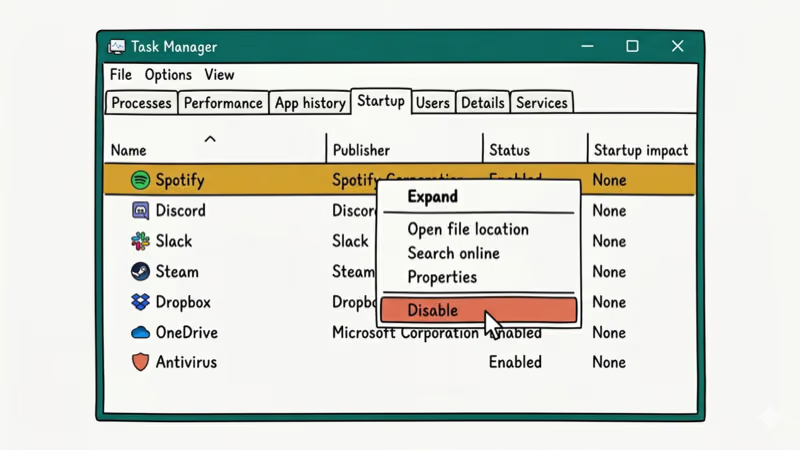
- Press Windows + R to open the Run dialog box.
- Type
taskmgrand press Enter to open Task Manager. - Click the Startup tab at the top of the Task Manager window.
- Scroll down the list and find ETD Control Center.
- Right-click it and select Disable.
- Close Task Manager and restart your computer.
After the reboot, ETD Control Center won’t load. Clicks and basic movement keep working.
This method works on both Windows 10 and Windows 11. If you can’t find the Startup tab in Task Manager, try opening msconfig from the Run dialog instead --- older Windows 10 builds (pre-1803) put the startup list there. Check the guide on Windows 10 performance issues for more startup optimization tips, including how to identify which programs slow down your boot time the most.
#Method 2: Use a Third-Party Process Manager
Some users can’t find ETD Control Center in Task Manager. On older Windows builds where the Startup tab isn’t available, a third-party process manager like IObit’s Advanced SystemCare gives you more control over background processes.
- Download and install Advanced SystemCare from IObit’s official website.
- Open the app and click Toolbox in the main interface.
- Select Process Manager from the available tools. The app installs the module automatically if it isn’t already present.
- Under the Processes tab, find ETDCtrl.exe in the running process list.
- Right-click it and select End Process to stop it immediately.
For a less aggressive approach, right-click ETDCtrl.exe and set it to Low Priority. This keeps the process running but limits how much CPU time it can consume. If ETDCtrl.exe keeps spiking, the safer long-term fix is still updating or reinstalling the driver.
#Method 3: Update the Touchpad Driver
Outdated or corrupted drivers are the root cause of most ETD Control Center errors. When the ELAN driver doesn’t match your current Windows version, the process crashes, stops responding, or spikes in CPU usage similar to other device driver failures like video_dxgkrnl_fatal_error.
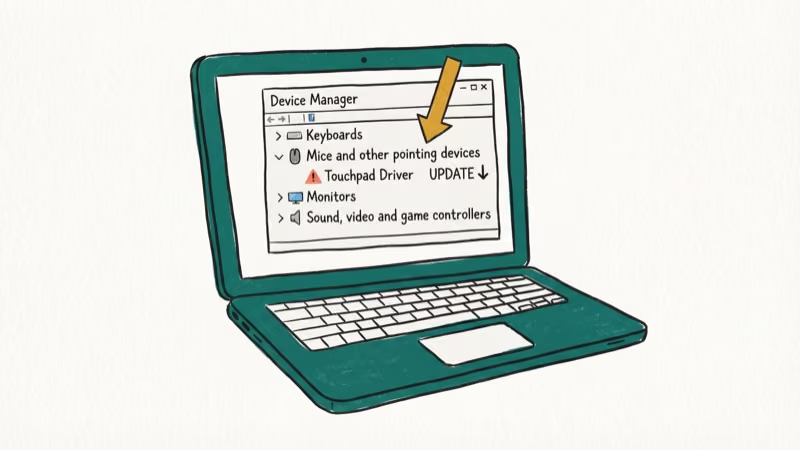
Outdated drivers are a common cause of hardware-related Windows errors. ELAN releases 2-3 driver updates per year, and skipping even one can trigger the not-responding error.
Update through Device Manager:
- Press Windows + R, type
devmgmt.msc, and press Enter to open Device Manager. - Expand Mice and other pointing devices in the device list.
- Right-click ELAN Touchpad (or ELAN Input Device) and select Update driver.
- Choose Search automatically for drivers and let Windows find the latest version.
- If Windows doesn’t find a newer driver, visit ELAN’s support page or your laptop manufacturer’s driver download section; the manufacturer site confirms that ELAN is the vendor behind this touchpad-driver family.
If updating doesn’t help, try uninstalling the driver completely:
- In Device Manager, right-click the ELAN touchpad entry and select Uninstall device.
- Check Delete the driver software for this device if the option appears.
- Restart your computer. Windows reinstalls a generic touchpad driver automatically on boot.
After the reinstall, ETD Control Center should stop hogging CPU if driver corruption was the cause.
#Method 4: Uninstall ASUS Smart Gesture
On ASUS laptops, the Smart Gesture app frequently conflicts with ETD Control Center. Both programs try to manage the touchpad simultaneously, and the result is the “ETD Control Center not responding” error or persistent high resource usage similar to browser_broker issues.

- Open Control Panel from the Start menu.
- Set the view to Category using the “View by” dropdown at the top right.
- Click Uninstall a program under the Programs section.
- Find ASUS Smart Gesture in the list of installed programs.
- Right-click it and select Uninstall.
- Restart your computer when the uninstallation finishes.
With Smart Gesture removed, ETD Control Center becomes the sole touchpad manager. The conflict disappears, CPU usage returns to normal, and the “not responding” popups stop. Tom’s Guide’s Windows troubleshooting section recommends removing duplicate driver utilities as step 1 for any hardware conflict. If you’re dealing with other Windows execution errors or device driver issues like video_dxgkrnl_fatal_error, removing conflicting software is often the fastest path to a fix.
#Bottom Line
ETD Control Center isn’t dangerous --- it’s just the ELAN touchpad driver utility. If it’s causing high CPU usage or not-responding errors, disable it from Task Manager’s Startup tab as a quick fix. For a permanent solution, update or reinstall the ELAN touchpad driver through Device Manager. ASUS laptop owners should also uninstall Smart Gesture to eliminate the most common driver conflict.
#Frequently Asked Questions
Is ETD Control Center a virus or malware?
No, ETD Control Center (etdctrl.exe) is a legitimate touchpad driver utility developed by ELAN Microelectronics. Some antivirus programs flag it because it runs in the background and consumes resources. If you’re concerned, check the file location --- the real etdctrl.exe sits in C:\Program Files\Elantech\. Any copy outside that folder could be suspicious.
Can I uninstall ETD Control Center completely?
Yes, but it isn’t recommended. Uninstalling removes all ELAN touchpad gesture support, including pinch-to-zoom and multi-finger scrolling. Disabling it from the Startup tab is a better option because it stops the process from loading without deleting the files you’d need to restore gesture support later.
Why does ETD Control Center use so much CPU?
High CPU usage usually points to a corrupted or outdated ELAN driver. When the driver version doesn’t match your Windows build, the process enters a loop trying to initialize the touchpad hardware. Updating the driver through Device Manager or doing a clean reinstall fixes this in most cases.
Does disabling ETD Control Center break the touchpad?
No. Basic clicking, tapping, and cursor movement keep working because Windows uses its own generic touchpad driver. You only lose ELAN-specific gestures.
What should I do if ETD Control Center still doesn’t respond after troubleshooting?
If all four methods fail, the problem likely sits at the hardware level. Connect an external USB mouse to rule out a touchpad hardware failure. If the external mouse also behaves oddly, there’s a deeper system issue at play --- a failing motherboard connection or damaged touchpad ribbon cable. Contact your laptop manufacturer’s support team with your exact model number, Windows version, and the ELAN driver version (visible in Device Manager) so they can provide targeted help.
Will reinstalling ETD Control Center reset my touchpad settings?
Yes, a fresh install resets gesture assignments, scroll speed, and tap sensitivity to their factory defaults. Before reinstalling, take a screenshot of your current settings in the ELAN touchpad configuration panel so you can restore them after the reinstall finishes.

Best Laptop for Running LLMs in 2026: Memory Comes First
The best laptop for running LLMs is a memory purchase first. Compare MacBook unified memory against NVIDIA laptop VRAM, and see what each tier really runs.

How to Run a Local LLM on Windows: A 2026 Setup Guide
Run a local LLM on Windows with LM Studio or Ollama. Pick a model that fits your GPU memory, keep every prompt offline, and skip the monthly bill.

Bluetooth Not Working on Snapdragon X? Fixes for 2026
Bluetooth not working on your Snapdragon X Copilot+ PC? Generic audio, mice, and keyboards work, but vendor apps often lack an ARM build. Fixes inside.

Docker Desktop and WSL2 Not Working on Snapdragon X? Fix It
WSL2 runs fine on Snapdragon X, but Docker Desktop ARM is Early Access and throws WSL errors. Use WSL2 plus native ARM64 Ubuntu and Docker Engine.