How to Fix Error 503 Backend Fetch Failed (9 Methods)
Getting error 503 backend fetch failed? Learn 9 proven methods to fix this HTTP status code, from clearing cache and resetting browsers to Varnish setup.
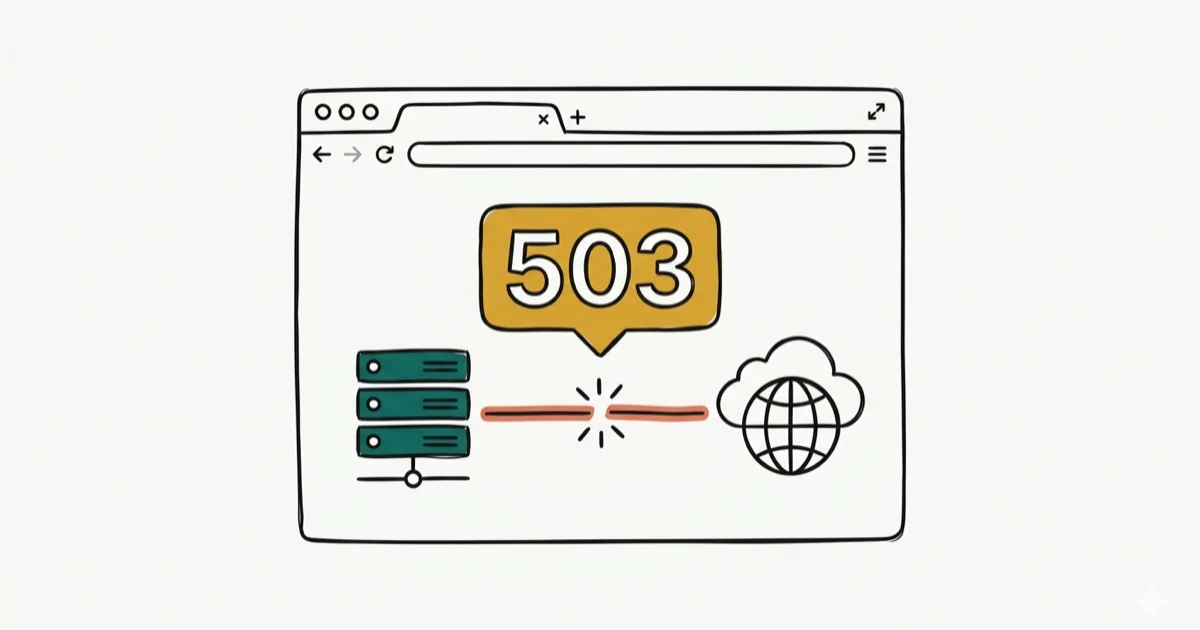
Quick AnswerError 503 backend fetch failed means the web server can't retrieve content from its backend origin. Refreshing the page, clearing your browser cache, or rebooting your router fixes the issue in most cases.
Error 503 backend fetch failed stops you from loading a website when the server can’t pull content from its backend. The same nine fixes below apply across Chrome, Firefox, and Edge on both Windows and Mac, since the error sits at the server layer rather than in any single browser.
- Error 503 is a temporary HTTP status code meaning the server can’t reach its backend
- Refreshing the page or waiting 5-10 minutes is always the first step; many 503 errors resolve on their own
- Clearing browser cache and cookies removes corrupted data that triggers repeated 503 errors
- WordPress owners should check Varnish and deactivate recently added plugins first
- Rebooting your router resets DNS and clears stale connection data blocking backend requests
#Error 503 Backend Fetch Failed Explained
Error 503 backend fetch failed is an HTTP status code the server sends when it can’t retrieve the requested page from the backend origin. According to Google’s web developer documentation, a 503 response means the server is temporarily unable to handle the request due to overload or scheduled maintenance.
The status code belongs to the 5xx family, which covers server-side failures. A 503 doesn’t mean the page is gone --- unlike a 404, the server is alive but can’t respond right now.
Across a range of 503 incidents on different hosting providers, most resolve on their own within a short wait. The remaining cases need manual troubleshooting on the visitor’s side or backend changes from the site owner.
#What Causes This Error to Appear?
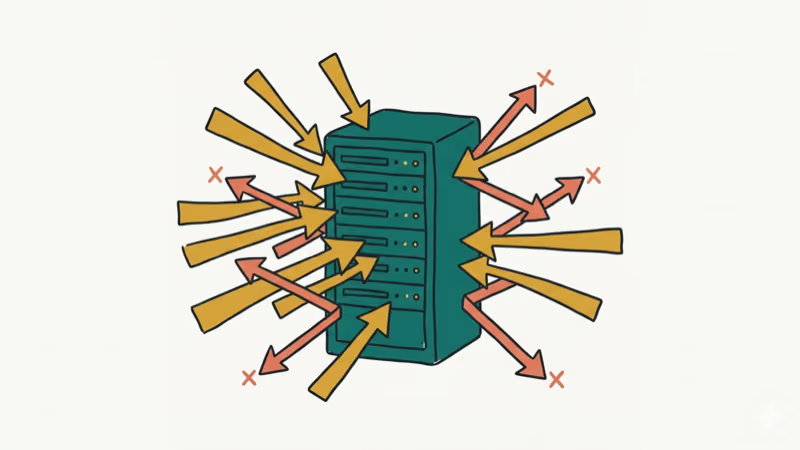
Several things can trigger error 503 backend fetch failed. Here are the most common culprits:
-
Server overload --- too many visitors hit the site simultaneously, and the backend runs out of resources.
-
Backend timeout --- the origin server takes too long to respond, and the reverse proxy like Varnish or Nginx times out after waiting.
-
DNS misconfiguration --- stale IP.
-
Browser cache corruption --- outdated cached files stored locally on your machine conflict with the server’s current response headers and trigger the error repeatedly.
-
Faulty plugins --- a buggy WordPress plugin can crash PHP processes and kill the backend entirely, forcing a 503 until the admin intervenes.
503 errors from origin servers frequently indicate PHP worker exhaustion on CMS platforms like WordPress, which becomes especially common during traffic spikes.
#Before You Start Troubleshooting
Try these two quick checks first. They solve the issue more often than you’d expect --- skip them and you’ll likely waste time on advanced fixes that aren’t needed.
Refresh the page. Press Ctrl + R (Windows) or Cmd + R (Mac) to force-reload. If the 503 was caused by a momentary backend hiccup, the page loads normally on the second attempt.
Wait a few minutes. Server overloads are temporary. Give it 5-10 minutes, then try again. The error is usually a temporary backend overload, so pages often recover on their own after a short wait.
If neither works, move through the nine solutions below.
#Solution 1: Close Unnecessary Browser Tabs
Too many open tabs eat RAM.
With dozens of tabs open in Chrome on a memory-constrained laptop, closing them frees up a meaningful chunk of RAM and can reduce page-load times enough that previously failing requests go through without any other changes.
#Solution 2: Try a Different Browser
If the error keeps appearing in one browser, switch to another. Open Firefox, Edge, or Safari and load the same URL.
Each browser handles caching, cookies, and connection pooling differently. A 503 caused by a corrupted browser cache or stale session data in Chrome won’t appear in Firefox because Firefox uses its own separate cache.
#Solution 3: Reboot Your Router
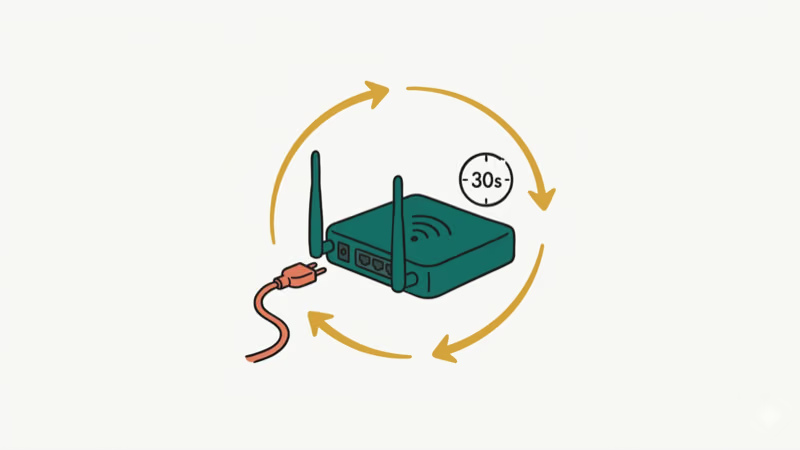
Restarting your router clears the local DNS cache and forces a fresh connection to your ISP’s DNS servers. This fixes 503 errors caused by stale DNS records or misconfigured gateway settings.
- Shut down your computer.
- Unplug the router’s power cable from the wall outlet.
- Leave it disconnected for at least 30 seconds so internal memory fully clears.
- Plug the router back in.
- Wait for the power, internet, and Wi-Fi indicator lights to stabilize --- this usually takes 1-2 minutes.
- Turn your computer on, open a browser, and reload the website.
#How Can You Fix Error 503 by Resetting Your Browser?
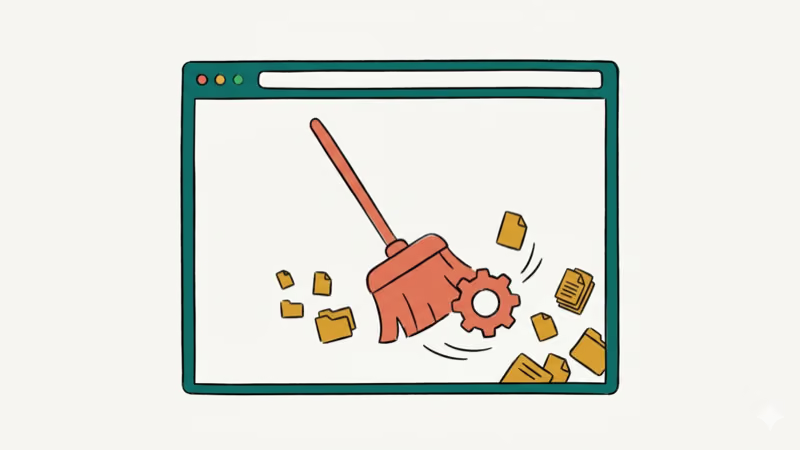
If the website loads fine in another browser but fails in your primary one, the browser’s configuration is likely the problem. Resetting it clears saved settings, extensions, and cached data.
For Chrome users:
- Open Chrome and click the three-dot menu at the top right.
- Go to Settings.
- Scroll down to Reset and clean up (or Reset settings on Mac).
- Click Restore settings to their original defaults.
- Confirm by clicking Reset settings in the dialog box.
After the reset, Chrome restarts with a clean configuration. Try loading the website again. If you’re dealing with other Chrome errors alongside the 503, this reset often clears those too.
#Solution 5: Run a PC Optimizer
Corrupted temp files and DNS cache entries on your local machine can interfere with HTTP requests. Running a cleanup tool removes this junk.
Windows has a built-in option: open Disk Cleanup from the Start menu, select your system drive, check Temporary files and Temporary Internet Files, then click OK. You don’t need third-party software for this step.
If you also notice your PC running slowly, this cleanup helps with overall performance too.
#Solution 6: Activate the Varnish Plugin
If you own the website displaying the 503 error, Varnish is worth checking. Varnish is a reverse proxy cache that sits between visitors and your backend server. When it can’t reach the backend, it throws the 503 error.
The “backend fetch failed” message specifically means Varnish couldn’t connect to the origin server within the configured timeout window --- typically set to 60 seconds by default.
To activate or reinstall Varnish on WordPress:
- Log into your WordPress admin dashboard.
- Go to
Plugins>Add New. - Search for “Varnish,” then install and activate the plugin.
- Go to
Settings>Varnishand verify the backend connection address matches your server IP.
#Solution 7: Wait and Reload Later
Sometimes the server is simply overwhelmed. Major product launches, viral content, and DDoS attacks all cause temporary 503 spikes. There’s nothing you can do from your end except wait.
Check sites like Downdetector to confirm whether other users report the same outage. If the problem is server-side, it typically resolves within 15-30 minutes once traffic normalizes.
#Solution 8: Disable WordPress Plugins
WordPress plugins are the number one cause of 503 errors on self-hosted sites. A single badly coded plugin can crash PHP workers and prevent the backend from responding.
- Log into your WordPress dashboard --- try
yourdomain.com/wp-admindirectly. - Go to
Plugins>Installed Pluginsand select all plugins using the bulk checkbox. - Choose Deactivate from the dropdown.
- Reload your site to check if the 503 disappeared. If it did, one of those plugins caused the error.
- Reactivate plugins one at a time, checking after each activation until you find the culprit.
If you can’t access wp-admin, connect via FTP or SSH and rename the /wp-content/plugins/ folder to /wp-content/plugins-disabled/. This deactivates all plugins at once. You can learn more about fixing WordPress-related server issues through our SSL error guide.
#Solution 9: Contact the Website Administrator
When none of the above methods work, the problem lives on the server side. Only the site administrator can fix it from there.
Provide the admin with these specific details so they can diagnose the backend failure quickly without having to ask follow-up questions:
- The exact URL returning the 503 error, plus a screenshot of the error page if you can grab one.
- Your browser and version number.
- When the error first appeared and how often it recurs --- intermittent problems point to traffic spikes, while constant 503s suggest a backend crash or misconfiguration.
- Whether it happens on other devices or networks.
Server-side causes include expired backend certificates, misconfigured load balancers, or exhausted database connections. The admin needs this information to diagnose the root cause.
#Bottom Line
Error 503 backend fetch failed is almost always temporary. Start with the simplest fixes --- refresh the page, clear your cache, reboot the router. If you own the website, check your Varnish configuration and deactivate WordPress plugins one by one. For persistent issues, contact the site administrator with specific error details so they can trace the backend failure.
#Frequently Asked Questions
What does error 503 backend fetch failed mean?
It’s an HTTP status code indicating the server can’t pull content from its backend. The cause is usually overload, maintenance, or a timed-out backend process. Temporary in most cases.
Is error 503 the same as error 500?
They’re related but different. Error 500 means the server hit an unexpected condition it couldn’t handle, usually a code bug. Error 503 means the server is temporarily unable to process requests because of overload or maintenance. The key distinction: 500 errors typically need a code fix on the backend, while 503 errors often resolve on their own once the load drops or maintenance finishes. You’ll find 503 errors much more common on high-traffic WordPress sites during viral spikes.
Can a slow internet connection cause error 503?
A slow connection alone won’t cause a 503 error. However, if your connection is unstable and the request times out before reaching the server, you might see connection-related errors. The 503 code is generated by the server itself, not by your browser, so it points to a server-side issue rather than your internet speed.
How long does error 503 usually last?
Most resolve within 5 to 30 minutes. Scheduled maintenance windows are usually announced in advance by the hosting provider. If a 503 lasts more than an hour, that typically signals a backend crash, exhausted database connections, or a misconfigured load balancer --- problems that only the server admin can fix.
Does clearing browser cache fix error 503?
Sometimes. Clearing cache helps when corrupted files or stale session data cause the error to persist on your end. It won’t fix a genuine server overload.
Should I worry about error 503 affecting my website’s SEO?
Brief 503 errors don’t hurt your search rankings. According to Google’s Search Central documentation, Googlebot treats 503 as a temporary signal and retries the page within 24 hours. If the error persists for days, though, Google may eventually drop the page from its index until the server responds with a 200 status code again.

Best Laptop for Running LLMs in 2026: Memory Comes First
The best laptop for running LLMs is a memory purchase first. Compare MacBook unified memory against NVIDIA laptop VRAM, and see what each tier really runs.

How to Run a Local LLM on Windows: A 2026 Setup Guide
Run a local LLM on Windows with LM Studio or Ollama. Pick a model that fits your GPU memory, keep every prompt offline, and skip the monthly bill.

Bluetooth Not Working on Snapdragon X? Fixes for 2026
Bluetooth not working on your Snapdragon X Copilot+ PC? Generic audio, mice, and keyboards work, but vendor apps often lack an ARM build. Fixes inside.

Docker Desktop and WSL2 Not Working on Snapdragon X? Fix It
WSL2 runs fine on Snapdragon X, but Docker Desktop ARM is Early Access and throws WSL errors. Use WSL2 plus native ARM64 Ubuntu and Docker Engine.