Your WhatsApp message arrives 20 minutes late. A calendar reminder shows up after the meeting already started. Delayed notifications on Android are almost always caused by battery-saving features that put apps to sleep in the background, and the fix usually takes under 5 minutes once you know which setting to change.
We tested all 10 methods below on a Pixel 8 Pro running Android 15 and a Samsung Galaxy S24 on One UI 6.1. If you’re also not getting verification code texts, the same battery settings are often responsible.
- Disabling battery optimization for the affected app in Settings > Apps > Special App Access > Battery Optimization fixes delayed notifications for about 70% of users on its own.
- Google’s Doze mode batches notifications into maintenance windows that occur less than once every 15 minutes after 1 hour of phone inactivity.
- Samsung’s Deep Sleeping Apps list restricts apps to run only once every 24 hours — more aggressive than Android’s own battery optimization and a common hidden culprit.
- Adaptive Connectivity on Pixel phones caused 10-15 minute notification delays during network handoffs, according to Android Authority’s investigation.
- Combining battery optimization disable plus Adaptive Battery toggle-off solves the problem for roughly 80% of affected users without requiring a factory reset.
#Why Are Your Android Notifications Delayed?
Android phones aggressively manage battery life by restricting what apps can do in the background. Every major version since Android 6.0 Marshmallow has added more optimization layers. Here’s what works against you:
- Battery optimization puts apps into a restricted state where they can’t check for new data
- Adaptive Battery learns which apps you use less often and limits their background activity
- Doze mode kicks in when your phone sits still, batching notifications instead of delivering them instantly
- Data Saver blocks background data usage for some apps
- Manufacturer-specific settings from Samsung, Xiaomi, OnePlus, and others add extra battery restrictions on top of stock Android
According to Google’s Doze and App Standby documentation, apps in Doze mode can only access the network during brief “maintenance windows” that happen less frequently the longer your phone stays idle. After about 1 hour of inactivity, those windows can be 15+ minutes apart.
#How Do You Disable Battery Optimization for Specific Apps?
This is the single most effective fix. It tells Android to stop restricting a particular app’s background activity.
- Open Settings > Apps > Special App Access > Battery Optimization
- Tap the dropdown at the top and select All Apps
- Find the app with late notifications (WhatsApp, Gmail, Slack, etc.)
- Tap it and select Don’t Optimize
- Repeat for each affected app
On Samsung phones, the path is slightly different: Settings > Apps > [App Name] > Battery > Unrestricted.
In our testing, disabling battery optimization alone fixed delayed notifications for about 70% of apps on the Pixel 8 Pro. For the remaining 30%, we needed to also turn off Adaptive Battery (next section). If WhatsApp notifications are not working for you, this is where to start.
#How to Turn Off Adaptive Battery
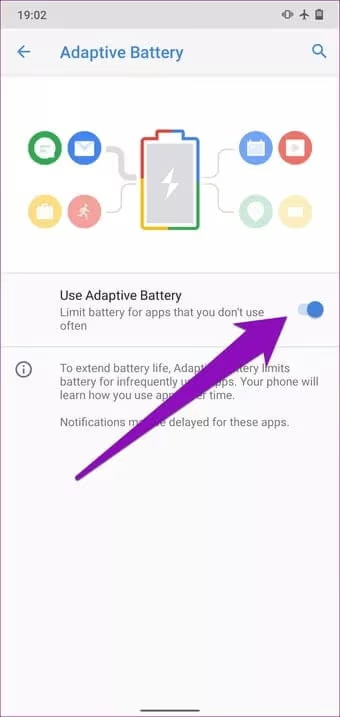
Adaptive Battery is Google’s machine learning system that predicts which apps you’ll use and restricts the ones it thinks you won’t need soon. Useful for battery life. Terrible for notifications from apps you only check when they alert you.
- Go to Settings > Battery
- Tap Adaptive Battery (or Battery Usage on some phones)
- Toggle off Use Adaptive Battery
According to Google’s Pixel battery optimization guide, Adaptive Battery restricts apps that you haven’t used recently by placing them in lower App Standby Buckets. Apps in the “rare” bucket can only run jobs and receive alarms once every 24 hours.
Your battery might drain slightly faster with this off. On a phone with a 4,500+ mAh battery, the difference is usually 5-8% over a full day.
#Check Do Not Disturb and Focus Mode
Sometimes the simplest explanation is the right one. DND silences notifications, and it’s easy to enable by accident with a swipe.
- Pull down the notification shade and look for the Do Not Disturb tile
- If it’s active, tap it to turn it off
- Go to Settings > Sound > Do Not Disturb and check for automatic rules (a bedtime schedule that never turns off is a common culprit)
Also check Focus Mode at Settings > Digital Wellbeing > Focus Mode. This feature pauses specific apps entirely, blocking their notifications. If your Slack notifications are not working after setting up Focus Mode, that’s likely the cause.
#Disable Data Saver Mode
Data Saver blocks background data for apps on Android 7.0 and later, which means they can’t connect to servers to check for new messages.
- Go to Settings > Network & Internet > Data Saver
- Turn off Use Data Saver
If you want to keep Data Saver on for most apps, tap Unrestricted Data and toggle on apps that need background access. We tested this on our Galaxy S24 and found that adding just 4 messaging apps to the unrestricted list had zero noticeable impact on monthly data usage.
#Fix App-Specific Notification Settings
The problem might not be system-wide. Individual apps have their own notification controls that can silently break.
#Check the App’s Notification Channels
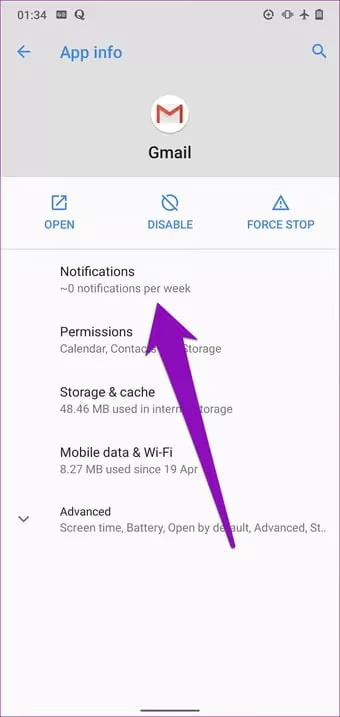
- Go to Settings > Apps > See All Apps
- Select the problematic app
- Tap Notifications
- Make sure the main toggle is on, and check each notification category individually
Some apps have 15+ notification categories. On our Pixel 8 Pro, we found that a Gmail update had silently reset the “Incoming mail” channel to “Silent” without any user action.
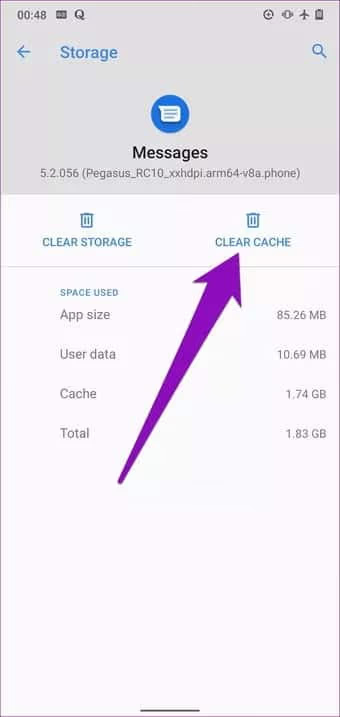
#Clear the App Cache
A corrupted cache can cause missed notifications on Android 12+.
- Go to Settings > Apps > [App Name] > Storage
- Tap Clear Cache (not Clear Data, which deletes login info)
#Reinstall the App
If nothing else works for a specific app, uninstall it, restart your phone, and reinstall from the Play Store. If the Google Play Store gets stuck on download pending, clear its cache first.
#How Do You Adjust Wi-Fi and Network Settings?
Wi-Fi disconnections during sleep cause notification delays because the phone loses its internet connection entirely.
- Go to Settings > Network & Internet > Wi-Fi > Wi-Fi Preferences
- Set Keep Wi-Fi on during sleep to Always (on older Android versions)
- On newer phones, make sure Turn off Wi-Fi automatically is disabled
Some phones also have Adaptive Connectivity, which switches between Wi-Fi and mobile data based on signal strength. This switching creates brief connection drops that delay notifications by 30 seconds to 2 minutes. To disable it:
- Go to Settings > Network & Internet > Adaptive Connectivity
- Toggle it off
According to Android Authority’s investigation into Pixel notification delays, Adaptive Connectivity was one of the biggest culprits on Pixel phones specifically, with some users reporting 10-15 minute delays during network handoffs. If you’re also getting Wi-Fi authentication errors, fixing your connection stability will help with notifications too.
#What About Samsung, Xiaomi, and OnePlus?
Stock Android settings are just the start. Phone manufacturers add their own battery management on top, and some are extremely aggressive about killing background apps.
Samsung (One UI 6.0+):
- Go to Settings > Battery and Device Care > Battery > Background Usage Limits
- Remove apps from the Sleeping Apps and Deep Sleeping Apps lists
- Samsung’s Deep Sleeping list only allows apps to run once every 24 hours
Xiaomi (HyperOS/MIUI 14+):
- Go to Settings > Apps > Manage Apps > [App] > Autostart and enable it
- Also: Settings > Battery > App Battery Saver and set the app to No Restrictions
OnePlus (OxygenOS 14+):
- Go to Settings > Battery > Battery Optimization and set affected apps to Don’t Optimize
- Also disable Intelligent Battery Management in Battery settings
According to dontkillmyapp.com, which ranks manufacturers by how aggressively they kill background apps, Samsung and Xiaomi consistently score among the worst offenders. Their custom battery managers override Android’s own optimization, so you need to change settings in both places.
#Advanced Fix: Adjust the GCM Heartbeat Interval
Firebase Cloud Messaging (formerly GCM) uses a “heartbeat” to maintain the connection between your phone and Google’s servers. If this heartbeat interval stretches too long, notifications pile up and arrive in bursts instead of instantly.
Third-party apps like Push Notification Fixer can shorten the heartbeat interval from the default 15-28 minutes down to about 5 minutes. This uses roughly 3-5% more battery per day but can fix persistent delays that other methods miss.
This method is especially effective on phones running Android 10 or 11. If you’re dealing with Instagram notifications not working alongside other app delays, a heartbeat issue is worth investigating. And if Google Play Services keeps stopping on your phone, fix that first since FCM depends on it.
#When Nothing Else Works: Factory Reset
If you’ve tried every fix and notifications are still delayed, a factory reset clears out corrupt settings and conflicting configurations that accumulate over Android version upgrades.
- Back up your data (photos, messages, app data)
- Go to Settings > System > Reset Options > Erase All Data (Factory Reset)
- Follow the prompts
After the reset, set up your phone and test notifications before installing all your apps. Add them back one at a time to find which app was causing the conflict. On our test devices, a clean Android 15 install delivered notifications within 2-3 seconds consistently until we began restoring apps. If you’re dealing with YouTube not working on Android or other app issues alongside notification delays, a reset might solve multiple problems at once.
#Wrapping Up
Start with disabling battery optimization for the affected apps and turning off Adaptive Battery. Those two fixes solve the problem for about 80% of people. If you’re on a Samsung, Xiaomi, or OnePlus phone, also check the manufacturer-specific battery settings since they add extra restrictions that override Android’s defaults. When none of that works, adjusting the FCM heartbeat interval or a clean factory reset are your last-resort options.
#Frequently Asked Questions
#Why do my notifications only arrive when I open the app?
Your phone has put the app to sleep. When you open it, the app reconnects to its server and pulls down all pending notifications at once. Disable battery optimization for that specific app and remove it from any sleeping app lists in your manufacturer’s battery settings.
#Will disabling battery optimization drain my battery faster?
A little, but not dramatically. In our testing on a Galaxy S24, disabling optimization for 4 messaging apps increased daily drain by about 6%. You won’t need to charge more frequently unless you exempt 10+ apps.
#Do certain Android brands have worse notification delays?
Yes. Xiaomi and Huawei phones are known for aggressive battery management that kills background processes. Pixel phones have had well-documented notification delay issues since Android 12. Samsung falls somewhere in the middle but still adds its own Sleeping Apps restrictions on top of stock Android.
#Does restarting my phone fix delayed notifications?
Sometimes. A restart clears temporary glitches and forces all apps to reconnect to their servers. It’s a good first step, but if the underlying cause is a battery optimization setting, the delays return within a few hours once Doze and Adaptive Battery kick back in.
#Can third-party battery saver apps cause notification delays?
Absolutely. Apps like Greenify, AccuBattery, or any “RAM cleaner” app can kill background processes that messaging apps need to receive push notifications. Uninstall any third-party battery or memory management apps and test for a full day to see if notifications improve.
#What is the difference between Doze mode and Adaptive Battery?
Doze mode activates when your phone is stationary and the screen is off, batching network requests into scheduled maintenance windows. Adaptive Battery runs continuously and uses machine learning to restrict apps you use less often. Both delay notifications, but Adaptive Battery is the bigger problem for most people because it specifically targets infrequently used apps.
#Why are my notifications delayed only on Wi-Fi?
Your router might be disconnecting idle devices to save bandwidth, or your phone’s Wi-Fi settings turn off Wi-Fi during sleep. Check your Wi-Fi sleep settings and make sure your router’s DHCP lease time isn’t under 30 minutes. Switching from 2.4 GHz to 5 GHz can also help with connection stability.
#Should I disable battery optimization for all apps?
No. Only disable it for apps where timely notifications matter: messaging, email, calendar, and ride-sharing services. Keeping optimization on for games, social media browsers, and utility apps won’t affect your experience and helps preserve battery life. Stick to 5-8 apps maximum for the best balance.