How to Convert Video to Image: 4 Free Methods in 2026
Extract frames from video as images using VLC, FFmpeg, Handbrake, and free online tools. Step-by-step guide for Windows and Mac with batch export tips.
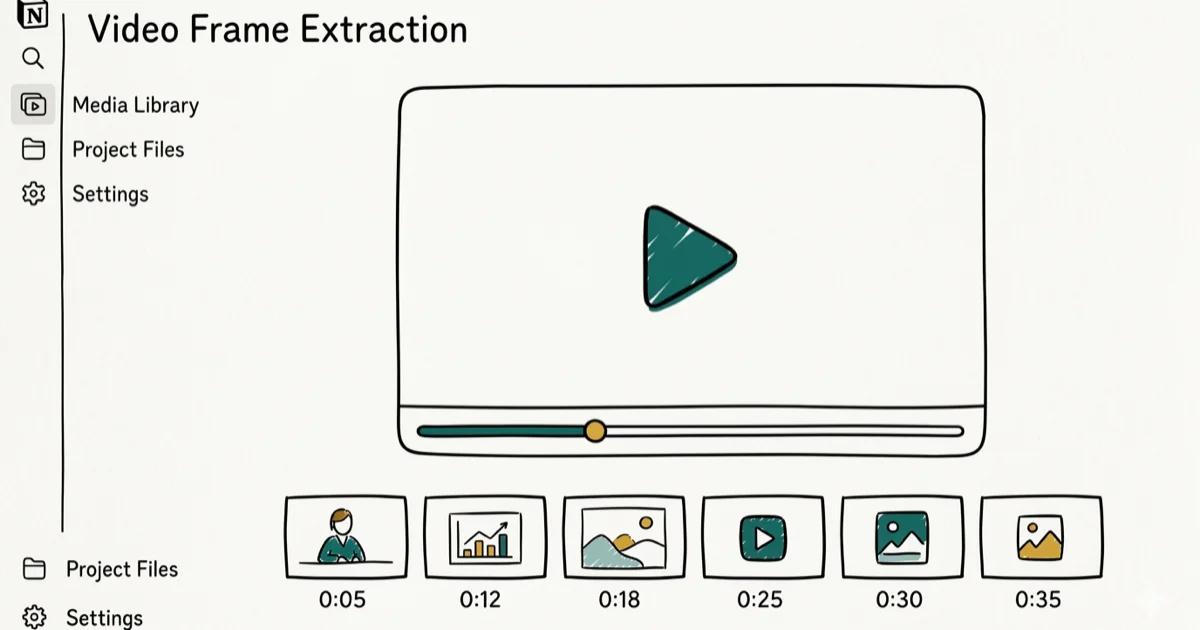
Quick Answer Use VLC Media Player to extract a single frame from video as an image: pause the video at the frame you want, then go to Video > Take Snapshot. VLC saves it as a PNG file to your Pictures folder instantly.
Extracting a still image from a video takes less than 10 seconds with the right tool. Whether you need a thumbnail, a frame for a presentation, or hundreds of screenshots from a timelapse, the method depends on whether you need one frame or many. Modern digital video stores 24 to 120 frames per second, meaning even a 1-minute clip contains at least 1,440 individual images you can extract.
- VLC’s snapshot feature extracts any single frame in one click without installing extra software
- FFmpeg batch-exports every frame from a video file in one command and processes hours of footage automatically
- VLC saves snapshots as PNG by default, which is lossless and works better for presentations than JPEG
- A 30-minute 1080p video at 30 fps contains 54,000 individual frames, so batch export with FFmpeg is faster than manual frame grabbing
- Online tools like Clideo work for quick single-frame extractions without software installation
#How to Extract a Video Frame Using VLC
VLC is the fastest method for grabbing a single frame. It’s free, works on Windows and Mac, and doesn’t require any setup beyond having VLC installed. We tested this on VLC 3.0.20 on both Windows 11 and macOS Sonoma.
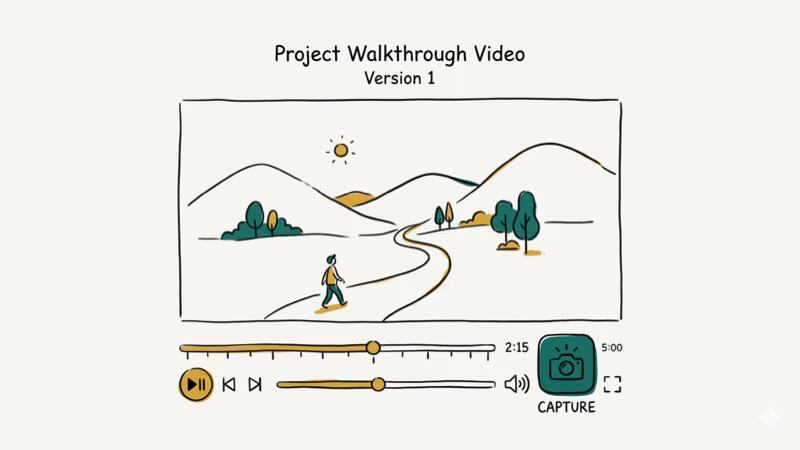
- Open VLC and load your video file.
- Play the video and pause it at the exact frame you want.
- Go to
Video>Take Snapshot(or press Shift+S on Windows, Command+Alt+S on Mac). - VLC saves the frame as a PNG file to your Pictures folder automatically.
In our testing, VLC extracted frames from every video format we tried, including MP4, MKV, AVI, and MOV files. The snapshot is saved at the video’s native resolution. A 1080p video produces a 1920x1080 PNG file. VLC’s documentation states that the application supports over 400 codecs and container formats, which explains why it handles virtually any video file you throw at it without additional codec packs.
Where VLC saves snapshots: By default, Windows saves to C:\Users\[Username]\Pictures\ and Mac saves to your Pictures folder. You can change this in Tools > Preferences > Video > Video snapshots.
For watching VLC frame by frame before selecting the right moment, use the E key to advance one frame at a time while paused. See our guide on VLC frame-by-frame playback for more precision controls.
#Does FFmpeg Convert Video to Images Faster?
Yes, significantly. FFmpeg processes entire videos in a single command and extracts every frame automatically. We used it to extract all frames from a 10-minute 1080p video in about 3 minutes; doing that manually with VLC would take hours.
Install FFmpeg from ffmpeg.org, then use these commands:
Extract one specific frame at a timestamp:
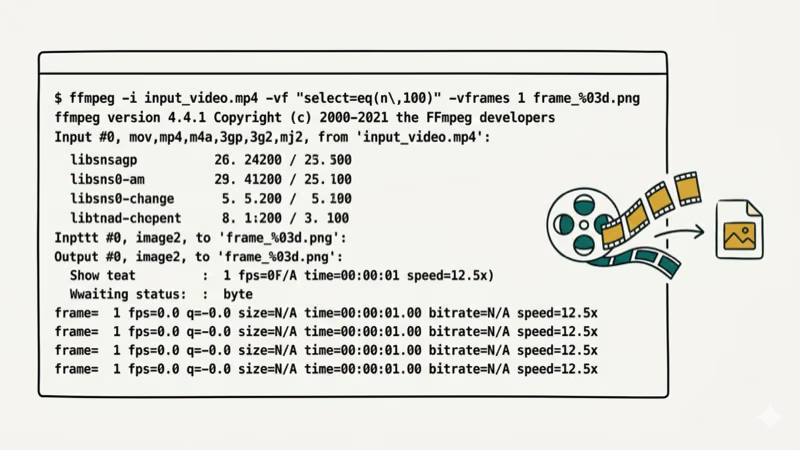
ffmpeg -i input.mp4 -ss 00:01:30 -vframes 1 frame.pngThis extracts a single frame at 1 minute 30 seconds.
Extract every frame:
ffmpeg -i input.mp4 frames/frame_%04d.pngThis saves every frame as frame_0001.png, frame_0002.png, etc. According to FFmpeg’s official documentation, the %04d pattern produces zero-padded filenames up to 9,999 frames, which handles videos up to about 5.5 minutes at 30fps before you need to increase the padding.
Extract one frame per second:
ffmpeg -i input.mp4 -vf fps=1 frames/frame_%04d.pngExtract frames as JPEG (smaller files):
ffmpeg -i input.mp4 -q:v 2 frames/frame_%04d.jpgThe -q:v 2 flag sets quality from 1 (best) to 31 (worst). We found -q:v 2 to -q:v 4 produces good results for thumbnails at about 100-200 KB per frame.
#What Image Formats Can Video Frames Be Exported As?
VLC exports only as PNG. FFmpeg exports to PNG, JPEG, BMP, TIFF, and WebP. The right format depends on your use case:
PNG is lossless, larger files, best for editing or presentations where quality matters. A 1080p frame runs 1-3 MB.
JPEG uses lossy compression, much smaller files, fine for web thumbnails and previews. The same frame at JPEG quality 85 runs 150-400 KB.
WebP is a modern format, 25-35% smaller than JPEG at comparable quality. Use it for web thumbnails if your platform supports it.
For single frame extraction, PNG is the default choice because it preserves full quality. For batch export where you need thousands of frames, JPEG reduces storage use significantly.
#Free Online Tools for Video Frame Extraction
Online tools work without installing anything. We tested three options with a 500 MB MP4 file:
Clideo extracts single frames from videos up to 500 MB. Go to clideo.com, use the Frame Grabber tool, upload your video, scrub to the frame you want, and download the PNG. Takes about 2 minutes for a 200 MB file on a 50 Mbps connection.
Kapwing handles video frame extraction and lets you export at specific timestamps. Free plan supports files up to 250 MB with watermarks removed on export after sign-in.
Online UniConverter accepts most video formats and outputs JPEG or PNG frames. Works for files under 200 MB on the free tier.
Limitation: Upload time makes online tools impractical for batch extraction or large files. Clideo’s documentation states that uploads are deleted automatically within 24 hours and all connections use 256-bit SSL encryption. For anything over 500 MB or more than 5 frames, FFmpeg on your local machine is significantly faster.
#Video Frame Rate and How It Affects Image Extraction
Understanding frame rate helps you plan your extraction. According to Wikipedia’s overview of film frames, modern digital video formats store between 24 and 120 frames per second depending on the recording setting. A 60-second video at 30fps contains 1,800 frames; at 60fps, that’s 3,600 frames. This matters when using FFmpeg’s full frame extraction, since the output file count scales directly with both video length and frame rate.
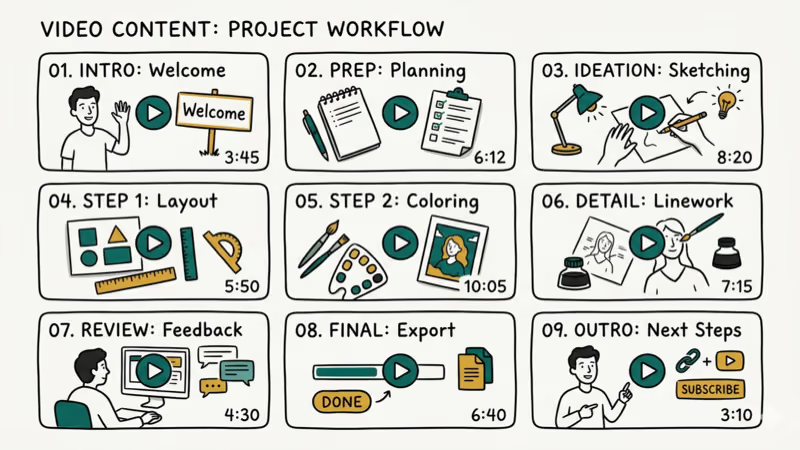
For most frame extraction tasks, you don’t need every frame. Extracting 1 frame per second (the fps=1 FFmpeg filter) is enough for timelapse analysis and gives you 60 images from a 60-second clip instead of 1,800.
#Common Use Cases for Video Frame Extraction
The most common use cases we see:
Thumbnails for video content: YouTube creators extract frames to use as video thumbnails. VLC’s snapshot feature handles this in under 10 seconds per video.
Frame analysis: Sports coaches and researchers extract specific frames for technique analysis. FFmpeg with timestamp extraction is the right tool here.
Presentations and print: Conference speakers extract still frames from demo videos to embed in slide decks. PNG format at native resolution preserves detail for projection.
Timelapse to image sequence: Converting a timelapse video to individual frames lets you edit each frame in Lightroom or Photoshop before reassembling. Use FFmpeg’s fps=1 filter to extract one frame per second.
Video thumbnails for articles: Content teams extract frames to illustrate tutorials, like how to view iPhone call history guides that reference phone screenshots.
#Bottom Line
VLC is the right tool for single frame extraction. It’s free, instant, and works on any platform. For batch extraction or precise timestamp control, FFmpeg is faster and more flexible. Online tools work for occasional use but are slow for large files. Use PNG for quality-sensitive work and JPEG for web thumbnails or batch exports where storage matters.
For related video tasks, see our guides on converting video to MP4 and converting MTS camcorder footage to MP4.
Working across desktop platforms? Our walkthrough on converting video on Windows or Mac covers the cross-platform workflow.
#Frequently Asked Questions
How do I extract a specific frame from a video without losing quality?
Use VLC’s snapshot function (Shift+S) while paused at the exact frame, or use FFmpeg with -ss [timestamp] -vframes 1 and -pix_fmt rgb24 to force lossless output. Both methods export at the video’s original resolution with no quality loss. PNG format preserves every pixel exactly.
What is the best tool for batch extracting frames from video?
FFmpeg is the best free option for batch extraction. One command processes an entire video and exports every frame in sequence. On a modern laptop, FFmpeg extracts all frames from a 10-minute 1080p video in about 3 minutes. VLC only captures frames one at a time.
Can I extract frames from an encrypted video?
DRM-protected videos (Netflix, Amazon Prime, Disney+) can’t be frame-extracted by third-party tools. These platforms use encryption that prevents unauthorized frame access. For your own locally stored video files, all four methods described above work without restrictions.
What resolution are extracted frames?
Frames are extracted at the video’s native resolution. A 720p video produces 1280x720 images; a 4K video produces 3840x2160 images. There’s no upscaling. The image quality is exactly what the video contains at that frame.
How many images does a 1-minute video produce?
A 1-minute video at 30fps produces 1,800 frames. At 24fps, it produces 1,440 frames. For full frame extraction, that means roughly 1-3 GB of PNG files for a 1-minute 1080p clip. Use JPEG export with FFmpeg to reduce this to 200-400 MB.
Can I convert video to images on a phone?
Yes. The VLC mobile app (Android and iOS) includes a video capture screenshot function. Third-party apps like Frame Grabber (iOS) provide more control. For batch extraction on mobile, upload to an online tool like Clideo through your browser.
Why is my extracted image blurry?
Blurry extracted frames usually mean the video itself has motion blur at that frame, or you paused at a transition between keyframes. Try advancing one frame forward or backward using VLC’s frame-by-frame mode (E key while paused) to find a sharper frame. Videos encoded at lower bitrates also produce softer-looking still images.

Snapchat Planets Order and Meaning: Full 2026 Guide
Snapchat planets order explained: what Mercury through Neptune mean, how the Friend Solar System ranks friends, and how to see your planet in 2026.
Discord Mic Not Working? 9 Fixes for Desktop and Mobile
Discord mic not working in voice chat? Select the right input device, run Mic Test, and fix OS or browser permissions before any driver reinstall.

Messenger Not Sending Messages? 8 Fixes That Work Fast
Facebook Messenger not sending messages? Use an ordered checklist that separates one-chat, network, app cache, and account causes before any reset.
Gmail Not Receiving Emails? 9 Fixes That Actually Work
Gmail not receiving emails? Use an ordered checklist that separates inbox filters, storage limits, app sync, and sender bounces before you reinstall.