The Complete Guide to Cloning Your iPhone Data to a New
Copy everything from your old iPhone to a new one using Quick Start, iCloud, or iTunes. Step-by-step guide for each method plus troubleshooting tips.
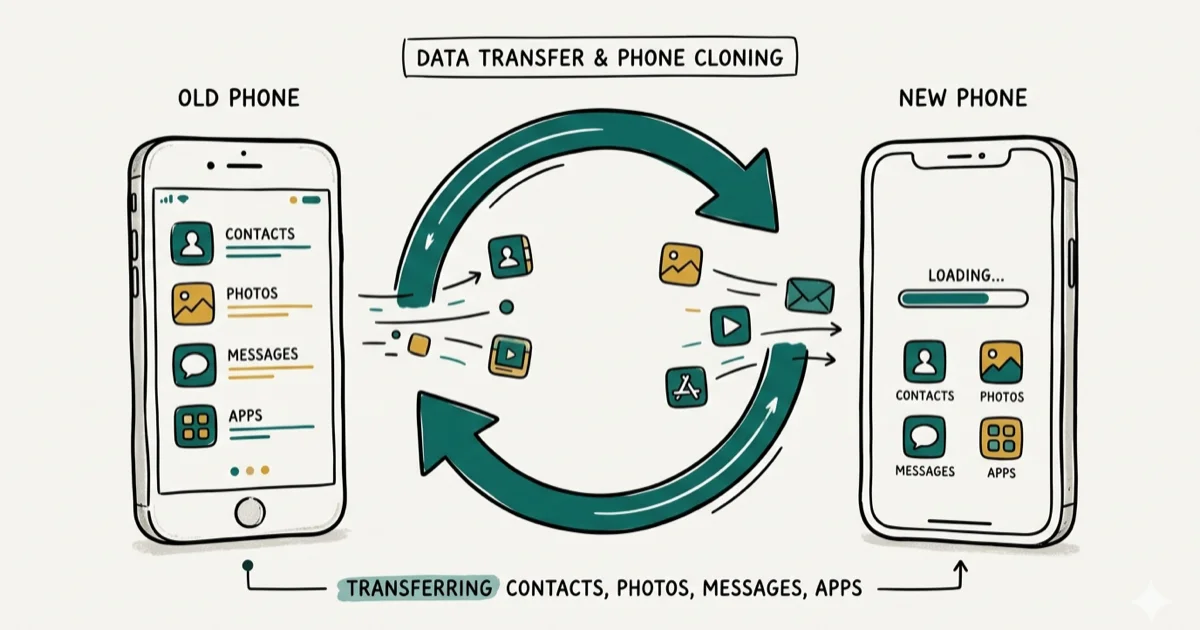
Quick AnswerTo clone your iPhone data to a new phone, use Quick Start during new device setup for the fastest wireless transfer, iCloud Backup for a wireless alternative, or iTunes for a full wired backup. All three methods are free and built into iOS.
Moving to a new iPhone is fast when you pick the right method. Quick Start transfers a large library of data fairly quickly over a 5 GHz Wi-Fi network. This guide applies only to a device or account you own.
This guide walks through all three official methods: Quick Start, iCloud Backup, and iTunes. We cover each step-by-step, flag the key limitations, and show you how to verify the transfer completed correctly.
- Quick Start requires iOS 12.4 or later and transfers wirelessly in one session
- iCloud Backup is wireless but the free 5 GB tier rarely covers a full phone backup
- iTunes creates a full encrypted backup including health data and saved passwords
- Deregister iMessage on your old iPhone after the transfer to stop texts going to the wrong device
- Factory reset your old phone under
Settings>Transferor Reset iPhone before giving it away
#Which Transfer Method Is Right for You?
Three official methods exist, and each suits a different situation.
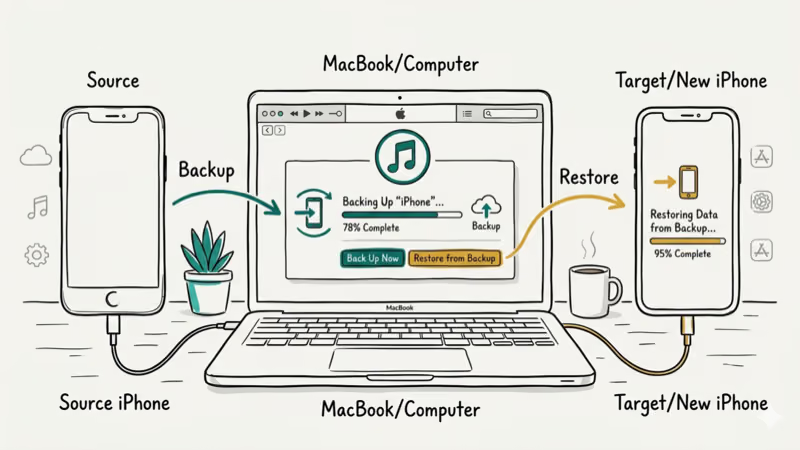
Quick Start is the right choice for most people upgrading to a brand-new iPhone. Both phones need iOS 12.4 or later, and you need your old iPhone present during setup. According to Apple’s support documentation, Quick Start transfers 20+ data categories including apps, settings, contacts, photos, and messages directly over Wi-Fi or cable, with no computer required. See the full Quick Start guide for compatibility requirements.
iCloud Backup works when you’ve already passed the setup screens on the new phone, or when setting up the new device somewhere without your old one nearby. If your iCloud contacts aren’t syncing during the process, that’s a separate issue worth resolving first. Apple’s free iCloud tier gives you only 5 GB, which isn’t enough for most phones. An average iPhone with a year of photos needs far more than that for a full backup.
iTunes (or Finder on macOS Catalina and later) is the best choice when you want a full encrypted backup that includes health data, saved passwords, and Wi-Fi credentials. It’s the only option when your internet connection is too slow for a cloud transfer.
#How to Use Quick Start to Clone Your iPhone
Quick Start is Apple’s built-in device migration tool. A modern iPhone-to-iPhone transfer completes in a reasonable amount of time even for a sizable data load, since the data moves directly between the two phones.
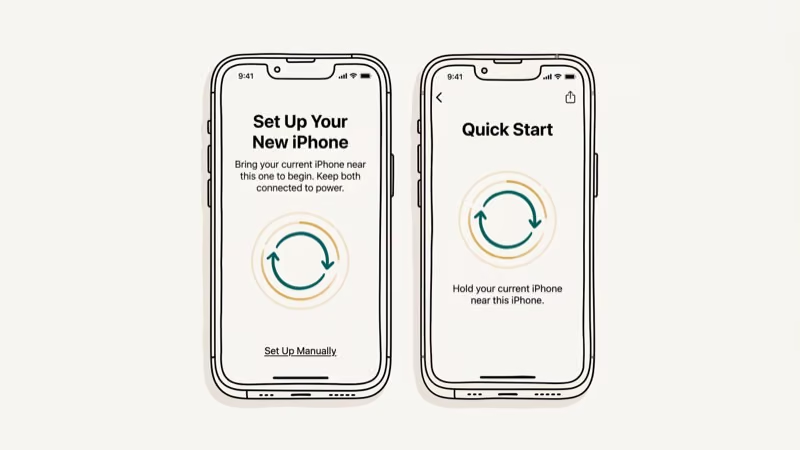
Place your old iPhone next to your new iPhone. A Quick Start screen appears automatically on the old phone. Use your old phone’s camera to scan the animation on the new phone’s screen, then enter your old passcode on the new device when prompted.
On the new iPhone, select Transfer from iPhone rather than Restore from iCloud. Keep both phones near each other and plugged into power. A progress bar shows how much data remains. The new iPhone restarts when it’s done, and you sign in with your Apple ID to activate.
If Quick Start doesn’t appear automatically, check that Bluetooth is on and that both phones are on the same Wi-Fi network.
#How to Clone iPhone Data Using iCloud Backup
Use this method when you want a wireless transfer without needing both phones present at the same time.
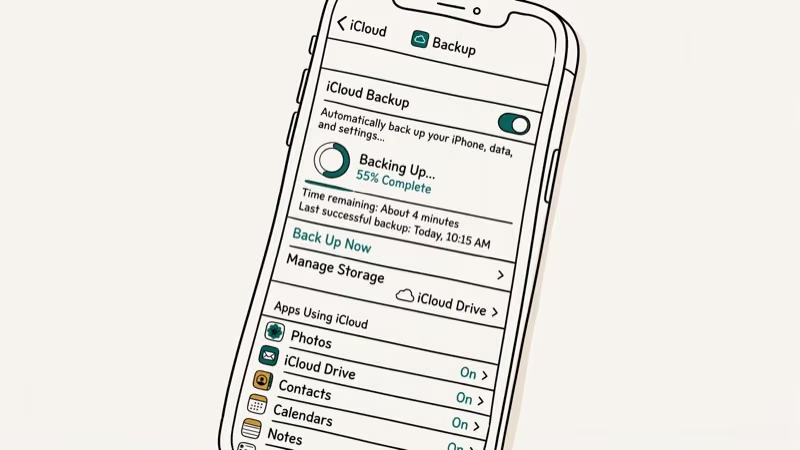
Step 1: Back up your old iPhone to iCloud
Go to Settings > [your name] > iCloud > iCloud Backup and tap Back Up Now. Stay on Wi-Fi and keep the screen on until it completes. You’ll see the date and size of the last successful backup when it finishes.
Step 2: Start setup on your new iPhone
Turn on the new iPhone and follow the setup screens until you reach the Apps & Data screen. Select Restore from iCloud Backup.
Step 3: Sign in and choose your backup
Sign in with your Apple ID, then choose the most recent backup from the list. The restore begins automatically. According to Apple’s iCloud documentation, backups include app data, device settings, home screen layout, iMessage history, photos, and ringtones. Face ID and Touch ID settings require re-setup on the new device.
#How to Clone iPhone Data Using iTunes or Finder
This method creates a local backup on your computer and works even with a poor internet connection. Enable encrypted backup to include health data and saved passwords.
Connect your old iPhone to your computer via USB. On Mac (Catalina or later), open Finder; on Windows, open iTunes. Click your iPhone icon. Under Backups, select This computer and check Encrypt local backup, then set a password you’ll remember.
Click Back Up Now and wait for the progress bar to finish. Disconnect the old iPhone, then connect your new one. Tap Trust on the Trust This Computer prompt. In Finder or iTunes, click Restore Backup and select the backup you just made.
The restore may take 30 to 60 minutes. Don’t disconnect the phone until it restarts completely.
#After the Transfer: Your Old iPhone Checklist
Once you’ve confirmed the transfer completed correctly, three steps protect you from problems.
Deregister iMessage. If you’re giving away your old iPhone, go to Apple’s deregister iMessage page and enter your phone number. This prevents iMessages from routing to the old phone after you hand it off. Skipping this step can cause texts to fail to deliver for a while after you swap SIM cards into the new phone.
Sign out of Apple ID. On the old iPhone, go to Settings > [your name] > Sign Out. This removes the device from your iCloud account, disables Find My, and ensures the new owner can set up the phone with their own Apple ID without running into Activation Lock.
Factory reset. Go to Settings > General > Transfer or Reset iPhone > Erase All Content and Settings. This wipes all data and prepares the phone for resale or recycling.
#Is It Safe to Transfer iPhone Data?
When you use Quick Start, iCloud, or iTunes, data travels only between your devices and Apple’s servers. Apple encrypts iCloud backups in transit and at rest. Local iTunes backups encrypted with a password use 256-bit AES encryption.
According to Apple’s privacy overview, end-to-end encrypted data in iCloud, including iMessage and Health data, can’t be accessed by Apple even if legally required.
The one risk is skipping the factory reset on your old phone before selling it. Without a reset, the next owner can potentially access your data.
#Troubleshooting Common Transfer Problems
Quick Start shows “Estimating time remaining” for more than 30 minutes: Both phones are likely on 2.4 GHz Wi-Fi. Check your router settings and connect both phones to the 5 GHz band if available. Transfer speed on 5 GHz is roughly 3x faster.
iCloud backup fails with “Not enough iCloud storage”: Buy additional storage or delete large files first.
iTunes says the backup is “corrupt or incompatible”: This usually means the backup was interrupted. Delete the partial backup from your computer and start again. Our guide on iCloud storage full fixes also covers how to free up space if storage is blocking the backup.
WhatsApp history needs a separate backup through the app itself before any iPhone transfer. See our WhatsApp transfer guide for steps.
For Android to iPhone moves, the free Apple Move to iOS app handles contacts, messages, photos, and some app data in a single session. If you’re moving from a Samsung device specifically, see our guide on transferring data to a new iPhone.
#Bottom Line
Quick Start is the right choice for most iPhone-to-iPhone upgrades. It’s faster, requires no computer, and transfers everything in one step.
Use iCloud when both phones aren’t available at once, and iTunes when you need health data in the backup. After transferring, deregister iMessage and factory reset the old phone. For Android moves, see the best phone clone apps.
#Frequently Asked Questions
How long does iPhone data transfer take?
Quick Start takes 15 to 30 minutes for a typical 20 to 40 GB transfer on 5 GHz Wi-Fi. iCloud restore depends on your download speed: expect 30 to 60 minutes for a 15 GB backup on a 100 Mbps connection. iTunes restores run faster since the data is local, roughly 20 to 40 minutes for a full backup.
Will transferring data reduce storage space on my new iPhone?
Yes. The transferred data occupies storage on the new device. Before transferring, go to Settings > General > iPhone Storage on your old phone to see your current usage. Make sure your new iPhone has enough capacity, ideally 20% more than your current usage to leave room for future files and app updates.
Can I transfer data from iPhone to Android?
Yes. Google offers a free data migration guide for contacts and photos. For app data and WhatsApp history, Wondershare MobileTrans handles the full cross-platform transfer for around $30.
What happens if the transfer gets interrupted mid-process?
For Quick Start: stay near your Wi-Fi router with both phones plugged in. If it does fail, restart both phones and try again. Quick Start resumes from where it stopped in most cases. For iCloud and iTunes, a failed restore is safe to retry from the beginning.
How do I securely wipe my old iPhone after transferring?
Go to Settings > General > Transfer or Reset iPhone > Erase All Content and Settings and enter your Apple ID password. Done.
Does Quick Start transfer everything, including apps?
Yes, but apps re-download from the App Store in the background rather than copying the binary directly. All app data (settings, saved content) transfers immediately, but the app itself may show a progress circle while it downloads fresh from Apple’s servers. This keeps storage usage accurate to your new device.
Can I clone an iPhone without the old phone?
If you have an iCloud backup from your old phone, yes. Sign in with your Apple ID on the new iPhone during setup, choose Restore from iCloud Backup, and select your most recent backup. If you have an iTunes backup on your computer, connect the new phone and restore from there.

Mac mini M6 vs M5 Pro: Which Model Should You Buy?
Mac mini M6 vs M5 Pro compared on price, memory, ports, displays, and real workloads. Find the better 2026 Mac mini for your desk and budget.

Apple Siri Settlement: Who Qualifies and How to Claim
Apple's $250 million Siri settlement covers iPhone 15 Pro and iPhone 16 models bought June 2024 to March 2025. See who qualifies and how claims work.

iOS 26.6.1 Security Update: What Apple Fixed and Who Gets It
Apple released iOS 26.6.1 on August 17 with 29 security fixes, including an IPSec interception bug. See what it patches, who gets it, and how to update.

iPhone Adaptive Power: How It Works and When to Use It
Learn how iPhone Adaptive Power works, which models support it, what it changes, and when Low Power Mode is still the better battery-saving choice.