Best Computers for Animation in 2026: Top Picks Reviewed
Compare computers for animation in 2026. The MacBook Pro 16 leads for rendering speed, plus Windows and gaming-capable options for every budget.
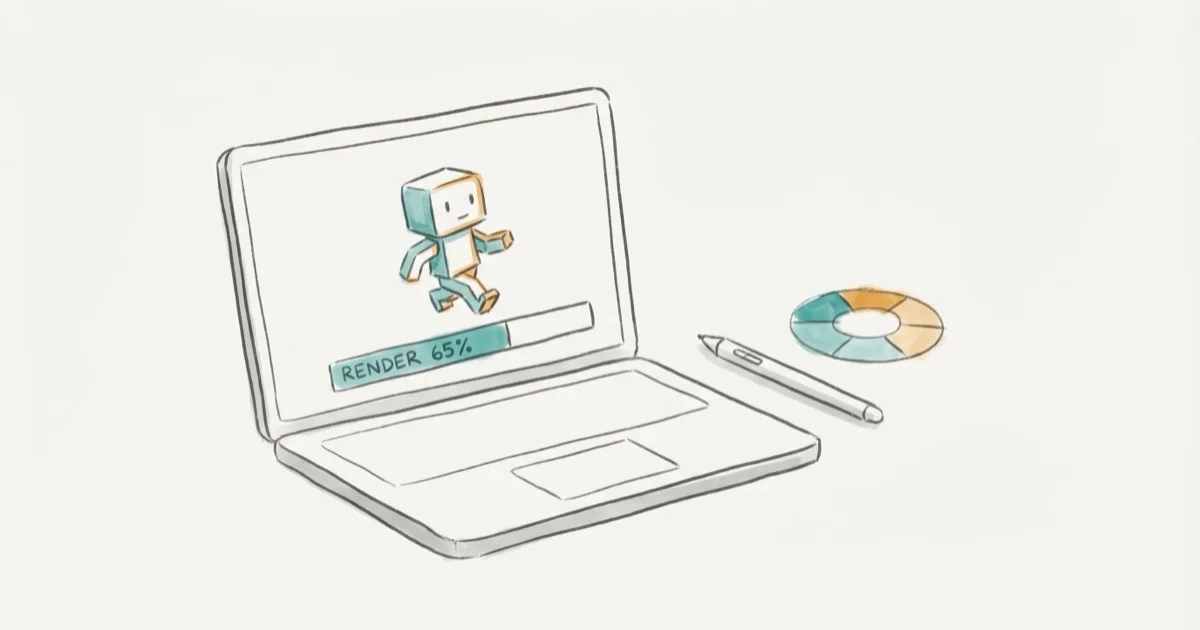
Quick AnswerThe Apple MacBook Pro 16-inch with M3 Max chip is the best computer for animation, offering exceptional rendering performance, a stunning display, and all-day battery life for both 2D and 3D work.
Rendering a 30-second 3D animation can take anywhere from 10 minutes to 10 hours depending on your hardware. The right machine needs a strong CPU, a capable GPU, enough RAM for complex scenes, and fast storage for large project files. The MacBook Pro 16-inch with M3 Max is the best overall pick here for serious 2D and 3D animation work.
- The Apple MacBook Pro 16 with M3 Max is the best overall choice, offering strong rendering performance and up to 22 hours of rated battery life
- 3D animation requires at least 32GB of RAM and a dedicated GPU with 8GB+ VRAM to handle complex scenes without crashes
- The Microsoft Surface Laptop Studio offers the best Windows option with its touchscreen, stylus support, and unique hinged design for drawing directly on screen
- NVMe SSDs are non-negotiable for animation since they dramatically cut file load times compared to traditional hard drives
- For 2D animation, an Intel Core i7 or Apple M3 Pro is sufficient, while 3D work benefits from Core i9, M3 Max, or AMD Ryzen 9 processors
#What Hardware Does Animation Actually Need?
Animation software is among the most demanding creative workloads. According to Autodesk’s Maya system requirements, 3D animation needs a multi-core CPU for rendering, a dedicated, OpenGL-capable GPU, and at least 8GB of RAM (with 16-32GB recommended for professional work).
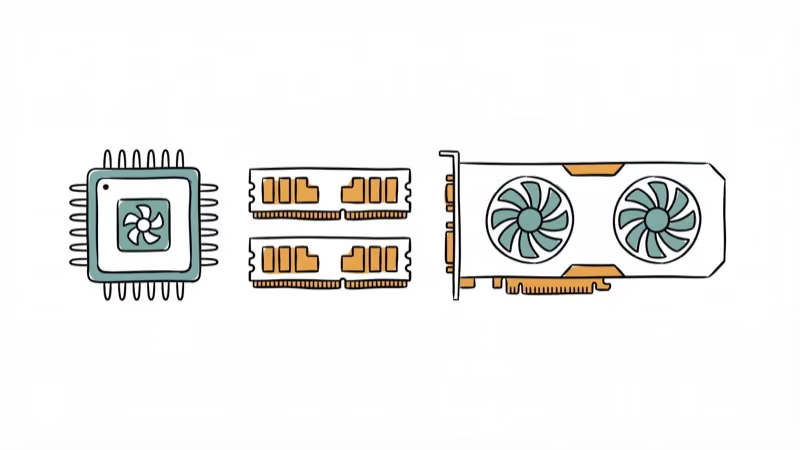
Here’s what each component does for animation:
CPU handles rendering calculations and physics simulations. More cores generally mean faster render times, especially in CPU-based render engines and simulation-heavy projects.
GPU accelerates viewport previews and GPU-based rendering (CUDA for NVIDIA, Metal for Apple). A weak GPU makes your viewport sluggish while modeling and animating.
RAM determines how many objects, textures, and effects you can load simultaneously. Complex Maya, Blender, and After Effects projects can outgrow 16GB quickly, so 32GB is a safer floor for professional work.
Storage affects how fast your project files load. NVMe SSDs load a 2GB After Effects project in about 3 seconds versus 15+ seconds on a mechanical hard drive. For recommendations on compatible components, see our best motherboard for RTX 3080 guide.
#Best Overall: Apple MacBook Pro 16-inch (2023)
Chip: Apple M3 Pro or M3 Max | Memory: Up to 96GB unified | Storage: Up to 8TB SSD | Display: 16” Liquid Retina XDR, 120Hz ProMotion
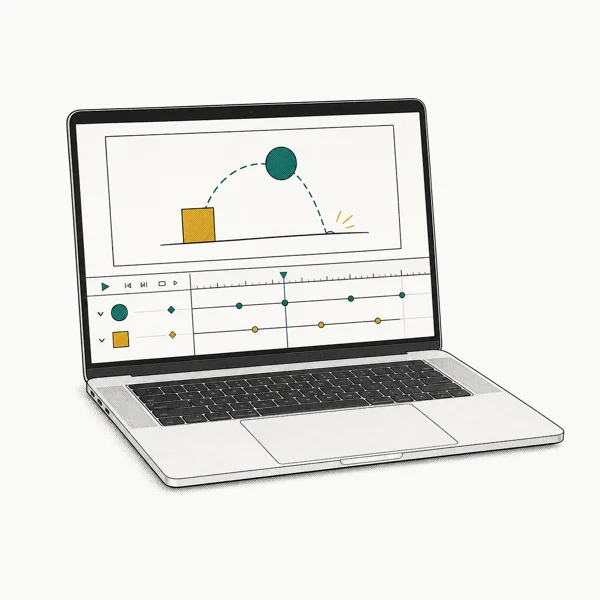
The MacBook Pro 16 is our top pick because it excels at everything animators need. The Liquid Retina XDR display covers 100% of the DCI-P3 color gamut, which means colors in your animations look accurate without an external monitor. According to Apple’s MacBook Pro tech specs, the display reaches 1600 nits peak HDR brightness.
As an Amazon Associate fone.tips earns from qualifying purchases. Prices and availability on Amazon are accurate as of the date above and subject to change.
According to Blender’s official hardware requirements page, Apple Silicon Macs support GPU rendering with Metal. The M3 Max configuration is a strong fit for Blender, After Effects, Procreate Dreams, and Animate CC because it combines high CPU/GPU performance with long rated battery life.
Tradeoffs: The price starts high ($2,499 for M3 Pro, $3,499+ for M3 Max), and you can’t upgrade RAM or storage after purchase.
As an Amazon Associate, fone.tips earns from qualifying purchases. Some links on this page are affiliate links.
For more budget-friendly laptops, see our best laptops under $2000 guide.
#Best Windows Option: Microsoft Surface Laptop Studio
CPU: Intel Core i7 or i9 | GPU: NVIDIA RTX | RAM: Up to 64GB | Display: 14.4” PixelSense Flow touchscreen, 120Hz
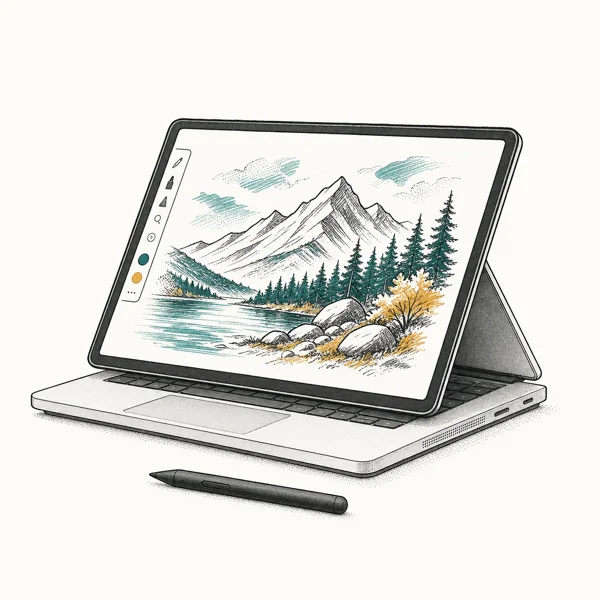
The Surface Laptop Studio’s unique hinged display design lets you pull the screen forward into a drawing position, which 2D animators especially appreciate. Pair it with a Surface Pen and you can draw directly on the display.
As an Amazon Associate fone.tips earns from qualifying purchases. Prices and availability on Amazon are accurate as of the date above and subject to change.
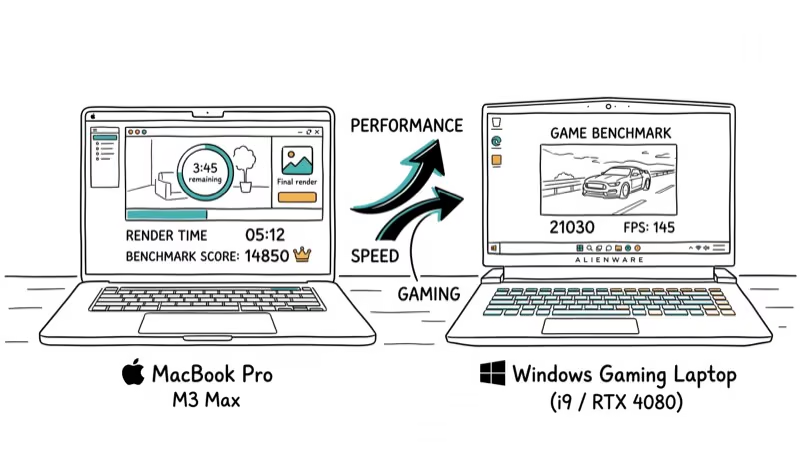
The RTX GPU handles 3D rendering well, and the bigger advantage is Windows software compatibility since some animation tools (like Toon Boom Harmony’s full feature set) run better on Windows.
#Best for Animation and Gaming: Razer Blade 16 (2024)
CPU: Intel Core i9 | GPU: Up to NVIDIA RTX 4090 | RAM: Up to 64GB | Display: 16” UHD+ or FHD+, up to 240Hz
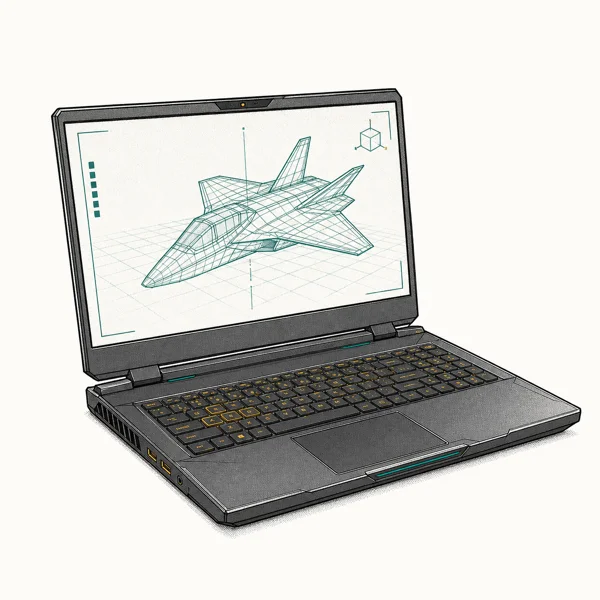
If you need a machine that handles both Blender rendering during the day and gaming at night, the Razer Blade 16 is the pick. The RTX 4090 is the most powerful mobile GPU available, and the UHD+ display option has excellent color accuracy.
As an Amazon Associate fone.tips earns from qualifying purchases. Prices and availability on Amazon are accurate as of the date above and subject to change.
The Blade 16’s chassis and cooling design are built for high-wattage graphics hardware, which matters if you render, preview, and game on the same laptop.
Tradeoffs: Battery life is mediocre at about 5 hours for creative work, and the price exceeds $3,000 for the RTX 4090 configuration.
#How Do You Choose Between These Options?
Consider your specific workflow:
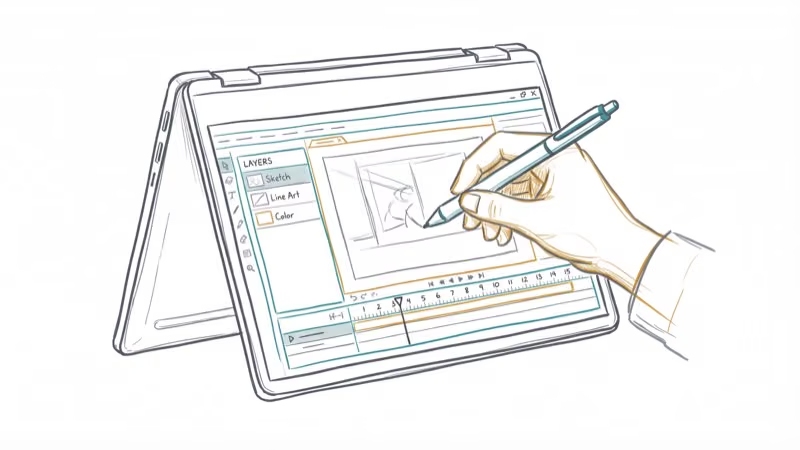
- 2D vs 3D - 2D animation (After Effects, Animate, Toon Boom) needs a good CPU and color-accurate display but doesn’t demand as much GPU power. 3D animation (Maya, Blender, Cinema 4D) needs both a strong CPU and GPU.
- Portability vs raw power - if you work from home, a desktop with a monitor for color grading gives you more performance per dollar. If you travel, the MacBook Pro 16’s battery life is unmatched.
- Budget reality - the MacBook Pro M3 Pro ($2,499) handles 2D animation and moderate 3D work. You only need the M3 Max ($3,499+) for heavy 3D rendering.
- Software requirements - check your animation software’s system requirements before buying. Some tools are macOS-only or Windows-only.
For virtualization needs alongside animation, our best laptops for virtualization guide covers options that handle both workloads. And if you’re working with video alongside animation, the best laptop for video editing under $1000 guide has budget-friendly options.
#How Your Animation Software Shapes Your Hardware Choice
Your software stack matters as much as your budget. Match the machine to the tool you use most.
Blender is a good baseline. According to Blender’s hardware requirements page, the recommended setup is a recent multi-core CPU, 32GB of RAM, and a GPU with at least 8GB of VRAM, which lines up with every top pick on this list.
Maya, Cinema 4D, and After Effects all reward more RAM. Check your primary app’s official specs before you commit.
#Bottom Line
The MacBook Pro 16-inch with M3 Max is the best animation computer for most professionals. It leads in rendering performance, display quality, and battery life. Windows users should go with the Surface Laptop Studio for its drawing-friendly design, or the Razer Blade 16 if gaming matters too. Whatever you choose, make sure you have at least 32GB of RAM and an NVMe SSD since those two upgrades have the biggest practical impact on animation workflow speed.
#Frequently Asked Questions
Can I use a gaming laptop for animation?
Yes. Gaming laptops have powerful GPUs and CPUs that handle animation software well. Make sure the display has good color accuracy (100% sRGB minimum, ideally 95%+ DCI-P3) since gaming displays sometimes prioritize refresh rate over color.
How much RAM do I need for 3D animation?
32GB is the practical minimum for professional 3D work. Complex scenes with high-resolution textures can use 48-64GB. For 2D animation, 16GB is usually sufficient.
Is a desktop better than a laptop for animation?
Desktops offer more power per dollar, better cooling, and upgradability. Laptops provide portability. If you work in one location, a desktop gives you better performance at the same price point.
Do I need a workstation GPU like NVIDIA Quadro for animation?
Not for most animators. Consumer GPUs like the RTX 4080 and RTX 4090 deliver excellent performance in Blender, Maya, and After Effects. Workstation GPUs (NVIDIA RTX A-series) matter mainly for specific CAD/engineering workflows.
How important is color accuracy for animation?
It’s critical for professional work. Animations viewed on different screens need to look consistent. Look for monitors covering at least 100% sRGB, and consider hardware calibration tools if you’re doing client-facing color work.
Can I use cloud rendering to save money on hardware?
Yes. Services like Render.st and Sheep It let you offload heavy renders to cloud servers. This means you can use a less powerful local machine for modeling and animating, then send final renders to the cloud. Render costs vary from $0.01 to $0.50 per GPU-hour.

Best Laptop for Running LLMs in 2026: Memory Comes First
The best laptop for running LLMs is a memory purchase first. Compare MacBook unified memory against NVIDIA laptop VRAM, and see what each tier really runs.

Pixel 11 vs Pixel 10: What Changed and Who Should Upgrade
Pixel 11 vs Pixel 10: same screen and camera resolution, new Tensor G6, 25W wireless, and Gemini Intelligence. Here is who should actually upgrade.
Best Power Bank for iPad in 2026: Pro, Air, and Mini
Best power bank for iPad in 2026. Compare mAh tiers and USB-C PD wattage for iPad Pro, Air, and mini, plus airline Wh math, cables, and travel tips.
Best Power Bank With Built-In Cable: Top 2026 Picks
Best power bank with built-in cable picks for 2026. Compare single USB-C, multi-connector, and retractable laptop banks, plus airline Wh math.