Fix "Connection Was Forcibly Closed by Remote Host"
Fix the "an existing connection was forcibly closed by the remote host" error on Windows and Minecraft. Covers TLS, Winsock, firewall, and .NET fixes.
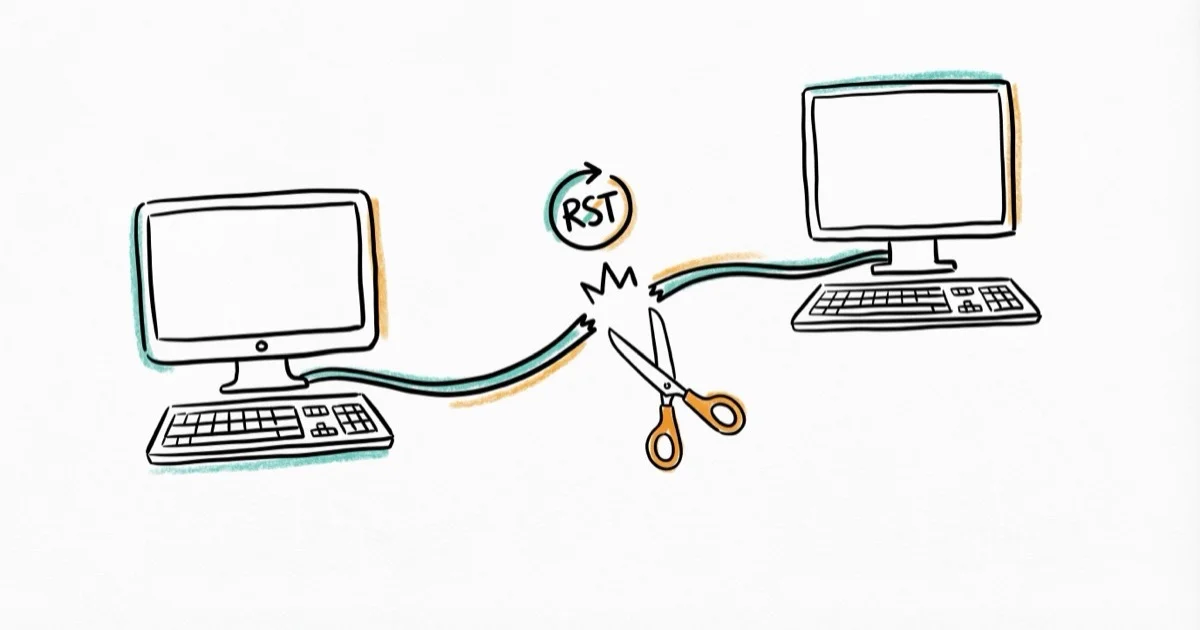
Quick AnswerThe "connection forcibly closed by remote host" error means the server dropped your session. Fix it by enabling TLS 1.2, resetting Winsock, or adjusting firewall rules.
The “an existing connection was forcibly closed by the remote host” error appears when a server terminates your TCP connection without warning. It hits Windows apps, Minecraft multiplayer, Visual Studio, and .NET programs.
The fixes below cover common Windows, .NET, firewall, and Minecraft causes.
- The error means a remote server dropped your TCP connection, usually due to a TLS mismatch or firewall rule
- Enabling TLS 1.2 through the Windows Registry fixes the problem for most .NET and web apps
- Resetting your Winsock catalog clears corrupted network settings that cause repeated disconnections
- Minecraft players should update Java and check server plugins before changing system settings
- .NET Framework versions below 4.6 default to TLS 1.0, which most servers now reject
#What Causes the “Forcibly Closed” Connection Error?
This error traces back to the TCP layer. When a remote server sends a RST (reset) packet instead of a normal FIN (finish) packet, Windows reports it as a forcible closure.
TLS version mismatch is the most common cause. Servers running TLS 1.2 or 1.3 reject connections from clients still on TLS 1.0 or 1.1. According to Microsoft’s TLS documentation, Windows deprecated these older protocols in 2020, and if your application doesn’t explicitly request TLS 1.2, the handshake fails before data ever transfers.
Firewall or antivirus interference is another trigger. Security software drops connections it can’t validate fast enough.
Corrupted Winsock catalog entries round out the most common causes. The Winsock catalog maps network requests to the correct protocol handlers, and VPN software, malware, or failed Windows updates can corrupt those entries. Less common triggers include outdated .NET Framework versions, misconfigured socket keep-alive settings, and server-side rate limiting that kills connections after too many requests within a short window.
#TLS and Registry Fixes
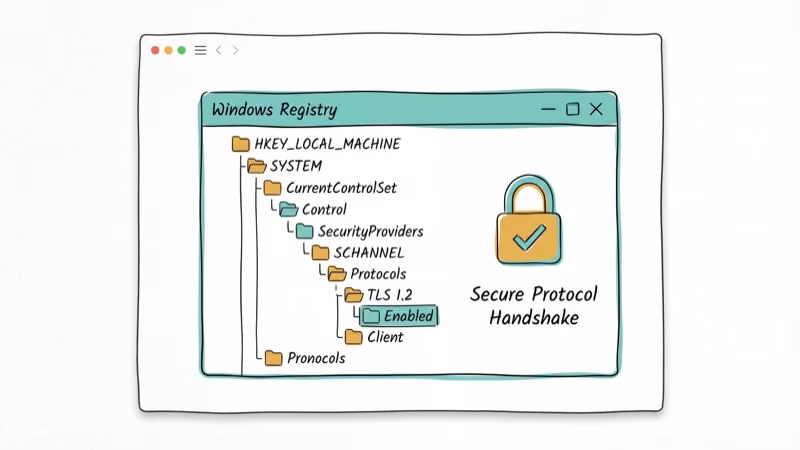
The TLS registry fix works for the majority of cases. Try it first.
#Enable TLS 1.2 in the Windows Registry
This forces your system to use TLS 1.2 for all .NET applications.
Press Windows + R, type regedit, and press Enter. Go to HKEY_LOCAL_MACHINE\SOFTWARE\Microsoft\.NETFramework\v4.0.30319. Right-click the right pane, select New > DWORD (32-bit) Value, name it SchUseStrongCrypto, and set the value to 1. Then repeat for the 64-bit path at HKEY_LOCAL_MACHINE\SOFTWARE\WOW6432Node\Microsoft\.NETFramework\v4.0.30319.
Restart your computer after both changes so .NET apps load the updated TLS settings.
#Update the .NET Framework
Older .NET versions cause this. Apps on .NET 4.5 or earlier use TLS 1.0 by default.
Go to the .NET Framework download page on Microsoft’s site, download the latest runtime installer, and restart after installation. Upgrading to .NET 4.8 switches the default protocol to TLS 1.2, which is what most servers expect in 2026.
#Network and Firewall Fixes
If the TLS fix didn’t help, the problem likely involves your network stack or security software interfering with outbound connections.
#Reset the Winsock Catalog
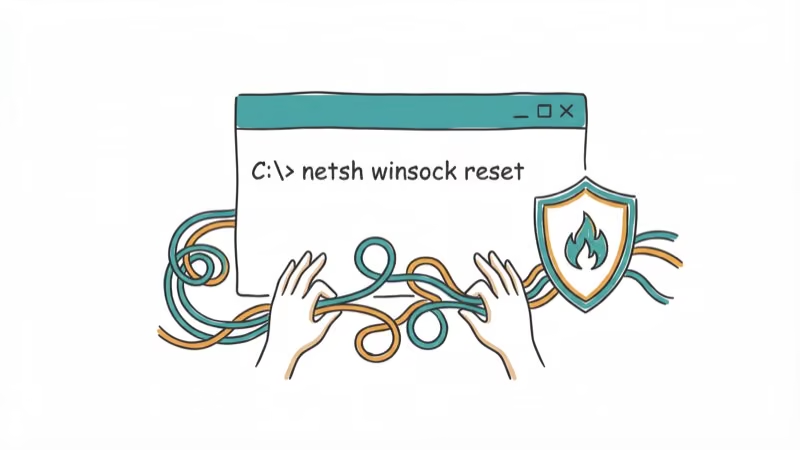
Winsock handles all socket-based network communication on Windows. Resetting it clears corrupted entries.
Open Command Prompt as Administrator. Run netsh winsock reset followed by netsh int ip reset, then restart.
According to Microsoft’s network troubleshooting guide, this restores the Winsock catalog to its default state. You’ll need to reinstall any VPN clients since the reset removes custom Winsock providers they registered during installation.
#Disable Firewall or Antivirus Temporarily
Your firewall or antivirus may be terminating connections it considers suspicious. Open Windows Security > Firewall & network protection, turn off the firewall, and test.
If the error stops, add your application to the firewall’s exception list instead of leaving protection disabled. On third-party antivirus, look for “web shield” or “network scanning” options and create an exclusion for the affected program specifically.
#Flush DNS and Renew Your IP
Stale DNS records sometimes cause connection failures that look identical to this error. Similar issues can cause ERR_CONNECTION_RESET in Chrome.
Open Command Prompt as Administrator and run ipconfig /flushdns, then ipconfig /release, then ipconfig /renew. No restart needed.
#Minecraft-Specific Fixes for Connection Drops
Minecraft multiplayer connections are prone to this error because the game uses Java’s networking stack instead of the Windows native stack. The fixes here differ from standard Windows troubleshooting.
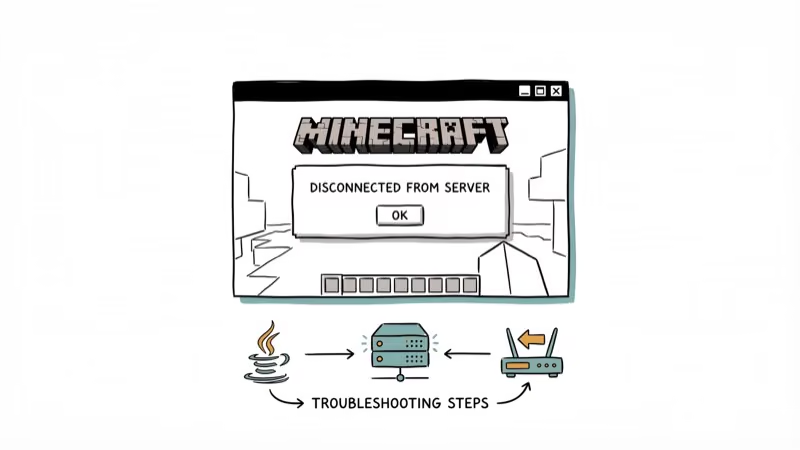
Outdated Java Runtime is the top cause. Java 8 defaults to TLS 1.0, and many servers now require TLS 1.2. Update to Java 17 or later. Minecraft Java Edition 1.18+ bundles its own runtime, so verify you’re using the bundled version rather than a system-wide install.
Server-side plugins are another culprit. Check your plugin logs for timeouts.
Modded clients with incompatible Forge or Fabric versions send malformed packets that the server rejects. Disable all mods and reconnect to isolate the problem. For players who can’t connect to a Minecraft world, the troubleshooting steps overlap heavily with this error since both involve Java networking and server configuration issues.
#How Can Developers Fix This in Code?
If you’re building a .NET application and your users report this error, the fix usually involves explicit TLS configuration.
#Set TLS 1.2 in Your Application Code
Add this line before any HTTP calls in your startup:
ServicePointManager.SecurityProtocol = SecurityProtocolType.Tls12 | SecurityProtocolType.Tls13;Place this in Global.asax for ASP.NET apps, or in Program.cs for console and desktop applications. According to Microsoft’s .NET security guidance, this overrides the system default and forces modern TLS versions.
#Handle Socket Errors Gracefully
Microsoft’s .NET Socket documentation confirms that SocketError.ConnectionReset maps to the “forcibly closed” error. Wrap your socket calls:
int bytesReceived = socket.EndReceive(result, out SocketError errorCode);
if (errorCode != SocketError.Success)
{
    bytesReceived = 0;
    // Log and retry or close gracefully
}
This prevents unhandled exceptions and lets your app retry cleanly.
#Entity Framework Connection Issues
If the error appears during database calls through Entity Framework, disable proxy creation:
public MyDbContext() : base("name=MyDbContext")
{
    this.Configuration.ProxyCreationEnabled = false;
}
Proxy objects keep connections open longer than necessary. Disabling proxies forces EF to open and close connections per query, which avoids idle-connection timeouts on servers that enforce aggressive cleanup policies.
#Advanced Troubleshooting Steps
When standard fixes don’t resolve the error, the problem is almost certainly server-side.
Contact the server administrator. They can check whether your IP is being rate-limited, geoblocked, or blacklisted.
Try a different network. Connect through mobile data or a different Wi-Fi network. If the error disappears, your ISP or router is likely interfering. Some ISPs perform deep packet inspection that triggers ERR_ADDRESS_UNREACHABLE and similar SSL errors.
Run Windows Update. Microsoft patches networking bugs through cumulative updates, and PCMag’s troubleshooting guide lists pending updates among the common causes of stubborn connection errors.
Use Wireshark for packet analysis. Capture traffic and filter for RST packets. The packet immediately preceding the RST usually reveals whether the root cause is a TLS handshake failure, timeout, or server-side rejection. This is the most reliable diagnostic method when everything else has been ruled out.
#Bottom Line
Start with the TLS 1.2 registry fix since it resolves the “an existing connection was forcibly closed by the remote host” error in most cases. Reset Winsock and check your firewall if that doesn’t work. Minecraft players should update Java before touching Windows settings. Developers should set SecurityProtocol to TLS 1.2 in application code rather than relying on system defaults.
#Frequently Asked Questions
What does “an existing connection was forcibly closed by the remote host” mean?
The server sent a TCP RST packet, terminating the connection immediately instead of closing it gracefully. This happens when there’s a TLS version mismatch, a firewall blocks the connection, or the server hits an internal error. The Windows error code is WSAECONNRESET (10054).
Can a VPN cause this connection error?
Yes. VPN software modifies your Winsock catalog. If the VPN drops, active connections reset instantly.
Does this error affect Minecraft Bedrock Edition too?
Bedrock Edition uses a completely different networking stack than Java Edition, so this specific error message is rare. Bedrock players see “Unable to Connect to World” instead. The underlying causes overlap though, including server connection problems, ISP routing hiccups, and outdated network drivers.
How do I check which TLS version my system is using?
Open PowerShell and run [Net.ServicePointManager]::SecurityProtocol. If it shows Ssl3, Tls without Tls12, your system defaults to outdated protocols. If your browser also reports the certificate for this server is invalid, that confirms TLS is the bottleneck.
Will resetting Winsock delete my network settings?
No. It only removes VPN and proxy providers.
Is this error related to ERR_CONNECTION_RESET in browsers?
They share the same root cause. Both indicate a TCP RST packet killed the connection. Browsers display ERR_CONNECTION_RESET while Windows apps show the “forcibly closed” message. Fixing both starts with checking TLS settings, clearing the DNS cache, and verifying that Safari can establish a secure connection or other browsers aren’t being blocked by a firewall.
Can outdated network drivers cause this error?
Yes, though it’s less common than TLS or firewall issues. Open Device Manager, expand Network adapters, right-click your adapter, and select Update driver. If the issue started after a recent Windows update, rolling back the driver is the better move since Microsoft’s updates occasionally introduce regressions with specific network chipsets from Intel, Realtek, and Qualcomm.
How do I fix this error on a web server I manage?
Check your server’s TLS configuration. Ensure TLS 1.2 and 1.3 are enabled in IIS, Nginx, or Apache. Review connection timeout values since aggressive timeouts cause premature disconnections. Tools like IIS Crypto simplify TLS configuration on Windows Server.

Best Laptop for Running LLMs in 2026: Memory Comes First
The best laptop for running LLMs is a memory purchase first. Compare MacBook unified memory against NVIDIA laptop VRAM, and see what each tier really runs.

How to Run a Local LLM on Windows: A 2026 Setup Guide
Run a local LLM on Windows with LM Studio or Ollama. Pick a model that fits your GPU memory, keep every prompt offline, and skip the monthly bill.

Bluetooth Not Working on Snapdragon X? Fixes for 2026
Bluetooth not working on your Snapdragon X Copilot+ PC? Generic audio, mice, and keyboards work, but vendor apps often lack an ARM build. Fixes inside.

Docker Desktop and WSL2 Not Working on Snapdragon X? Fix It
WSL2 runs fine on Snapdragon X, but Docker Desktop ARM is Early Access and throws WSL errors. Use WSL2 plus native ARM64 Ubuntu and Docker Engine.