AllToMP3 Alternatives: 7 Tools That Still Work in 2026
AllToMP3 stopped getting updates and breaks on most playlists. Here are 7 alternatives that actually work in 2026, including free and paid options.
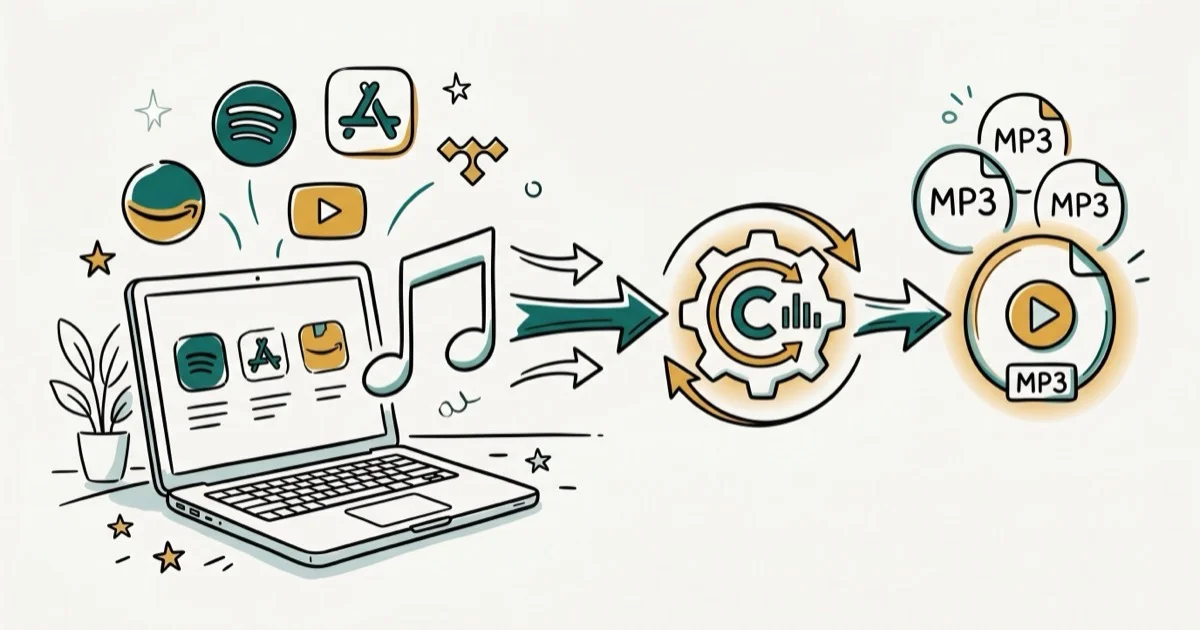
Quick AnswerAllToMP3 is barely maintained and fails on most Spotify playlists in 2026. The best free alternative is spotDL, while NoteBurner is the fastest paid option at 10x speed.
AllToMP3 hasn’t received a meaningful update in years, and Spotify downloads fail more often than they succeed. Current users regularly report that the app can recognize playlists but refuses to start the download.
- AllToMP3’s GitHub has 200+ unresolved issues, and the app can’t download from Spotify anymore
- spotDL is the best free replacement, matching Spotify tracks to YouTube audio and saving MP3s with correct metadata
- NoteBurner converts Spotify music at 10x speed in MP3, FLAC, WAV, and AAC at 320kbps
- Cobalt Tools is browser-based and free, requiring no software installation
- Paid converters preserve original audio quality and ID3 tags, while free tools cap output at 256kbps
#Why Did AllToMP3 Stop Working?
AllToMP3 is a free, open-source desktop app for converting Spotify, YouTube, SoundCloud, and Deezer links.
The problem is maintenance. Streaming platforms update their APIs regularly, and AllToMP3’s developers haven’t kept up. According to AllToMP3’s GitHub issue tracker, users report that the app detects playlists correctly but won’t start downloading.
Here’s what goes wrong with AllToMP3 in 2026:
- Spotify downloads fail silently after playlist detection
- Conversion speeds are extremely slow compared to current tools
- The app freezes when processing playlists longer than 20 tracks
- Output is locked to MP3 only, with no FLAC or WAV option
- Long audio files cause the entire application to hang
If you depend on downloading and converting Spotify music to MP3, you need a tool that actually keeps pace with platform changes.
#Best Free AllToMP3 Alternatives
Not every replacement costs money. These three free tools handle the same job AllToMP3 was built for.
#spotDL (Open-Source, Command-Line)
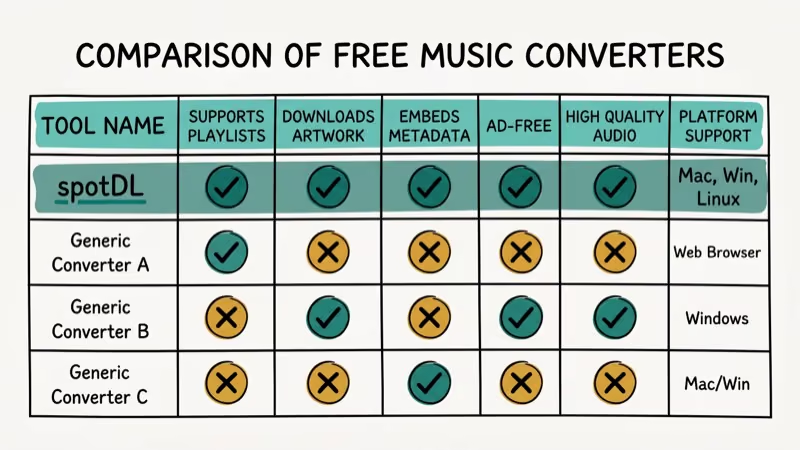
spotDL is a Python-based open-source tool that matches Spotify tracks to YouTube audio and saves them as MP3 files with correct metadata. You’ll need Python and FFmpeg installed first, which takes about 5 minutes.
Based on spotDL’s GitHub documentation, the tool supports MP3, FLAC, OGG, OPUS, and M4A output formats. It handles full albums, playlists, and individual tracks from the command line, though you do need to be comfortable with terminal commands since there’s no graphical interface.
#Cobalt Tools (Browser-Based)
Cobalt Tools works entirely in your browser. Paste a YouTube or SoundCloud link, pick your format, and download. No account, no software to install.
The catch is that Cobalt doesn’t support Spotify links directly. You’ll need to find the same track on YouTube first, then paste that URL. For quick one-off downloads where you don’t want to install anything, it’s the fastest option available. It’s also open-source and ad-free.
#Freemake Audio Converter (Windows Only)
Freemake has been around for over a decade. It converts between 50+ audio formats, rips audio from CDs, and handles batch processing. It won’t download from streaming platforms, but for local file format conversion, it gets the job done.
One drawback: the free version adds a short audio watermark. You’ll need the paid upgrade to remove it.
#How Do Paid Converters Stack Up?
Paid tools solve two problems free options can’t: speed and audio quality preservation. Here’s how the top three stack up.
| Feature | NoteBurner | Sidify | DRmare |
|---|---|---|---|
| Speed | 10x | 5x | 15x |
| Formats | 6 | 4 | 6 |
| Bitrate | 320kbps | 320kbps | 320kbps |
| ID3 Tags | Yes | Yes | Yes |
| Batch | Yes | Yes | Yes |
#NoteBurner Spotify Music Converter
NoteBurner records Spotify streams and converts them to MP3, FLAC, WAV, AAC, AIFF, or ALAC at up to 10x speed. It keeps the original 320kbps quality and preserves all ID3 tags intact.
According to NoteBurner’s feature page, it works with both Spotify Free and Premium accounts, so you don’t need a paid subscription to use it. Its format support, 320kbps output, metadata preservation, and high-speed mode make it a stronger fit than abandoned desktop tools when you need batch conversion for larger libraries.
#Sidify Music Converter
Sidify offers 5x conversion speed and supports MP3, AAC, FLAC, and WAV output. According to Sidify’s product page, its batch mode processes entire playlists in one click. Converted files are automatically sorted by album or artist.
One limitation: Sidify is Windows-only. Mac users need to look at NoteBurner or DRmare instead.
#DRmare Spotify Music Converter
DRmare claims 15x speed, the fastest of the three. It supports six output formats and preserves lossless quality at 320kbps with all metadata tags. Fewer customization options than NoteBurner, but it gets the core job done.
#YouTube and SoundCloud Download Options
AllToMP3 originally supported YouTube and SoundCloud alongside Spotify. If those platforms matter more to you than Spotify, here’s what works.
For YouTube, MiniTool Video Converter handles MP3, WAV, MP4, and WebM on Windows 10 and 11. It downloads full playlists and supports subtitles. For SoundCloud, Cobalt Tools works directly with SoundCloud links without needing an account.
If you work with video files that need audio extraction, Wondershare UniConverter supports over 1,000 formats and handles both local files and online URLs from 10,000+ websites. It’s the most versatile option if you deal with multiple media types regularly.
Some links on this page are affiliate links, which means fone.tips may earn a commission at no extra cost to you.
#Legal Considerations for Converting Streaming Music
Most guides skip this. It matters.
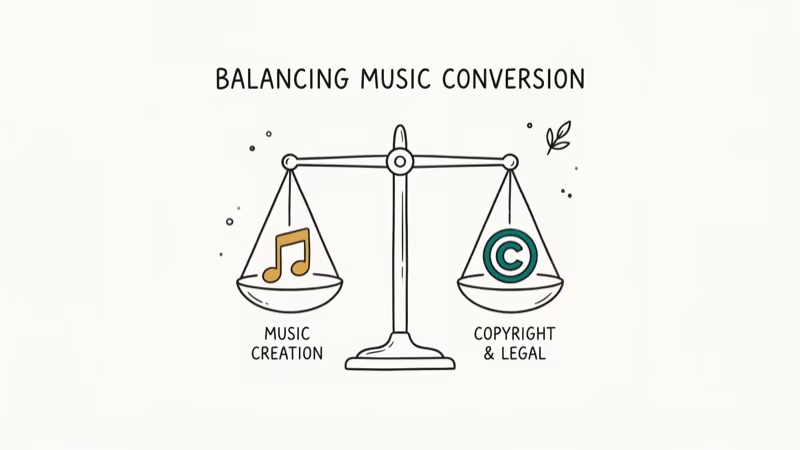
Streaming services prohibit downloading or converting their content in their Terms of Service. Spotify’s Terms of Use state that users should not circumvent any technology used to protect the service or its content. Violating these terms could result in account suspension, and Spotify actively detects third-party tools accessing its API without authorization. As PCMag’s streaming rights guide explains, personal use doctrines vary widely and offer limited legal protection in most countries.
Personal use doctrines vary by country. In the US, recording audio for non-commercial use has some legal precedent. EU private copying exceptions exist in several countries but don’t override platform ToS.
The safest path is Spotify Premium’s built-in offline download feature. Third-party converters carry legal uncertainty.
#Quick Setup Tips
Setup is quick. For spotDL, install Python 3.8+ and FFmpeg, then run pip install spotdl in your terminal. Paid tools like NoteBurner use standard installers.
One tip: create a dedicated folder for your converted music before batch downloading. Most tools let you set a custom output directory, and organizing upfront prevents scattered MP3 files across your hard drive later. If you’re converting an entire Spotify library of 500+ songs, this folder structure saves hours of manual sorting down the road, especially when you want to sync files to your phone or an external drive for offline listening.
#Bottom Line
AllToMP3 is effectively abandoned. Its GitHub shows no meaningful updates, and Spotify downloads don’t work anymore. For a free replacement, start with spotDL if you’re comfortable with the command line, or Cobalt Tools for quick browser-based downloads.
If you want speed and lossless quality, NoteBurner at 10x conversion is the strongest paid option on paper. Whatever you pick, stick with tools that get regular updates. Streaming platforms change their APIs constantly, and outdated software breaks fast.
#Frequently Asked Questions
Is AllToMP3 safe to install in 2026?
The official app from GitHub is open-source and safe. Download only from the official repository, not third-party sites that may bundle adware.
Can spotDL download entire Spotify playlists?
Yes. spotDL handles individual tracks, full albums, and playlists by matching each Spotify track to its YouTube equivalent. It downloads audio with correct metadata including artist name, album art, and track number.
Do these converters work with Spotify Free accounts?
Yes. NoteBurner, DRmare, Sidify, and spotDL all work with free Spotify accounts.
What audio quality can I expect from converted files?
It depends on the tool. Paid converters like NoteBurner and DRmare preserve original streaming quality at up to 320kbps in MP3, or fully lossless in FLAC format. Free tools like spotDL pull audio from YouTube, which typically caps at 256kbps. For reference, AllToMP3 was locked at 256kbps with no way to change it, so even free alternatives like spotDL match or exceed what AllToMP3 offered at its best.
Will these alternatives work on Mac?
spotDL, Cobalt Tools, NoteBurner, and DRmare all have macOS versions. Sidify, Freemake, and MiniTool are Windows-only.
Can I convert local audio files without a streaming subscription?
Yes. Wondershare UniConverter and Freemake Audio Converter both convert local files between 50+ formats without any streaming subscription. Freemake is free but Windows-only and adds a watermark, while UniConverter works on both Mac and Windows without watermarks. If you have music files on an old iPod or CDs you want to digitize, either tool handles the job.
Are there any browser extensions that replace AllToMP3?
They exist but break constantly. Use Cobalt Tools instead. For downloading videos from other platforms, dedicated desktop tools work better.
How do I keep ID3 tags when converting audio files?
Paid converters like NoteBurner, Sidify, and DRmare automatically preserve ID3 tags including artist name, album title, track number, and cover art during conversion. spotDL also maintains metadata by pulling it directly from Spotify’s database. If your converted files lose their tags, a dedicated ID3 tag editor can help you fix or rebuild them.

Google Messages Error 3100: Why RCS Is Broken on Galaxy
Google Messages RCS error 3100 hits Galaxy owners after phone or carrier switches. Google told 9to5Google a fix is coming. Here's what actually helps.

Is This Bank App Real? Spot a Fake App on Your Home Screen
A bank app can land on your home screen from a web page with no install warning. Learn the checks that tell a real banking app from a phishing web app.

Apps Crashing After iOS 27 Update? Fix Order (2026)
Apps crashing after the iOS 27 update? Update the app in the App Store first, then offload and reinstall to clear stale cache, then restart. The fix order.

Do AI Translation Earbuds Work Offline? What to Know
Do AI translation earbuds work offline? A few do with downloaded language packs, but most need the cloud. Here's what works offline and what you give up.