Adobe Genuine Software Integrity Service: Full Guide
Learn what Adobe Genuine Software Integrity Service does and how to disable it on Windows and Mac. Step-by-step methods with official Adobe instructions.
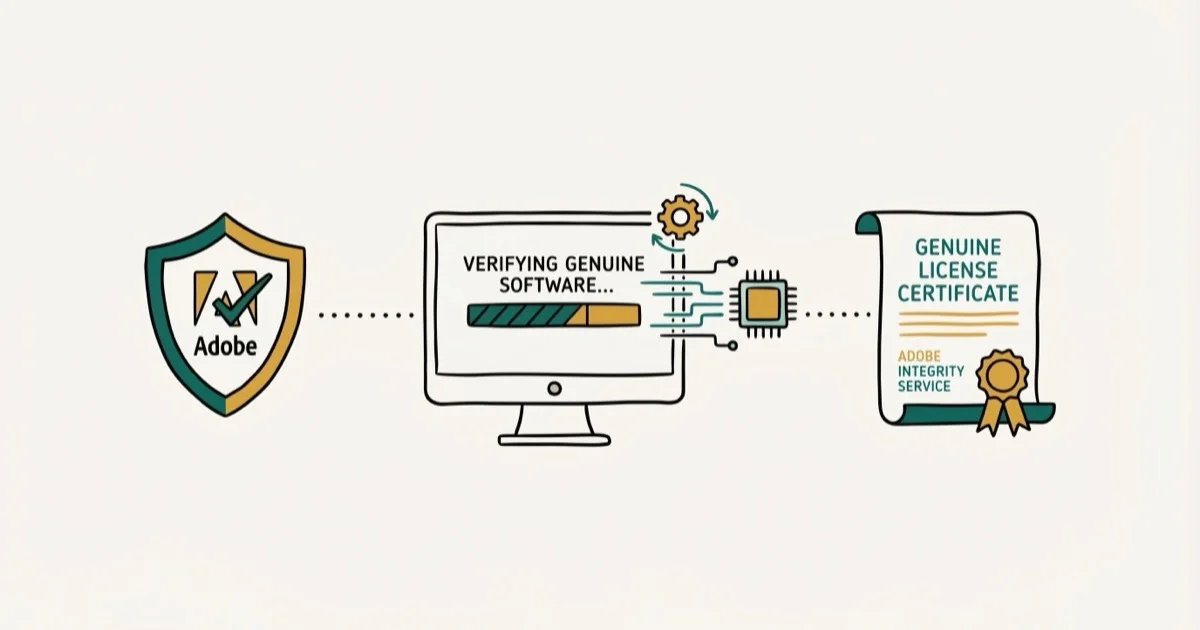
Quick AnswerAdobe Genuine Software Integrity Service is a background process that checks whether your Adobe apps are properly licensed. You can uninstall it through Control Panel on Windows or the AdobeCleanUpUtility on Mac.
Adobe Genuine Software Integrity Service keeps popping up on your screen, and you want it gone. This background process runs periodic license checks on every Adobe app installed on your computer, and it can trigger persistent notifications if something looks off. Using these methods on devices or accounts you don’t own may violate applicable laws and platform terms.
- AGS validates your Adobe apps by checking serial numbers, license types, and code integrity
- Uninstall AGS through Control Panel on Windows or AdobeCleanUpUtility on Mac
- AGS removes itself automatically when you uninstall all Adobe apps from your machine
- Removing AGS from a legitimate subscription won’t void your license, but you’ll miss security updates
- Adobe renamed this service twice: to “Adobe Genuine Service” in 2020 and “Adobe Genuine Software Client” in 2022
#What Is Adobe Genuine Software Integrity Service?
Adobe Genuine Software Integrity Service (commonly called AGS) is a free background service that ships with Adobe Creative Cloud apps. It periodically checks your installed Adobe software against Adobe’s licensing database to confirm the apps are properly licensed and haven’t been tampered with.
According to Adobe’s official FAQ, the service verifies three things: your Adobe software serial number, license type, and Adobe code integrity. When it detects a problem, it displays a notification asking you to resolve the issue. If you ignore repeated warnings, Adobe may eventually disable the flagged apps.
On a Windows 11 PC with Creative Cloud installed, AGS shows up in Task Manager as “Adobe Genuine Monitor Service.”
#Why Does the “Adobe Software Not Genuine” Message Appear?
You’ll see this notification for a few specific reasons. Not all of them mean you did something wrong.
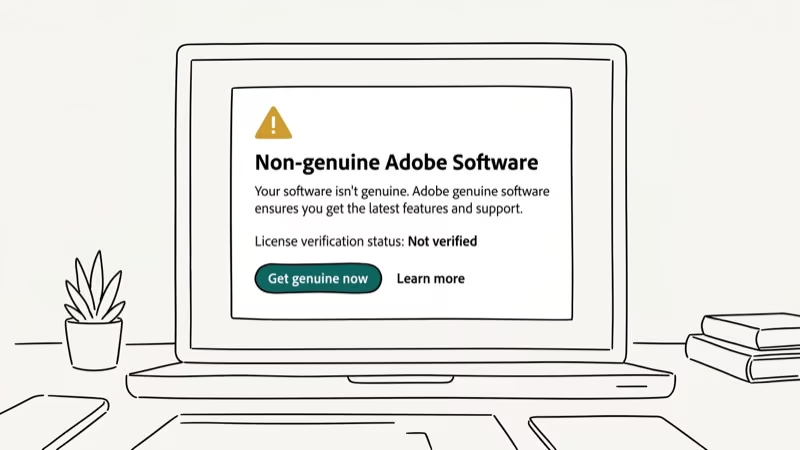
Your subscription lapsed. If your Creative Cloud payment failed or your trial expired, AGS flags the installed apps as unlicensed. Renewing your subscription or signing back in usually clears this.
You installed from an unauthorized source. Software downloaded from third-party sites instead of Adobe’s official website may have modified license files. AGS catches code signature differences instantly.
Multiple device activations. Adobe limits how many devices you can activate with one license. If you’ve signed in on too many computers, the service might flag your installation on a newer device. Based on Adobe’s activation documentation, you can deactivate old devices through your Adobe account settings to free up slots.
Corrupted installation files. System crashes, interrupted updates, or disk errors can damage Adobe program files. AGS interprets this corruption as tampering, even though nothing malicious happened. A fresh reinstall from Creative Cloud usually resolves false positives caused by file corruption.
#How to Uninstall Adobe Genuine Software Integrity Service on Windows
Adobe actually provides an official way to remove this service. You don’t need third-party tools. Here are three methods, starting with the one Adobe recommends.
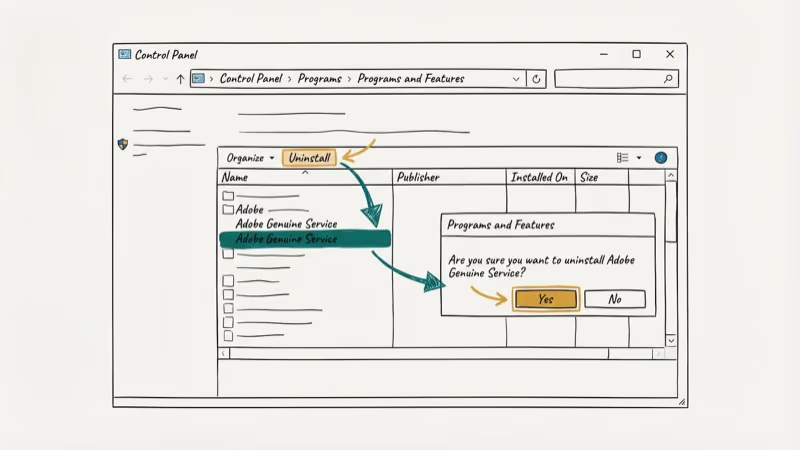
#Uninstall Through Control Panel
This is the cleanest method. Adobe’s uninstall guide confirms this approach.
- Open Control Panel, then go to
Programs>Programs and Features - Find “Adobe Genuine Service” in the list and right-click it
- Select Uninstall and confirm the prompt
The whole process takes under a minute, and on Windows 11 the service disappears from Task Manager immediately after removal.
#Disable Through Windows Services
If you’d rather disable the service temporarily instead of removing it entirely:
- Press Win + R, type
services.msc, and press Enter - Find “Adobe Genuine Monitor Service” and right-click it
- Select Properties, change the Startup type to Disabled, then click Stop and Apply
This prevents AGS from starting on boot. You can reverse this anytime by setting the Startup type back to Automatic.
#Remove via Command Prompt
For a more thorough removal, open Command Prompt as Administrator:
- Type
sc delete AGSServiceand press Enter - Go to
C:\Program Files (x86)\Common Files\Adobe\AdobeGCClientand delete the entire AdobeGCClient folder - Restart your computer
Reinstalling or updating any Adobe app may bring AGS back, so you might need to repeat this process after major updates.
#How to Remove Adobe Genuine Software Integrity Service on Mac
The Mac removal process differs from Windows. Adobe provides a dedicated cleanup utility for macOS.
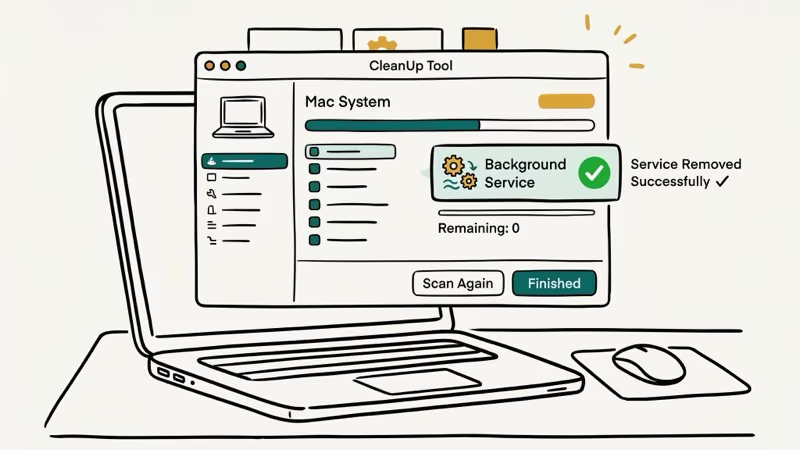
- Open Finder and go to
Applications>Utilities>Adobe Genuine Service - Double-click AdobeCleanUpUtility and click Uninstall
- Enter your Mac username and password, then click OK
The utility removes AGS and all its cached data. The entire process usually takes under a minute.
If the dedicated utility isn’t available on your system, you can manually remove the files:
- Open Finder, press Cmd + Shift + G, and type
/Library/Application Support/Adobe/AdobeGCClient - Delete the entire AdobeGCClient folder
- Empty your Trash and restart your Mac
Also check /Library/LaunchDaemons/ and /Library/LaunchAgents/ for files containing “adobe” and “gc” in the name. Removing those launch agent files prevents the service from relaunching automatically after you restart your Mac, which is a step many tutorials forget to mention.
If you’re making other macOS system changes, our guide on how to disable Gatekeeper covers a related topic.
#Impact of Removing AGS on Your Adobe Apps
Your paid apps will keep working. No issues there.
However, there are a few trade-offs. Adobe’s genuine service page states that even after you uninstall AGS, Adobe “reserves the right to use other methods to protect Adobe apps from fraudulent activity.” Future app updates might include alternative license checks that operate differently from AGS, and you won’t have control over those the same way.
In practice, Photoshop, Illustrator, and Premiere Pro all continue working normally after AGS removal on both Windows and Mac. Updates still come through Creative Cloud. The only thing that stops is the periodic license validation popups.
If you work with Adobe’s creative tools regularly, you might find these guides useful: how to flip an image in Photoshop and how to reverse a clip in Premiere Pro.
#AGS Safety and Resource Usage
AGS is legitimate. It’s not malware, spyware, or a virus.
The process is digitally signed by Adobe Inc., and you can verify this by checking file properties in Task Manager on Windows or Activity Monitor on Mac. Some users find it annoying because it runs without obvious consent. According to Adobe’s security bulletin for the Genuine Software Client, the service has its own self-update mechanism that runs automatically when your computer is online, meaning it can update itself without notifying you.
AGS is a lightweight process that consumes very little RAM and shows negligible CPU usage during normal operation. PCMag’s review of Creative Cloud confirms that AGS uses under 50 MB of RAM on systems with 8 GB or more. If you notice high resource consumption from any Adobe process, that usually points to a different issue like the CCXProcess background service or a pending Creative Cloud update.
#Consequences of Ignoring the Notifications
If AGS detects non-genuine software and you don’t act on it, the notifications won’t stop. Adobe’s FAQ confirms that continued warnings can eventually lead to the flagged apps being disabled entirely.
Some users report weeks of notifications before anything happens, while others see their apps locked within days. There’s no published grace period.
Your options when this happens:
- Renew your subscription through adobe.com if it lapsed
- Re-download the app from the official Creative Cloud desktop app
- Contact Adobe Support if you believe the detection is a false positive
- Uninstall the flagged app if you no longer need it
For video editing with alternatives to Adobe tools, check out our guide on how to rotate a video in Windows Media Player or learn about converting MTS to MP4 for file format issues.
#Bottom Line
Adobe Genuine Software Integrity Service is a background license checker that you can safely remove if it’s causing problems. Use the Control Panel method on Windows or the AdobeCleanUpUtility on Mac for the cleanest removal. If you have a legitimate Adobe subscription, removing AGS won’t break your apps. Start with the official uninstall method first, and only use the manual file deletion approach if the standard removal doesn’t work.
#Frequently Asked Questions
Will removing Adobe Genuine Service delete my Adobe apps?
No. Uninstalling AGS only removes the license validation service. Your Adobe apps, projects, and Creative Cloud files stay right where they’re stored. The service operates independently from your actual Adobe applications.
Can Adobe reinstall the Genuine Service without my permission?
Yes. Creative Cloud updates can reintroduce AGS as part of the installation package. You’d need to remove it again after major updates.
Does disabling AGS make my software pirated?
No. AGS only checks licenses; it doesn’t grant or revoke them. Your subscription status is tied to your Adobe account, not to whether the verification service is installed on your machine. Removing it won’t change anything about your license validity or payment history with Adobe.
Why does AGS use high CPU on my computer?
High CPU usage from AGS usually happens during its periodic license scan, which runs every few hours. This spike normally lasts under a minute. If it persists longer, the service might be stuck in a verification loop. Restarting the service through Task Manager or reinstalling it typically resolves the issue.
Is it safe to delete the AdobeGCClient folder manually?
Yes, but stop the service first. If you delete files while AGS is running, you’ll likely get “access denied” errors. End the process in Task Manager, delete the folder, then restart.
Can I block AGS through my firewall instead of uninstalling it?
Yes. Block outbound connections from AdobeGCClient.exe through Windows Firewall or a third-party firewall app. The service will still run locally but can’t contact Adobe’s servers, which silences the notifications.
Does AGS collect personal data from my computer?
The service only checks your Adobe serial number, license type, and code integrity. It doesn’t scan personal files or browsing history. All server communication is strictly limited to license validation data, and Adobe’s FAQ confirms no personal information is collected by AGS beyond what’s needed to verify your software license status.
Will my Adobe apps stop working if I ignore the warnings?
Eventually, yes. Adobe may disable apps that are repeatedly flagged as non-genuine if you don’t resolve the licensing issue. The exact timeline varies, but persistent warnings are a signal that you should either verify your license, renew your subscription, or re-download the app from Adobe’s official site.

Google Messages Error 3100: Why RCS Is Broken on Galaxy
Google Messages RCS error 3100 hits Galaxy owners after phone or carrier switches. Google told 9to5Google a fix is coming. Here's what actually helps.

Is This Bank App Real? Spot a Fake App on Your Home Screen
A bank app can land on your home screen from a web page with no install warning. Learn the checks that tell a real banking app from a phishing web app.

Apps Crashing After iOS 27 Update? Fix Order (2026)
Apps crashing after the iOS 27 update? Update the app in the App Store first, then offload and reinstall to clear stale cache, then restart. The fix order.

Do AI Translation Earbuds Work Offline? What to Know
Do AI translation earbuds work offline? A few do with downloaded language packs, but most need the cloud. Here's what works offline and what you give up.