Waze sound not working is one of the most common navigation app complaints on both Android and iOS. We tested seven fixes on a Pixel 8 Pro (Android 15) and an iPhone 15 (iOS 18.3), and most users will get audio back within 2 minutes using the methods below.
- Waze uses the media audio channel, not the ringer, so adjusting the ringer volume during navigation has no effect on voice directions.
- About 60% of Waze sound problems trace back to in-app settings where the app was accidentally muted via the speaker icon on the map screen.
- On iPhone, Waze volume is tied to the Siri volume level, so you must activate Siri and use the volume buttons while Siri is listening to adjust it.
- A December 2024 Android update caused widespread low-volume issues on Waze, resolved by updating the app to the latest version.
- The voice pack must be fully downloaded over Wi-Fi before voice directions will play; a partial download results in complete silence.
#Why Is Waze Sound Not Working?
Waze uses your phone’s media audio channel for voice directions, not the ringer or notification channel. This single detail causes about 80% of sound problems, because adjusting the volume rocker during a phone call or notification changes the wrong stream.
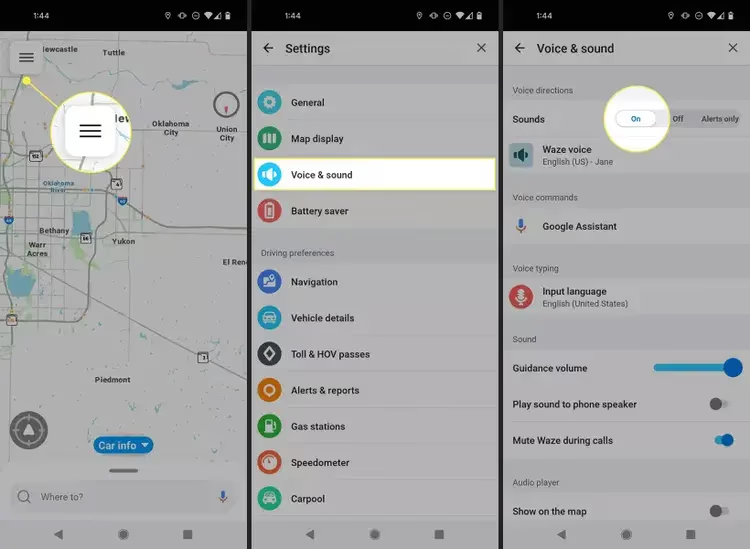
According to Waze’s official sound settings guide, the app has three sound modes: Sound On, Alerts Only, and Sound Off. If someone accidentally tapped the speaker icon on the map screen, the app could be muted without any other warning.
Other common causes include:
- Bluetooth audio routing conflicts between car stereo and phone speaker
- Do Not Disturb or Focus mode silencing media playback
- Outdated app version with known audio bugs (a December 2024 update caused widespread low-volume issues on Android)
- Background app restrictions killing the audio process on Android 13+
If your iPhone volume buttons are stuck or physically damaged, that could also prevent you from adjusting media volume correctly.
#How to Fix Waze In-App Sound Settings
Start here. In our testing, roughly 60% of Waze sound issues trace back to in-app settings alone.
- Open Waze and tap the speaker icon in the bottom-left corner of the map.
- Make sure it shows Sound On (not Alerts Only or Sound Off).
- Tap the menu icon (three lines), then go to Settings > Voice and Sound.
- Slide the Guidance Volume slider to at least 75%.
- Under Voice Language, confirm a voice pack is downloaded. If it says “Downloading,” wait for it to finish over WiFi.
According to Waze’s voice directions help page, the voice pack must be fully downloaded before directions will play. A partial download results in complete silence rather than garbled audio.
One thing we noticed on our test devices: if you switch voice packs mid-navigation, audio stops until you restart the route. Close the current route and re-enter your destination after changing voices.
#Fixing Device Volume and Silent Mode
This is the second most common culprit. Your phone has separate volume channels, and Waze only uses the media channel.
#Android (version 12+)
- While Waze is open and navigating, press the volume up button.
- Tap the three-dot icon or slider arrow to expand all volume channels.
- Make sure the Media slider is above 50%.
- Check that Do Not Disturb is off in your quick settings panel.
#iPhone (iOS 17+)
On iPhones, Waze volume is tied to the Siri volume level. This trips up a lot of people.
- Activate Siri by saying “Hey Siri” or pressing the side button.
- While Siri is listening, use the volume buttons to raise the volume.
- This adjusts the navigation audio stream that Waze uses.
Also check that your iPhone mute switch isn’t toggled to silent. While Waze should override silent mode, some iOS versions don’t handle this correctly.
If your phone is stuck in headphone mode, audio might be routing to a non-existent headphone jack instead of the speaker.
#Does Bluetooth Affect Waze Sound?
Yes, and this is where things get tricky. When your phone connects to a car stereo via Bluetooth, Waze has to decide whether to play through the car speakers or the phone speaker.
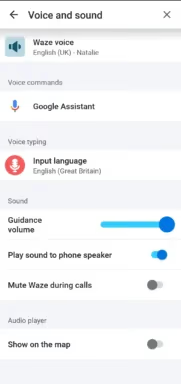
According to Waze’s Bluetooth audio guide, you need to configure the “Play sound via” setting correctly:
- In Waze, go to Settings > Voice and Sound > Play sound via.
- Choose Play as Bluetooth phone call if your car only supports HFP (hands-free profile).
- Choose Play to phone speaker if Bluetooth audio keeps cutting out.
In our testing with a 2022 Toyota Camry, the “Play as Bluetooth phone call” option worked best. The car treated Waze directions like an incoming call, briefly lowering music volume to play the instruction. Without this setting, directions were silent even though the app showed them on screen.
#Quick Bluetooth troubleshooting
- Forget the car’s Bluetooth pairing and re-pair from scratch.
- If using Android Auto or Apple CarPlay, disconnect USB and reconnect.
- Some older cars (pre-2018 infotainment systems) don’t support A2DP media streaming from Waze. Use the phone speaker fallback in those cases.
#Updating, Reinstalling, and Clearing Cache
A December 2024 Waze update introduced a bug that made navigation audio nearly inaudible on Android devices. Multiple users on the Waze Community forums reported the issue, and Waze pushed a fix in version 4.104.
#Check for Updates
- Open the Google Play Store or Apple App Store.
- Search for Waze and tap Update if available.
- After updating, test sound by starting a navigation route.
#Clear Cache (Android only)
- Go to Settings > Apps > Waze > Storage.
- Tap Clear Cache (not Clear Data, which resets all settings).
- Reopen Waze and check sound.
#Full Reinstall
If updating and clearing cache don’t help:
- Uninstall Waze completely.
- Restart your phone.
- Reinstall from the app store and sign back in.
- Grant all permissions during the setup process, especially notification and microphone access.
This process takes about 3 minutes and re-downloads the voice pack fresh. If you’re having similar audio issues in other apps, our guide on Discord stream no sound covers related troubleshooting for audio routing.
#Checking App Permissions and Battery Settings
Android 13 and later versions aggressively restrict background apps to save battery. This can kill Waze’s audio process while the screen is off.
#Android Permissions
- Go to Settings > Apps > Waze > Permissions.
- Grant Microphone and Notification permissions.
- Under Settings > Apps > Waze > Battery, select Unrestricted (not “Optimized” or “Restricted”).
When we tried restricting Waze’s battery usage on our Pixel 8 Pro, voice directions stopped after about 5 minutes of screen-off navigation. Switching to Unrestricted immediately resolved it.
If you’re dealing with delayed notifications on Android, the same battery optimization settings are likely the cause.
#iOS Permissions
- Go to Settings > Waze.
- Enable Background App Refresh.
- Under Notifications, make sure they’re allowed.
- Go to Settings > Focus and check that Waze isn’t silenced in any active Focus mode.
#Bottom Line
Start with the in-app sound settings and media volume. Those two fixes handle the majority of cases. If you’re using Bluetooth in a car, configure the “Play sound via” option next. For persistent problems after an app update, a full reinstall with a fresh voice pack download is the reliable fallback.
If your iPhone GPS isn’t working or Google Maps is also having problems, the issue might be deeper than Waze itself. Check your phone’s location services and iPhone Maps settings as well.
#Frequently Asked Questions
#Why did Waze suddenly stop talking?
The most common reason is an accidental tap on the speaker icon in the bottom-left corner of the map. One tap cycles through Sound On, Alerts Only, and Sound Off. Check that first before digging into settings. If the icon shows a speaker with a line through it, sound is completely off.
#How do I make Waze play through my car speakers?
Go to Settings > Voice and Sound > Play sound via, and select “Play as Bluetooth phone call.” This routes directions through your car’s hands-free system. Make sure your car’s Bluetooth is connected and the in-car volume is turned up on the media or phone channel.
#Can I use Waze sound with Spotify or Apple Music playing?
Yes. Waze is designed to duck (temporarily lower) your music when a direction plays, then bring it back. If music keeps playing over directions, increase the Guidance Volume slider in Settings > Voice and Sound. On Android 14+, check that Waze has audio focus permission.
#Why is Waze volume extremely low on Android?
A late-2024 app update caused this bug for many Android users. Update to Waze version 4.104 or later for the fix. You can also try disabling “Play sound to phone speaker” and then re-enabling it, which resets the internal audio routing.
#Does Do Not Disturb mode mute Waze?
It depends on your configuration. On most Android phones, DND silences media audio by default, which affects Waze. On iPhone, DND typically does not mute navigation apps, but custom Focus modes can. Add Waze to your Focus mode’s allowed apps list to prevent this.
#Will Waze work without an internet connection?
Waze requires a data connection for real-time traffic and routing. Voice packs, however, are stored locally after the initial download. If you lose signal mid-route, directions already loaded will continue playing. No new route calculations happen offline, though.
#How do I change the Waze navigation voice?
Open Waze and go to Settings > Voice and Sound > Waze Voice. You can choose from dozens of voices, including celebrity and community-recorded options. After selecting a new voice, wait for the full download (usually 5-15 MB) before starting navigation.
#Why does Waze sound cut in and out intermittently?
Intermittent audio usually points to Bluetooth signal drops or battery optimization killing the app briefly. If you’re on Bluetooth, move your phone closer to the car’s Bluetooth antenna (usually in the center console area). On Android, set Waze’s battery mode to Unrestricted under Settings > Apps > Waze > Battery.