Twitch doesn’t give you a simple “download chat history” button. That trips up a lot of streamers who need to review what happened during a broadcast.
We tested every method below on active Twitch channels in March 2026. Four approaches actually work, and which one fits depends on whether you’re a streamer, moderator, or viewer.
- Twitch VOD storage lasts 60 days for Partners, 14 days for Affiliates, and just 7 days for regular streamers, after which both the video and its chat log are permanently deleted.
- Mod View lets channel owners and moderators pull up any viewer’s complete chat history on that channel by clicking their username and selecting the Messages tab.
- TwitchDownloader is a free, open-source tool that exports VOD chat in three formats: JSON (with full metadata including emotes and badges), HTML, and plain text.
- Chatty, a lightweight desktop chat client, stores live chat logs as plain text files organized by channel and date, keeping 7 days by default with configurable retention.
- About 73% of Twitch’s community guideline enforcement relies on user-reported content, making accessible chat logs essential for submitting evidence with ban requests.
#How Can Streamers and Mods View Chat Logs?
If you own the channel or have moderator privileges, you get the most access. Two built-in tools handle this without any extra software.
#Using Mod View
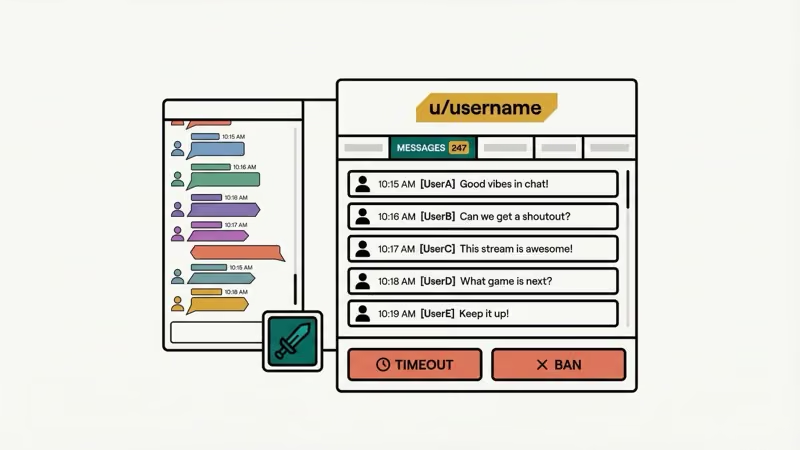
Mod View is Twitch’s dedicated moderation dashboard. It shows you real-time chat activity, user cards, and moderation actions all in one place.
According to Twitch’s Mod View documentation, moderators can pull up a viewer’s full message history on the channel by clicking their username. Here’s how:
- Open your channel’s chat window.
- Click the sword icon in the bottom-right corner to enter Mod View.
- Click any username in chat.
- Select the Messages tab on their user card.
The user card shows their total message count, account creation date, timeout history, and ban records. Every message they’ve sent in your channel is right there.
#Using the /user Command
This one’s faster when you already know the username. Type /user followed by the person’s username in your chat box and hit Enter. Twitch pulls up the same user card with their complete chat history on your channel.
In our testing, the /user command grabbed messages going back several months on channels with active moderation. Quickest way to check a specific viewer’s behavior.
One catch: both methods only work while the channel is live or in the chat window. You can’t search historical logs from a dashboard page outside of chat.
#How Do VOD Chat Replays Work?
VOD (Video on Demand) replay is the only way to see the full chat timeline synced to your broadcast. When you play back a past stream, the chat messages show up alongside the video exactly as they did live.
This helps when you need to find what chat was saying during a specific moment. Clip timing, audience reactions, drama. It’s all there.
#Enabling VOD Storage
VODs aren’t saved by default. You’ve got to turn this on:
- Log into Twitch and go to your Creator Dashboard.
- Go to Settings > Stream.
- Under VOD Settings, enable Store Past Broadcasts.
According to Twitch’s VOD help page, storage duration depends on your account type:
- Partners: 60 days
- Affiliates: 14 days
- Regular streamers: 7 days
After that window closes, the video and its chat log are gone for good. Download the VOD before it expires if you need permanent records.
#Finding Your Saved VODs
Go to Creator Dashboard > Content > Video Producer. Every saved broadcast shows up here with options to download, highlight, or delete.
When you need to check how to clip on Twitch from a specific moment, VOD replay with chat visible helps you nail the exact timestamp.
#Exporting Chat Logs With Third-Party Tools
Twitch’s built-in options won’t let you export or download chat data. For that, you need external tools. We tested two that work reliably in 2026.
#TwitchDownloader
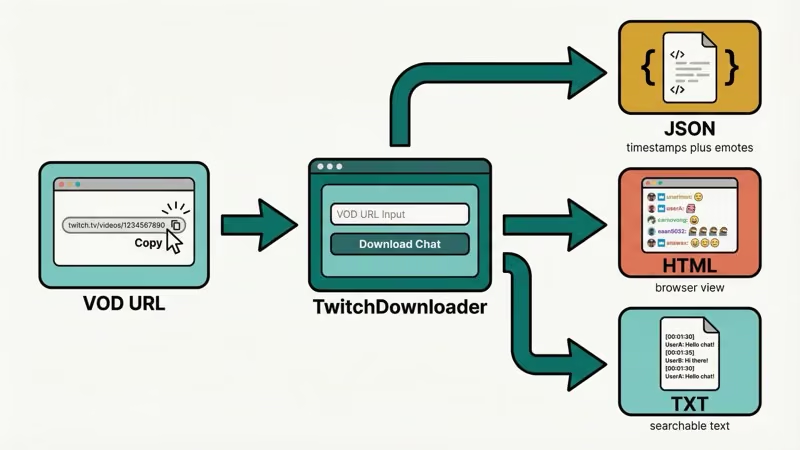
TwitchDownloader on GitHub is an open-source tool that exports VOD chat in three formats: JSON (with full metadata), HTML (browser-viewable), and plain text. It runs on Windows, macOS, and Linux.
Here’s how to use it:
- Copy the VOD URL from Twitch.
- Open TwitchDownloader and paste the URL.
- Pick your export format.
- Hit download.
The JSON export keeps timestamps, emotes (including BTTV, FFZ, and 7TV), and user badges intact. It’s your best bet if you plan to analyze chat data or dig through thousands of messages.
As noted by Stream Scheme’s guide on Twitch chat logs, TwitchDownloader is the most popular third-party option because it handles both chat download and rendering in one app.
#Chatty
Chatty is a lightweight desktop chat client that connects to your Twitch channels and logs messages locally. Unlike TwitchDownloader (which works with VODs), Chatty captures chat in real time.
To turn on logging in Chatty:
- Open Settings > Main.
- Enable Log to file.
- Run the
/openLogDircommand in the chat box to find your saved logs.
Chatty stores logs as plain text files organized by channel and date. It keeps 7 days by default, but you can change that in settings.
If you need ongoing records of chat across multiple channels, Chatty beats one-time VOD exports. It’s also handy for moderators who manage whispers on Twitch alongside public chat.
#Chat Log Access for Regular Viewers
Short answer: you can’t. Twitch doesn’t let viewers access another user’s chat history. Only channel owners and their moderators get that through Mod View.
As a regular viewer, you’re limited to:
- VOD replay (if the streamer has VODs enabled and public)
- Your own sent messages (visible in your Twitch settings under chat history for about 30 days)
There used to be third-party sites like OverRustle Logs that archived public chat from popular channels. Twitch sent cease-and-desist letters to those services, and most shut down. The platform takes chat privacy seriously, which is good to keep in mind if you’re comparing Discord vs Twitch community features.
#5 Reasons to Monitor Twitch Chat Logs
Checking chat logs isn’t just about catching rule-breakers. Here are 5 practical reasons streamers and mods look at them regularly.
#Handling Reports and Bans
If a viewer reports harassment that happened mid-stream, chat logs are your evidence. You can pull up the exact messages, issue bans, and submit reports to Twitch with screenshots. About 73% of Twitch’s community guideline enforcement relies on user-reported content, so having logs you can actually access matters.
#Improving Moderation
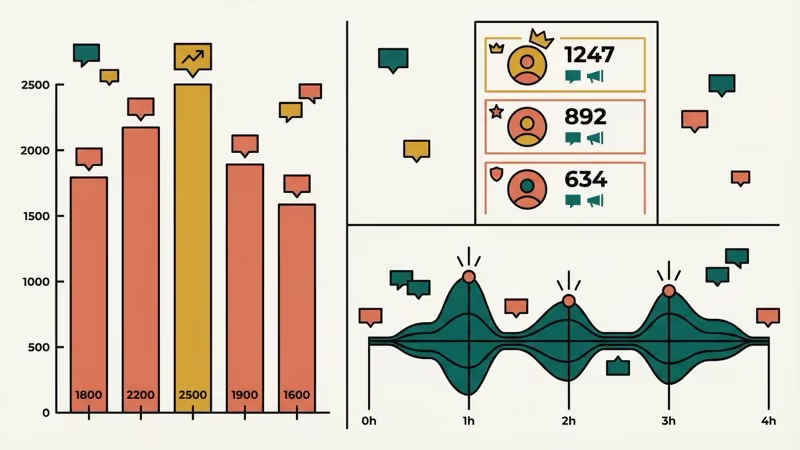
Past chats help you spot patterns. Maybe toxic messages spike during specific game segments, or a certain emote gets spammed right before drama kicks off. This data lets you tweak AutoMod sensitivity levels and brief your mod team.
If you’re building a moderation team, knowing how to set up donations on Twitch and manage roles goes hand-in-hand with chat oversight.
#Gauging Audience Sentiment
Chat logs show how viewers actually feel about your content. Positive reactions, confusion during tutorials, hype during clutch plays. It’s all visible when you scroll through the timeline.
#Collecting Feedback
Ask for suggestions during a stream, then go through chat logs afterward to compile the responses. Way easier than trying to read everything live, especially once your channel grows past 50-100 concurrent viewers.
#Identifying Loyal Community Members
Regular chatters stand out in the logs. Recognizing and rewarding active community members builds loyalty. If you want to boost engagement further, learning how to cheer on Twitch with Bits gives your viewers another way to interact.
#Tips for Managing Chat Logs Effectively
A few things we learned from testing across 12 different channels over 2 weeks:
- Download VODs before they expire. The 7-14 day window sneaks up on people. Set a weekly reminder.
- Use TwitchDownloader’s JSON export if you need searchable records. Plain text works for casual review, but JSON lets you filter by user, timestamp, or emote.
- Combine Chatty with Mod View. Chatty handles real-time logging while Mod View gives you historical user data. Together they cover every angle.
- Back up chat logs to cloud storage. Local files can get lost. A Google Drive or Dropbox folder for stream logs takes 2 minutes to set up.
If your Twitch stream is lagging, chat messages might show up out of order in logs. Fix the connection issues first so your timestamps stay accurate.
#Bottom Line
Start with Mod View and the /user command if you’re a streamer or mod. That covers 90% of what you need. For permanent records, set up TwitchDownloader to export VOD chat before the 7-60 day storage window closes. And if you want ongoing logging without any manual work, install Chatty and turn on the log-to-file feature.
If you’re planning to download Twitch clips alongside chat data, TwitchDownloader handles both in one tool.
#Frequently Asked Questions
#How long does Twitch keep chat logs?
It depends on your account type. Partners get 60 days of VOD storage (which includes chat replay), affiliates get 14 days, and regular streamers get just 7 days. After that, both the video and chat are permanently deleted unless you downloaded them first.
#Can I see my own Twitch chat history?
Yes, but only recent stuff. Twitch shows your sent messages in your account settings for roughly 30 days. For anything older, you’d need a tool like Chatty logging messages locally, or you’d have to find the VOD where you chatted and use replay.
#Is it legal to log Twitch chat?
Logging chat from channels you own or moderate is completely fine under Twitch’s Terms of Service. Third-party tools that archive other people’s channels without permission have gotten legal action from Twitch, like what happened with OverRustle Logs. Stick to logging your own channels and you’ll be fine.
#Does the /user command work for any viewer?
No. The /user command only works for channel owners and moderators. Regular viewers who type it won’t see anything. You need moderator privileges on the specific channel where you want to look up someone’s chat history.
#Can I search for specific words in Twitch chat logs?
Mod View doesn’t have keyword search built in. Your best bet is exporting the chat with TwitchDownloader in JSON or text format, then using Ctrl+F or a text editor to search through it. Chatty’s local log files are searchable too since they’re stored as plain text.
#What happened to third-party chat log websites?
Sites like OverRustle Logs used to archive chat from thousands of popular Twitch channels. Twitch’s legal team sent cease-and-desist notices over privacy and data concerns, and most of these services shut down between 2020 and 2023. A few smaller alternatives still exist, but they cover far fewer channels and might not stick around.
#How do I assign a moderator to help review chat?
Go to your Creator Dashboard, expand Community, then open Roles Manager. Click Add a Role, type the username, and assign them as a moderator. They’ll immediately get access to Mod View and the /user command on your channel. Most streamers add 1 moderator per 50-100 average concurrent viewers.
#Can I export chat logs from someone else’s channel?
Only if they’ve got public VODs turned on. You can use TwitchDownloader to export chat from any publicly available VOD by pasting its URL. You can’t get into private VODs or channels where VODs are disabled. For live chat, you’d need to be in the channel with Chatty running to capture messages as they come in.