How to Download Twitch Clips to Your PC or Phone (2026)
Download Twitch clips from your own channel or others using the Creator Dashboard, Chrome extensions, and third-party tools with step-by-step instructions.
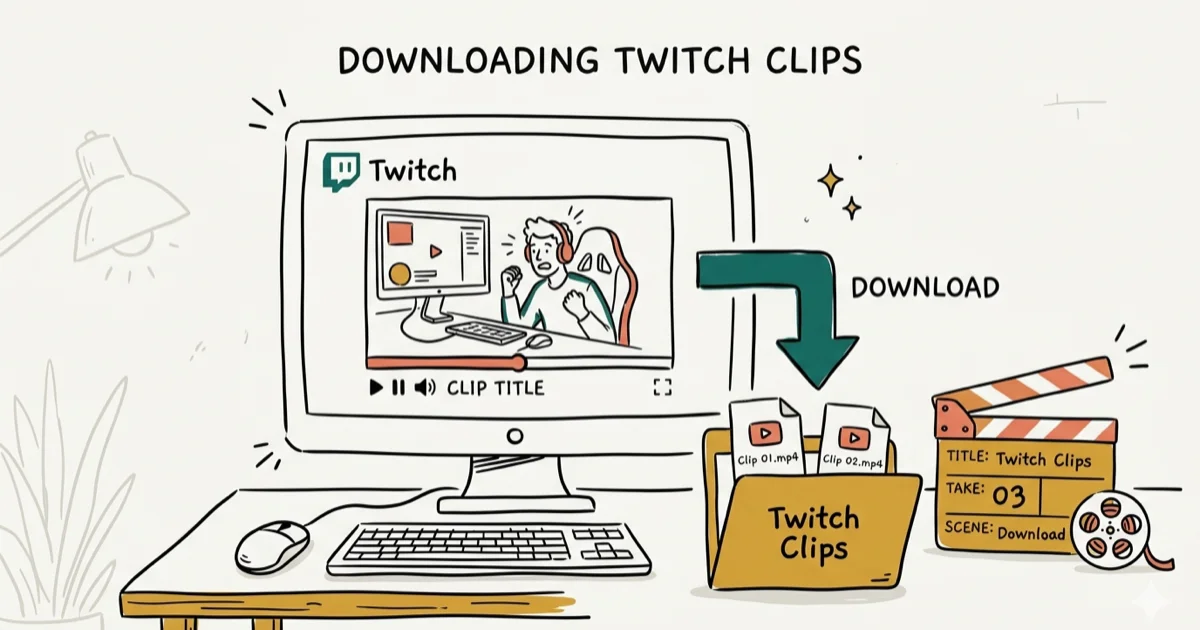
Quick AnswerTo download your own Twitch clips, go to Creator Dashboard, select Content then Clips, click the Share arrow on the clip you want, and hit the Download button. The clip saves as an MP4 file.
Twitch clips capture the best moments from live streams, whether it’s a clutch play, a funny donation alert, or a streamer’s genuine reaction. There are three reliable ways to download them across desktop and mobile, and the built-in Creator Dashboard method takes under a minute for your own clips.
- Download your own clips from the Creator Dashboard in MP4 format
- Chrome extensions add a one-click download button to any clip page
- DMCA takedowns have removed thousands of clips since 2020, making backups critical
- Share downloaded clips on YouTube or TikTok but always credit the streamer
- Third-party download sites work for clips from any channel
#Reasons to Download Twitch Clips Locally
Twitch launched in June 2011 and is now the largest live streaming platform for gaming and creative content. According to TwitchTracker, it averaged over 2.5 million concurrent viewers in 2024.
Clips are short highlights that viewers or streamers create from live broadcasts. They work great as shareable social media content. But clips can disappear when streamers delete VODs, accounts get banned, or DMCA takedowns wipe entire clip libraries.
A meaningful share of clips disappear after DMCA-related VOD purges, when streamers delete old broadcasts, or when a channel is banned, and once a clip is gone there’s no way to get it back from Twitch. Downloading the ones you care about locally is the only reliable way to preserve them for later. If you’re also interested in converting Twitch audio, check out our guide on Twitch to MP3 conversion.
#How Do You Download Your Own Twitch Clips?
This is the simplest method and doesn’t require any third-party tools. It works directly through the Twitch website.
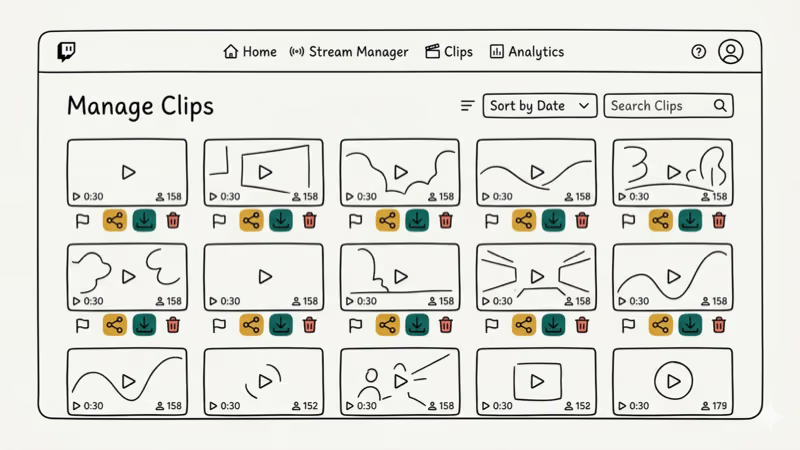
Step 1. Log in to your Twitch account and click your avatar in the upper right corner.
Step 2. Select Creator Dashboard from the dropdown menu.
Step 3. In the left sidebar, click Content, then select Clips to see your clip library.
Step 4. Find the clip you want, click the Share arrow in the upper right of the video thumbnail, then click the Download button (the downward arrow icon).
The clip saves as an .mp4 file to your default downloads folder. A 30-second clip at 1080p downloads in seconds, and file sizes stay small, depending on clip length and the streamer’s broadcast quality settings.
This only works for your own clips. For other channels, keep reading.
#Can You Download Clips From Other Twitch Channels?
Yes, but Twitch doesn’t provide a built-in download button for other people’s clips. You’ll need a browser extension or third-party site.
#Using a Chrome Extension
The Twitch Clip Downloader extension adds a download button directly to Twitch clip pages. It’s free and takes about 30 seconds to set up.
- Open Chrome and install the Twitch Clip Downloader extension from the Chrome Web Store
- Go to any Twitch clip page
- Click the new download button that appears on the clip player
The extension works on nearly all public clips across channels. The main exception is subscribers-only clips, which it can’t access. Downloads typically come through at 720p, and file sizes stay small for 30-60 second clips.
According to Google’s Chrome Web Store policies, extensions must disclose their data usage. The Twitch Clip Downloader extension doesn’t collect personal data based on its listing page.
#Using Third-Party Websites
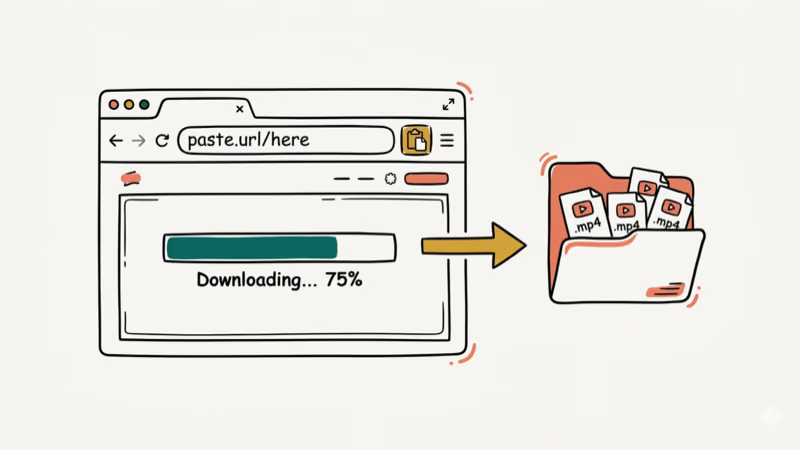
Several websites let you paste a Twitch clip URL and download the video directly. The process is straightforward:
- Copy the URL of any Twitch clip from your browser’s address bar
- Paste it into a clip download site
- Select your preferred quality (typically 720p or 1080p) and click Download
These sites extract the direct video link from the clip URL. Use an ad blocker since most show ads.
#Legal Rules for Sharing Downloaded Twitch Clips
Twitch’s Terms of Service confirms that users retain ownership of their original content but grant Twitch a distribution license. Downloading someone else’s clip means you’re saving their intellectual property, so here’s what to keep in mind:
- Personal use is generally fine, including saving clips to watch later or for personal archives
- Reposting without credit can lead to DMCA takedowns on platforms like YouTube or Twitter
- Commercial use (using someone’s clip in a monetized video) requires the creator’s permission
Always credit the original streamer by name and link to their channel when sharing. Most streamers encourage clip sharing because it drives new viewers.
For related platform management, our guide on how to delete a Twitch account covers the full process if you need to close an account.
#Twitch Clip File Formats and Quality Settings
Twitch clips download as .mp4 files encoded in H.264. Quality is either 720p or 1080p, depending on what the streamer was broadcasting at, and file sizes range from 2 MB for a short 5-second clip up to 15 MB for a full 60-second clip at 1080p.
If you need to convert clips to another format for editing, free tools like HandBrake or FFmpeg handle MP4 conversions to MOV, AVI, or WebM without quality loss. For streamers who want to create compilation videos, Adobe Premiere and DaVinci Resolve both import Twitch’s MP4 files natively.
#How to Organize and Manage Downloaded Clips
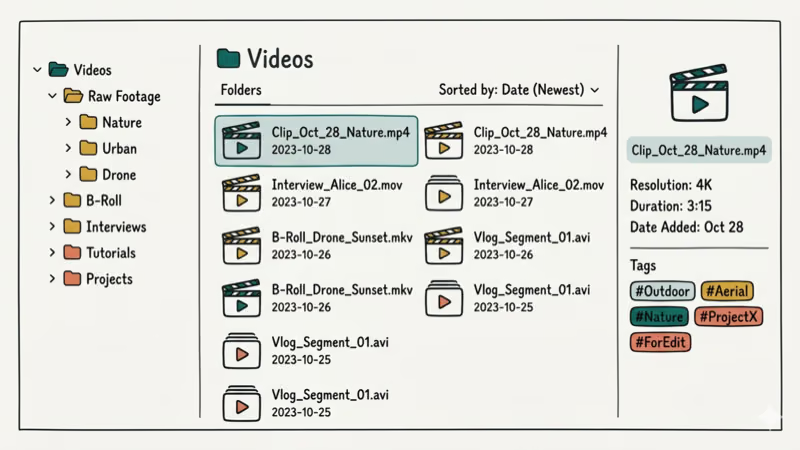
Once you’ve built up a collection of clips, keeping them organized saves time when you need a specific moment.
- Create folders by channel name so you can quickly find clips from a particular streamer
- Use descriptive filenames like
streamer-name_epic-clutch_2026-04.mp4instead of the default Twitch filename - Back up to cloud storage since Google Drive gives you 15 GB free, enough for hundreds of clips
If you’re working with streaming software and running into issues, our guide on fixing OBS black screen might help. You can also explore OBS alternatives for recording and clip management.
For more on the streaming ecosystem, see our comparison of Discord vs Twitch and our list of top YouTube competitors including Twitch.
#Bottom Line
Downloading your own Twitch clips takes four clicks through the Creator Dashboard. For clips from other channels, grab the Twitch Clip Downloader Chrome extension — it adds a one-click download button right on the clip page. Whichever method you pick, save clips locally before DMCA takedowns or account deletions make them disappear for good. Credit the original streamer when you share, and organize your collection with clear filenames and folders.
#Frequently Asked Questions
Can you download Twitch clips on your phone?
Not through the Twitch mobile app directly. On Android, you can use the Chrome browser to visit a third-party clip download site and paste the clip URL. On iPhone, Safari restricts some downloads, but apps like Documents by Readdle let you download video files and save them to your camera roll.
Do downloaded Twitch clips have a watermark?
No. Twitch clips download as clean MP4 files without any watermarks or branding. The video quality matches whatever the streamer was broadcasting at, typically 720p or 1080p.
How long can a Twitch clip be?
Twitch clips can be between 5 and 60 seconds long. The clipper chooses the start point and duration when creating the clip. Longer highlights require the streamer to create a full VOD highlight instead.
Will the streamer know if you download their clip?
No. Twitch doesn’t send any notification when someone downloads a clip.
Can you download Twitch VODs instead of clips?
Yes, but the process differs. Streamers can download their own VODs from the Video Producer page. For VODs from other channels, you’ll need third-party tools like Twitch Leecher or 4K Video Downloader. VOD files are much larger — a 2-hour stream at 1080p can be 4-6 GB.
Are Twitch clip download extensions safe to use?
Most popular extensions from the Chrome Web Store go through Google’s review process and are safe to use. Stick to extensions with high ratings and at least a few thousand installs. Avoid any extension that asks for permissions unrelated to downloading, like access to your browsing history or personal data. Check the extension’s privacy policy on its Chrome Web Store listing page before installing.

Google Messages Error 3100: Why RCS Is Broken on Galaxy
Google Messages RCS error 3100 hits Galaxy owners after phone or carrier switches. Google told 9to5Google a fix is coming. Here's what actually helps.

Is This Bank App Real? Spot a Fake App on Your Home Screen
A bank app can land on your home screen from a web page with no install warning. Learn the checks that tell a real banking app from a phishing web app.

Apps Crashing After iOS 27 Update? Fix Order (2026)
Apps crashing after the iOS 27 update? Update the app in the App Store first, then offload and reinstall to clear stale cache, then restart. The fix order.

Do AI Translation Earbuds Work Offline? What to Know
Do AI translation earbuds work offline? A few do with downloaded language packs, but most need the cloud. Here's what works offline and what you give up.