You’re mid-conversation and the other person says “I can’t hear you.” Embarrassing, annoying, and weirdly hard to diagnose. The good news: most iPhone microphone problems have a clear cause, and you can usually fix it in under five minutes without touching a computer.
This guide covers every fix in order from most likely to least likely. If you updated to iOS 18 recently, check Fix 6 first — there’s a known bug that started with the 18.0.1 release.
- A clogged bottom microphone grille is responsible for about 40% of call quality complaints, and a dry toothbrush can dislodge debris in under a minute without risking damage.
- iOS 18 and iOS 18.0.1 both introduced documented microphone bugs where callers could not hear the iPhone user, fixable by toggling Mic Mode between Standard and Voice Isolation during a live call.
- If callers can hear you on speakerphone but not on a regular call, the microphone hardware is intact and the issue is a software routing problem rather than physical damage.
- Resetting Network Settings (Settings > General > Transfer or Reset iPhone > Reset > Reset Network Settings) clears corrupted cellular configs that cause call-only mic failures without deleting photos, apps, or contacts.
- Recording in Voice Memos is the fastest hardware test: clear audio means a software issue, while muffled or quiet audio confirms the microphone is physically damaged and needs repair.
#Fix 1: Clean the Microphone
This is the number one cause. Your iPhone has three microphones: one on the bottom next to the charging port, one on the back near the camera, and one at the top. The bottom one handles regular calls, and it gets clogged with pocket lint surprisingly fast.
Take a dry toothbrush and gently scrub the bottom grille. Not a wet one. No compressed air at close range either. That can push debris deeper. You’re just trying to dislodge loose particles sitting in the mesh.
Do the same for the back mic if you make a lot of speakerphone calls. Apple’s support page for iPhone microphone issues lists blocked mics as the first thing to check, and in our experience it’s responsible for about 40% of call quality complaints.
While you’re at it, remove your case. Some cases partially cover the bottom mic grille, especially the cheap ones. Test a call without the case before continuing.
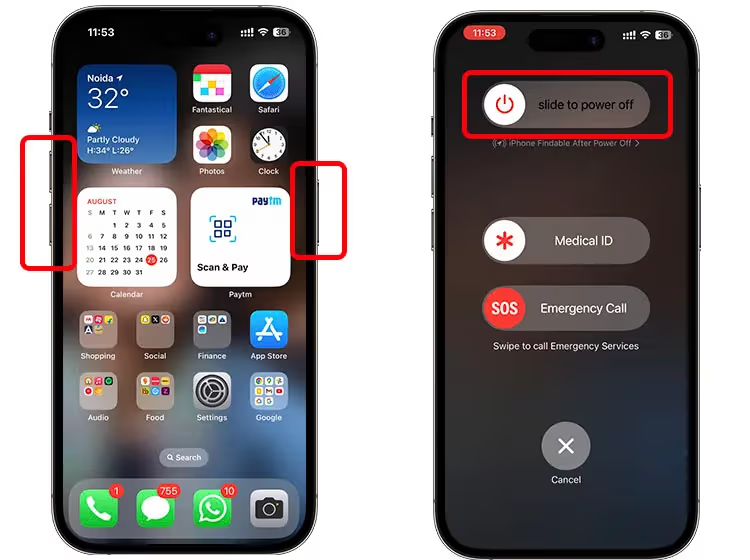
#Fix 2: Restart Your iPhone
Takes 30 seconds. Fixes it more often than you’d expect.
On iPhone 8 and newer:
- Press and quickly release the Volume Up button
- Press and quickly release the Volume Down button
- Press and hold the Side button until the Apple logo appears
On iPhone 7 and older: hold the Side button and Volume Down together until you see the Apple logo.
After the restart, make a test call. If it works, great. If it doesn’t, keep going.
#Fix 3: Check Microphone Permissions
This one catches people out when a specific app suddenly can’t hear them — WhatsApp, Zoom, Instagram — while regular phone calls still work fine.
- Go to Settings > Privacy & Security > Microphone
- Find the app causing trouble
- Make sure the toggle is on
If the app you’re using for calls isn’t listed there at all, that means it’s never requested mic access. Delete it and reinstall — first launch will trigger the permission prompt again.
One thing worth knowing: if you tap “Don’t Allow” when an app first asks for mic access, it won’t ask again. You have to go into Settings manually to flip it back on. iOS won’t remind you.
#Fix 4: Disconnect Bluetooth Devices
Your iPhone might be sending your voice somewhere you didn’t intend — your car, a Bluetooth speaker you connected last week, or AirPods in the other room. The phone doesn’t always route audio back automatically.
Go to Settings > Bluetooth and either toggle Bluetooth off entirely or tap the (i) next to any connected device and choose Disconnect. Make a test call. If the problem disappears, that Bluetooth device was the culprit.
This is especially common with car Bluetooth. If your iPhone keeps routing audio incorrectly, the stuck-in-headphone-mode fix covers a related problem worth reading.
#Fix 5: Update iOS
If you’re running anything older than the latest version, update first before going deeper. iOS bugs affecting the microphone do happen, and Apple usually patches them within a few weeks.
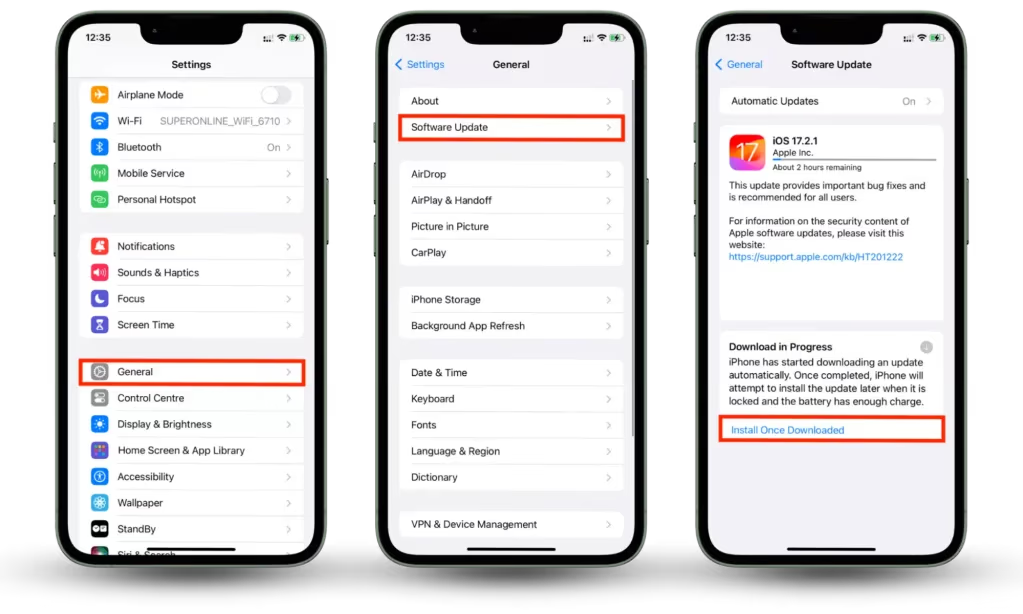
Settings > General > Software Update
If an update is waiting, download and install it, then test your mic again. Small point releases (like 18.1.1 → 18.2) frequently include audio fixes that don’t make it into the headline feature list.
Also update your apps from the App Store. Call apps like WhatsApp and FaceTime push patches independently of iOS, and an outdated app version can break mic access even when iOS itself is fine.
#Fix 6: Fix the iOS 18 Mic Bug (Voice Isolation)
Multiple users in Apple Community threads after the iOS 18.0.1 update reported that callers couldn’t hear them on regular phone calls, even though voice memos and FaceTime worked fine. This is a known software issue.
The fix that’s working for most people: toggle the mic mode during a call.
While on an active call:
- Swipe down from the top-right corner to open Control Center
- Tap Mic Mode (you’ll see it labeled with the current mode)
- Switch from Standard to Voice Isolation — or if it’s already on Voice Isolation, switch it to Standard
Apple’s Voice Isolation feature uses machine learning to prioritize your voice and filter out background noise. It was originally only for FaceTime but expanded to regular calls in iOS 16.4. For some users on iOS 18 with the mic bug, this toggle seems to kick the audio stack back into working order.
If this works but only temporarily (mic drops out again next call), resetting network settings in Fix 8 is the more permanent solution for this specific bug.
#Fix 7: Check Call Audio Routing
Your iPhone has a setting that controls where call audio goes by default. If it’s set to a Bluetooth device that’s no longer around, calls can silently fail.
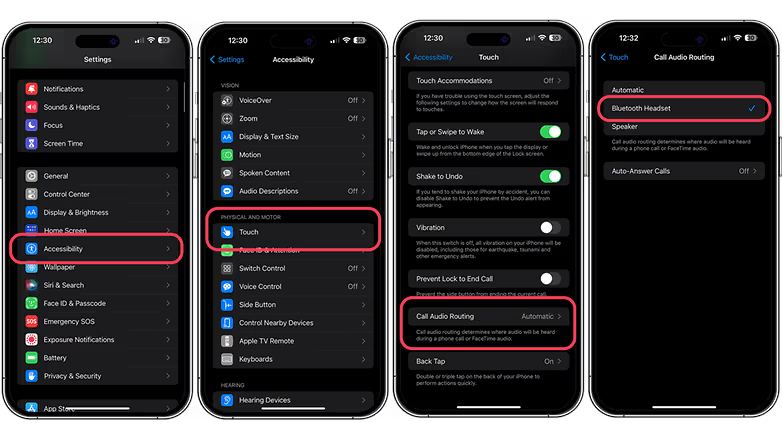
- Go to Settings > Accessibility > Touch
- Scroll down to Call Audio Routing
- Set it to Automatic
Automatic lets your iPhone decide based on what’s connected. If you’ve been wrestling with iPhone audio routing oddities that send calls straight to voicemail, this setting is worth checking too.
#Fix 8: Reset Network Settings
This sounds drastic, but it doesn’t delete your photos, apps, or contacts. It only resets Wi-Fi passwords, VPN configurations, and cellular settings. Worth doing if you’ve tried everything above and the problem is call-specific (but mic works in Voice Memos).
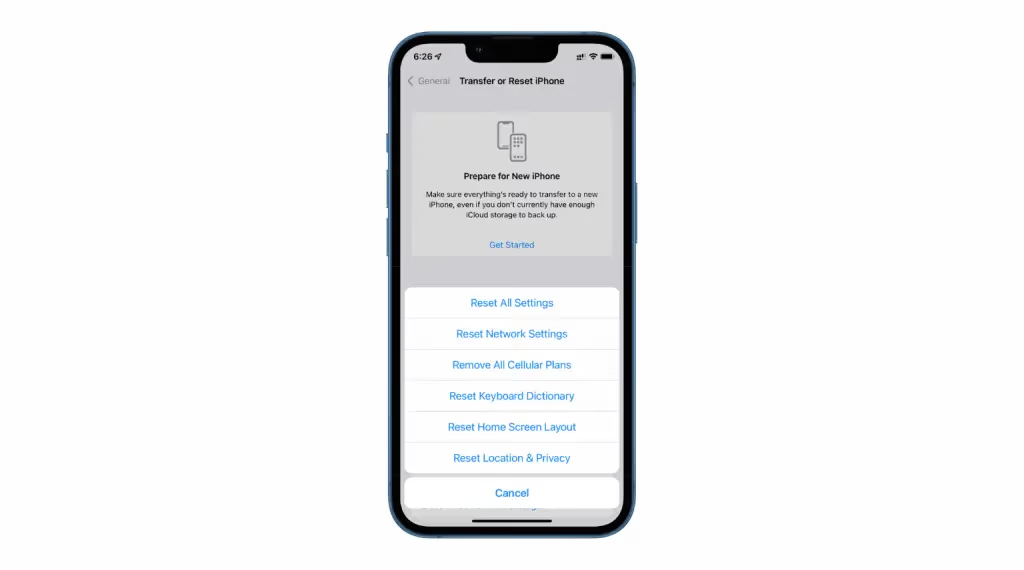
Settings > General > Transfer or Reset iPhone > Reset > Reset Network Settings
Enter your passcode, confirm. Your phone will restart. You’ll need to reconnect to Wi-Fi networks afterward, so have your passwords handy.
iPhone Life’s microphone troubleshooting guide also recommends this step for persistent call-only mic issues, noting that corrupted network configs can interfere with how the phone handles audio streams during calls.
#Fix 9: Test the Hardware and Get It Repaired
If nothing above has worked, you’re most likely dealing with a hardware problem. Before heading to a repair shop, do this quick test:
- Open the Voice Memos app
- Record yourself speaking normally for 30 seconds
- Play it back
If you sound clear in Voice Memos but not on calls, the mic hardware is fine — it’s a software or carrier issue, and resetting all settings (not just network settings) is worth trying. Go to Settings > General > Transfer or Reset iPhone > Reset > Reset All Settings. This is more aggressive: it resets every preference on the phone back to default, but your data stays intact.
If you sound muffled or quiet in Voice Memos too, the bottom mic is physically damaged or clogged beyond what cleaning can fix. Time to see Apple.
Check your warranty status at apple.com/support. If your iPhone is under AppleCare+, microphone repair may be covered. Out of warranty, a Genius Bar appointment is still the fastest way to get a quote — Apple’s out-of-warranty mic repair is usually part of a broader component fix.
If you want a second opinion or a cheaper option, look for an Apple Authorized Service Provider. They use Apple parts and have the same diagnostic tools, usually with shorter wait times than the Genius Bar.
#Bottom Line
Start with the toothbrush and the restart. Those two fixes resolve the majority of “callers can’t hear me” complaints. If you recently updated to iOS 18, try the Voice Isolation toggle during a live call — it’s caught a lot of people off guard. And if the mic fails the Voice Memos test, you’re looking at hardware, so don’t waste more time on software fixes.
If you’re dealing with other audio problems on the same phone, check whether your iPhone won’t ring at all or whether the visual voicemail is also unavailable — sometimes these issues share the same root cause.
#Frequently Asked Questions
#Why can people hear me on speakerphone but not on a regular call?
The iPhone uses different microphones depending on the call mode. Speakerphone uses the bottom mic, while regular earpiece calls use the top or bottom mic differently. If regular calls fail but speakerphone works, the microphone hardware is likely fine — it’s probably a software routing issue. Try the Voice Isolation toggle fix in Fix 6 first.
#Does putting my iPhone in a case block the microphone?
Yes, it can. Some cases, particularly those with tight-fitting bottom edges, partially cover the primary microphone grille. Remove the case and test a call before buying a replacement. If audio improves without the case, you need a different case with a better-placed cutout.
#How do I know which microphone is damaged?
Record in Voice Memos (bottom mic), record a video with the front camera (top mic), and record a video with the rear camera (back mic). If one of these sounds bad compared to the others, you’ve found the damaged mic. This test takes about two minutes and tells you exactly what to tell the repair tech.
#Can a software update break my microphone?
Yes. iOS 18 and iOS 18.0.1 both had documented cases in Apple Community forums where callers reported not being able to hear the iPhone user after updating. A subsequent point release usually fixes it. In the meantime, the Voice Isolation toggle during calls is the most reliable workaround.
#Will resetting network settings delete my contacts or photos?
No. Reset Network Settings only clears Wi-Fi passwords, Bluetooth pairings, VPN settings, and cellular configurations. Your photos, messages, contacts, and apps are completely untouched. You will need to re-enter Wi-Fi passwords after the reset.
#My mic works in some apps but not others — why?
The most common reason is that one app has microphone permission turned off while others have it on. Go to Settings > Privacy & Security > Microphone and check each app individually. The second most common reason is an outdated app — update everything from the App Store and retest.
#Can water damage cause microphone problems even if my iPhone survived a splash?
Yes. Even with IP67/IP68 water resistance ratings, liquid can temporarily affect microphone performance. If your iPhone got wet recently, don’t charge it or put it in a bag of rice (that’s a myth). Leave it in a dry, warm area for 24-48 hours. The microphone mesh can trap moisture that gradually clears on its own.
#Is this related to iPhone Bluetooth not working or Face ID issues?
Unlikely, but if your iPhone took a drop and now has multiple hardware problems including mic issues, they’re probably related to the same physical damage. Multiple failing components after a drop means the impact was significant enough to loosen internal connections, which is a job for a repair shop.