Instagram Reverse Image Search: 5 Tools That Actually Work
Reverse image search Instagram photos with Google Images, Lens, TinEye, Yandex, SauceNAO. Step-by-step on phone and desktop, plus privacy tips.
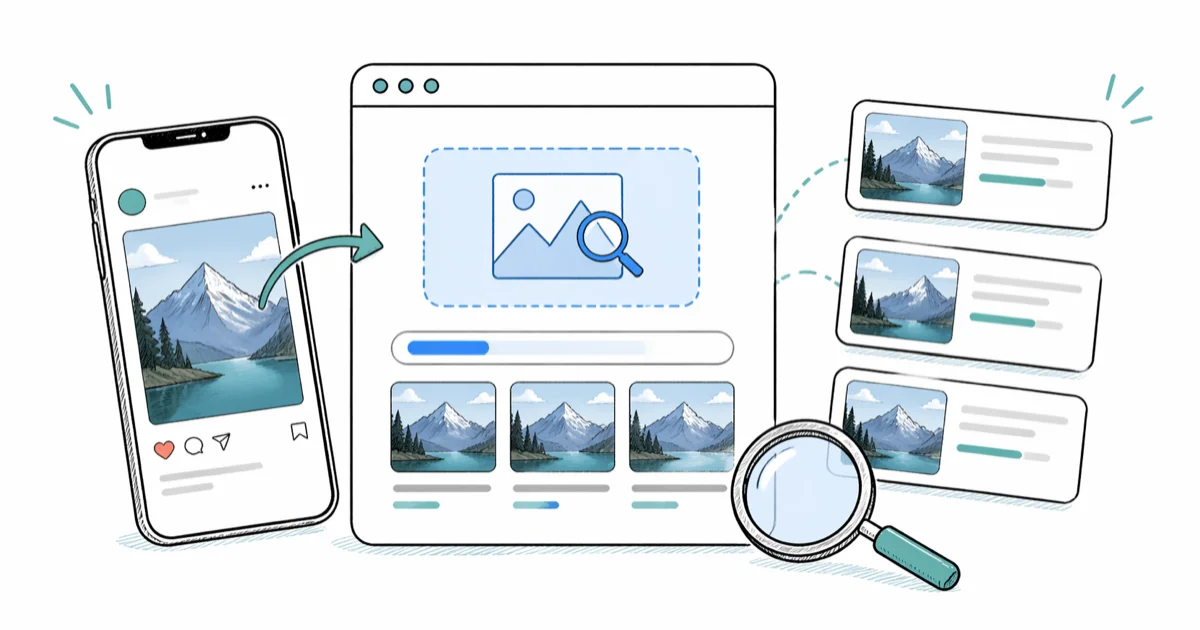
Quick AnswerInstagram has no built-in reverse image search. Save the photo to your device, then upload it to Google Images, Google Lens, TinEye, or Yandex Images to find the original source. The whole process takes under a minute on phone or desktop.
Instagram reverse image search is the fastest way to trace a photo to its original poster, verify a profile picture, or catch a repost of your own work. Instagram doesn’t offer this inside the app, so you need an outside tool. Five engines stand out, each with its own strengths on public Instagram posts.
- Instagram has no native reverse image search; you must download or screenshot the photo first, then upload it to a third-party engine.
- Google Images and Google Lens are the strongest general-purpose starting points because they crawl the open web and Instagram’s public CDN.
- TinEye specializes in exact-pixel matches and is best when you need to find the earliest copy of a photo, not just visually similar ones.
- Yandex Images often returns matches Google misses for stylized or face-cropped photos, but treat its results with extra privacy caution.
- Use these tools only on public posts you have permission to investigate, such as your own photos, suspected reposts, or verifying a public profile claim.
#Instagram Reverse Image Search Explained
A reverse image search uses a photo as the query instead of typed words. You upload the image, the engine compares it against its index, and you get back pages where the same or similar image appears. Instagram itself doesn’t run this kind of search inside the app, which is why every method below routes through an external service.
Three legitimate reasons cover almost every reverse image search worth running:
- Finding the original poster of a photo you saw shared on someone else’s account, so you can credit or follow the source.
- Checking whether your own photos have been reposted without credit, which is a copyright issue covered by Instagram’s Help Center on intellectual property.
- Verifying that a profile picture on a Direct Message or follow request is not stolen from another real person.
Anything outside that scope, such as identifying strangers from a single photo or building a dossier on someone who hasn’t consented, is off the table. Reverse-image-as-doxxing is both against most engine terms of service and, in many jurisdictions, against the law. Use these tools on your own photos or publicly visible posts you have a clear, legitimate reason to investigate.
#How Do You Get an Instagram Photo Onto a Search Engine?
Every reverse image search starts with the same step: you need the photo as a file or a direct image URL. Instagram doesn’t offer a built-in download button, so the methods below are how you get the photo out.
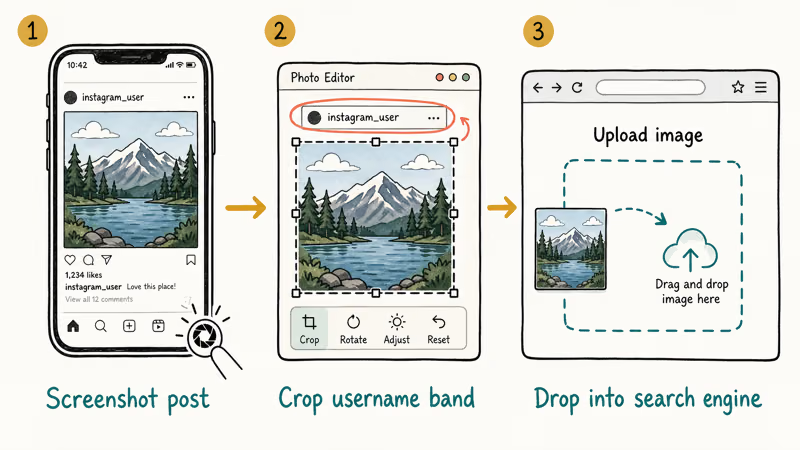
On a phone, the simplest path is a screenshot. Open the post, take a screenshot, and crop out the Instagram interface in your gallery so only the photo itself remains. The cleaner the crop, the better the match rate. According to Google’s reverse image search help page, Google’s reverse search supports JPG, GIF, PNG, BMP, WEBP, and SVG files up to 20 MB, so a cropped phone screenshot at typical 1-3 MB has plenty of headroom.
On a desktop, the fastest method is to right-click the image inside the Instagram web post and choose “Copy image address” or “Save image as.” Some engines like Google Lens and Yandex accept the pasted URL directly. If a site blocks right-click, fall back to a screenshot.
Two cautions before you upload anything. An Instagram screenshot still contains the original poster’s username if the username band is visible. Crop it out for a clean visual match. Stories no longer trigger an in-app screenshot notification for regular posts, but Instagram’s screenshot behavior on disappearing photos still applies to one-time-view photos in DMs.
#Top 5 Tools for Instagram Reverse Image Search
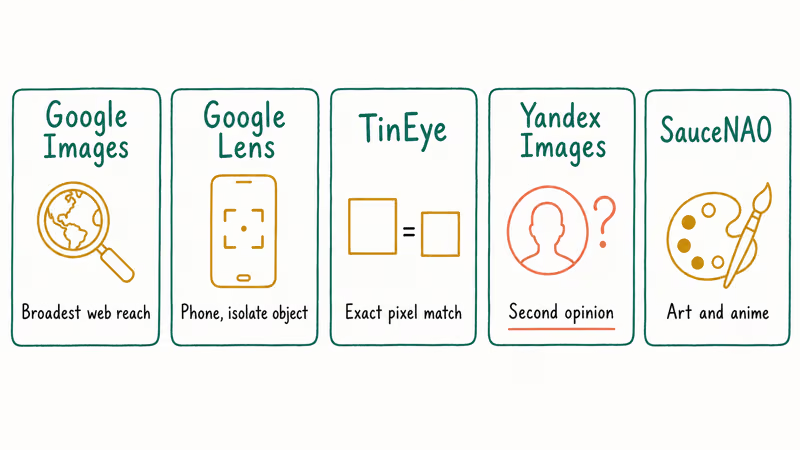
Here are the five engines worth running an Instagram photo through, ranked by how often they return a usable match.
#1. Google Images
Google Images is the broadest reverse image search and the best default. It indexes the public web aggressively, which means most public Instagram CDN URLs and reposts on blogs, Pinterest, or news sites show up.
How to use Google Images for an Instagram photo:
- Open
images.google.comin any browser. - Click the camera icon in the search bar to open the upload dialog.
- Either drag your screenshot into the box or paste an Instagram image URL.
- Review the “Pages that include matching images” list at the bottom for original sources.
Google usually returns the original poster’s account within the first page of results. The exceptions are heavily filtered selfies, which Google flags as “no exact matches found.”
#2. Google Lens
Google Lens is the same matching engine as Google Images but tuned for mobile and visual elements inside the photo. According to Google’s Lens overview page, Lens lets you tap a specific object inside an image, such as a single handbag, plant, or landmark, and search just that region instead of the whole frame, which the desktop Google Images upload flow can’t do.
Lens works from both iPhone Photos and Android Google Photos. Long-press the image, choose “Search with Google” or the Lens icon, and the matches appear without leaving the gallery. For travel photos and product shots, Lens is noticeably faster than desktop Google Images because it skips the file-upload dialog entirely.
#3. TinEye
TinEye is the longest-running dedicated reverse image search and is built for one job: finding exact-pixel copies of an image, not visually similar ones. According to TinEye’s about page, the engine indexes web-crawled photos and lets you sort matches by oldest first, which is the killer feature for tracing the earliest known posting of a photo.
TinEye is built to find exact-pixel matches and rank the oldest copy first, which Google Images doesn’t always do. It’s the better choice if your goal is “where did this photo first appear” rather than “where else does it appear today.”
#4. Yandex Images
Yandex Images, the Russian search engine’s image tool, is the surprise pick. It often surfaces matches Google misses, especially for face-cropped photos and heavily edited images. The trade-off is that Yandex returns less context per result and you should be especially careful not to use it for identifying strangers.
Use Yandex only on your own photos or a clear suspected repost. It can surface the original poster on a repost when both Google and TinEye return no matches. Treat Yandex as a second-opinion tool, not a default, and stay inside the legitimate-use scope above.
#5. SauceNAO
SauceNAO is built for art, illustration, and anime screenshots rather than general photography. It indexes platforms like Pixiv, DeviantArt, Twitter, and various anime databases. If the Instagram photo you are checking is fan art, a manga panel, or an illustration, SauceNAO often finds the artist’s original posting when the general-purpose engines fail.
For ordinary phone-camera photos, SauceNAO is not the right tool. Save it for the niche cases where the image is clearly artwork rather than a real-world snapshot.
#When Each Tool Wins
A quick decision guide for picking the right engine:
- Google Images: default starting point. Best when you want the broadest set of pages where any version of the photo appears.
- Google Lens: fastest on a phone, and the only tool that lets you isolate one object inside a photo (a bag, a sign, a dog) instead of matching the whole frame.
- TinEye: best for “where did this photo first appear.” Sort by oldest match and you get a timeline of every indexed copy.
- Yandex Images: second-opinion engine for face-cropped or heavily edited photos that Google misses. Limit to your own photos and clear repost cases.
- SauceNAO: only useful when the Instagram photo is fan art, illustration, or anime. Skip it for ordinary phone-camera content.
#Step-By-Step: Reverse Image Search From Phone vs. Desktop
The exact taps and clicks are slightly different on each platform, so here is the path for both.
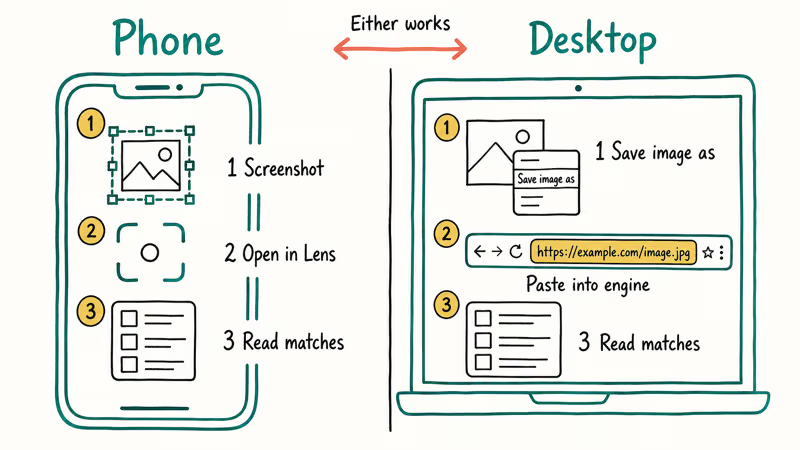
On iPhone or Android:
- Open the Instagram post in the app and take a screenshot of just the photo area.
- Open the screenshot in Photos (iPhone) or Google Photos (Android).
- Tap the Lens icon (Android) or share to Google (iPhone, with the Google app installed). On iPhone you can also long-press the photo in the Google app and pick “Search with Google.”
- Review the matches and tap “Find image source” or scroll to “Pages that include matching images.”
On desktop:
- Open the Instagram post in your browser.
- Right-click the photo and choose “Save image as” to save a clean copy. If right-click is blocked, take a screenshot and crop the photo out.
- Go to
images.google.com,tineye.com, oryandex.com/images. - Drag the file into the upload box, or paste the image URL if you copied the address instead.
- Compare results across at least two engines. Google for breadth, TinEye for exact matches, Yandex for the photos the first two missed.
A short note: the entire workflow takes under a minute once you have the screenshot. Most of the time goes to reading match results, not uploading photos.
#How Can You Protect Your Privacy When Using These Tools?
Reverse image search is a useful tool, but it’s also one of the easier ways to slide into invasive territory. Three rules keep your use clean.
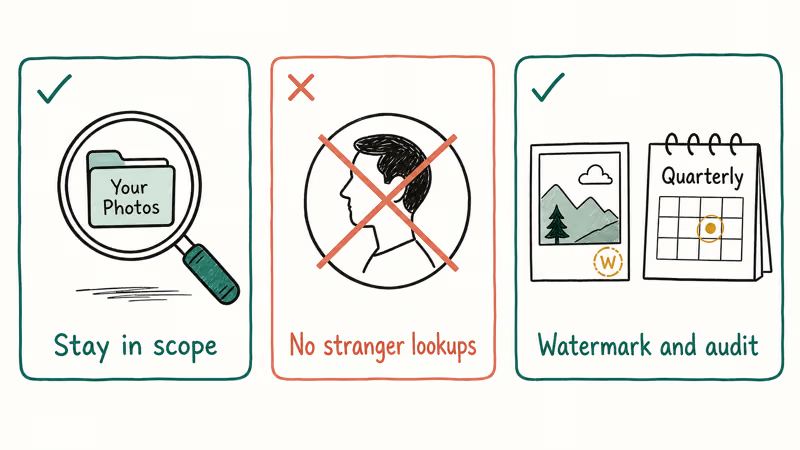
Keep the search inside legitimate scope. Reverse-image-search your own photos, public posts you have a documented reason to investigate, or profile photos you suspect are stolen from a real person. Don’t use these tools to identify strangers or build profiles on private individuals. The Electronic Frontier Foundation recommends treating personal data, including a face photo, as something that requires consent before it gets searched, shared, or stored.
Skip facial-recognition-first services. Tools that lead with “find this person’s other accounts from one face photo” cross into doxxing-adjacent territory and have been restricted in several jurisdictions. Avoid them entirely. The four general-purpose engines above plus SauceNAO are enough for legitimate work.
Watermark and protect what you post. If you regularly post original photography on Instagram, add a small visible watermark and set the account to private if you don’t need a public following. Run a quarterly reverse search on your most-reused images so you catch reposts early. For control over who can see your account, our guide on how to see private Instagram accounts walks through the official privacy settings from the other direction.
#Bottom Line
Start with Google Images for breadth, then run the same screenshot through TinEye for the oldest exact match. If both come back empty and you have a legitimate reason to keep looking, try Yandex Images as a second opinion and limit it to your own photos or clear repost cases. Skip facial-recognition tools entirely. If you are searching because Instagram itself is misbehaving, our guides on Instagram keeps stopping and Instagram notifications not working cover the most common app-side issues.
Instagram Tips & Tricks
#Frequently Asked Questions
Can I reverse image search directly inside the Instagram app?
No. Instagram has no built-in reverse image search button anywhere in the app or on instagram.com. You always need an outside tool. Save or screenshot the photo first, then upload it to Google Images, Google Lens, TinEye, or Yandex.
Are reverse image search tools 100 percent accurate?
No, and you should expect misses. Image quality, cropping, filters, and the size of each engine’s index all affect whether a match comes back. No single tool hits every photo. Running the same screenshot through two engines is the difference between a useful answer and a dead end.
Is it legal to reverse image search Instagram photos?
In most countries the search itself is legal, but your purpose matters. Looking up your own photos, verifying a public claim, or checking a suspected repost is fine. Using reverse image search to identify a stranger, build a profile on a private person, or harass someone is not, and may violate both Instagram’s Terms of Use and local privacy laws.
Does Google Lens work for Instagram reverse image search?
Yes, and on a phone it’s faster than the desktop Google Images flow. Long-press the screenshot in your gallery, pick the Lens or “Search with Google” option, and the matches load without you uploading anything to a website. Lens identifies the original poster about as quickly as desktop Google in most cases.
Should I trust Yandex Images for sensitive searches?
Treat it as a second-opinion tool only. Yandex returns matches Google misses, especially for face-cropped or heavily edited photos, but its result pages give you less context and the engine’s privacy posture is different from Google’s. Use it only on your own photos or clear repost cases, never to identify a stranger.
How can I stop my Instagram photos from showing up in reverse searches?
You can’t fully prevent it, but a few habits help. Set your account to private and add a small watermark to original work you care about. Run a reverse search on your most-reposted photo every few months, and report violations through Instagram’s intellectual-property form.
What about using a phone number or name instead of a photo?
That is a different workflow with different tools. If a profile picture turns up nothing useful and you have a legitimate reason to keep looking, our guide on social media search by phone number covers the official people-search options. Stay inside the same authorization scope: your own contacts, public profiles, or verifying someone’s claim about themselves.
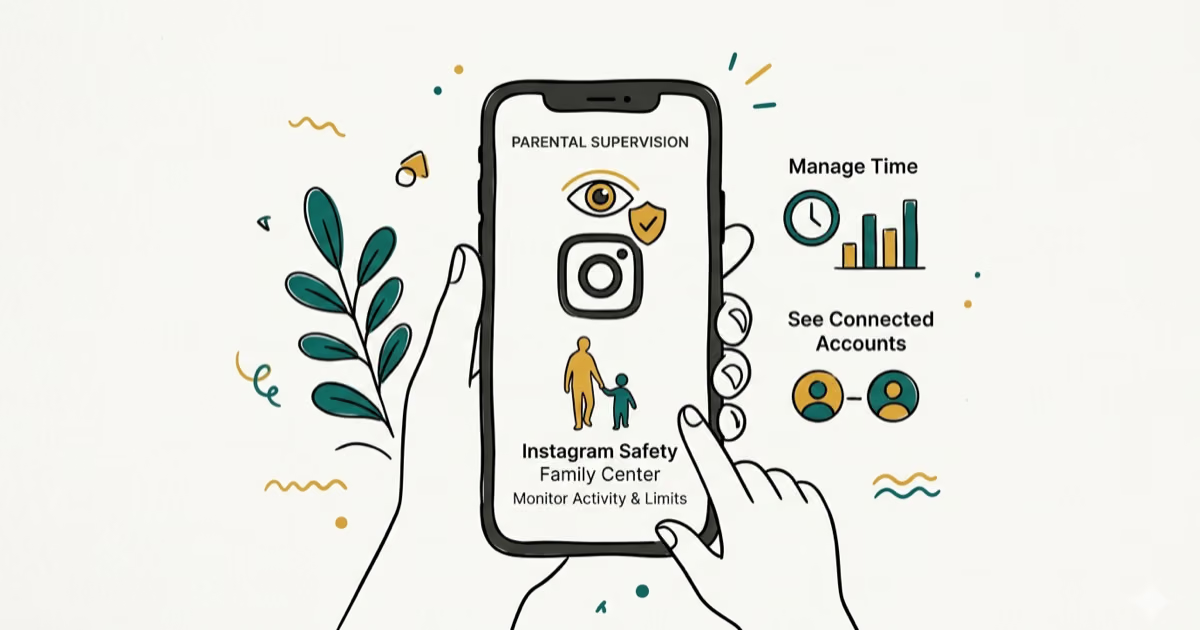
Instagram Parental Controls: Family Center Setup (2026)
Set up Instagram Family Center, privacy settings, Hidden Words, content filters, and time limits with your teen's consent on iPhone or Android.
Instagram Notifications Not Working? Quick Fixes (2026)
Instagram notifications not working? Fix push alerts, DMs, likes, and Stories on iPhone and Android in under 5 minutes with proven 2026 steps.
Instagram "We Limit How Often" Error: How to Fix It 2026
Instagram says "we limit how often you can do certain things"? Wait 24-48 hours, slow down likes and follows, then appeal through Help Center.

Instagram Name Checker: Find Available Usernames Fast
Check Instagram username availability instantly with free tools like Namechk and KnowEm. Find perfect handles and avoid the frustration of taken names.