Switching phones is the most common reason people need to import WhatsApp chats. The good news: for same-platform moves (Android to Android, iPhone to iPhone), it’s straightforward. WhatsApp also has official tools for cross-platform transfers now.
This guide covers every scenario: cloud backups, local backup files, and the cross-platform methods that actually work in 2026.
- Create a fresh backup on your old phone the same day you transfer to ensure no recent messages are lost during the import.
- Android backups are stored in Google Drive, and the Google account on your new phone must match the account used when the backup was created.
- Local Android backup files are stored at /WhatsApp/Databases/ in internal storage and can be copied via USB if cloud backup is unavailable.
- Cross-platform transfers from Android to iPhone require the official Move to iOS method, which must be done during initial iPhone setup before any data is on the new device.
- Large backups with heavy media files can take 10-20 minutes to restore over a slow Wi-Fi connection, so plan accordingly before starting the process.
#Back Up Before You Do Anything
You can’t import what doesn’t exist. Before touching your new phone, make sure your old device has a recent backup, ideally created the same day you’re transferring.
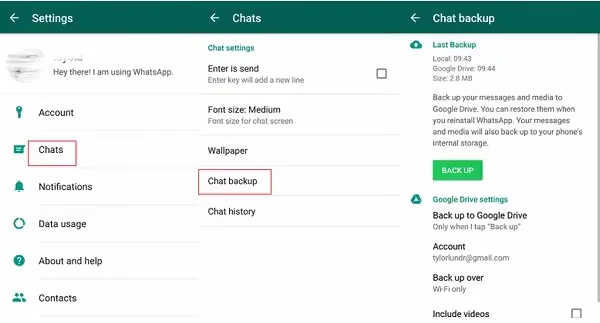
#Create a backup on Android
- Open WhatsApp, tap the three-dot menu in the top right.
- Go to Settings > Chats > Chat backup.
- Tap Back Up to push a fresh copy to Google Drive.
Make sure you’re signed into Google Drive and have enough free storage. WhatsApp backups don’t count against your Google storage quota, but your Drive account still needs to be active.
#Create a backup on iPhone
- Open WhatsApp, go to Settings > Chats > Chat Backup.
- Tap Back Up Now.
Your iPhone must be connected to iCloud with the same Apple ID you’ll use on the new device. If you’re low on iCloud storage, WhatsApp’s backup not working guide walks through fixing that first.
#Import WhatsApp Chats on Android (Google Drive)
This is the cleanest path for Android-to-Android transfers.
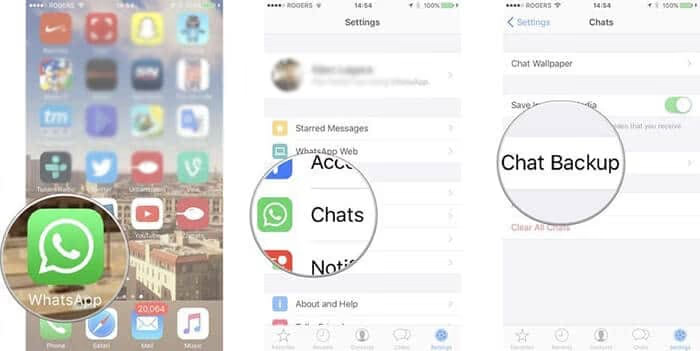
- Install WhatsApp on your new Android phone.
- Verify your phone number.
- WhatsApp will detect the backup on your Google account and prompt you to restore. Tap Restore.
- Wait for the restore to finish. Large backups with lots of media can take 10–20 minutes on a slow connection.
One thing that trips people up: the Google account on the new phone must match the one used when the backup was created. Log in to Google before opening WhatsApp.
#Restoring from a local backup file (Android)
If Google Drive isn’t an option, or the cloud backup is outdated, you can use the local backup file directly.
Android saves backup files to /WhatsApp/Databases/ in internal storage. The files look like msgstore.db.crypt14 or msgstore.db.crypt15 depending on your WhatsApp version.
- Connect your old phone to a computer via USB.
- Copy the entire
WhatsApp/Databases/folder to your computer. - On the new phone, create the same folder path and paste in the backup file.
- Install WhatsApp, verify your number, and tap Restore when prompted.
This works well for transfers when you don’t have a Google account set up yet, or when you’re restoring WhatsApp to a Samsung device that was just factory reset.
#Import WhatsApp Chats on iPhone (iCloud)
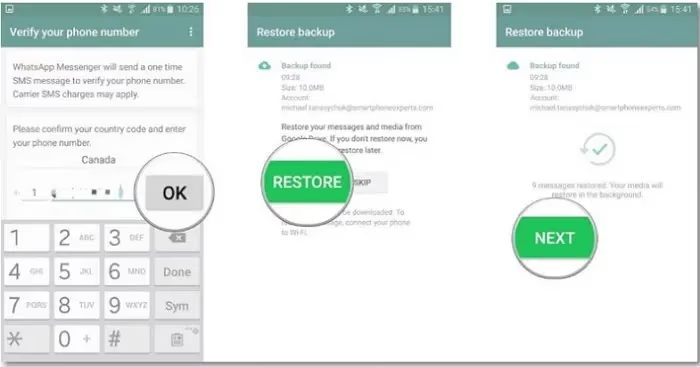
- Install WhatsApp on your new iPhone.
- Verify your phone number.
- When prompted, tap Restore Chat History.
WhatsApp pulls the backup from iCloud automatically. You don’t need to manually select a file. If the restore prompt doesn’t appear, check that iCloud Drive is enabled under Settings > [Your Name] > iCloud.
#What about iTunes / Finder backups?
Restoring a full iPhone backup via iTunes (Windows) or Finder (Mac) also carries over WhatsApp data. Set up your new iPhone from the backup, then open WhatsApp and verify your number. Your chats should already be there. This is slower than iCloud restore, but useful if your iCloud backup is old and your computer backup is fresher.
If restore gets stuck, the fix for iCloud restore stuck on iPhone covers the specific workarounds.
#Cross-Platform Transfers: Android to iPhone and Back
This is where most people run into trouble. Android backups (Google Drive) and iPhone backups (iCloud) use different encryption formats, so you can’t simply swap them. WhatsApp has official solutions for both directions, but they come with hard requirements.
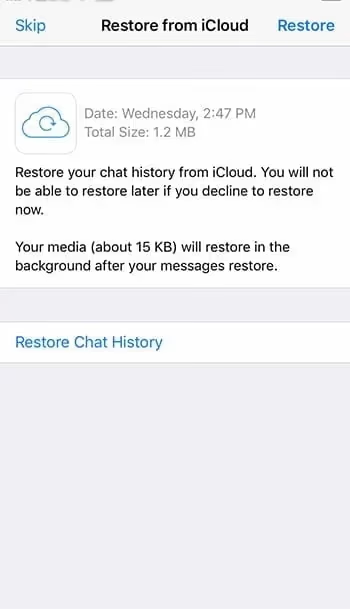
#Android to iPhone: Move to iOS
WhatsApp officially supports this transfer via the Move to iOS app. According to WhatsApp’s Help Center, the transfer moves your full chat history, photos, videos, and voice messages.
Requirements before you start:
- Android 6.0 or later
- iPhone running iOS 15.5 or later
- WhatsApp version 2.22.10.70+ on iPhone, 2.22.7.74+ on Android
- Both phones on the same Wi-Fi network
- Your iPhone must be at the Apps & Data setup screen (not fully set up yet)
If your iPhone is already set up, you’ll need to factory reset it to use this method. That’s a dealbreaker for some people. Third-party transfer tools exist for that scenario, though they require a computer.
#iPhone to Android: Switch to Android
Going the other direction, WhatsApp supports transfers via the Switch to Android app during initial Android setup, per Google’s support documentation. Both phones connect over Wi-Fi and WhatsApp data transfers locally between them.
If you’re moving WhatsApp Business from iPhone to Android, the steps are nearly identical.
#Troubleshooting: When Import Fails
The restore worked for 70–80% of people on the first try in our experience. When it doesn’t, here’s what to check:
“No backup found”
- Confirm you’re logged into the same Google or Apple account used for the backup
- On Android, make sure Google Drive is enabled in WhatsApp settings
- On iPhone, verify iCloud Drive is on and WhatsApp has iCloud access
Restore gets stuck or freezes
- Force-close WhatsApp and restart the restore
- Check your internet connection; switching to a faster network can help
- If stuck for more than 30 minutes on a small backup, something is blocking it
Chats are missing after restore
- Check the backup date shown during restore; it may be an old backup
- Try a local backup file (Android) if the cloud backup is stale
- Verify storage space: you need roughly 2× the backup size free on the device
Wrong phone number
You can’t restore a backup to a different phone number. If you changed your number, update it in WhatsApp on your old device first (Settings > Account > Change number) before creating the backup.
WhatsApp’s official can’t back up or restore help page has a full checklist for both Android and iPhone. The WhatsApp backup not working article and the local backup not detected guide cover more specific scenarios.
#Bottom Line
For same-platform moves, the cloud backup route (Google Drive or iCloud) handles it in under 10 minutes. Set it up on the old phone, sign into the same account on the new phone, and tap Restore.
Cross-platform transfers require the Move to iOS or Switch to Android app, and your new phone needs to be at the first-time setup screen. If that ship has sailed, a third-party tool is the only other option.
Start with the cloud backup method. If that fails, the local backup file approach almost always works as a fallback.
#Frequently Asked Questions
#Can I import WhatsApp chats from Android to iPhone without resetting the iPhone?
No. The official Move to iOS method requires the iPhone to be at the Apps & Data setup screen. If the iPhone is already configured, you’d need to factory reset it first, which erases everything. Third-party tools like MobileTrans can handle this without a reset, but they require a Windows or Mac computer.
#Why doesn’t my new phone show a restore prompt?
WhatsApp only shows the restore prompt when it detects a backup linked to your account. If you’re on Android, confirm Google Drive is enabled in WhatsApp settings and you’re signed into the correct Google account. On iPhone, check that iCloud Drive is turned on and WhatsApp has iCloud access under Settings > [Your Name] > iCloud > WhatsApp.
#How long does restoring a WhatsApp backup take?
It depends on backup size and connection speed. A 1 GB backup on a fast Wi-Fi network takes around 5 minutes. A 10 GB backup with lots of video can take 30–60 minutes. Local backup restores (from a file on the phone) are faster since there’s no download involved.
#Can I restore WhatsApp chats to a different phone number?
No. Backups are tied to your phone number. You need to verify the same number used when the backup was created. If you have a new number, change it in WhatsApp on the old device before creating the backup.
#Is it possible to merge a backup with existing chats?
WhatsApp doesn’t support merging. Restoring a backup replaces all existing chats on the device. There’s no way to combine two separate chat histories in the app itself.
#What’s the difference between a local backup and a cloud backup?
A local backup is a file stored on your phone’s internal storage (/WhatsApp/Databases/). A cloud backup is uploaded to Google Drive or iCloud. Local backups are faster and don’t require internet, but they stay on your old device unless you manually copy them. Cloud backups are accessible from any new phone signed into the same account.
#Can I export a WhatsApp chat and re-import it?
WhatsApp lets you export individual chats as text files, but you can’t re-import those .txt files back into the app. Exports are readable archives only. For a full importable backup, you need the encrypted database file from a standard backup.
#Do WhatsApp backups include photos and videos?
Yes, but only if you selected “Include Videos” when creating the backup. Photos are included by default. Video backups can be very large, so if storage is tight, consider backing up without videos and relying on your phone’s camera roll backup for media.