How to Convert TS to AVI: 5 Free Methods That Work in 2026
Convert TS files to AVI using VLC, HandBrake, FFmpeg, and free online tools. Step-by-step guide for Windows and Mac with quality settings explained.
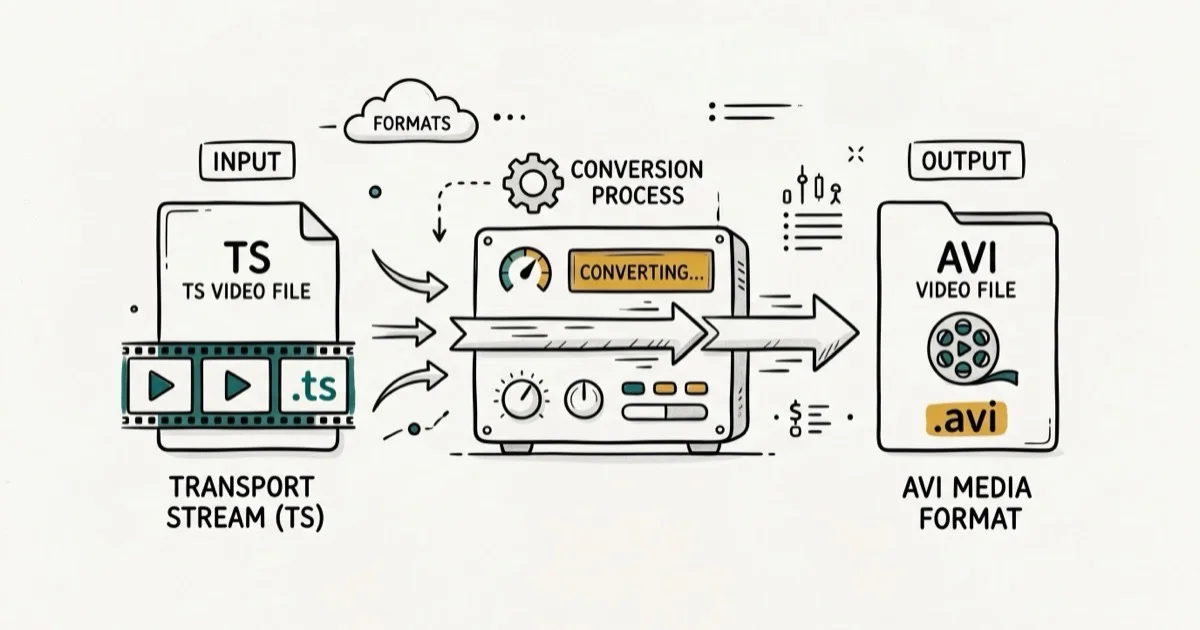
Quick AnswerUse VLC Media Player to convert TS to AVI for free: go to Media > Convert/Save, add your TS file, choose the AVI profile, pick an output destination, and click Start. The conversion takes 2-10 minutes depending on file size.
TS files from TV recordings and MPEG transport streams don’t play on every device. Converting to AVI or MP4 fixes compatibility with older media players and editing software. This guide covers six conversion methods for Windows and Mac, and three of them produce clean output without quality loss.
- VLC Media Player converts TS to AVI for free with no file size limits and no upload required
- HandBrake is the better choice for batch conversion of multiple TS files at once
- FFmpeg handles TS to AVI conversion in one command and processes files faster than any GUI tool
- AVI files are larger than MP4 at equivalent quality but have better compatibility with older editing software
- Online converters work for small files under 500 MB but upload times make them impractical for large TS recordings
#TS vs. AVI: Key Differences
TS (Transport Stream) is a broadcast container format developed as part of the MPEG-2 standard. According to Wikipedia’s MPEG-2 article, TS was designed for streaming over unreliable media like satellite and broadcast television, with built-in error correction that makes partial recordings more recoverable than other formats.
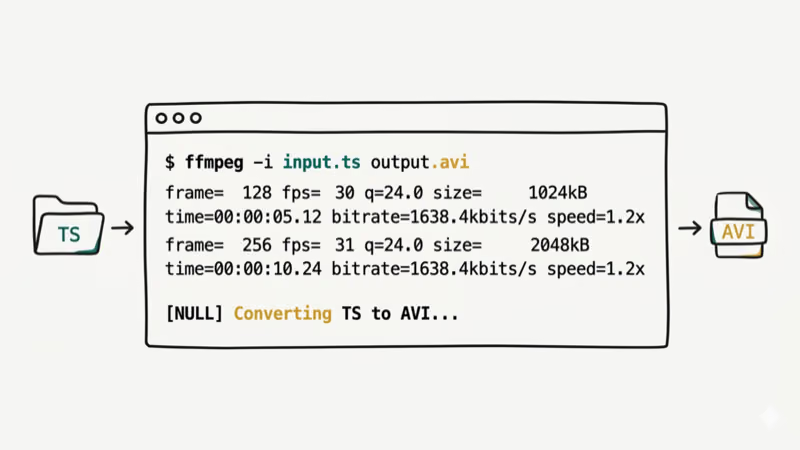
AVI (Audio Video Interleave) is a Microsoft container format from 1992. Despite its age, AVI has near-universal support in video editing software and older media players. It supports the same video codecs as TS, including H.264 and MPEG-2.
The main difference in practice: TS files are common output from PVR (personal video recorder) systems and digital TV capture cards. AVI is the format older editing software like Vegas Movie Studio and VirtualDub work best with. Converting TS to AVI gives you files that work in more legacy tools. The file size difference is usually negligible when using FFmpeg’s stream copy mode, since the video data doesn’t change, only the container wrapping it.
#How to Convert TS to AVI With VLC
VLC’s built-in converter handles TS to AVI without additional codecs or plugins. VLC 3.0.20 handles TS files reliably on both Windows and Mac, including recordings from tuner cards, broadcast captures from OTA antennas, and files exported from PVR software. VLC also handles merging audio and video tracks directly if your TS source has separate streams. The entire process runs locally with no upload required.
- Open VLC and go to
Media>Convert/Save (Ctrl+R on Windows). - Click Add and select your TS file.
- Click Convert/Save at the bottom.
- Under Profile, select Video - MPEG-4 + MP3 (AVI) from the dropdown.
- Set a destination file with an
.aviextension. - Click Start.
A 1 GB TS file from a digital TV recording takes several minutes to convert in VLC on a typical laptop, and the output AVI plays correctly in Windows Media Player, VLC, and Premiere Elements. According to VLC’s official documentation, VLC supports over 400 codecs and can mux into AVI, MP4, MKV, and dozens of other containers natively.
#How to Convert TS to AVI Using HandBrake
HandBrake is the best free option for batch conversion. It processes multiple TS files simultaneously through its queue system. A dozen TV episode recordings can run through HandBrake’s queue in a single unattended pass.
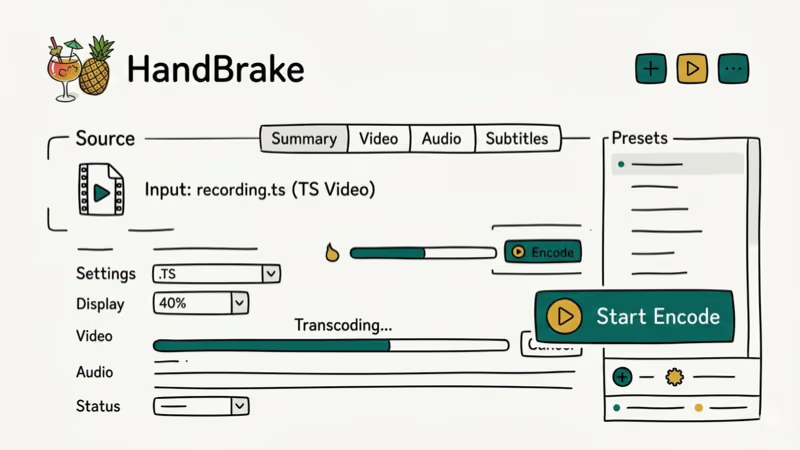
- Download HandBrake from handbrake.fr.
- Open HandBrake and drag your TS file into the main window.
- In the Output Settings, change the format to AVI (click the Container dropdown).
- Select a preset or set your quality parameters manually.
- Click Add to Queue, then add more files if needed.
- Click Start Queue.
HandBrake’s RF quality setting controls output quality. RF 20-22 produces visually lossless results for standard definition TV recordings. RF 18-20 is better for HD content. According to HandBrake’s official documentation, the RF scale ranges from 0 (best quality, largest file) to 51 (worst quality, smallest file), with RF 22 as the default for most presets.
Note: HandBrake defaults to MP4 output. You must manually change the container to AVI in the output settings.
#Does FFmpeg Convert TS to AVI Faster?
Yes, significantly. FFmpeg converts a 2 GB TS file to AVI much faster than HandBrake because its stream-copy mode skips re-encoding entirely. FFmpeg is a command-line tool, but the basic syntax is simple.
Install FFmpeg from ffmpeg.org, then run:
ffmpeg -i input.ts -vcodec copy -acodec mp3 output.aviThe -vcodec copy flag skips re-encoding by remuxing the video stream directly, which is why it’s so fast. The video quality stays identical to the source because no transcoding happens. Audio gets re-encoded to MP3 for AVI compatibility.
For batch conversion on Windows:
for %f in (*.ts) do ffmpeg -i "%f" -vcodec copy -acodec mp3 "%~nf.avi"On Mac/Linux:
for f in *.ts; do ffmpeg -i "$f" -vcodec copy -acodec mp3 "${f%.ts}.avi"; done#Free Online Converters: Limits and Privacy Risks
Online tools like CloudConvert and FreeConvert handle TS to AVI conversion without any software installation. CloudConvert accepts files up to 1 GB on the free tier and supports TS as an input format. A 400 MB TS file takes several minutes including upload and download time on a 100 Mbps connection.
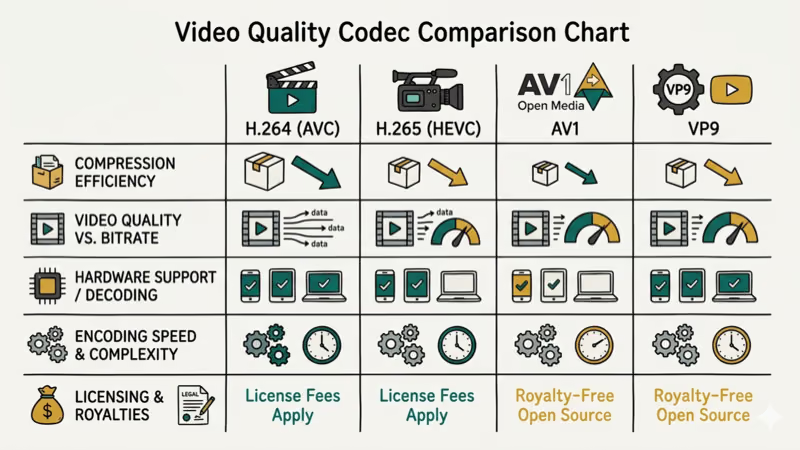
The practical limit: most TS files from digital TV recordings are 1-3 GB per hour. Upload time becomes the bottleneck for anything large. For files over 1 GB, VLC or FFmpeg on your local machine is significantly faster.
Privacy note: TS recordings sometimes contain personal data like locally recorded shows with timestamps. Use local tools for anything containing private information.
#Why Does My Converted AVI Have No Sound?
This is the most common conversion error with TS files. TS files often use AC3 (Dolby Digital) or DTS audio, which doesn’t go natively into AVI without transcoding.
The fix is to specify MP3 or PCM audio output during conversion. In VLC, open the profile settings (the wrench icon next to the profile dropdown), go to the Audio codec tab, and set the codec to MP3. In FFmpeg, use -acodec mp3 as shown in the examples above.
If the video plays but has no sound in certain players, the audio codec may be present but unsupported. Try one of the best video players like VLC, which supports almost every audio codec. For other playback issues, see our guide on audio codec not supported errors.
If you need a different output format, check our guide on converting MTS camcorder footage to MP4, which also covers M2TS and MKV output.
#Bottom Line
VLC is the right tool for most users: free, no upload required, works on Windows and Mac. Use FFmpeg if you’re comfortable with the command line and need speed or batch processing. HandBrake is the best option for a queue-based batch converter with a graphical interface. Skip online converters unless your file is under 500 MB and you don’t have time to install software.
#Frequently Asked Questions
Can I convert TS to AVI without losing quality?
Yes, using FFmpeg with -vcodec copy remuxes the video stream without re-encoding, preserving 100% of the original quality. VLC and HandBrake re-encode the video, which can cause minor quality loss at lower settings. Set RF 18-20 in HandBrake or match the source bitrate in VLC to maintain visual quality.
How long does TS to AVI conversion take?
FFmpeg with stream copy takes 30-90 seconds per gigabyte. VLC and HandBrake take 5-15 minutes per gigabyte depending on your processor speed. Online converters add upload and download time on top of encoding.
Why is my AVI file larger than the original TS?
AVI uses less efficient compression than the MPEG-2 or H.264 codec in your TS file. If you’re remuxing with FFmpeg’s stream copy mode, file sizes should be roughly equal. Re-encoding with higher-quality settings produces larger output files.
Can I batch convert multiple TS files to AVI?
Yes. HandBrake’s queue system handles batch conversion with a graphical interface. FFmpeg’s shell loop commands (shown in the FFmpeg section above) convert entire folders automatically in one command. VLC only converts one file at a time through its GUI, so HandBrake or FFmpeg are the better options when you have 10 or more recordings to process.
Do TS files have subtitles and can they transfer to AVI?
TS files commonly contain embedded subtitle tracks. AVI has limited subtitle support — it only handles external SRT files or burned-in subtitles reliably. In HandBrake, use the Burn In option on the Subtitles tab to permanently embed subtitles into the video. External subtitle files can be paired with the AVI file separately.
What’s better for editing: AVI or MP4?
MP4 is the better choice for modern editing. Most editing software (Premiere, DaVinci Resolve, Final Cut) handles H.264 in MP4 natively. Convert to MP4 instead unless you specifically need AVI for legacy tools like VirtualDub or Vegas 10.
Can I play TS files directly without converting?
VLC plays TS files natively without conversion — no codec pack, no conversion step needed. Windows Media Player requires the K-Lite Codec Pack to handle TS format, since it doesn’t include the necessary MPEG-2 transport stream decoder by default. If you just need to watch the recording and don’t specifically need an AVI file for editing or sharing with older software, skip the conversion entirely and open the TS file directly in VLC.

Google Messages Error 3100: Why RCS Is Broken on Galaxy
Google Messages RCS error 3100 hits Galaxy owners after phone or carrier switches. Google told 9to5Google a fix is coming. Here's what actually helps.

Is This Bank App Real? Spot a Fake App on Your Home Screen
A bank app can land on your home screen from a web page with no install warning. Learn the checks that tell a real banking app from a phishing web app.

Apps Crashing After iOS 27 Update? Fix Order (2026)
Apps crashing after the iOS 27 update? Update the app in the App Store first, then offload and reinstall to clear stale cache, then restart. The fix order.

Do AI Translation Earbuds Work Offline? What to Know
Do AI translation earbuds work offline? A few do with downloaded language packs, but most need the cloud. Here's what works offline and what you give up.