Best Cheap Drawing Tablets with Screen: 5 Picks Under $300
Best cheap drawing tablets with screen in 2026: Huion Kamvas 13, XP-Pen Artist 12, GAOMON PD1161, Wacom One, and Simbans PicassoTab reviewed and compared.
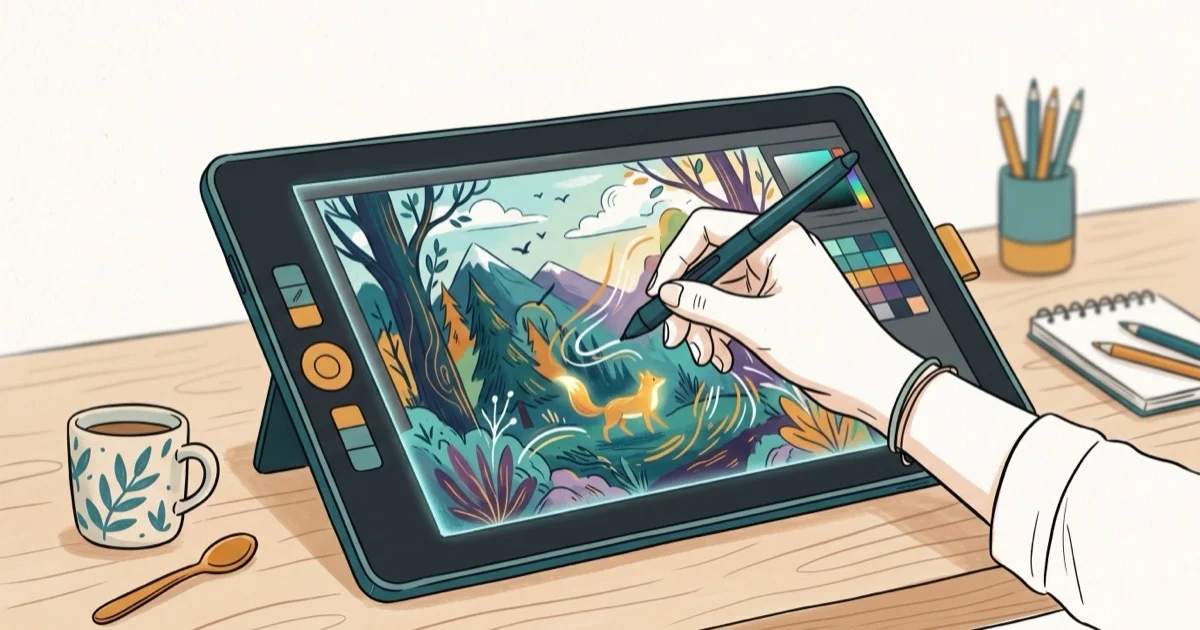
Quick AnswerThe Huion Kamvas 13 is the best cheap drawing tablet with a screen overall, offering a 1920x1080 display, 8192 pressure levels, and tilt support for around $200. For Mac users, the Wacom One is worth the extra cost for its compatibility with third-party styluses.
Drawing tablets with screens used to cost over $1,000. Budget options have closed that gap dramatically. This guide compares 5 cheap drawing tablets with screens across illustration, photo editing, and casual sketching to find the best under $300.
- The Huion Kamvas 13 offers the best value at around $200 with 8192 pressure levels and tilt support
- 8192 pressure levels is the current standard for responsive line weight control in 2026
- Full-laminated displays eliminate parallax between your stylus tip and the visible cursor
- Standalone Android tablets like the Simbans PicassoTab work without a computer
- Screen size matters: a 13-inch display gives you space for detail work without sacrificing portability
#Key Specs to Check in a Budget Drawing Tablet with Screen
Before comparing models, knowing what specs actually matter for your use case saves time and money. Screen size, pressure sensitivity, and lamination are the 3 features that most affect daily drawing experience.
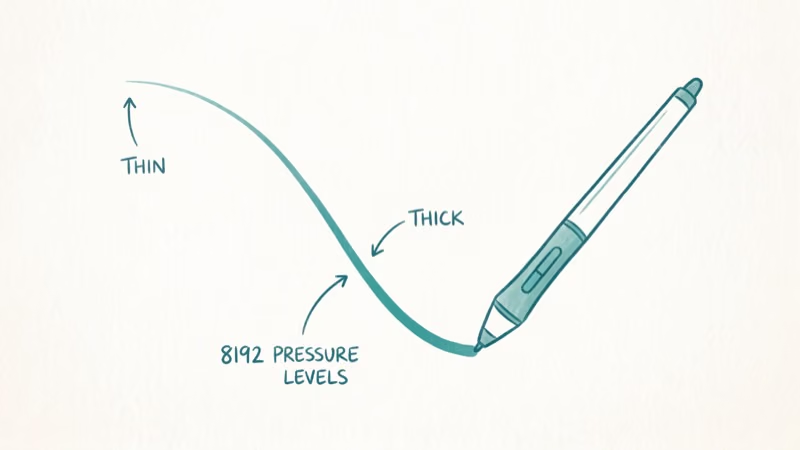
Screen size: 11.6-inch to 13-inch displays are the sweet spot. Larger screens cost more; sub-10-inch screens feel cramped.
Pressure sensitivity: 8192 levels is the current standard, and tablets with fewer than 4096 levels feel noticeably less expressive for brush-based artwork. That said, Creative Bloq’s drawing tablet guide found that beyond about 8,000 levels the extra pressure steps are too granular for the human hand to feel, so build quality and pen feel matter more than the headline number.
Lamination quality is the third key spec. Full-laminated displays reduce parallax, the offset between your stylus tip and the cursor.
For Mac users, check compatibility with your macOS version before buying. You may also want to explore audio interfaces for Mac if you’re building a complete creative workstation setup. Artists working on Samsung devices can check our Samsung tablet battery not charging guide for power-related issues during long drawing sessions.
#Is the Huion Kamvas 13 Worth It for Beginners?
The Huion Kamvas 13 is our top pick for most beginners at around $200.
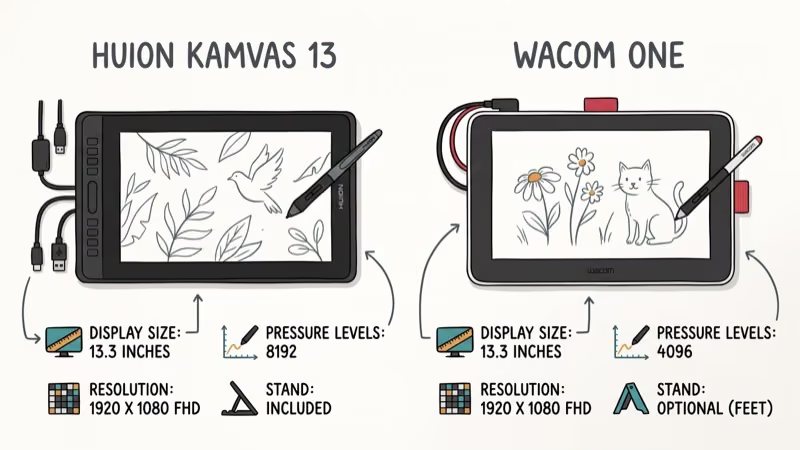
The Kamvas 13 handles both quick concept sketches and detailed line art in Adobe Photoshop and Clip Studio Paint. The 1920×1080 IPS panel has full lamination, accurate colors, and a glass texture that approximates paper feel. The battery-free PW517 pen has 8192 pressure levels and 60-degree tilt support with low reported latency, and its 8 express keys can be mapped to undo, brush resize, and zoom.
One weakness stands out: slight parallax at the screen edges. It’s noticeable in the corners at under an inch of offset, though center-screen precision is excellent.
#XP-Pen Artist 12 Pro: Best for Portability
The XP-Pen Artist 12 Pro at around $200 packs strong features into an 11.6-inch form factor. Its unique Red Dial rotary controller adjusts brush size, zoom, and canvas rotation intuitively, often faster than keyboard shortcuts for size adjustments during rapid sketching.
Full lamination on the XP-Pen reduces parallax across the entire screen surface, not just the center. Color accuracy is close to the Kamvas 13, and the 8192 pressure levels with tilt support are identical to the Huion.
Best for: Traveling artists who need a compact setup for detail-oriented styles.
#GAOMON PD1161: Best for Tight Budgets
The GAOMON PD1161 comes in under $150 and delivers respectable performance for the price. It’s perfectly adequate for beginner illustration work and digital note-taking. The 11.6-inch 1920×1080 IPS display has slightly washed-out colors compared to the Huion and XP-Pen, but acceptable for most users.
Key specs include 8192 pressure levels with 60-degree tilt support, 8 programmable express keys, and a USB-A connection (no USB-C pass-through). There’s no touch functionality — stylus-only input.
For artists just starting out or students on a tight budget, the PD1161 delivers core functionality without the premium.
#Wacom One: Best Build Quality Under $400
The Wacom One costs more than others on this list (around $350) but earns its place with superior build quality and unique compatibility. It accepts third-party styluses including the Samsung S-Pen, which no other budget tablet on this list offers, and it works with Chromebooks and Android devices in addition to Windows and Mac.
The 13.3-inch screen has a natural paper-like texture that feels distinctly different from the glass surfaces of competing tablets, which can make extended drawing sessions feel less fatiguing than on smooth glass panels.
Trade-off: The stylus has 4096 pressure levels, which may feel less sensitive for expressive brush work.
#Does the Simbans PicassoTab Work Without a Computer?
Yes. The Simbans PicassoTab XL is an Android tablet with a built-in pressure-sensitive stylus, functioning completely standalone. At around $200, it’s the only option on this list that doesn’t require a computer connection.
Pre-installed drawing apps (Sketchbook, ibis Paint X) work out of the box. The 2048 pressure levels are lower than dedicated drawing tablets, and the Android ecosystem limits professional software options compared to desktop programs.
Best for: Users who want one portable device for drawing and general tablet use.
If you want a more traditional input experience, pairing a drawing tablet with a pen mouse can extend your options for mixed workflows. Some musicians also find tablets useful alongside tablets for musicians setups for notation software.
#How to Improve Your Experience With Any Budget Tablet
Once you’ve chosen a tablet, a few setup steps significantly improve the experience.
Calibrate the stylus: Even pre-calibrated tablets benefit from a manual calibration pass in the driver software. The difference in cursor accuracy is noticeable at screen edges. XDA Developers’ drawing tablet setup guide recommends calibrating immediately after driver installation and after any major OS updates.
Express key customization is worth 15 minutes of setup time. Default express key assignments are generic. Map them to your 4-6 most-used shortcuts immediately. Undo, redo, brush resize, and zoom are the most valuable for most workflows.
Check driver updates: Budget tablet manufacturers release driver updates frequently. Outdated drivers cause pressure sensitivity issues and software conflicts. Set a monthly reminder to check for updates.
Learning how to mirror on Procreate can speed up character art and symmetrical design work once you’re comfortable with your tablet.
#Bottom Line
The Huion Kamvas 13 is the best cheap drawing tablet with a screen for most artists: solid display, 8192 pressure levels, and good software compatibility at $200. The XP-Pen Artist 12 Pro is the better pick for portability, while the GAOMON PD1161 makes sense if budget is the primary constraint. The Wacom One justifies its premium for build quality and stylus flexibility. Choose the Simbans PicassoTab if you want a standalone Android option that can draw without a computer.
#Frequently Asked Questions
Do I need a computer to use a drawing tablet with a screen?
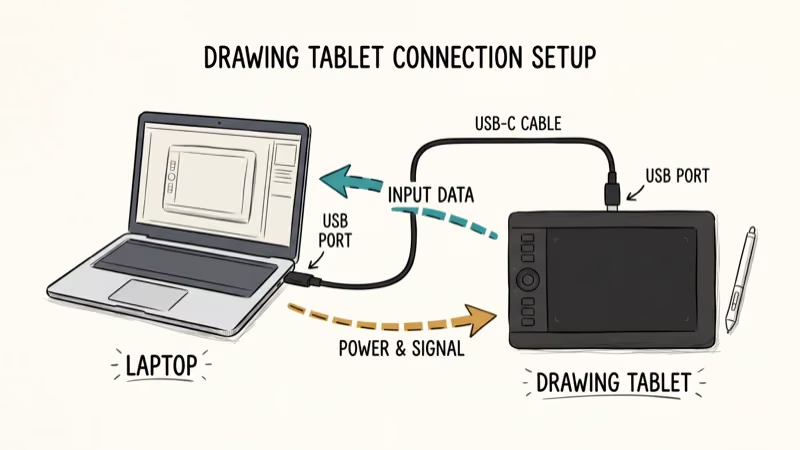
Most drawing tablets with screens require a computer connection via USB-C or HDMI. The Simbans PicassoTab XL is the exception.
Can I use these tablets with Mac, Windows, and Linux?
Most support Mac and Windows. Linux support varies by manufacturer, and Huion plus XP-Pen drivers can lag behind Windows or Mac releases. Always check the manufacturer’s current driver page before purchasing for Linux use.
How many pressure levels do I actually need?
8192 levels is the current standard and what you should aim for. The difference between 4096 and 8192 is noticeable in expressive brush techniques but negligible for line art or technical illustration. Anything below 4096 shows visible stepping in smooth gradient pressure transitions.
What drawing software works with these tablets?
They work with Adobe Photoshop, Illustrator, Clip Studio Paint, Krita, Corel Painter, and Affinity Designer.
How long do stylus nibs last?
Nib life depends on drawing style and surface texture. Aggressive shading on textured surfaces can wear nibs in 1-2 months. Lighter digital sketching may last 6-12 months per nib. All 5 tablets include replacement nib sets in the box.
Do these tablets work with Chromebooks?
The Wacom One explicitly supports Chromebooks. Check each manufacturer’s current compatibility list before buying for Chromebook use.
Is a laminated display worth the extra cost?
Yes, for most users. Non-laminated displays have a visible gap between the glass and screen that creates a parallax offset between your stylus tip and the cursor, which tends to become distracting after a stretch of detailed work. All 5 tablets on this list have fully laminated displays.
What’s the return policy if a tablet doesn’t work for me?
Most major retailers offer 30-day returns on electronics. Buy from Amazon, Best Buy, or direct from the manufacturer for the most flexible return options. Budget tablets from Huion and XP-Pen also come with 1-year manufacturer warranties for defects.
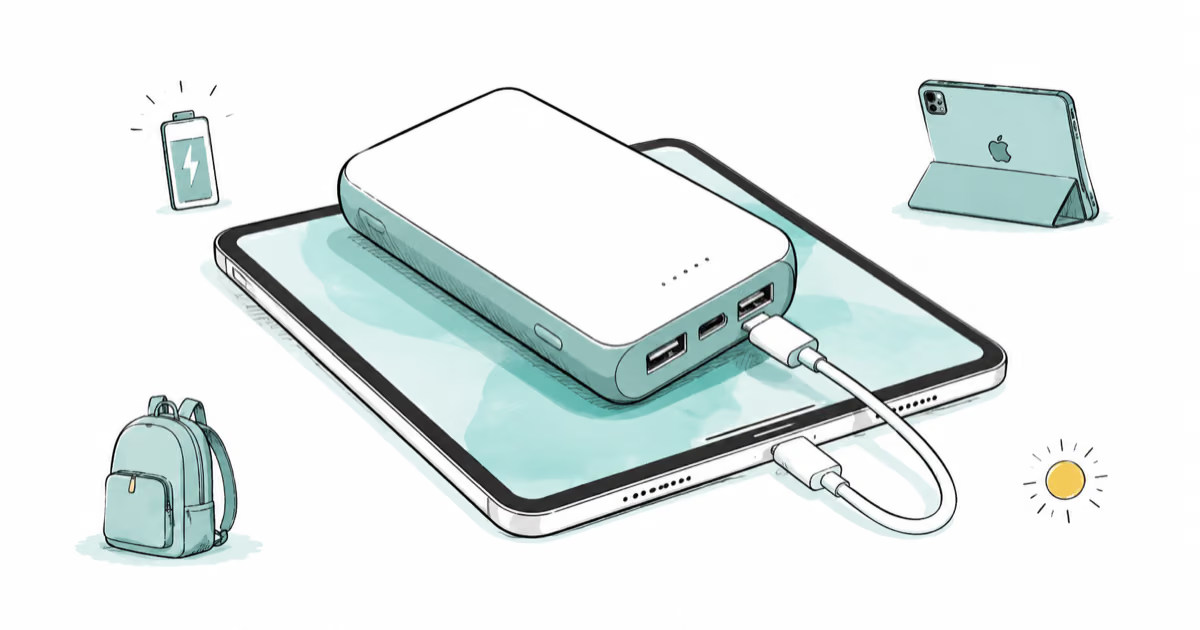
Best Power Bank for iPad in 2026: Pro, Air, and Mini
Best power bank for iPad in 2026. Compare mAh tiers and USB-C PD wattage for iPad Pro, Air, and mini, plus airline Wh math, cables, and travel tips.
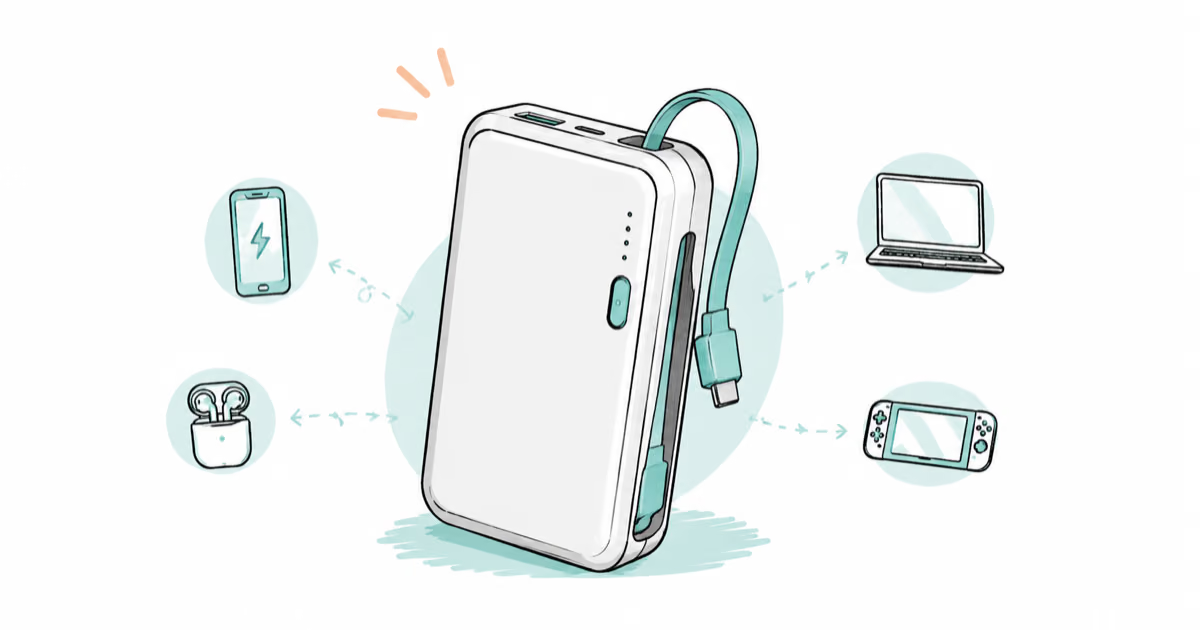
Best Power Bank With Built-In Cable: Top 2026 Picks
Best power bank with built-in cable picks for 2026. Compare single USB-C, multi-connector, and retractable laptop banks, plus airline Wh math.
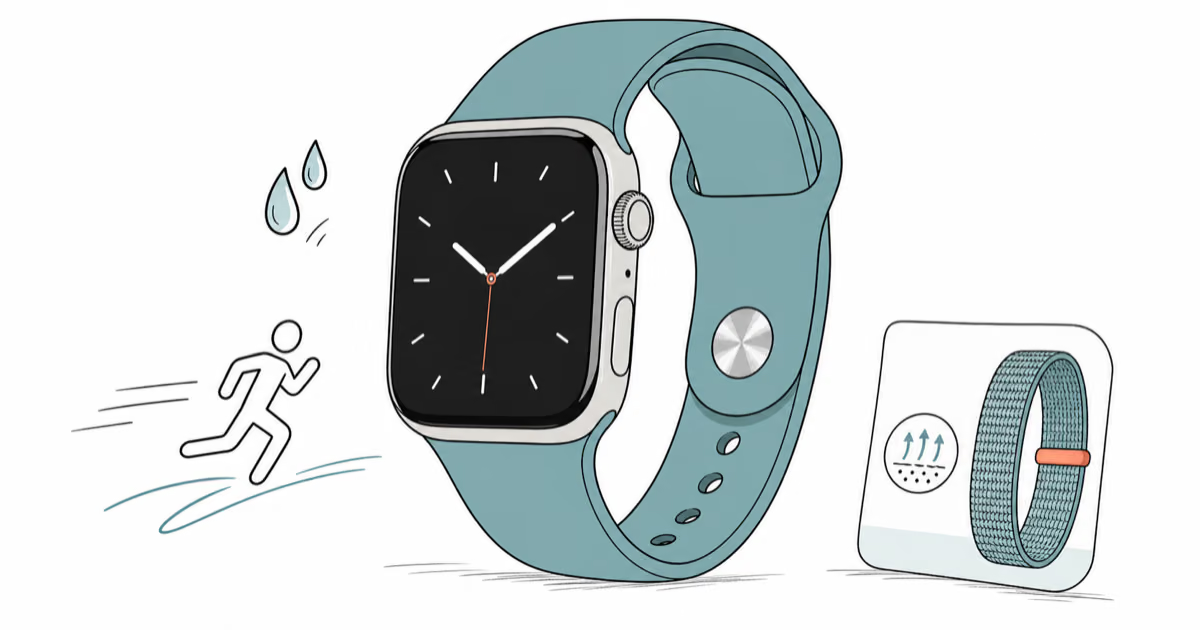
Best Apple Watch Band for Working Out: Proven Picks
The best Apple Watch band for working out handles sweat and stays put on your wrist. Compare silicone, nylon, and titanium picks for runs and lifts.
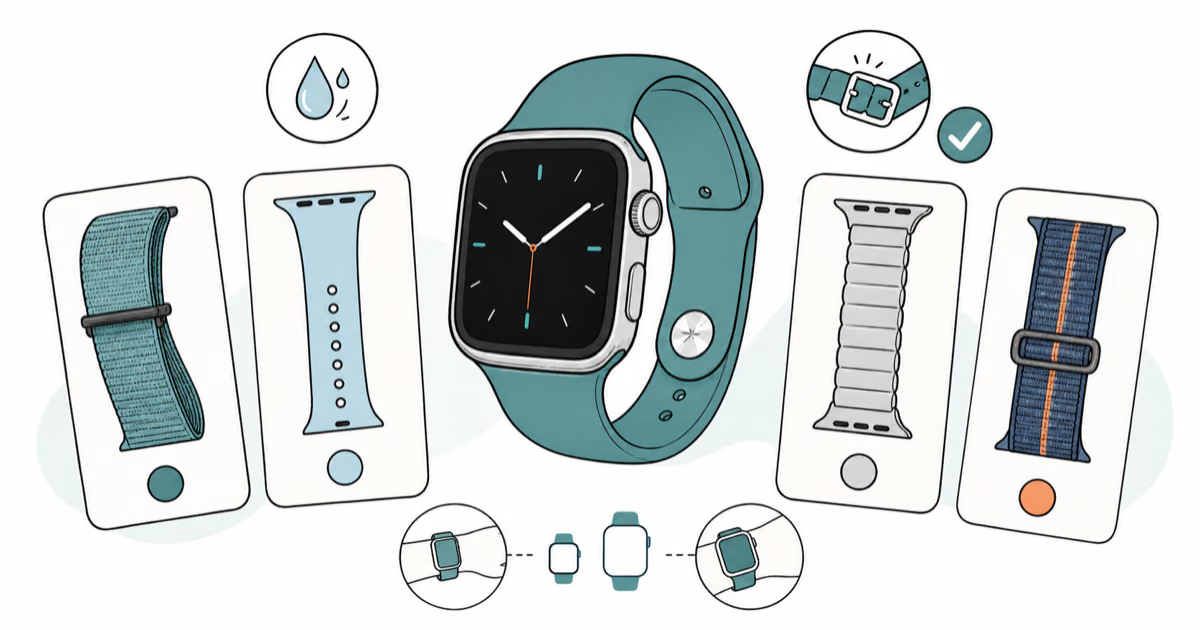
Best Apple Watch Bands: Proven Picks by Size and Style
The best Apple Watch bands depend on your case size group first, then your use. Compare silicone, nylon, stretchy, and steel picks for the right fit.