Fix "Cannot Open Volume for Direct Access" Error: 4 Methods
Fix the "cannot open volume for direct access" CHKDSK error on Windows 10 and 11 with 4 proven methods: disable antivirus, Safe Mode, and boot-time scan.
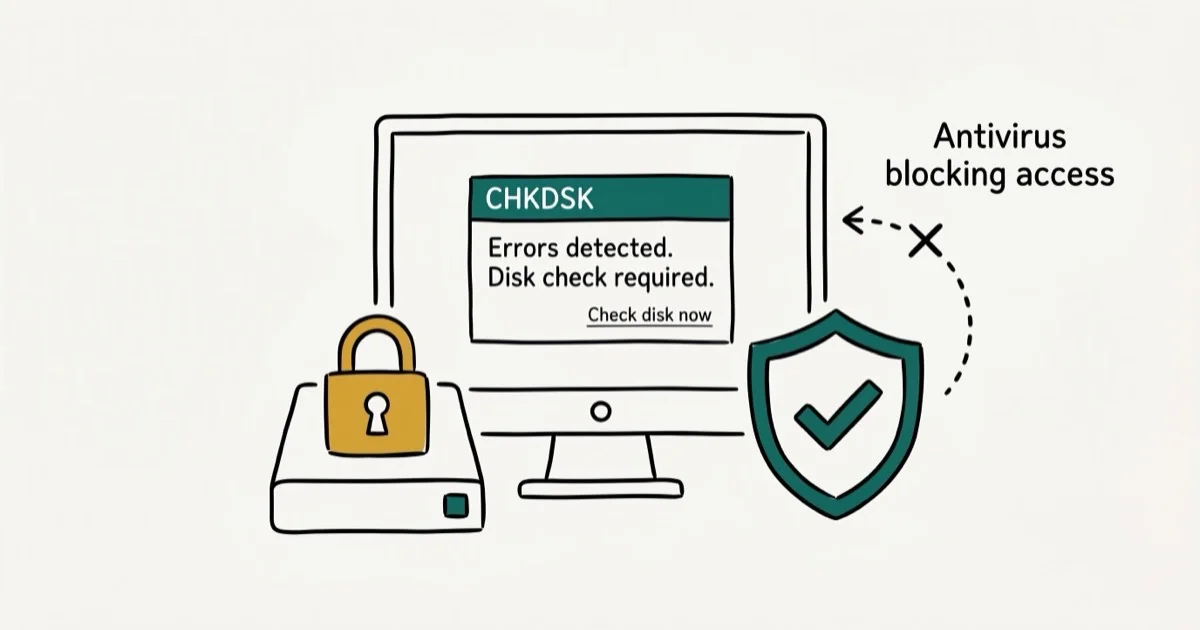
Quick AnswerThis CHKDSK error appears when third-party software is locking the drive. Disable your antivirus real-time protection, then run CHKDSK from Command Prompt as administrator. If that fails, restart in Safe Mode and run CHKDSK again for exclusive volume access.
Windows returns “can’t open volume for direct access” when CHKDSK tries to scan a drive that another program is holding open. Most cases trace back to software locking the volume rather than physical drive damage.
- Third-party antivirus or disk encryption software is the most common cause; disabling real-time protection often releases the lock long enough for CHKDSK to run
- Running CHKDSK in Safe Mode removes most software conflicts because only essential Windows services are active
- Scheduling CHKDSK at next boot with
chkdsk /f /r C:forces the scan to run before any software loads - External drives need to be ejected (unmounted) before CHKDSK can gain exclusive volume access
- Data recovery software can retrieve files from drives too damaged for CHKDSK to repair directly
#Common Causes of This Error
CHKDSK needs exclusive access to a drive to scan and repair it. If any program holds a file handle open while CHKDSK starts, Windows returns “can’t open volume for direct access” and aborts.
The most frequent culprits are antivirus tools that continuously scan files, disk encryption software maintaining a persistent volume lock, and cloud sync apps keeping files open during upload. Antivirus conflict is by far the most common cause for internal drives. External drives and SD cards trigger the error for a different reason: the volume is still mounted, so Windows is actively managing file access and won’t release it to CHKDSK.
According to Microsoft’s CHKDSK documentation, the utility requires that no other process holds the volume locked before it can perform a repair scan, a requirement that applies to both NTFS and FAT32 volumes. The system must have exclusive lock on the entire volume structure to verify and repair metadata accurately.
As confirmed by PCMag’s hard drive health guide, third-party security software ranks as the leading non-hardware cause of failed CHKDSK scans on Windows machines with up-to-date software.
#Method 1: Disable Third-Party Software and Retry
Start here before trying anything more complex. Temporarily disable your antivirus real-time protection, cloud backup client, and disk encryption manager. Then open Command Prompt as administrator and run:
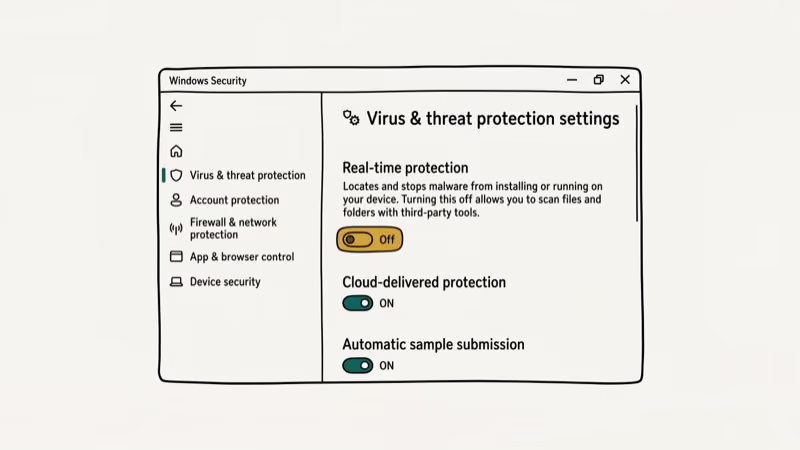
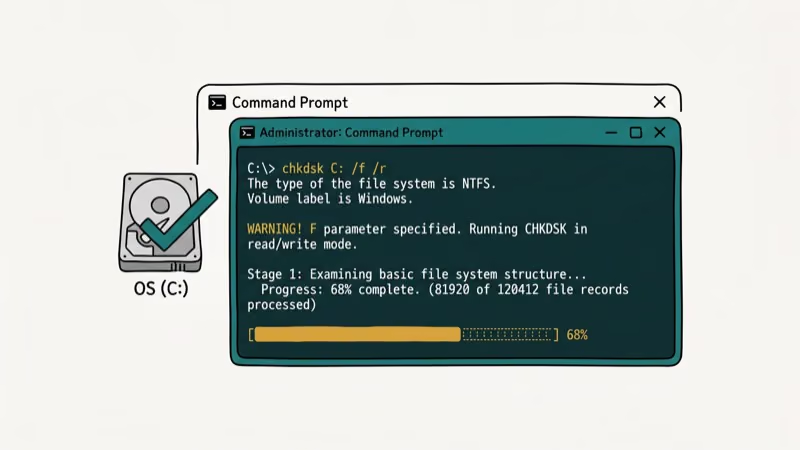
chkdsk C: /fReplace C: with your actual drive letter. If CHKDSK starts scanning, the security software was the blocker. Security tools that lock volumes during active background scans are a common reason this retry works.
Re-enable your security software as soon as the scan completes. Leaving real-time protection off for longer than necessary creates unnecessary risk.
#Method 2: Run CHKDSK in Safe Mode
Safe Mode loads only core Windows drivers and services. It eliminates virtually all third-party software conflicts and is the most reliable fix for stubborn cases. According to Microsoft’s Safe Mode guide, this startup environment disables all non-essential drivers and startup programs, which is exactly what CHKDSK needs for exclusive volume access.
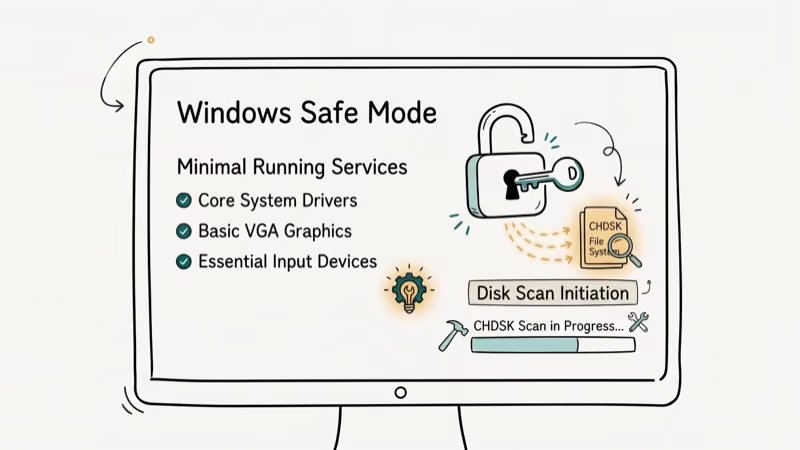
- Press Windows + R, type
msconfig, press Enter - Go to the Boot tab, check Safe boot, select Minimal
- Click OK and restart
- In Safe Mode, open Command Prompt as administrator
- Run
chkdsk C: /f /r
After the scan, return to msconfig, uncheck Safe boot, and restart to return to normal Windows.
#Method 3: Schedule CHKDSK at Next Boot
For your system drive (C:), Windows can’t fully lock the volume while the OS is running. Schedule the check instead:
chkdsk C: /f /rWhen the prompt asks if you want to schedule the check at next restart, type Y. Restart your computer. CHKDSK runs before Windows loads, completing the scan before any software can interfere. A boot-time scan is useful because it runs before background tools can lock the system drive.
If you’re also seeing the file or directory is corrupted and unreadable errors, a scheduled boot scan covers those too.
#Method 4: Clean Boot and Retry CHKDSK
A clean boot disables all non-Microsoft startup programs and services while keeping full network access, which is useful when Safe Mode is too restrictive. This is also the right approach if you need to run CHKDSK on a network-attached drive.
- Press Windows + R, type
msconfig, press Enter - Go to the Services tab, check Hide all Microsoft services, click Disable All
- Click the Startup tab and open Task Manager
- Disable every startup item, close Task Manager
- Click OK in System Configuration and restart
- Run CHKDSK from Command Prompt as administrator
If you see the system cannot find the file specified during this process, double-check the drive letter in your command.
#How Do You Recover Data When CHKDSK Fails Completely?
If CHKDSK reports errors it can’t fix, or if the drive shows signs of physical failure (clicking sounds, very slow reads), use data recovery software before the situation gets worse.
EaseUS Data Recovery Wizard is one Windows option for a paid recovery workflow:
- Install EaseUS Data Recovery on a healthy drive
- Connect the affected drive if it’s external
- Select the drive in EaseUS and click Scan
- Preview recovered files and select what to restore
- Save recovered files to a different drive, never back to the damaged one
Some links on this page are affiliate links, which means fone.tips may earn a commission at no extra cost to you.
Scans typically take 10 to 30 minutes depending on drive size. For partition-level issues, EaseUS Partition Master includes a Check Partition feature that runs surface tests and falls back to CHKDSK, which can succeed when the manual command fails.
#What Happens If CHKDSK Keeps Failing?
Recurring errors after multiple CHKDSK attempts usually signal physical drive failure: bad sectors that CHKDSK marks, but the drive keeps generating new ones. Back up everything immediately and replace the drive.
As noted in PCMag’s guide to hard drive health, a drive that repeatedly fails disk checks despite completed repairs is showing classic early failure symptoms and should be replaced before total failure occurs. Don’t delay the backup.
Related Windows storage errors: if you’re seeing usb device not recognized alongside this issue, the USB controller may need driver updates too. The NTFS.sys error points to deeper file system corruption that CHKDSK alone can’t resolve.
#Bottom Line
This CHKDSK error means the scan is blocked, not that your data is gone. Disable your antivirus first. If that fails, run CHKDSK in Safe Mode or schedule a boot-time scan. Only escalate to data recovery software if CHKDSK finishes but reports unfixable errors, or if the drive shows physical failure signs.
#Frequently Asked Questions
Does this error mean my data is lost?
No. The error means CHKDSK couldn’t start its scan, not that your files are deleted. Your data remains on the drive. Use Safe Mode or a scheduled boot scan to get CHKDSK running, and your files should stay intact throughout the repair.
Can I fix this on an external hard drive?
Yes. For external drives, the volume is usually still mounted. Open Command Prompt as administrator and run chkdsk E: /f (replace E: with your drive letter). If Windows says it can’t lock the volume, right-click the drive in File Explorer, select Eject, then run CHKDSK immediately before Windows remounts it.
Why does antivirus software cause this error?
Real-time protection keeps file handles open constantly as it scans. CHKDSK needs complete exclusive access to the volume structure, so any process with open file handles blocks it. Temporarily disabling real-time scanning releases those locks and lets CHKDSK proceed.
What do the /f and /r flags do?
The /f flag tells CHKDSK to fix file system errors it finds. The /r flag adds a sector-level surface scan and attempts to recover data from bad sectors. Using both is more thorough but takes significantly longer, often 30 to 60 minutes on a 1TB drive.
Should I use third-party tools instead of CHKDSK?
Use CHKDSK first. It’s built into Windows, free, and handles most file system errors well. Third-party tools like EaseUS Partition Master add value when CHKDSK fails entirely or when you need to recover files from a drive Windows won’t repair. Start with the built-in tool and escalate only if needed.
How do I run CHKDSK on a drive that won’t show up in Windows?
If the drive doesn’t appear in File Explorer but shows in Disk Management (diskmgmt.msc), it may have a file system error preventing the drive letter assignment. Right-click the partition in Disk Management, assign a drive letter, then run CHKDSK from Command Prompt.

Best Laptop for Running LLMs in 2026: Memory Comes First
The best laptop for running LLMs is a memory purchase first. Compare MacBook unified memory against NVIDIA laptop VRAM, and see what each tier really runs.

How to Run a Local LLM on Windows: A 2026 Setup Guide
Run a local LLM on Windows with LM Studio or Ollama. Pick a model that fits your GPU memory, keep every prompt offline, and skip the monthly bill.

Bluetooth Not Working on Snapdragon X? Fixes for 2026
Bluetooth not working on your Snapdragon X Copilot+ PC? Generic audio, mice, and keyboards work, but vendor apps often lack an ARM build. Fixes inside.

Docker Desktop and WSL2 Not Working on Snapdragon X? Fix It
WSL2 runs fine on Snapdragon X, but Docker Desktop ARM is Early Access and throws WSL errors. Use WSL2 plus native ARM64 Ubuntu and Docker Engine.