Why Is My Computer Broken? 5 Common Causes and Fixes
Find out why your computer stopped working and how to fix it. Covers hardware failures, malware, file corruption, and data recovery methods.
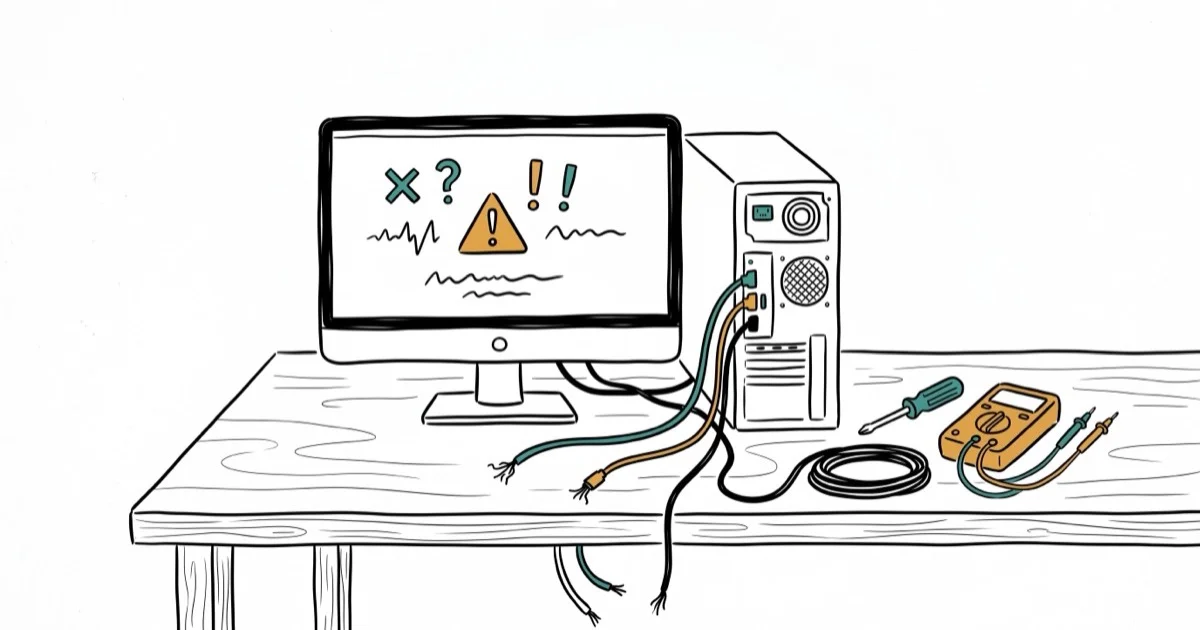
Quick AnswerMost broken computer symptoms come from overheating, corrupted system files, malware infections, failing hard drives, or physical damage like cracked screens. Run a diagnostic scan to identify the exact cause before attempting repairs.
A “broken computer” can mean anything from a cracked screen to a blue screen of death. The fix depends entirely on what broke. The same five problem categories show up again and again: overheating, system-file corruption, malware, drive failure, and physical damage. Here’s how to diagnose and fix each one.
- Overheating causes sudden shutdowns and is fixed by cleaning dust from vents and fans
- Corrupted system files trigger blue screens and can be repaired with the SFC /scannow command
- Malware infections slow down your PC and are removed with a bootable antivirus scan
- A failing hard drive causes freezing and data loss with warning signs that appear weeks before total failure
- Physical damage like cracked screens requires professional replacement costing $80-$300 for laptops
#Signs of a Broken Computer
Before you can fix anything, you need to know what type of “broken” you’re dealing with. Each symptom points to a different cause.
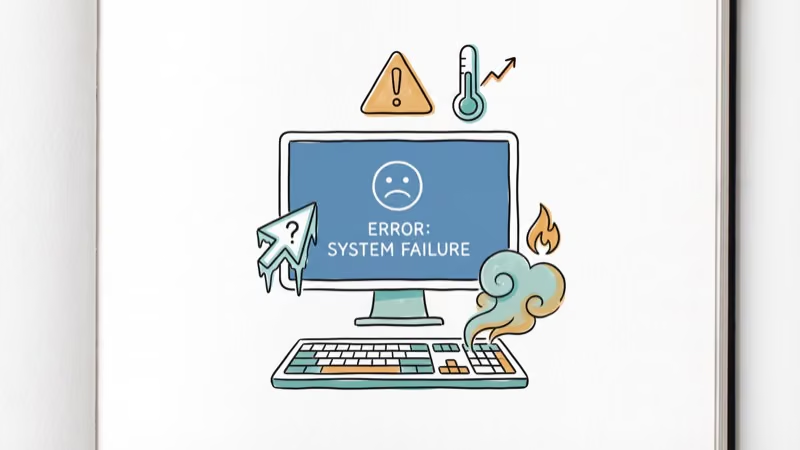
Hardware symptoms:
- Screen is cracked, flickering, or completely black
- PC won’t turn on at all (no lights, no fans)
- Strange clicking or grinding noises from the hard drive
- PC shuts down randomly during use, especially under load
Software symptoms:
- Blue Screen of Death (BSOD) with error codes
- Windows takes 5+ minutes to boot
- Programs crash or freeze constantly
- Error messages about missing DLL files or system files
According to iFixit’s computer troubleshooting guide, the first step is always determining whether the issue is hardware or software. Hardware problems need physical repairs. Software problems can usually be fixed from the keyboard.
For specific Windows errors, our guides on Driver Power State Failure and access violation at address cover two of the most common BSOD causes.
#What Should You Do When Your Computer Won’t Start?
A computer that won’t power on at all is almost always a hardware issue. Use this diagnostic sequence:
Step 1: Check the power source. Plug a lamp into the same outlet to verify it has power. For laptops, try a different charger if you have one.
Step 2: Perform a hard reset. Unplug everything, hold the power button for 30 seconds, then reconnect only the power cable and try again. This drains residual charge that can prevent startup.
Step 3: Listen for beep codes. Most motherboards emit a pattern of beeps when something fails during POST (Power-On Self-Test). One long beep and two short beeps usually means a RAM problem. No beeps at all with the power light on typically points to a dead motherboard.
Step 4: Reseat the RAM. Open the case, remove the RAM sticks, and push them back in firmly until they click. Loose RAM is a common no-boot cause, and reseating it is one of the safest first checks.
Step 5: Try a minimal boot. Disconnect all USB devices, extra monitors, and non-essential internal drives. Sometimes a failed peripheral prevents the PC from starting.
If none of these work, the motherboard or power supply may have failed. A local repair shop can diagnose this with a multimeter in about 15 minutes.
#Can You Recover Files From a Broken Computer?
Yes, in most cases. The method depends on what’s broken.
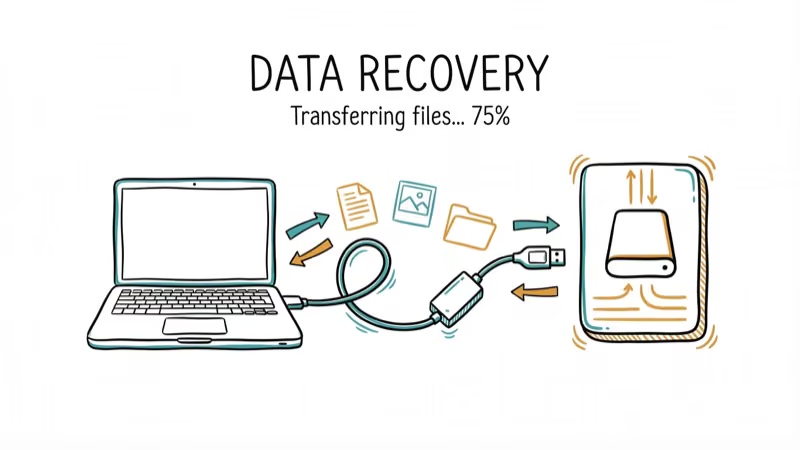
If the screen is broken but the PC turns on: Connect an external monitor using HDMI or DisplayPort. You’ll have full access to your files and can back them up to an external drive.
If Windows won’t boot: Remove the hard drive and connect it to a working computer using a USB-to-SATA adapter (about $12 on Amazon). Your files should appear as an external drive. This method works when the storage drive is still healthy even if the motherboard or screen has failed.
If the hard drive is clicking or not detected: This indicates physical drive failure. Professional data recovery services like DriveSavers can recover data from damaged drives, but the cost runs $300-$1,500 depending on severity.
If you just deleted important files: Run Windows’ built-in file recovery tool or use free software like Recuva. Stop using the drive immediately, because new data can overwrite the deleted files.
For step-by-step instructions, see our Windows file recovery guide.
#Fixing Software Issues on a Broken Computer
Software corruption is the most fixable type of computer problem. You don’t need any special tools.
Fix 1: Run System File Checker (SFC)
Open Command Prompt as administrator and run:
sfc /scannowThis scans all Windows system files and replaces corrupted ones from a cached copy. The scan takes about 10 minutes. Microsoft’s SFC documentation confirms that the tool detects and repairs corrupted or missing system files on Windows 10 and 11.
Fix 2: Check for malware
Download Malwarebytes Free on another computer, copy the installer to a USB drive, and run it on the broken PC in Safe Mode. Malwarebytes Free is useful as an on-demand second-opinion scanner. A full scan takes 15-30 minutes. PCMag’s malware removal guide recommends this same Safe Mode approach for stubborn infections.
Fix 3: Update or roll back drivers
Go to Device Manager, right-click any device with a yellow warning icon, and select Update driver. If a recent driver update caused the problem, choose Roll back driver instead.
If you’re seeing the bad pool caller error, that’s almost always a driver conflict. For general system file repair, our guide on NTFS.sys errors covers another common crash cause.
#Preventing Your Computer From Breaking Down
Prevention costs nothing and saves hours of repair time. Start with these maintenance habits:
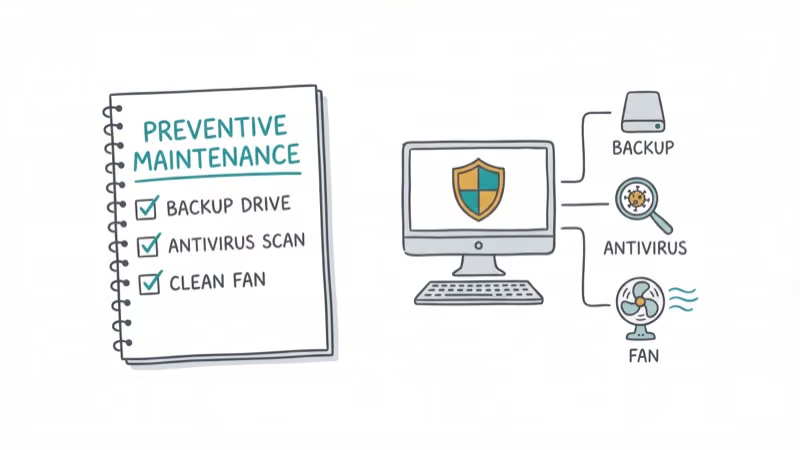
- Clean dust from vents every 6 months with compressed air. Dust buildup is the #1 cause of overheating and random shutdowns on laptops.
- Keep Windows and drivers updated. Automatic updates fix security holes that malware exploits.
- Don’t install software from unknown sources. Stick to the Microsoft Store, developer websites, and established download sites. Sketchy download sites bundle malware with legitimate software.
- Back up weekly to an external drive or cloud service. When hardware fails, backups are the only guarantee your files survive.
- Use a surge protector. A $20 surge protector can save a $1,000 PC from a power spike.
Avoid cleaning your screen with liquid sprays. Use a dry microfiber cloth instead. Liquid can seep into the edges of the display panel and damage it permanently.
#When to Take Your Computer to a Repair Shop
Some problems aren’t worth fixing yourself. A cracked laptop screen, a dead motherboard, or a swollen battery should go to a professional. If your PC makes burning smells or shows visible damage to components, stop using it immediately and bring it in. Most local repair shops charge $50-$75 for a diagnostic, and that fee typically gets applied to the repair cost if you proceed.
#Bottom Line
Diagnose before you fix. Check if the problem is hardware or software first. Software problems get the SFC scan and malware removal. Hardware problems start with reseating RAM and checking cables.
#Frequently Asked Questions
How much does it cost to fix a broken computer?
Software repairs are usually free if you do them yourself using built-in Windows tools. Screen replacements run $80-$300 for laptops. Motherboard replacement costs $150-$400 including labor. Hard drive replacement is $50-$100 for the part plus about $50 for professional installation.
Should I repair or replace my broken computer?
If the repair cost exceeds 50% of what a comparable new PC would cost, replace it. A 5-year-old laptop with a dead motherboard isn’t worth a $350 repair when a new one costs $500-$600.
How do I know if my hard drive is failing?
Warning signs include slow file access, frequent freezing, clicking noises from the drive, and files that suddenly become corrupted. Run CrystalDiskInfo (free) to check the SMART health status. Any yellow or red warnings mean you should back up immediately and plan for replacement.
Can a virus break my computer permanently?
Viruses rarely cause permanent hardware damage. They can corrupt Windows to the point where a clean reinstall is needed, and ransomware can encrypt your files beyond recovery without the decryption key. But the hardware itself survives. A clean Windows install on a formatted drive removes all malware.
Why does my computer keep crashing?
Repeated crashes point to overheating, failing RAM, or driver conflicts. Download HWMonitor (free) to check CPU temperatures. Anything above 90C under load means your cooling needs attention.
How long should a computer last before breaking?
A well-maintained desktop PC lasts 5-8 years. Laptops typically last 3-5 years due to battery degradation and thermal wear from compact designs. SSDs last longer than traditional hard drives, which commonly fail after 3-5 years of continuous use.

Best Laptop for Running LLMs in 2026: Memory Comes First
The best laptop for running LLMs is a memory purchase first. Compare MacBook unified memory against NVIDIA laptop VRAM, and see what each tier really runs.

How to Run a Local LLM on Windows: A 2026 Setup Guide
Run a local LLM on Windows with LM Studio or Ollama. Pick a model that fits your GPU memory, keep every prompt offline, and skip the monthly bill.

Bluetooth Not Working on Snapdragon X? Fixes for 2026
Bluetooth not working on your Snapdragon X Copilot+ PC? Generic audio, mice, and keyboards work, but vendor apps often lack an ARM build. Fixes inside.

Docker Desktop and WSL2 Not Working on Snapdragon X? Fix It
WSL2 runs fine on Snapdragon X, but Docker Desktop ARM is Early Access and throws WSL errors. Use WSL2 plus native ARM64 Ubuntu and Docker Engine.