How to Blow Up Photos Without Losing Quality (2026)
Blow up photos without losing quality using Photoshop, AI upscalers, or free online tools. Compare methods, quality, and speed side by side.
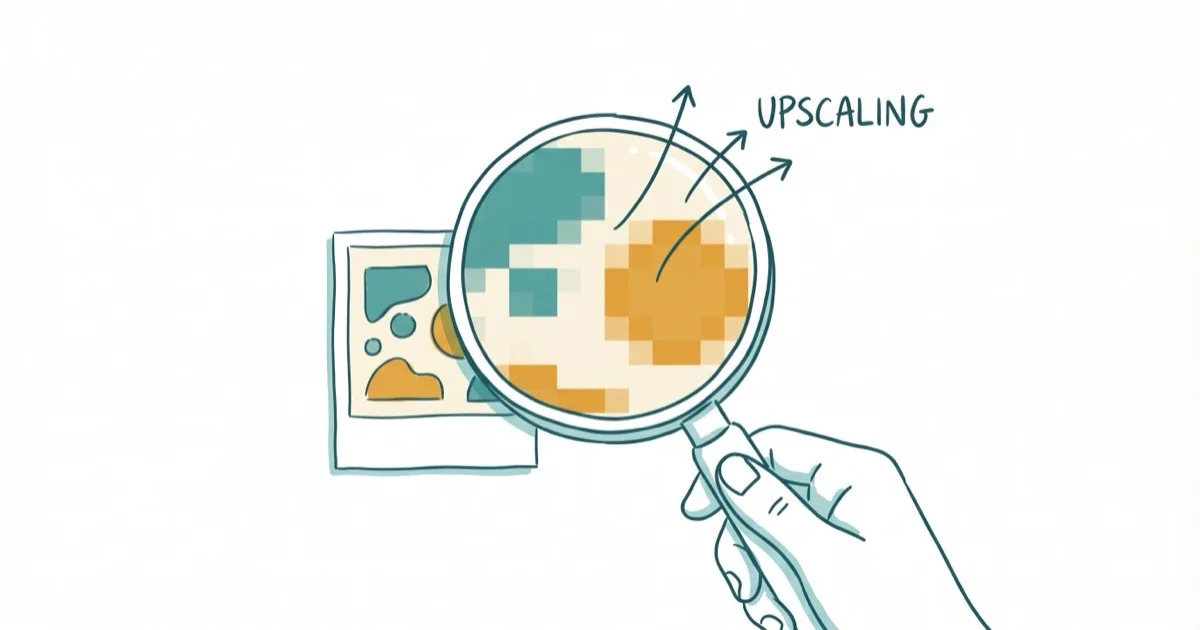
Quick AnswerUse Adobe Photoshop with Preserve Details 2.0 upscaling for the best quality when enlarging photos. For a free alternative, Canva or Pixlr handle basic enlargements up to 200% without noticeable pixelation.
Enlarging a photo past its original resolution usually means blurry, pixelated output. This guide compares six common methods for blowing up photos, from Photoshop to free online tools, and the quality gap between them can be massive.
- Photoshop’s Preserve Details 2.0 produces the sharpest enlargements up to 300% with minimal artifacts
- AI upscalers like Topaz Gigapixel can enlarge photos up to 600% by generating new pixel detail
- Free online tools handle enlargements up to 200% but introduce visible softness beyond that
- Starting with the highest resolution original matters more than which tool you use
- Print projects need 300 DPI at the final size; screen use only needs 72 DPI
#What’s the Best Way to Blow Up a Photo?
The best method depends on your budget and how large you need the final image. For Photoshop users, Photoshop’s Preserve Details 2.0 is the built-in option designed for high-quality enlargements. It analyzes image content and adds sharpness where needed during upscaling, keeping edges crisp while minimizing noise.
For large jumps in size, tools that use dedicated upscaling or AI detail generation generally hold edges better than basic browser resizers.
According to Adobe’s image resizing documentation, Preserve Details 2.0 uses machine learning trained on millions of images to predict and fill in pixel data that doesn’t exist in the original file, which is why it outperforms older bicubic interpolation methods by a significant margin on most photo types.
If you don’t have Photoshop, you can get similar results from your phone. Check our guide on flipping images in Photoshop for more editing basics.
#How to Enlarge Photos in Photoshop
Open your image in Photoshop and go to Image > Image Size. Here’s the step-by-step process:
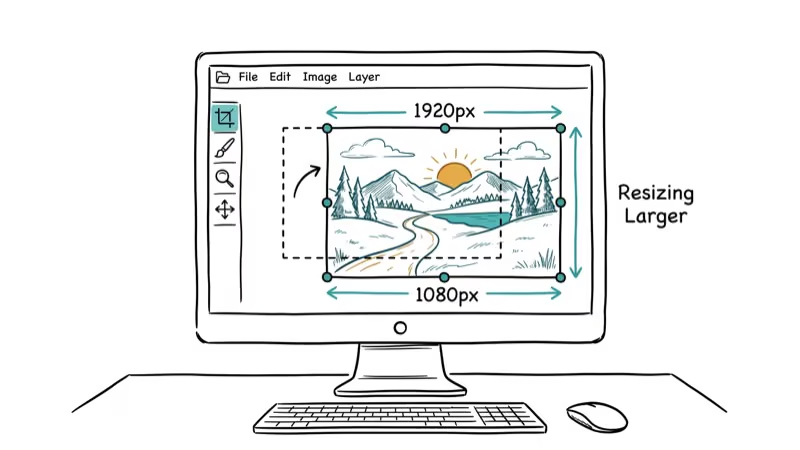
Check the Resample box and select Preserve Details 2.0. Set Resolution to 300 pixels/inch for print or 72 for screen. Enter your target Width and Height, adjust the Reduce Noise slider starting at 20%, then click OK.
The key setting is Preserve Details 2.0. If you don’t see it, go to Preferences > Technology Previews and enable it. Processing time depends on image size and your Mac’s hardware.
For print projects, always check the final output at 100% zoom. What looks sharp at 50% view might show artifacts at full resolution that you’d notice in a physical print.
#Do AI Upscalers Actually Work?
Yes, and they’ve improved dramatically since 2024. AI upscalers like Topaz Gigapixel, Upscale.media, and Let’s Enhance use neural networks trained on millions of image pairs to predict and generate detail that doesn’t exist in the original.
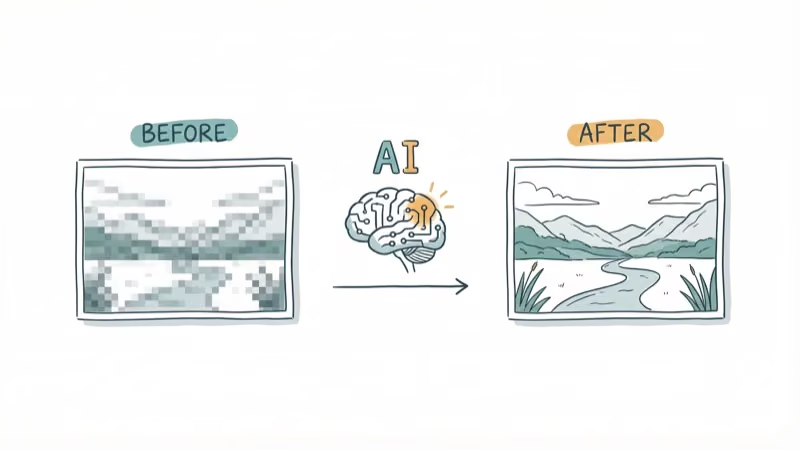
Topaz Gigapixel AI is built for AI upscaling across portraits, landscapes, and other photos. Higher enlargement levels can introduce artificial-looking texture, especially in detailed areas such as foliage.
The main downside is cost. Topaz charges a one-time fee of $99. Free alternatives exist but typically limit file size, output resolution, or number of daily enlargements.
#Free Online Tools for Blowing Up Photos
You don’t need software for basic enlargements. These free tools handle the job:
Canva offers a one-click resize tool. Upload your photo, enter custom dimensions, and download. It works best for enlargements under 200%. Beyond that, edges soften noticeably.
Pixlr runs entirely in your browser and supports layer-based editing similar to Photoshop. Go to Image > Image Size and enter your target dimensions. The quality holds up well for web-sized images but drops for print-quality enlargements.
Photo Enlarger (photoenlarger.com) generates four different enlargement algorithms simultaneously so you can compare results side by side. Use the side-by-side outputs to pick the sharpest version for your specific photo.
If you’re working with photos that need background changes, our guide on changing photo backgrounds to white covers the process in detail. For removing unwanted elements, check how to remove a watermark from a video.
#Key Settings That Affect Enlargement Quality
Several factors determine whether your blown-up photo looks sharp or pixelated:
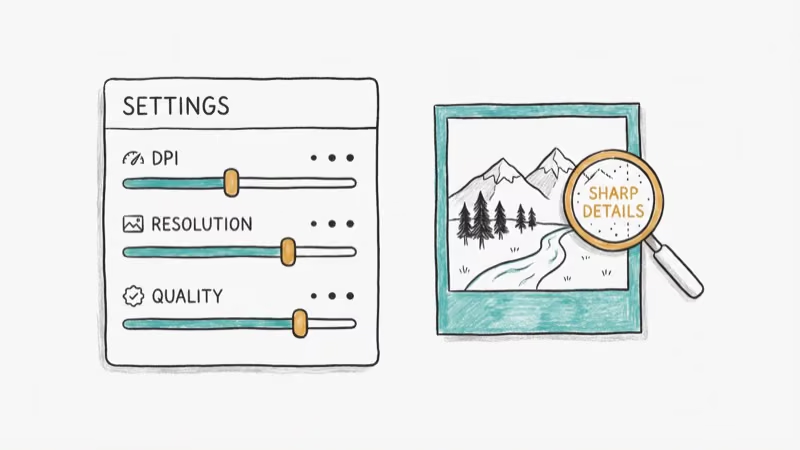
Starting resolution matters most. A 12MP smartphone photo (4000x3000) can handle 200% enlargement cleanly. A 2MP screenshot (1600x1200) can’t. Always use the largest original file available.
DPI controls print sharpness. For prints, you need 300 DPI at the final output size. A photo that’s 3000 pixels wide at 300 DPI prints at 10 inches. Enlarge it to 6000 pixels and you get a sharp 20-inch print.
File format preservation is critical. Save as TIFF or PNG for lossless quality during editing, then export to JPEG only for the final delivery. Each JPEG save compresses the file and loses a tiny amount of detail, and that loss accumulates if you open, edit, and re-save multiple times.
If you’re editing photos for social media, our photo squarer apps guide covers cropping for Instagram’s square format. For face-focused edits, see our picks for the best face makeup editors.
#Photoshop vs AI Upscalers vs Online Tools
| Feature | Photoshop | AI Upscaler (Topaz) | Free Online Tools |
|---|---|---|---|
| Max quality | Excellent | Excellent | Good under 200% |
| Cost | $22.99/month | $99 one-time | Free |
| Max enlargement | 1200%+ | 600% | 200-400% |
| Processing speed | Fast | Medium | Fast |
| Learning curve | Steep | Low | None |
| Batch processing | Yes | Yes | Limited |
For most people, Photoshop is overkill if you only need occasional enlargements. A free tool like Pixlr handles everyday resizing. According to CNET’s 2025 photo editing guide, the majority of top-rated editors are now free or freemium, covering the full range of casual resizing needs without any software installation. Invest in Photoshop or Topaz only if you regularly enlarge photos for print or professional work.
#Bottom Line
Start with Photoshop’s Preserve Details 2.0 for the best results, or use a free online tool if you’re enlarging under 200%. The most important factor isn’t the tool you use but the resolution of your original photo. Always shoot at the highest resolution your camera allows, and you’ll have much more room to enlarge later.
#Frequently Asked Questions
Will blowing up a photo always reduce its quality?
Some quality loss is unavoidable because you’re asking the software to invent pixels that don’t exist. AI upscalers minimize this by predicting detail from training data, and results from tools like Topaz Gigapixel are often indistinguishable from originals at 200% enlargement.
Can I enlarge a screenshot to print quality?
It depends on the screenshot’s resolution. A 1080p screenshot (1920x1080) at 300 DPI prints at about 6.4 x 3.6 inches. Enlarging it beyond that introduces visible softness. For better results, take the screenshot on a 4K display if possible.
What resolution do I need for a 24x36 inch print?
At 300 DPI, you need a 7200x10800 pixel image. That’s roughly 78 megapixels, which exceeds most consumer cameras. At 150 DPI, the requirement drops to 3600x5400 pixels, and large prints viewed from a few feet away still look sharp at this density.
Does JPEG compression affect enlargement quality?
Yes. Each JPEG save cycle introduces compression artifacts, and those artifacts become more visible when you enlarge the image. Save your working files as TIFF or PNG during editing, and only export to JPEG for the final version.
Are phone photos good enough to blow up?
Modern flagship phones shoot at 12-200 MP, which gives you plenty of resolution for enlargements up to 200%. The iPhone 16 Pro’s 48MP sensor produces files large enough for a sharp 16x20 inch print without any upscaling needed.
What’s the maximum I can enlarge a photo before it looks bad?
With AI upscaling, 400-600% is the practical ceiling for most photos before artifacts become visible. Without AI tools, 200% is the safe limit for clean results. Text and fine lines degrade faster than natural textures like skin or landscapes.
Is there a difference between DPI and PPI?
DPI (dots per inch) refers to printer output. PPI (pixels per inch) refers to screen resolution. For practical purposes, they’re interchangeable when resizing photos for print. Set your image to 300 PPI in Photoshop and your printer will handle the DPI conversion automatically.
Can I enlarge photos on my phone?
Yes. Apps like Snapseed (free), PhotoDirector, and Adobe Lightroom Mobile all support image resizing. The quality won’t match desktop software for large enlargements, but for social media and screen-sized output, phone apps work fine.

Google Messages Error 3100: Why RCS Is Broken on Galaxy
Google Messages RCS error 3100 hits Galaxy owners after phone or carrier switches. Google told 9to5Google a fix is coming. Here's what actually helps.

Is This Bank App Real? Spot a Fake App on Your Home Screen
A bank app can land on your home screen from a web page with no install warning. Learn the checks that tell a real banking app from a phishing web app.

Apps Crashing After iOS 27 Update? Fix Order (2026)
Apps crashing after the iOS 27 update? Update the app in the App Store first, then offload and reinstall to clear stale cache, then restart. The fix order.

Do AI Translation Earbuds Work Offline? What to Know
Do AI translation earbuds work offline? A few do with downloaded language packs, but most need the cloud. Here's what works offline and what you give up.