Texts stop arriving and you have no idea why. Your signal looks fine, your phone seems normal, but messages just aren’t coming through. T-Mobile text issues have several distinct causes, and the fix depends entirely on which one you’re hitting. Most people are done in under five minutes.
- T-Mobile’s SMSC number is +12063130004 — if this gets corrupted after a software update or SIM swap, incoming texts silently vanish without any error message.
- Switching from iPhone to Android leaves your number registered in Apple’s iMessage directory, causing iPhone senders to route texts through iMessage rather than SMS.
- Disabling RCS under Google Messages or Samsung Messages Chat settings forces all messages back to reliable SMS and resolves random delivery failures on T-Mobile’s network.
- Account-level message blocking can be applied accidentally after a plan change — log in at my.t-mobile.com and check Profile > Account settings to verify no blocks are active.
- T-Mobile replaces faulty SIM cards for free at any store in about five minutes, and a loose or dirty SIM is a common cause of intermittent text delivery failures.
#Fix 1: Toggle Airplane Mode and Reset Network Settings
This is the first thing to try. It forces your phone to re-register on T-Mobile’s network, which clears a surprising number of stuck-text situations.
Pull down your notification shade and tap Airplane Mode. Wait 10 seconds, then tap it off. Give it 30 seconds to reconnect. Now test.
If that didn’t work, do a full network settings reset:
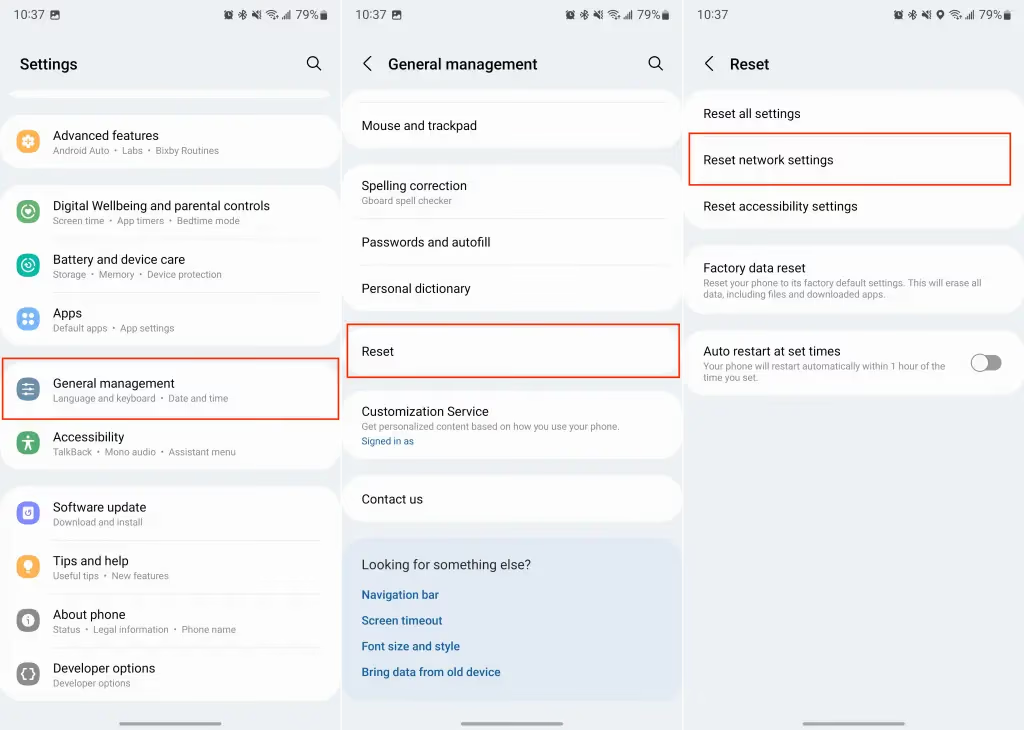
- Go to Settings > General Management (Samsung) or Settings > System > Reset options (Pixel/other Android)
- Tap Reset network settings
- Confirm and let the phone restart
This wipes saved Wi-Fi passwords and paired Bluetooth devices, so you’ll need to reconnect those. T-Mobile’s own support page lists this as a primary fix for messaging issues, so it’s worth the minor inconvenience.
#Fix 2: Check Your SMSC Number
The Short Message Service Center number is what routes your texts through T-Mobile’s network. If it gets corrupted after a software update or SIM swap, incoming texts just vanish.
T-Mobile’s SMSC number is +12063130004. Here’s how to check it on Android:
- Open your default messaging app (Google Messages or Samsung Messages)
- Tap the three-dot menu > Settings > More settings (or Advanced)
- Look for SMSC or Message center number
- If it’s blank or wrong, enter +12063130004 and save
This setting doesn’t exist on iPhones. Apple handles SMSC automatically. If you’re seeing messages sent as SMS via server, a misconfigured SMSC is a likely culprit.
#Fix 3: Deregister iMessage (Switched from iPhone?)
This one catches a lot of people off guard. If you recently moved from an iPhone to Android, Apple’s servers may still be routing texts meant for you through iMessage, which your Android can’t receive. The sender sees a blue bubble, thinks it sent fine, but you never get it.
The fix is Apple’s official deregistration tool:
- Go to Apple’s iMessage deregistration page
- Enter your T-Mobile phone number
- Apple texts you a confirmation code
- Enter the code and submit
Apple’s support documentation confirms that the change takes effect immediately for most contacts, though some iPhones may take a few hours to stop routing your number through iMessage. If you still have your old iPhone, the fastest fix is to turn off iMessage directly: Settings > Messages > toggle off iMessage.
This single fix resolves texts-from-iPhone issues for nearly everyone who recently switched.
#Fix 4: Disable RCS Messaging
RCS (Rich Communication Services) is the modern upgrade to SMS, with support for read receipts, typing indicators, and higher-quality media. But T-Mobile’s RCS implementation can conflict with standard text delivery, especially when texting between different carriers or devices. Multiple T-Mobile community threads report RCS causing random text failures.
Disabling it forces everything back to reliable SMS:
On Google Messages:
- Tap your profile icon > Messages settings
- Tap RCS chats
- Toggle off Turn on RCS chats
On Samsung Messages:
- Tap the three-dot menu > Settings
- Tap Chat settings
- Toggle off Chat features
Test after disabling. If texts start arriving, you’ve found the issue. You can re-enable RCS later once T-Mobile stabilizes their implementation.
#Fix 5: Clear Messaging App Cache
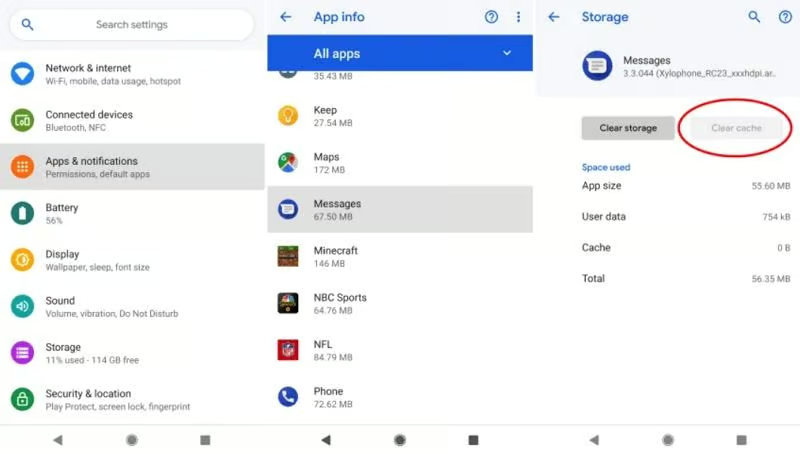
A bloated or corrupted message cache can block new texts from loading. This happens more often than you’d think on devices running Android 12 or older.
- Go to Settings > Apps
- Find your messaging app (Google Messages or Samsung Messages)
- Tap Storage & cache
- Tap Clear cache (not “Clear data” — that deletes your messages)
If you’re not receiving verification code texts, this is worth trying before anything more drastic.
#Fix 6: Check T-Mobile Account Message Blocking
T-Mobile can apply message blocking at the account level, sometimes accidentally after a plan change or customer service interaction. Worth checking:
- Log into my.t-mobile.com or open the T-Mobile app
- Go to Profile > Account settings
- Look for any message blocking or “Blocking” settings and disable them
Also check Commercial SMS settings. Some accounts block marketing and transactional texts by default, which is why you might not get delivery notifications or bank verification codes. If you’ve had issues with a SIM not provisioned for voice, your account may also have messaging restrictions tied to that.
For persistent account-level blocks, calling 611 from your T-Mobile line gets you directly to their tech team, who can see exactly what restrictions are on your account.
#Fix 7: Reseat or Replace Your SIM Card
A loose or dirty SIM card creates intermittent reception issues: texts come and go while calls work fine most of the time. Physical SIM problems are more common than eSIM problems for this specific issue.
- Power off your device completely
- Eject the SIM tray (use the included pin tool or a straightened paper clip)
- Take out the SIM card and inspect it for damage or debris
- Wipe it gently with a dry cloth
- Reseat it firmly and power back on
If your phone shows no signal bars after reinserting, the SIM card itself may be damaged or need to be reissued. T-Mobile will replace a faulty SIM for free at any store, and the process takes about five minutes.
#Fix 8: Update Software and Contact T-Mobile
A software bug introduced in a carrier update can break SMS. Check for updates before you call:
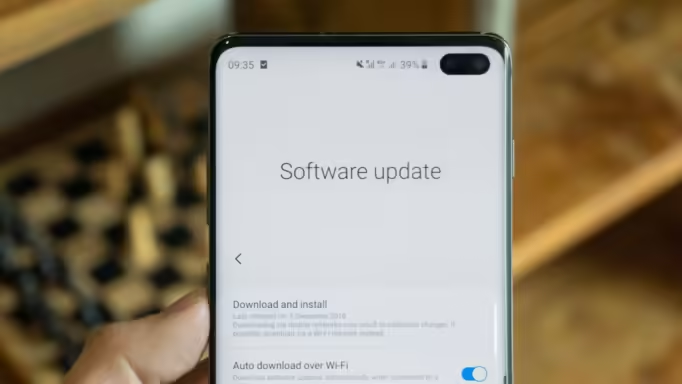
- Go to Settings > Software update (Samsung) or Settings > System > System update (Pixel)
- Install any pending updates
- Restart and test
If you’ve tried everything above and texts still aren’t arriving, contact T-Mobile directly. When you call 611 or use T-Mobile app chat, ask specifically for a network refresh on your line and request they check for any message blocking flags on your account. Community posts show that T-Mobile’s backend sometimes has routing errors that only their tech team can resolve. A ticket with specific examples of failed texts speeds things up considerably.
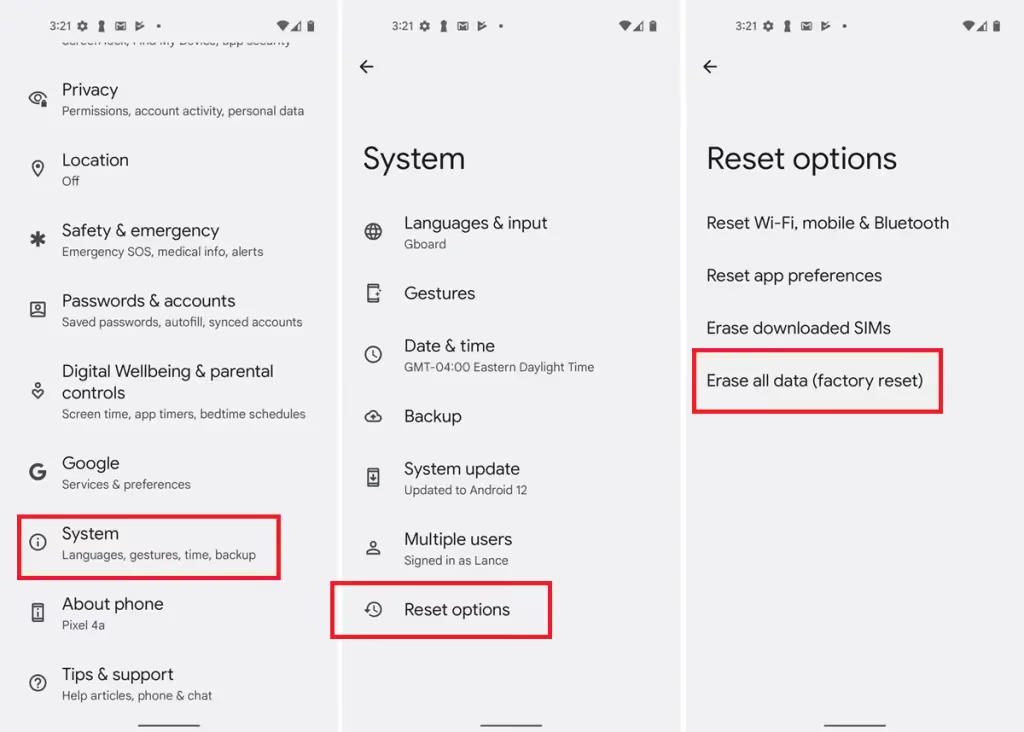
As a genuine last resort, a factory reset clears every possible software conflict. Back up your data first: Settings > General Management > Reset > Factory data reset. If you’re worried about losing FRP lock access before resetting, handle that first.
#Bottom Line
Start with Fix 1 (Airplane Mode + network reset). It clears the issue for most people. If you recently switched from iPhone, jump straight to Fix 3 (iMessage deregistration) since that’s almost certainly your problem. For everyone else, Fix 2 (SMSC check) and Fix 4 (disable RCS) cover the next most common causes. You shouldn’t need to go past Fix 5 or 6 in most cases.
#Frequently Asked Questions
#Why am I not receiving texts from iPhone users only?
iPhone users are almost certainly still sending you iMessages instead of SMS. Go to Apple’s deregistration page (selfsolve.apple.com/deregister-imessage), enter your number, and follow the confirmation steps. This removes your number from Apple’s iMessage directory. The fix is usually immediate, but iPhones that texted you recently may take a few hours to update.
#Can a full message inbox stop texts from coming in?
Yes. On older Android versions and some Samsung devices, a full SMS inbox blocks new incoming messages. Delete old threads until you’ve freed up space. Most modern Android devices (Android 12+) don’t have this hard limit, but if you’re on an older device it’s worth clearing out your inbox as a quick check.
#Why does T-Mobile show good signal but texts still don’t arrive?
Signal strength shows your connection to the cell tower, not the health of T-Mobile’s messaging servers. Texts route through a separate SMSC system. A regional server issue, a misconfigured SMSC number on your device, or an account-level block can all prevent texts while your signal looks perfectly fine. Check Fix 2 (SMSC) and Fix 6 (account blocking) specifically for this scenario.
#Does Wi-Fi Calling interfere with text reception?
It can. Wi-Fi Calling routes calls and sometimes texts through a different path than standard cellular. If you’re on a weak Wi-Fi connection, texts can get dropped or delayed. Try disabling Wi-Fi Calling temporarily: Settings > Connections > Wi-Fi Calling > toggle off. If texts start arriving, your Wi-Fi connection is the problem, not T-Mobile’s network.
#Will changing my T-Mobile number fix the issue?
Rarely, and it’s drastic. A number change might help if your current number somehow got flagged or corrupted in T-Mobile’s system, but that’s uncommon. Try the account message blocking check (Fix 6) and a network refresh via 611 first. Number changes create their own headaches with contacts, 2FA accounts, and banking apps.
#How do I know if T-Mobile has a network outage?
Check T-Mobile’s outage map at T-Mobile Network status or the Downdetector page for T-Mobile. If there’s a widespread outage in your area, none of the device-level fixes will help. You just have to wait. T-Mobile typically resolves regional SMS outages within a few hours.
#Can third-party messaging apps cause this?
Yes. Apps like WhatsApp, Telegram, or Facebook Messenger don’t affect SMS delivery, but apps that try to replace your default SMS handler (Textra, Pulse SMS) can conflict with T-Mobile’s message routing. Switch back to Google Messages or Samsung Messages as your default, then test. If texts arrive, the third-party app had a settings conflict.
#My texts work fine but group texts aren’t coming through. Why?
Group texts on Android use MMS, not SMS, and MMS requires correct APN settings. Go to Settings > Connections > Mobile networks > Access Point Names and check that T-Mobile’s default APN is selected. If it’s been modified or deleted, reset to default. You’ll also need mobile data enabled (not just Wi-Fi) since MMS doesn’t work over Wi-Fi on most Android devices.