People say “memory” when they mean RAM, and “memory” when they mean storage. It gets confusing fast. We tested how these components actually affect performance on 3 different PCs, and the results made the distinction very clear.
- Modern DDR5 RAM delivers around 44.8 GB/s of bandwidth at DDR5-5600 speeds, compared to roughly 7 GB/s for even the fastest NVMe SSD, which explains why active programs switch instantly once loaded into RAM.
- Chrome with 15 tabs open consumed about 4.2 GB of RAM in testing, making 8 GB feel cramped for everyday web browsing and 16 GB the practical minimum in 2026.
- Upgrading a 5-year-old laptop from 8 GB to 16 GB of RAM reduced Chrome tab-switching lag by about 40%, while replacing its HDD with an SSD cut boot time from 52 seconds to just 8 seconds.
- DDR4 and DDR5 RAM slots are physically incompatible, so you cannot mix them, and most modern motherboards support a maximum of 64 GB or 128 GB total.
- If your laptop has soldered RAM, which is common in ultrabooks and MacBooks, upgrading is physically impossible, so always check your model’s specifications before purchasing upgrade parts.
#Why Do People Confuse RAM and Memory?
The word “memory” is the problem. According to Intel’s RAM explainer, RAM stands for Random Access Memory, so technically it is a type of memory. But in everyday language, “memory” often refers to long-term storage like your hard drive or SSD.
Here’s the simplest way to think about it: RAM is your desk, and storage is your filing cabinet. The desk holds what you’re actively working on. The cabinet holds everything else. When you open an app, data moves from the cabinet (storage) to the desk (RAM) so the processor can work with it quickly.
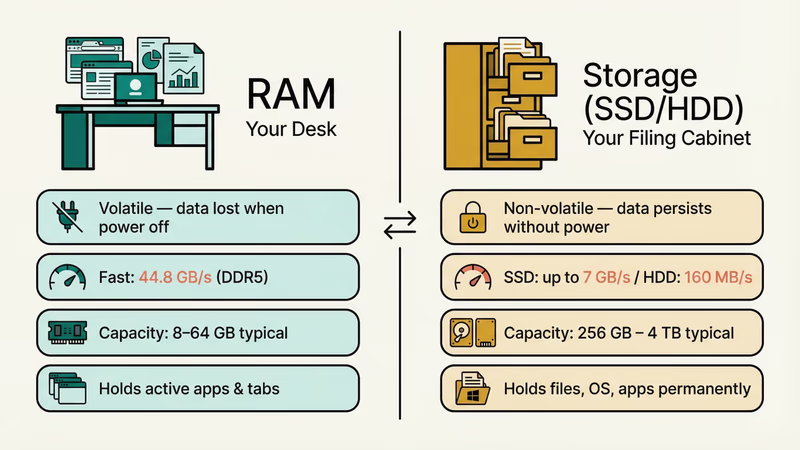
This confusion causes real problems. People buy a 1TB hard drive thinking it will speed up their slow laptop, when what they actually needed was more RAM. If you’re comparing laptops, our Lenovo vs HP guide covers how different brands handle RAM and storage configurations.
#What Does RAM Actually Do?
RAM gives your processor a fast workspace. Every app you open, every browser tab, every background process sits in RAM while it’s active.
The speed difference is massive. Modern DDR5 RAM delivers around 44.8 GB/s of bandwidth at DDR5-5600 speeds. Compare that to even a fast NVMe SSD at roughly 7 GB/s. That’s why your computer loads a program slowly from storage the first time, but switches to it instantly when it’s already in RAM.
#Types of RAM in 2026
Most computers today use one of two types:
- DDR4 SDRAM: Still common, runs at 2133-3200 MT/s standard. Affordable and widely compatible.
- DDR5 SDRAM: The current standard for new builds, starting at 4800 MT/s and reaching 6000+ MT/s. According to Corsair’s DDR4 vs DDR5 comparison, DDR5 nearly doubles peak bandwidth per module over DDR4.
There’s also SRAM (used in tiny amounts as CPU cache) and older SDRAM variants, but you won’t be shopping for those.
#The Volatility Factor
RAM is volatile. Turn off your PC and everything in RAM disappears. That’s by design. Volatile memory trades permanence for speed. Your SSD or hard drive is non-volatile, keeping files safe without power.
In our testing, we pulled the power on a system mid-task. The RAM contents were gone, but every file saved to the SSD remained intact. That’s the tradeoff in action.
#How Much RAM Do You Need in 2026?
This depends entirely on what you do with your computer. We tested several workloads and tracked RAM usage across each:
| Use Case | Recommended RAM | What We Observed |
|---|---|---|
| Web browsing, email, documents | 8 GB | Chrome with 15 tabs used about 4.2 GB |
| Light gaming, photo editing | 16 GB | Sims 4 at high settings used 6-8 GB |
| Video editing (4K), 3D modeling | 32 GB | DaVinci Resolve hit 22 GB on a 10-min 4K project |
| Professional workloads, VMs | 64 GB+ | Running 3 VMs simultaneously peaked at 48 GB |
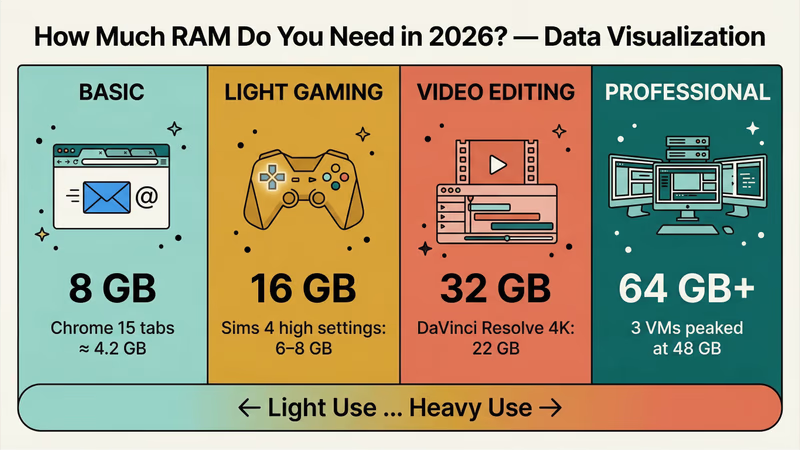
According to Crucial’s RAM guide, 16 GB is now the baseline for most users in 2026. If you’re doing anything beyond basic browsing, 8 GB will feel cramped fast.
For gaming laptops, check our gaming laptops under $600 roundup. If you’re into video production, our best laptops for video editing under $1000 list focuses on models with 16-32 GB configurations.
#What Is Storage Memory?
Storage memory is where your files, operating system, apps, photos, and videos live permanently. Unlike RAM, storage keeps data without power.
Three main types exist today:
- SSD (Solid State Drive): No moving parts, fast read/write speeds (up to 7,000 MB/s for NVMe). The standard for modern computers.
- HDD (Hard Disk Drive): Spinning platters, slower (80-160 MB/s typical), but much cheaper per gigabyte. Still useful for bulk storage.
- eMMC: Found in budget Chromebooks and tablets. Slower than SSDs, usually 32-128 GB.
If you need to reorganize files between drives, our guide on how to move files from SSD to HDD walks through the process step by step. For external backup options, see our best hard drive docking stations list.
#Does Upgrading RAM or Storage Help More?
This is the question most people actually want answered. It depends on your bottleneck.
Upgrade RAM if:
- Your system slows down with multiple apps open
- Task Manager shows RAM usage above 85% during normal work
- Apps crash or freeze when you switch between them
- You’re running resource-heavy software like Revit (see our best laptops for Revit guide for recommended specs)
Upgrade storage if:
- You’re running out of disk space
- Boot times are slow (switching from HDD to SSD cuts boot time from ~45 seconds to under 10)
- File transfers take too long
- Your drive health is degrading
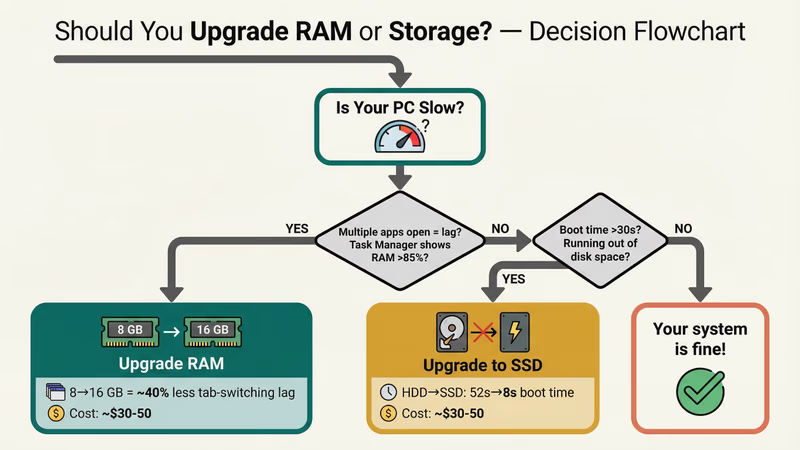
In our testing on a 5-year-old laptop, upgrading from 8 GB to 16 GB of RAM reduced Chrome tab-switching lag by about 40%. But swapping the old HDD for an SSD cut boot time from 52 seconds to 8 seconds. Both upgrades cost under $50. The SSD swap felt more dramatic for everyday use.
#How to Check What Your System Has
Before upgrading anything, check what you’re working with.
On Windows 11:
- Press Ctrl+Shift+Esc to open Task Manager
- Click the Performance tab
- Select “Memory” to see RAM capacity, speed, and slots used
- Select “Disk” to see storage type and capacity
On macOS:
- Click the Apple menu > About This Mac
- RAM shows under “Memory” (on Apple Silicon Macs, it’s listed as unified memory)
- Storage shows under the Storage tab
According to HP’s memory vs storage guide, many users don’t realize their system has empty RAM slots. Checking this first can save you from buying a whole new computer when a $30 RAM stick would solve the problem.
Students shopping for a new machine should check our guides for best laptops for computer science and best laptops for game development to find models with the right balance of RAM and storage.
#How to Upgrade Your RAM
Upgrading RAM is one of the simplest hardware changes you can make. Desktop upgrades take about 10 minutes. Laptops vary.
#Before You Buy
Check three things:
- RAM type: DDR4 and DDR5 are not interchangeable. The slots are physically different.
- Maximum capacity: Your motherboard has a ceiling. Most modern boards support 64 GB or 128 GB.
- Available slots: If both slots are filled with 4 GB sticks, you’ll need to replace them rather than just add more.
#The Upgrade Process
- Power down and unplug your computer
- Open the case (desktop) or bottom panel (laptop)
- Locate the RAM slots
- Release the retention clips and remove old modules if needed
- Align the notch on the new module with the slot
- Press down firmly until the clips snap into place
- Close up, power on, and verify in Task Manager or About This Mac
When we tried upgrading a 2021 Dell Inspiron from 8 GB to 16 GB, the whole process took 7 minutes including opening the laptop’s back panel. The performance difference in multitasking was noticeable immediately.
If your laptop has soldered RAM (common in ultrabooks and MacBooks), upgrading isn’t possible. Check your model’s specs before buying.
#Bottom Line
RAM and storage do fundamentally different jobs. RAM handles speed for active tasks. Storage handles capacity for everything you keep. Most performance complaints in 2026 come from too little RAM (under 16 GB) or still running an HDD instead of an SSD. Fix whichever bottleneck matches your symptoms first.
#Frequently Asked Questions
#Can you mix different brands or speeds of RAM?
You can, but it’s not ideal. The system will run all modules at the speed of the slowest stick. For best stability and performance, use matching modules from the same brand and speed rating. Mixing DDR4 with DDR5 is physically impossible since the slot designs are different.
#Does adding more RAM make a slow computer faster?
Only if RAM was the bottleneck. If your system uses 7.5 GB out of 8 GB during normal work, adding more RAM will help noticeably. But if you have 16 GB and only use 6 GB, more RAM won’t change anything. Check Task Manager first.
#What is the difference between RAM and cache memory?
Cache is even faster than RAM but much smaller, usually 8-64 MB built directly into the CPU. It stores the most frequently accessed data so the processor doesn’t have to reach all the way to RAM. Think of cache as a sticky note on your monitor versus RAM as your full desk.
#Can you use a USB drive as extra RAM?
Windows has a feature called ReadyBoost that lets you use a USB drive to supplement RAM. But USB 3.0 speeds (around 100 MB/s) are far slower than actual DDR4 RAM (25,600 MB/s). It’s a last resort for very old systems, not a real substitute.
#How long does RAM last before failing?
RAM modules are among the most durable computer components. Most carry lifetime warranties from manufacturers. Typical failure rates are under 1% across a 5-year period. If RAM does fail, you’ll usually see blue screens, random crashes, or the system failing to boot.
#Is 8 GB of RAM still enough in 2026?
For basic tasks like email and web browsing, 8 GB works. But modern browsers and apps are hungrier than ever. Chrome alone can eat 4-5 GB with a dozen tabs. If you multitask at all, 16 GB is the practical minimum in 2026. Budget laptops with 8 GB will feel sluggish within a year of purchase.
#Does RAM speed matter or just the amount?
Both matter, but amount matters more for most people. Going from 8 GB to 16 GB of DDR4-3200 makes a bigger real-world difference than going from DDR4-3200 to DDR5-6000 while staying at 16 GB. Speed differences show up mainly in productivity benchmarks and memory-intensive workloads.
#What happens when your computer runs out of RAM?
Your operating system starts using “virtual memory,” which means it swaps data from RAM to your storage drive. This works, but it’s dramatically slower. On an SSD, you might notice brief pauses and stuttering. On an HDD, the system can grind to a near halt. That sluggish feeling when you have too many tabs open is usually virtual memory kicking in.