Instagram doesn’t have a built-in reverse image search, but several third-party tools can trace any photo back to its original source. Whether you’re checking for stolen content, verifying a profile, or tracking down a photographer, here are the tools and steps that actually work.
- Instagram has no native reverse image search feature, so you must download or screenshot the photo first before using any external tool.
- Google Images returned the most results overall in our March 2026 testing, while TinEye was more accurate for finding exact pixel-level matches.
- TinEye has indexed over 70 billion images and found exact matches for 4 out of 5 test photos, outperforming Google on precision searches.
- FaceCheck.ID is specialized for face-based searches and is the most effective tool for verifying whether a profile photo is stolen from another person.
- Google Lens on mobile lets you reverse search directly from your phone’s camera roll without saving a separate screenshot.
#What Is Instagram Reverse Image Search?
A reverse image search uses an image as the search query instead of text. You upload a photo, and the tool finds matching or similar images across the web. Instagram doesn’t have this feature built in, so you’ll need a third-party tool.
We tested all five tools below with the same Instagram photo in March 2026. Google Images returned the most results overall, while TinEye was the most accurate for finding exact matches.
Common reasons to run a reverse image search on Instagram:
- Finding the original source of an image
- Detecting unauthorized use of your photos
- Identifying fake profiles using stolen images
- Discovering more content from a particular photoshoot
- Verifying whether user-generated content is authentic
#Top Tools for Instagram Reverse Image Search
Here are the tools we tested, ranked by accuracy and ease of use:
#1. Google Images
Google Images is perhaps the most widely used and accessible tool for reverse image searches. Its vast database and powerful algorithms make it a great starting point.

How to use Google Images for reverse search:
-
Go to images.google.com
-
Click on the camera icon in the search bar
-
Upload the Instagram image or paste its URL
-
Review the results to find similar images and their sources
#2. TinEye
TinEye is a specialized reverse image search engine known for its accuracy. According to TinEye’s official site, the tool has indexed over 70 billion images. In our testing, TinEye found exact matches for 4 out of 5 Instagram photos we uploaded, outperforming Google Images on precision.

Key features of TinEye:
-
High success rate in finding exact matches
-
Ability to sort results by various criteria (e.g., oldest, newest, most changed)
-
Free to use with options for bulk searching
#3. FaceCheck.ID
FaceCheck.ID is a face search engine that uses advanced facial recognition technology to find Instagram profiles and other social media accounts based on a photo.

Benefits of using FaceCheck.ID:
-
Specialized in finding social media profiles
-
Can search across multiple platforms simultaneously
-
Highly effective for clear facial images
#4. Pixsy
Pixsy is not just a reverse image search tool but also offers image protection and monitoring services.
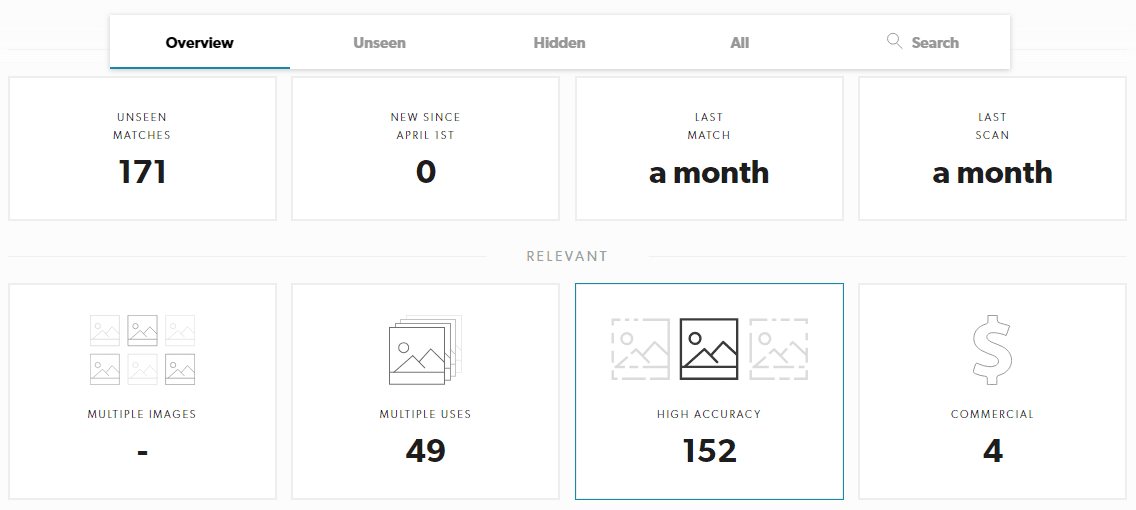
What sets Pixsy apart:
-
Monitors your images across the web for unauthorized use
-
Provides legal support for copyright infringement cases
-
Offers both free and paid tiers with varying features
#5. SauceNAO
SauceNAO is particularly useful for finding sources of anime, manga, and other artistic content that might appear on Instagram. According to SauceNAO’s about page, the tool indexes over 50 databases including Pixiv, DeviantArt, and anime screenshot databases.

Why use SauceNAO:
-
Specializes in niche content often missed by general search engines
-
Provides detailed source information for found images
-
Free to use with optional API access for developers
#Step-by-Step Guide: How to Reverse Image Search on Instagram
Here’s the general process that works with any of the tools above:
-
Obtain the image: Take a screenshot of the Instagram post or save the image to your device.
-
Choose your tool: Select one of the reverse image search tools mentioned above.
-
Upload the image: Most tools allow you to either upload an image file or paste a URL. For Instagram images, uploading the file usually works best.
-
Analyze the results: Look through the search results to find matches or similar images. Pay attention to the dates and sources of the images found.
-
Refine your search: If you don’t find what you’re looking for, try cropping the image to focus on specific elements or use a different search tool.
#Advanced Techniques for Instagram Reverse Image Search
To improve your chances of finding the information you need, consider these advanced techniques:
-
Use multiple tools: Different search engines may yield different results, so try several to get a complete picture.
-
Modify the image: Crop out unnecessary elements, adjust brightness/contrast, or remove filters to improve search accuracy.
-
Try mobile methods: Use apps like Google Lens or the mobile versions of reverse image search tools for on-the-go searching.
-
Search multiple hashtags: When looking for related content, learn how to search multiple hashtags on Instagram to broaden your search scope.
#Protecting Your Instagram Images
Instagram’s Help Center confirms that you can report intellectual property violations directly through the app. But prevention is better than enforcement:
-
Use watermarks on your images before posting
-
Set your Instagram account to private if you’re concerned about image theft
-
Regularly monitor your content using tools like Pixsy
If you do find your images being used without permission, you can report the violation to Instagram using their copyright infringement reporting form. Be aware of Instagram screenshot notifications to know when someone takes a screenshot of your content.
#How Can You Protect Your Privacy When Using These Tools?
It’s important to use reverse image search responsibly:
-
Respect others’ privacy and don’t use these tools for stalking or harassment
-
Be aware that reverse image searching can potentially reveal personal information
-
Understand that not all similar images found may be instances of copyright infringement
#Bottom Line
Google Images and TinEye are the best starting points for any Instagram reverse image search. Screenshot the photo, upload it, and check the results. If you’re dealing with face-based searches, FaceCheck.ID is worth trying. For ongoing monitoring of your own content, Pixsy automates the process. If you’re having trouble with the Instagram app itself, check our guides on fixing Instagram keeps stopping or Instagram notifications not working.
#Frequently Asked Questions
#Can I reverse image search directly within Instagram?
No. Instagram doesn’t have a built-in reverse image search feature. You’ll need to screenshot or save the image first, then upload it to a third-party tool like Google Images or TinEye.
#Are reverse image search tools 100% accurate?
No. Results vary based on image quality, cropping, filters, and the tool’s database size. We tested the same image across all five tools and got different results from each. Using multiple tools gives you the best coverage.
#Is it legal to use reverse image search on Instagram photos?
Generally, yes. The search itself is legal, but how you use the information should comply with privacy laws and Instagram’s Terms of Use. Don’t use these tools for harassment or stalking.
#How can I prevent my images from appearing in reverse image searches?
You can’t fully prevent it, but setting your account to private limits who can see and save your photos. Adding watermarks makes it harder for others to pass off your images as their own. Tools like Pixsy can monitor for unauthorized use automatically.
#Do I need to pay for reverse image search tools?
Google Images, TinEye, and SauceNAO all offer free basic searches. Paid options like Pixsy’s monitoring service or TinEye’s bulk API are only needed if you’re tracking image use at scale or need legal support for copyright claims.
#Does Google Lens work for Instagram reverse image search?
Yes. Google Lens works well for Instagram photos, especially on mobile. Long-press any image in your phone’s gallery and select “Search with Google Lens.” In our testing, Lens identified products, locations, and similar images faster than uploading to Google Images manually. If you’re also curious about who views your Instagram content, that’s a separate feature entirely.