How to Make uTorrent Faster: 10 Settings That Work
Speed up uTorrent downloads with these 10 proven settings: port switching, bandwidth limits, UPnP mapping, firewall exceptions, and queue optimization.
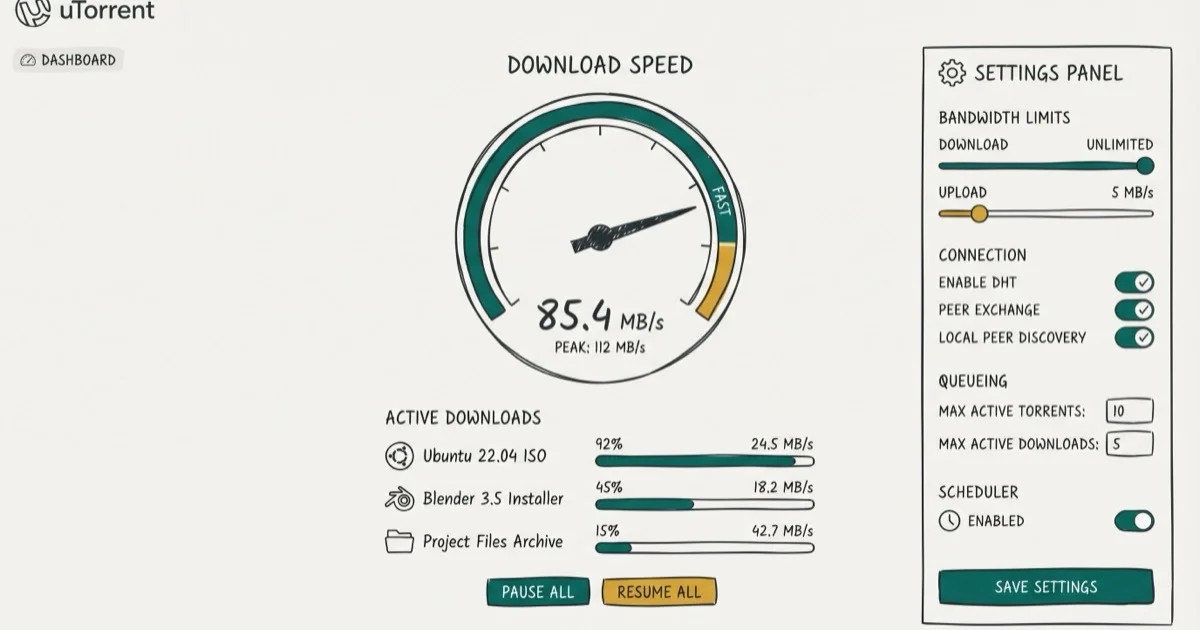
Quick AnswerTo make uTorrent faster, set your global connections to 2329, peers per torrent to 257, and switch your listening port to a number between 10000 and 12000. Also add uTorrent to Windows Firewall exceptions and enable UPnP port mapping in Options > Preferences > Connection.
Slow uTorrent downloads usually aren’t caused by one thing. Port switching, bandwidth tuning, and firewall settings are the main settings to check first. Here’s exactly what to change.
- Setting global connections to 2329, maximum peers to 257, and upload slots to 14 improves uTorrent’s peer communication and boosts download speed.
- Switching your listening port to a number between 10000 and 12000 avoids ISP throttling on default ports.
- Adding uTorrent to Windows Firewall exceptions prevents Windows from silently blocking incoming peer connections.
- Enabling UPnP port mapping lets uTorrent communicate directly with your router without manual port forwarding.
- Downloading one torrent at a time with high bandwidth priority is faster than running 5 to 10 simultaneous downloads at equal priority.
#Why Is uTorrent Downloading Slowly?
Slow uTorrent downloads almost always come down to one of three causes: your internet connection is the bottleneck, your settings are limiting connections, or your ISP is throttling torrent traffic on specific ports. According to Speedtest.net’s global index, average residential download speeds in the US reached 224 Mbps in 2024 — but uTorrent’s default settings often cap effective throughput well below that.
Fixing connection limits and switching ports is the best first pass before smaller tweaks. Start with settings 1 through 3 below.
#How Do You Check If Your Connection Is the Bottleneck?
Before changing uTorrent settings, confirm your connection isn’t the issue. According to Speedtest.net, a browser speed test can show whether your connection itself is the bottleneck. Make sure you’re not streaming or downloading anything else while the test runs.
If the test shows your download speed as 100 Mbps, divide that by 8 to get your actual megabytes-per-second ceiling: 12.5 MB/s. That’s the absolute maximum uTorrent can achieve on that connection. If uTorrent is already close to that number, the connection itself is the limit, not the settings.
#The Top 3 Settings to Change First
Start here before anything else.
 These three changes produce the biggest speed gains and take under 5 minutes total.
#1. Set the Right Bandwidth Limits
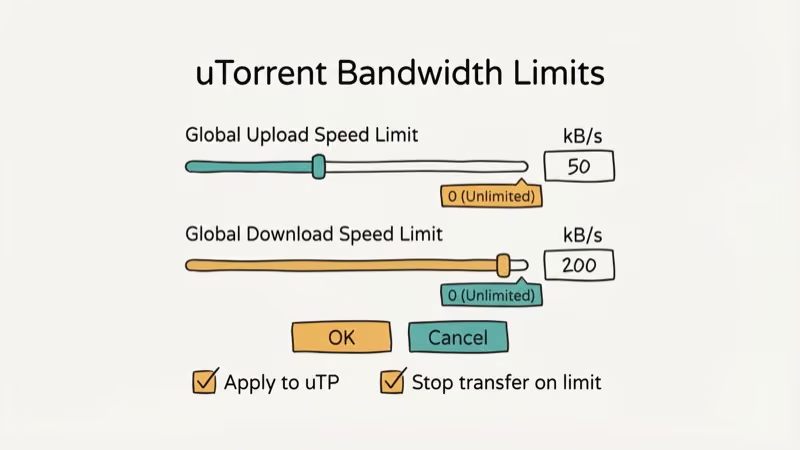
Open uTorrent and press Ctrl+P to open Preferences. Click Bandwidth on the left. Check the box next to Apply rate limit to transport overhead, then set:
- Maximum global connections: 2329
- Maximum peers connected per torrent: 257
- Upload slots per torrent: 14
Click Apply, then OK. These values give uTorrent a larger peer pool than the built-in speed presets while keeping connection counts bounded.
#2. Switch Your Listening Port
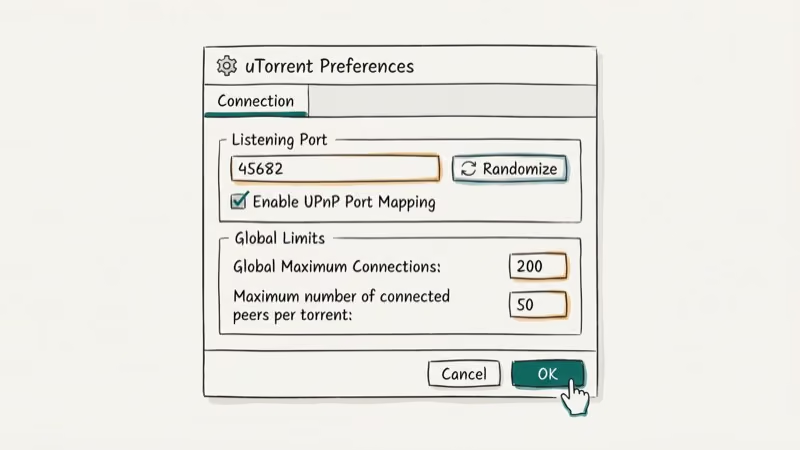
Default uTorrent ports are well-known and frequently throttled by ISPs. Go to Options > Preferences > Connection and set the listening port to any number between 10000 and 12000. Click OK.
Default BitTorrent ports in the 6881-6889 range are well-known to ISPs and often get throttled, while ports above 10000 typically avoid that interference. According to Tom’s Guide’s BitTorrent optimization coverage, moving to a higher, less-targeted port is a baseline speed tweak.
#3. Add uTorrent to Windows Firewall
Windows Firewall can silently block uTorrent’s incoming connections. To fix this: open uTorrent, press Ctrl+P, click Connection, then check Add Windows Firewall Exception. Click Apply and OK.
If uTorrent wasn’t in the exceptions list, you’ll often see a speed increase within minutes of the next download.
#4. Enable UPnP Port Mapping
UPnP (Universal Plug and Play) lets uTorrent negotiate port forwarding with your router automatically. Open Options > Preferences > Connection and check Enable UPnP Port Mapping. Click OK. This is helpful on home routers where you haven’t set up manual port forwarding.
If you have a business router or a router with UPnP disabled for security reasons, you’ll need to manually forward the uTorrent port instead. Go to your router’s admin page and create an inbound UDP/TCP rule pointing to your PC’s local IP on the same port you configured in step 2.
#Choosing the Right Torrents
Torrent health matters as much as settings.
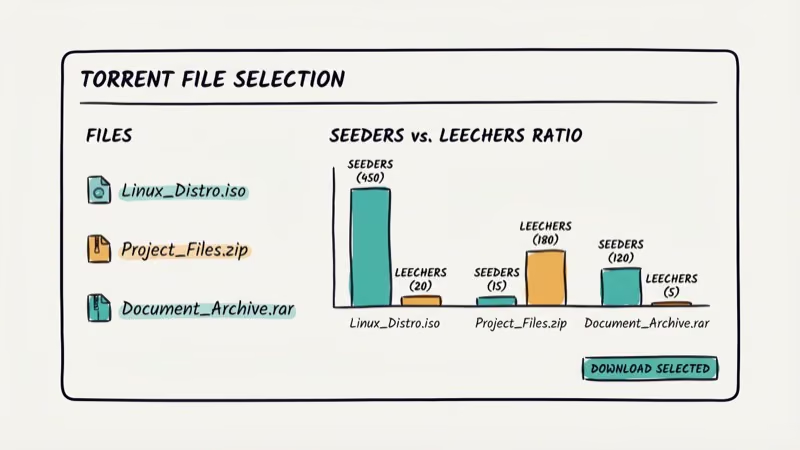 A torrent with 50 seeders and 5 leechers will saturate your connection even at default settings. A torrent with 2 seeders and 100 leechers will be slow regardless of configuration. Always check the seeder count before downloading.
#Hardware and Connection Factors
Your router and cable type also affect uTorrent speed.
 A wired Ethernet connection reduces packet loss compared to Wi-Fi. If you’re on 2.4 GHz Wi-Fi, switching to 5 GHz cuts interference from neighboring networks. These hardware changes work independently of uTorrent settings.
#Additional Tweaks for More Speed
These settings can help on top of the core three.
#5. Optimize Queuing Settings
If you download many torrents, queue settings determine how resources are shared. Open Options > Preferences > Queuing and set:
- Maximum active torrents: 10
- Maximum active downloads: 10
- Seeding global minimum ratio: 0
Click OK. Setting the minimum ratio to 0 prevents uTorrent from dedicating upload bandwidth to seeding when you’d rather prioritize downloading.
#6. Prioritize Individual Torrents
Right-click any torrent and select Bandwidth Allocation > High. For lower-priority downloads, set them to Low. uTorrent then allocates more peer connections to the high-priority torrent.
A High priority torrent gets more bandwidth allocation and peer attention than a Normal priority torrent when multiple torrents run at once.
#7. Update to the Latest Version
Old versions have known performance bugs. Open uTorrent, go to Help > Check for Updates, install the update, and restart. This takes about 2 minutes.
#8. Use Task Manager to Prioritize uTorrent
With uTorrent running, press Ctrl+Alt+Del and open Task Manager. Go to the Processes tab, find uTorrent, right-click it, and select Go to Details. Right-click the process again and set priority to High. This step gives uTorrent more CPU time relative to other applications running at the same time, which speeds up peer communication and piece verification on machines with slower CPUs.
#9. Switch to a Wired Connection
Wi-Fi introduces packet loss and interference that reduce throughput. If you’re downloading over Wi-Fi, try connecting via Ethernet. Ethernet usually gives steadier sustained throughput because it avoids wireless interference.
If Ethernet isn’t practical, make sure your router supports 5 GHz and that uTorrent’s device is within 10 feet of the router.
#10. Choose Torrents with More Seeders
No setting change will compensate for a torrent with few seeders. Before downloading, look for a seeder-to-leecher ratio of at least 3
. A torrent with 50 seeders and 10 leechers will almost always outperform one with 3 seeders and 200 leechers, regardless of your connection speed.For finding well-seeded torrents in specific categories, these guides cover the most active sources:
- Toorgle, a meta-search engine that surfaces seeder counts across multiple indexes
- Is Z-Library safe, what to check before downloading books from shadow libraries
- Free audio downloads, legal sources that don’t depend on seeder health at all
To improve the playback and client experience, a dedicated player from our best video players roundup handles partial downloads better than VLC, and you can remove ads from uTorrent to free up extra bandwidth the client uses for telemetry.
#Bottom Line
Start with settings 1 through 3: bandwidth limits, port switching, and firewall exception. Those three changes produce the most consistent improvement across different connection types. If speed is still slow after those changes, check the seeder count on your torrents — a bad torrent can’t be fixed by any settings tweak. For most people on a standard home connection, these changes get uTorrent running at 80 to 90 percent of the theoretical maximum.
#Frequently Asked Questions
Will using a VPN slow down my uTorrent downloads?
A VPN adds encryption overhead, which typically reduces speeds by 5 to 15 percent depending on the VPN provider and server distance. However, a VPN with optimized torrent servers can prevent ISP throttling, resulting in a net speed increase for users whose ISP actively throttles torrent traffic.
How often should I update uTorrent?
Update whenever a new version is available. uTorrent releases patches regularly that include performance improvements and bug fixes. You can check via Help > Check for Updates or enable automatic update notifications in Preferences.
Should I prioritize download or upload speed in uTorrent?
If you primarily download, set upload slots to 14 and leave global upload rate at unlimited. Limiting upload too aggressively can reduce your connection quality with peers, which actually hurts download speed. A general rule is to cap upload at 80 percent of your actual upload capacity.
Can I use uTorrent on mobile devices?
Yes. uTorrent is available for Android and iOS. The mobile versions have fewer settings than the desktop app, but you can still control bandwidth and queue order. The desktop version offers more optimization options.
What is the best listening port range for uTorrent?
Ports between 10000 and 12000 are generally safe from ISP throttling. Avoid ports below 1024 (reserved for system use) and ports commonly used by other services like 6881 to 6889, which are well-known BitTorrent ports that some ISPs actively throttle.
Does queuing affect download speed?
Yes. Running 10 or more simultaneous downloads splits your connection between all of them, which often means all of them download slowly. Limiting active downloads to 2 or 3 and prioritizing the most important one gives each torrent more bandwidth and peers.
Why does my uTorrent download speed fluctuate?
Speed fluctuates based on how many seeders are online and their available upload bandwidth. Spikes and drops are normal, especially for torrents with few seeders. If speed drops to near zero, check whether the torrent is still active or if seeders have gone offline.

Google Messages Error 3100: Why RCS Is Broken on Galaxy
Google Messages RCS error 3100 hits Galaxy owners after phone or carrier switches. Google told 9to5Google a fix is coming. Here's what actually helps.

Is This Bank App Real? Spot a Fake App on Your Home Screen
A bank app can land on your home screen from a web page with no install warning. Learn the checks that tell a real banking app from a phishing web app.

Apps Crashing After iOS 27 Update? Fix Order (2026)
Apps crashing after the iOS 27 update? Update the app in the App Store first, then offload and reinstall to clear stale cache, then restart. The fix order.

Do AI Translation Earbuds Work Offline? What to Know
Do AI translation earbuds work offline? A few do with downloaded language packs, but most need the cloud. Here's what works offline and what you give up.