Entry Point Not Found Error on Windows: 7 Fixes That Work
Fix the Windows Entry Point Not Found error fast with 7 proven methods covering DLL repair, SFC, DISM scans, Visual C++ redistributables, and more.
Quick AnswerThe Entry Point Not Found error means a program cannot find a function inside a required DLL. Fix it by reinstalling the Visual C++ Redistributables, running SFC and DISM, or repairing the affected program.
The Entry Point Not Found error shows up the moment you double-click a program on Windows. The dialog names a function inside a DLL, which sounds scary but narrows the problem to three things: a missing runtime, a corrupted system file, or a broken install.
- The error points at a DLL and a function name. Both are clues: note the DLL in the dialog before closing it.
- Visual C++ Redistributables cause most “procedure entry point” errors in games, CAD tools, and older Office installers.
- Running
sfc /scannowfollowed byDISM /Online /Cleanup-Image /RestoreHealthrepairs damaged Windows system files in that order. - Never copy a DLL from a random download site. Only replace DLLs through official vendor installers or the original program’s repair mode.
- If reinstalling and SFC both fail, a clean boot plus a System Restore point from before the error usually finishes the job.
#What Is the “Entry Point Not Found” Error?
The full message reads something like “The procedure entry point [FunctionName] could not be located in the dynamic link library [Filename].dll.” It fires when a program calls a function inside a DLL, but the DLL that loaded doesn’t contain that function.
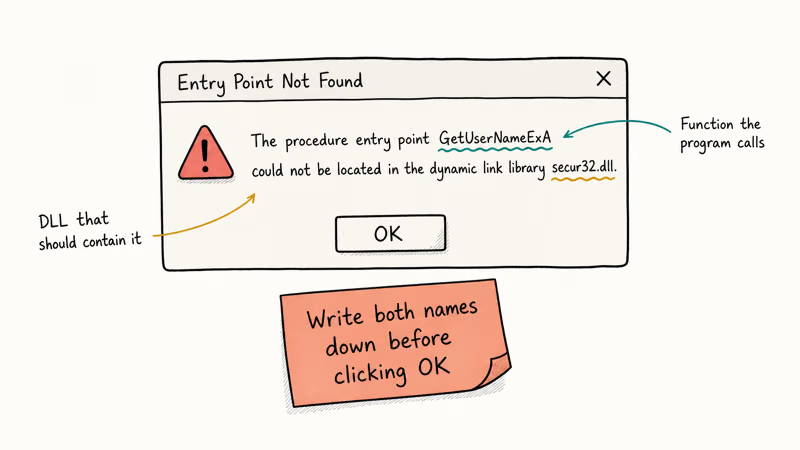
The key detail is that the DLL isn’t always missing. It’s often present but wrong. According to Microsoft’s Dynamic-Link Library Search Order documentation, Windows loads DLLs in a specific order from the application directory, system directories, and PATH. An older duplicate earlier in that order wins the load, and that shadowing is how programs break overnight.
Write down the DLL name and function name from the dialog before you close it. Both are clues.
#Common Causes on Windows 10 and 11
Three root causes show up repeatedly, and they map directly to the fixes below.
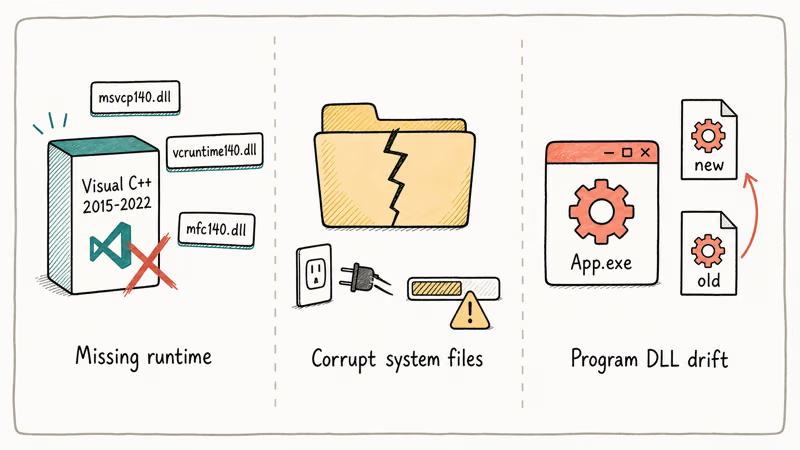
Missing or outdated Visual C++ Redistributables. Most third-party desktop software is built against Microsoft’s Visual C++ runtime, which is a separate package from Windows itself. If the version the program needs isn’t installed, or a disk-cleaner tool silently uninstalled it during a “free up space” run last month, you’ll see an entry point failure against a DLL named msvcp*.dll, vcruntime*.dll, or mfc*.dll the next time you launch anything built against that runtime.
Damaged Windows system files are the next suspect. That’s usually what users miss.
Sudden shutdowns, disk errors, and aborted updates can leave shared DLLs half-written. Microsoft’s System File Checker support article confirms that sfc /scannow scans and repairs protected system files from a cached copy.
Program-specific DLL drift is the third root cause. An uninstaller leaves a DLL behind, a “system cleaner” deletes one the program needs, or an older installer reinstates a stale version. The fix is always to repair or reinstall through the legitimate vendor, never to hunt for DLLs online.
#How Do You Identify Which DLL Is the Problem?
Read the error dialog. The format is always “The procedure entry point X could not be located in the dynamic link library Y.dll.” The Y.dll part tells you which runtime or program to target.
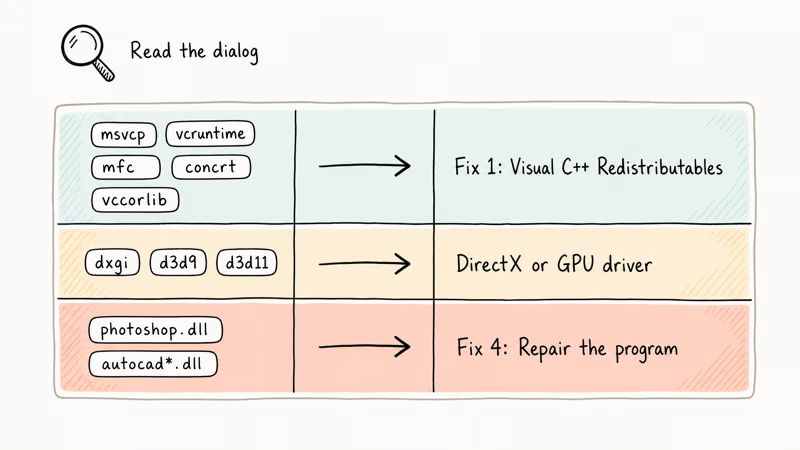
If the DLL starts with msvcp, vcruntime, mfc, concrt, or vccorlib, the Visual C++ Redistributables are your fix (Fix 1). If the DLL is dxgi, d3d9, or d3d11, it’s a DirectX or GPU driver issue. Anything named after the program itself (photoshop.dll, autocad*.dll) means the program’s own install is broken and you need the Repair option in Fix 4.
A quick lookup on learn.microsoft.com will tell you which package ships any given Microsoft DLL.
#Runtime and System File Fixes (1-3)
None of the fixes below delete your documents. The riskiest step is System Restore, which reverts Windows settings and installed apps to an earlier snapshot but leaves user files alone. Back up anything critical before starting, then work through the methods in order.
#Fix 1: Reinstall the Latest Visual C++ Redistributables
Start here when the dialog mentions a Visual C++ runtime DLL. Windows does not auto-remove the older redistributables, so you can have 2013, 2015, 2017, 2019, and 2022 installed side by side without conflict.
- Open
Settings>Apps>Installedapps. - Note every “Microsoft Visual C++ 20xx Redistributable” already on the system.
- Go to Microsoft’s latest supported Visual C++ Redistributable downloads page and grab both the x64 and x86 installers for 2015-2022.
- Run each installer and choose Repair if it’s already installed, or Install if it’s missing.
- Restart Windows, then launch the program that threw the error.
Microsoft’s Visual C++ Redistributable documentation states that the 2015, 2017, 2019, and 2022 redistributables are binary-compatible with one another, which means the 2022 installer replaces the older three safely.
#Fix 2: Run System File Checker (SFC)
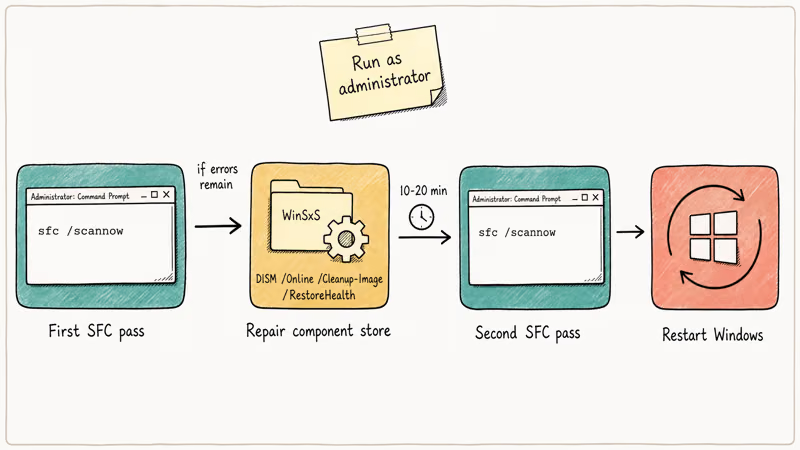
SFC rebuilds protected system DLLs from the side-by-side cache in C:\Windows\WinSxS. Run it as admin.
- Press Windows key + S, type
cmd, right-click Command Prompt, choose Run as administrator. - Type
sfc /scannowand press Enter. - Wait for the scan to reach 100%. Don’t close the window.
- Read the final message. “Windows Resource Protection did not find any integrity violations” means your system files are clean. “Windows Resource Protection found corrupt files and successfully repaired them” means SFC fixed the issue.
If SFC says it found corruption but couldn’t repair it, move to Fix 3 immediately. A partial SFC result is a signal that the component store itself is damaged.
#Fix 3: Run DISM to Repair the Component Store
DISM repairs WinSxS. Microsoft’s repair a Windows image documentation recommends running DISM before a second SFC pass when the first one can’t repair a file.
-
In the same admin Command Prompt, run:
DISM /Online /Cleanup-Image /RestoreHealth -
Let it complete. This step can take 10-20 minutes and will pause at 20% and 62% without moving. That is normal.
-
When DISM finishes with “The restore operation completed successfully,” run
sfc /scannowone more time. -
Restart Windows.
If DISM itself fails with error 0x800f081f, your update source is unreachable and you’ll need a mounted Windows ISO as the source.
#Program and Recovery Fixes (4-7)
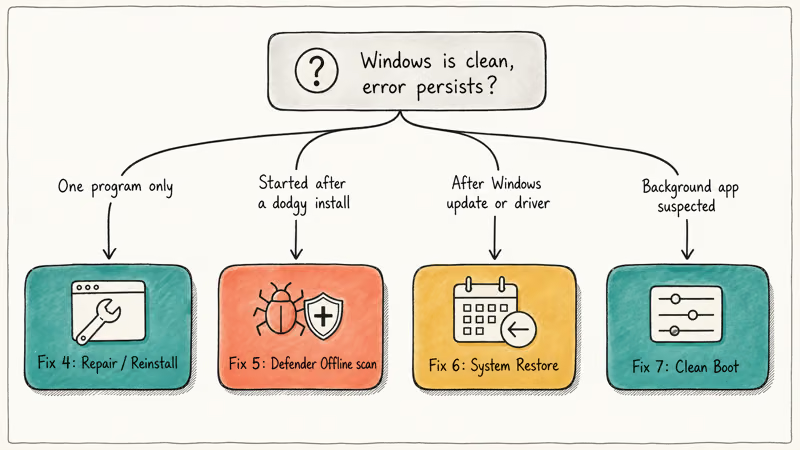
Windows is clean but the error persists? The problem is in the program or in a recent change.
#Fix 4: Repair or Reinstall the Affected Program
If only one program throws the error, the problem is almost certainly inside that program’s folder rather than in Windows.
- Open
Settings>Apps>Installedapps. - Find the program, click the three-dot menu, and choose Modify or Uninstall.
- If Modify is available, choose Repair. The installer reinstalls missing or mismatched DLLs from its own payload.
- If only Uninstall is available, uninstall, restart Windows, then reinstall from the original installer or the vendor’s website.
For Office, use Microsoft’s Repair an Office application guide and run Quick Repair first, then Online Repair if Quick Repair does not clear the error.
#Fix 5: Scan for Malware
Some malware families replace signed system DLLs with older, modified copies that happen to be missing the function your program expects. Run Microsoft Defender Offline, which scans before Windows fully loads so rootkits can’t hide.
- Open
Settings>Privacy &security >Windows Security>Virus &threat protection. - Click Scan options, pick Microsoft Defender Antivirus (offline scan).
- Click Scan now. Windows restarts and runs the scan, which takes about 15 minutes.
Microsoft’s Microsoft Defender Offline support article confirms that offline scans catch threats standard real-time scans miss.
#Fix 6: Use System Restore to Roll Back the Change
If the error started after a Windows Update, a driver install, or a cleanup tool run, System Restore undoes the change without touching your personal files.
- Press Windows key + S, type
create a restore point, open the result. - Click System Restore, then Next.
- Pick a restore point dated before the error started appearing. Use the Scan for affected programs button to see what will get rolled back.
- Confirm and let Windows restart.
If System Restore is disabled or has no usable points, skip to the last fix. The useful restore point is usually the one dated just before the driver, update, or cleanup tool changed the system.
#Fix 7: Clean Boot to Find Conflicting Software
A clean boot launches Windows with only Microsoft services running. If the error disappears in a clean boot, a third-party service or startup app is the cause.
- Press Windows key + R, type
msconfig, press Enter. - In the Services tab, check Hide all Microsoft services, then click Disable all.
- In the Startup tab, click Open Task Manager and disable every startup item.
- Restart Windows.
If the error is gone, re-enable services in batches of five and restart between batches. Microsoft’s clean boot procedure walks through the full isolation method. When you find the offending service, check the publisher name and uninstall the associated program.
#Never Download DLL Files From Random Sites
This is the single most common way users infect otherwise-healthy Windows installs with malware.
Third-party DLL download sites repackage old, unsigned, or trojaned copies of system files. Replacing a legitimate msvcp140.dll with a random download can work once, then fail after the next Windows Update pulls the signed version back. It can also install a backdoor that runs every time the DLL loads. If you need a specific DLL, get it by installing the vendor package that ships it, never as a standalone file.
#Bottom Line: Start With the Redistributables
If the error mentions msvcp, vcruntime, or mfc, install the latest Visual C++ 2015-2022 Redistributable first and run Repair on any older ones. Fix 1 resolves it for most games, Adobe CS6-era software, and older Office builds. If that doesn’t work, run SFC then DISM then SFC again, in that order. Reach for System Restore and a clean boot only when the Windows repair path has been exhausted. For a similar class of startup-path problem on laptops that won’t POST, our boot device not found guide covers the hardware-side equivalent.
If you hit related DLL and system errors along the way, our guides on fixing the d3d9.dll error and DISM error 87 walk through the specific repair paths for each.
For other common Windows runtime errors, see our walkthroughs on error 0xc0000022 and Comdlg32.ocx missing.
#Frequently Asked Questions
Does the entry point not found error mean my DLL is infected?
Not usually. Most of the time the DLL is a legitimate but outdated copy that another installer dropped in, not malware. That said, if the error started the same day you installed a free cracked app or a “driver updater” from a forum link, run a Microsoft Defender Offline scan before touching anything else, because offline scans catch rootkits that real-time scanning misses. Treat malware as one possibility among several rather than the default assumption.
Why does the error point at a function name I have never heard of?
Function names inside DLLs are written by the library developers, not by you. You aren’t expected to recognize them. Paste the function name and DLL name into a search engine together to find which package ships that function.
Can Windows Update fix this error automatically?
Sometimes. A cumulative update can replace a corrupted system DLL with a fresh copy. Check for updates under Settings > Windows Update, install everything pending, restart, then retry the affected program. Windows Update won’t reinstall third-party Visual C++ Redistributables, so Fix 1 still applies for program-specific errors.
Is it safe to copy a DLL from another working PC?
Almost never. Even if both machines run the same Windows build and architecture, side-by-side assembly metadata can mismatch. Running the vendor’s installer is safer.
Does running SFC require an internet connection?
No. SFC repairs from the local WinSxS cache that ships with Windows. DISM can pull replacement files from Windows Update when the local cache is damaged, so that step does need internet, but the standard sfc /scannow run is fully offline.
How long should DISM take to finish?
On a modern SSD, expect 10 to 20 minutes for DISM /Online /Cleanup-Image /RestoreHealth. On a mechanical hard drive it can run 45 minutes or longer, and on a nearly-full drive with a damaged component store a single run can take much longer. The progress bar pauses around 20% and 62% on most systems, which looks like a hang but is the normal operation pattern as DISM evaluates the component store manifest and downloads replacement payloads.
What if the error only shows up on one user account?
Log in as a different administrator account and try the program there. If it works, you have a corrupted user profile rather than a Windows-level DLL problem. Microsoft’s fix a corrupted user profile guide walks through creating a fresh profile and migrating files across.
Will reinstalling Windows always fix this error?
Yes. A clean install of Windows plus a fresh install of the affected program clears every DLL-mismatch scenario by definition. That’s the last resort because you have to reinstall every other application and reconfigure every setting. Work through Fix 1 through Fix 7 first; most users never need to reach for the reinstall option.

Best Laptop for Running LLMs in 2026: Memory Comes First
The best laptop for running LLMs is a memory purchase first. Compare MacBook unified memory against NVIDIA laptop VRAM, and see what each tier really runs.

How to Run a Local LLM on Windows: A 2026 Setup Guide
Run a local LLM on Windows with LM Studio or Ollama. Pick a model that fits your GPU memory, keep every prompt offline, and skip the monthly bill.

Bluetooth Not Working on Snapdragon X? Fixes for 2026
Bluetooth not working on your Snapdragon X Copilot+ PC? Generic audio, mice, and keyboards work, but vendor apps often lack an ARM build. Fixes inside.

Docker Desktop and WSL2 Not Working on Snapdragon X? Fix It
WSL2 runs fine on Snapdragon X, but Docker Desktop ARM is Early Access and throws WSL errors. Use WSL2 plus native ARM64 Ubuntu and Docker Engine.