WhatsApp has become an integral part of our daily communication, often containing important conversations, media, and information. However, the app doesn’t provide a direct way to export chats to PDF format. This guide will walk you through various methods to export your WhatsApp chats to PDF, ensuring you can preserve and access your conversations easily.
#Why Export WhatsApp Chats to PDF?
Exporting WhatsApp chats to PDF offers several benefits:
- Easy accessibility across devices
- Preservation of important conversations
- Ability to share conversations easily
- Maintaining records for personal or business purposes
Let’s explore the different methods to achieve this.
#1. Using WhatsApp’s Built-in Export Feature
While WhatsApp doesn’t directly export to PDF, it does allow you to export chats as text files, which can then be converted to PDF.
#For Android Users:
- Open the WhatsApp chat you want to export.
- Tap the three-dot menu icon in the top right corner.
- Select “More” > “Export chat“.
- Choose whether to include media files.
- Select an email app to send the chat to yourself.
#For iPhone Users:
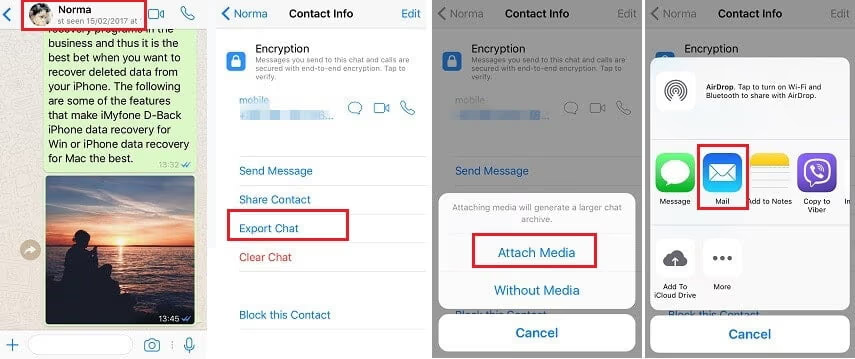
- Open the desired chat and tap on the contact’s name at the top.
- Scroll down and tap “Export Chat“.
- Choose whether to include media.
- Select an email app to send the chat.
Limitation: The exported file will be in .txt format, requiring an additional step to convert to PDF.
#2. Exporting via WhatsApp Web
Using WhatsApp Web offers a more direct approach to creating a PDF:
- Open WhatsApp Web on your computer.
- Navigate to the chat you want to export.
- Use your browser’s print function (usually Ctrl+P or Cmd+P).
- In the print dialog, select “Save as PDF” as the destination.
- Adjust settings as needed and save the file.
Pro Tip: Scroll through the entire chat before printing to ensure all messages are loaded and included in the PDF.
If you’re experiencing issues with WhatsApp Web, check out our troubleshooting guide: WhatsApp Web Not Working? Fix It Effortlessly Now
#3. Using Third-Party Apps for Direct PDF Export
Several third-party applications offer direct WhatsApp chat to PDF export functionality:
- iMyTrans: Offers comprehensive WhatsApp management, including chat export to PDF.
- EaseUS ChatTrans: Provides flexible options for exporting chats to various formats, including PDF.
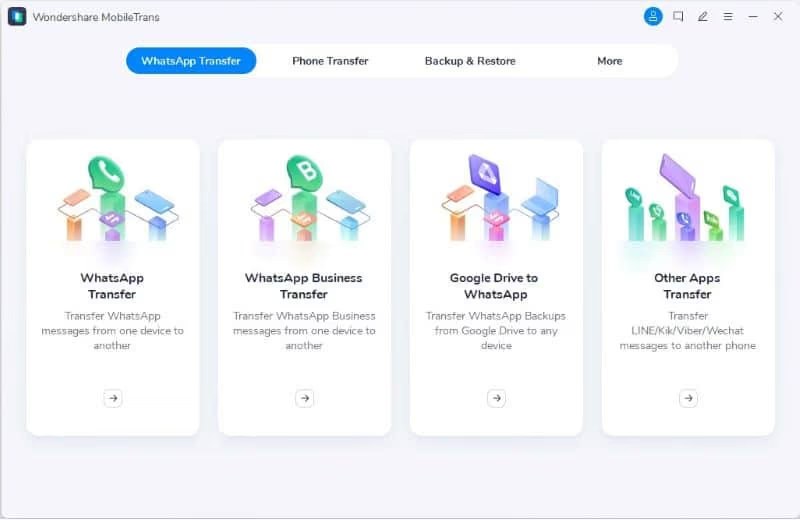
- MobileTrans: Allows for easy backup and export of WhatsApp chats across different devices.
Caution: Always review the privacy policy and user agreements of third-party apps before granting access to your WhatsApp data. Be wary of apps claiming to hack WhatsApp accounts, as these are often scams and can compromise your security.
#4. Converting Exported Text Files to PDF
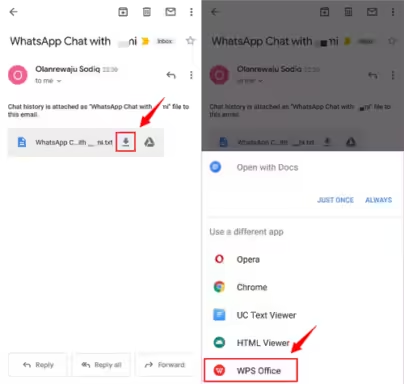
If you’ve used WhatsApp’s built-in export feature, you’ll need to convert the .txt file to PDF. Here are some methods:
#Using Google Docs:
- Upload the .txt file to Google Docs.
- Go to File > Download > PDF Document.
#Using WPS Office:
- Open the .txt file in WPS Office.
- Click on “Export” and select PDF as the output format.
#Online Converters:
Websites like Zamzar or Soda PDF offer free .txt to PDF conversion:
- Upload your .txt file.
- Select PDF as the output format.
- Download the converted file.
#Best Practices for WhatsApp Chat Export
To ensure a smooth and secure export process:
- Regularly backup your WhatsApp chats.
- Use descriptive file names for your exports (e.g., “Client_Meeting_2023-09-15.pdf”).
- Store exported PDFs in a secure, organized location.
- Be cautious when using third-party apps and review their privacy policies.
#Transferring WhatsApp Chats Between Devices
If you’re switching phones and want to transfer your WhatsApp chats, the process can be tricky, especially when moving from Android to iPhone. For detailed guides on this process, check out:
#Troubleshooting Common Issues
#Large File Sizes
WhatsApp limits exports to 10,000 messages with media or 40,000 without. For larger chats:
- Export in smaller date ranges.
- Exclude media files if not necessary.
#Preserving Formatting
PDF conversions may not perfectly preserve WhatsApp’s formatting. To mitigate this:
- Use specialized WhatsApp export tools for better formatting retention.
- Review the PDF after conversion and adjust as needed.
#Handling Media Files
Media files can significantly increase export size. Consider:
- Exporting chats without media and handling media separately.
- Using cloud storage services to share large media collections.
#Conclusion
Exporting WhatsApp chats to PDF provides a reliable way to preserve your conversations. While WhatsApp doesn’t offer direct PDF export, the methods outlined in this guide offer effective solutions. Whether you choose the built-in export feature, WhatsApp Web, or third-party tools, you can now confidently save your important chats in a universally accessible format.
#FAQs
Q: Can I export group chats to PDF? A: Yes, the process is the same as exporting individual chats for both Android and iPhone.
Q: Will exporting my chat delete it from WhatsApp? A: No, exporting creates a copy and doesn’t affect the original chat in WhatsApp.
Q: Are there any free apps to export WhatsApp chats directly to PDF? A: While many apps offer this feature, free versions often have limitations. Always check the app’s features and reviews before using.
Q: How can I ensure the privacy of my exported chats? A: Store exported PDFs in a secure location, use password protection if available, and be cautious when sharing these files.
Q: Can I edit the PDF after exporting my WhatsApp chat? A: Yes, you can edit the PDF using PDF editing software like Adobe Acrobat or online tools like Smallpdf.
Q: Is it possible to unlink my phone number from other apps like TikTok? A: Yes, for apps like TikTok, there are specific procedures to unlink your phone number. Learn more about how to unlink your phone number from TikTok.
By following this guide, you’ll be able to effectively export your WhatsApp chats to PDF, ensuring your important conversations are preserved and easily accessible. Remember to prioritize your privacy and data security throughout the process.