LINE dropped phone number verification back in November 2023, which changed how the signup works entirely. If you’ve been putting off creating an account because you didn’t want to hand over your phone number, that’s no longer an issue.
This guide covers every signup method currently available: iPhone, Android, PC, and email, plus the common problems people run into and how to fix them.
- LINE removed the phone number requirement in November 2023, so you can now sign up using only Apple ID, Google, or email.
- The Apple ID method is the fastest on iPhone, taking about two minutes from download to sending your first message.
- LINE passwords must be 8 to 20 characters long and include uppercase letters, lowercase letters, and numbers or symbols.
- Email verification links expire after 24 hours, and some corporate email servers block LINE’s verification emails entirely.
- On desktop, Google and Apple login are not available in most regions, so email or Facebook signup are the only PC options.
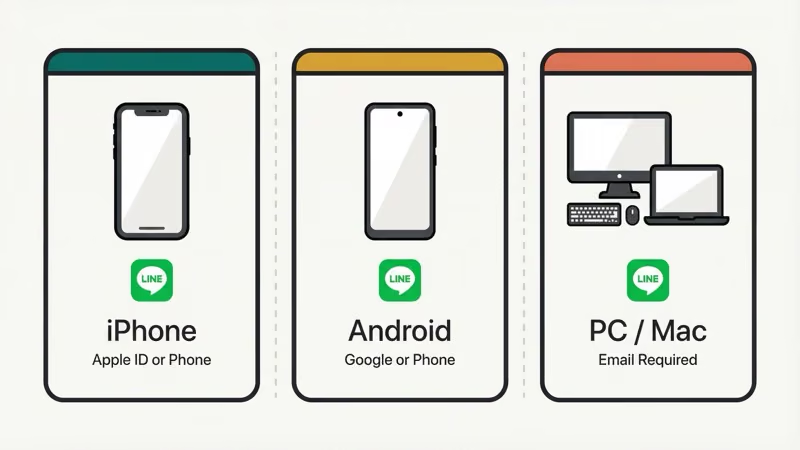
#How to Create a LINE Account on iPhone
The Apple ID method is the fastest option on iOS. Takes about two minutes from download to first message.
#Step-by-step for iOS
- Open the App Store and search for “LINE.” Download the official app (blue icon, by LY Corporation).
- Open LINE and tap Sign up.
- Tap Continue with Apple.
- Authenticate with Face ID, Touch ID, or your Apple ID password.
- Choose whether to share your real email or use Apple’s Hide My Email feature.
- Enter a display name (you can change this later).
- Set a profile picture (or skip it and add one later).
- Create a password (8–20 characters, must include uppercase, lowercase, and numbers or symbols).
- Choose whether to let LINE access your contacts to find friends. You can skip this.
That’s it. Your account is active.
One thing worth knowing: if you use Hide My Email, LINE will send account notifications to the relay address Apple creates. Keep your Apple ID in good standing or you can lose access to the account.
#How to Create a LINE Account on Android
The process on Android mirrors the iOS flow, just with Google instead of Apple.
#Step-by-step for Android
- Open the Google Play Store and install LINE.
- Open LINE and tap Sign up.
- Tap Continue with Google.
- Select the Google account you want to use (you can choose any Google account on your device).
- Enter a display name.
- Add a profile photo or skip.
- Create a password.
- Decide on contact sync. Skip it if you’d rather add friends manually.
If you have multiple Google accounts on your phone, pick one you check regularly. LINE sends security notifications there.
#How to Create a LINE Account with Email
Email signup works on both iPhone and Android. Pick this method if you’d rather not link LINE to your Apple or Google account. It’s useful if you’re creating a second account or want to keep things separate.
#Step-by-step for email signup
- Open LINE and tap Sign up.
- Select Sign up with email (it’s a smaller link below the Apple/Google buttons).
- Enter your email address.
- Create a password (same requirements: 8–20 characters, three character types).
- Check your inbox for a verification email from LINE. Click the confirmation link.
- Return to LINE, enter your display name, and optionally add a profile photo.
Gmail works reliably. If you use a less common email provider and the verification email doesn’t arrive within five minutes, check your spam folder. Some providers (notably certain corporate email servers) block LINE’s verification emails entirely. Switch to Gmail or Outlook if you hit that wall.
The email verification link expires after 24 hours.
#How to Create a LINE Account on PC
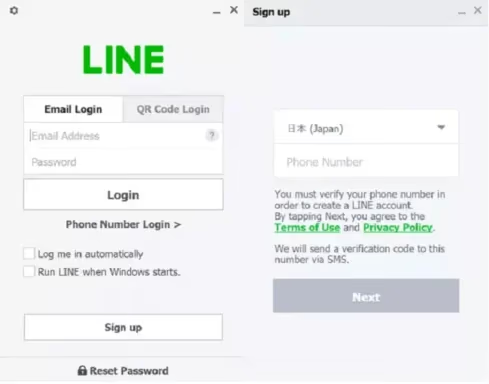
You can sign up on a Windows or Mac computer without touching your phone. The LINE desktop app supports account creation directly.
- Download LINE for Windows or Mac from the official LINE website.
- Install and open the app.
- Click Sign up on the login screen.
- Choose email signup or Facebook login (Google/Apple login isn’t available on desktop in most regions).
- Complete the same email verification steps described above.
Once you’ve created your account on desktop, you can then add your phone as a secondary device. According to LINE’s official help center, you can log into LINE on up to four devices simultaneously: one phone plus tablets or computers.
#Setting Up Your Profile
After creating your account, spend two minutes on these settings before you do anything else.
Profile basics:
- Go to Profile and set a real name or handle (this is what people see when you add them)
- Add a profile photo (you can use the camera or pick from your gallery)
- Set a status message if you want (optional)
Privacy settings worth adjusting:
Head to Settings > Privacy. Three things to check:
- Allow others to add you by phone number: turn this off if you don’t want contacts to find you automatically
- Allow friend suggestions: controls whether LINE recommends your account to people you may know
- Profile photo visibility: set to “All” or “Friends only” depending on your preference
Your LINE ID is auto-generated at signup. You can change it once via Settings > Profile > LINE ID. After that, it’s locked. Choose carefully.
#Troubleshooting Common Signup Problems
Verification email not arriving Wait five minutes, then check spam. If it’s not there, go back in LINE and tap “Resend verification email.” Gmail and Outlook have the best delivery rates. Corporate or university email accounts often block LINE’s messages.
“This email is already registered” error Someone (possibly you, previously) already created a LINE account with that email. Try the login flow instead of signup. Use “Forgot password” if you can’t remember the credentials.
App crashes during signup Force-close LINE, clear the app cache (Android: Settings > Apps > LINE > Storage > Clear Cache), then reopen. On iOS, delete and reinstall the app. This fixes the crash for most people.
Stuck on “Creating account” screen Almost always a network issue. Switch from WiFi to mobile data (or vice versa) and try again. If you’re using a VPN, disable it during signup.
“Welcome back” screen showing someone else’s name This happens when LINE detects a previously used account on your device. As LINE’s help center explains, you’ll need to use the “Use as new account” option to proceed without the old account.
#LINE Account on Multiple Devices
Once your account is set up on your phone, you can add your tablet or computer. Open LINE on the second device, tap Log in (not Sign up), and authenticate with the same Apple ID, Google account, or email you used originally.
Chat history syncs automatically. Your messages will appear on all devices within a few seconds of sending or receiving.
If you ever switch phones, your account transfers cleanly as long as you use the same login method. LINE’s transfer guide covers this in detail.
#Bottom Line
Start with the method that matches your phone: Apple ID for iPhone, Google for Android. Both take under two minutes and you don’t need to share your phone number.
Email signup is worth considering if you want a standalone LINE account not tied to your main Apple or Google identity. Just make sure you use an email you actually check, since that’s your only recovery option if you ever get locked out.
If you want to go deeper on adding friends, managing LINE sticker collections, or restoring your chat history after a phone switch, those are separate guides worth reading once you’re set up.
#Frequently Asked Questions
#Does LINE still require a phone number to sign up?
No. LINE officially ended phone number verification for new accounts in November 2023. You now sign up with Apple ID, Google account, or email.
#Can I create a LINE account without a smartphone?
Yes. Use the LINE desktop app on Windows or Mac and sign up with email or Facebook. You won’t need a phone at all. The desktop account works fully, though some features like LINE Pay require mobile verification later.
#Can I have two LINE accounts?
LINE only supports one account per device. To run two accounts, you’d need a second phone or a dedicated Android work profile. Some Android launchers support parallel apps for this. On iPhone there’s no official way to run dual accounts.
#How do I find friends after creating my account?
Three ways: let LINE scan your contacts (Settings > Friends > Sync contacts), search by LINE ID if you know someone’s handle, or scan their QR code in person. The QR code method is fastest when you’re with someone.
#Is LINE free?
Messaging, voice calls, and video calls between LINE users are all free. Some premium sticker packs cost money. LINE Out (calls to regular phone numbers) uses credits. If you switch from WhatsApp to LINE, you’ll find the core feature set costs nothing.
#What’s a LINE ID and do I need to set one?
Your LINE ID is an optional username that lets others find you without knowing your phone number or email. It’s different from your display name. You can skip it at signup and set it later in Settings > Profile > LINE ID. You only get one change, so pick something you’ll stick with.
#How do I recover a LINE account I’ve lost access to?
If you used Apple or Google login, use the same account to log back in. For email accounts, use “Forgot password” on the login screen. If you need to restore your chat history after recovering access, LINE can pull from a backup if one exists from the original device.
#Can I delete my LINE account if I change my mind?
Yes. Go to Settings > Account > Delete Account. The deletion is permanent. Your messages, friends list, and stickers are gone immediately. There’s no grace period or recovery option after confirming.