Could Not Find or Load Main Class: 4 Fixes That Work
Fix the 'could not find or load main class' Java error in 4 steps. Covers class name syntax, classpath settings, and directory structure fixes.
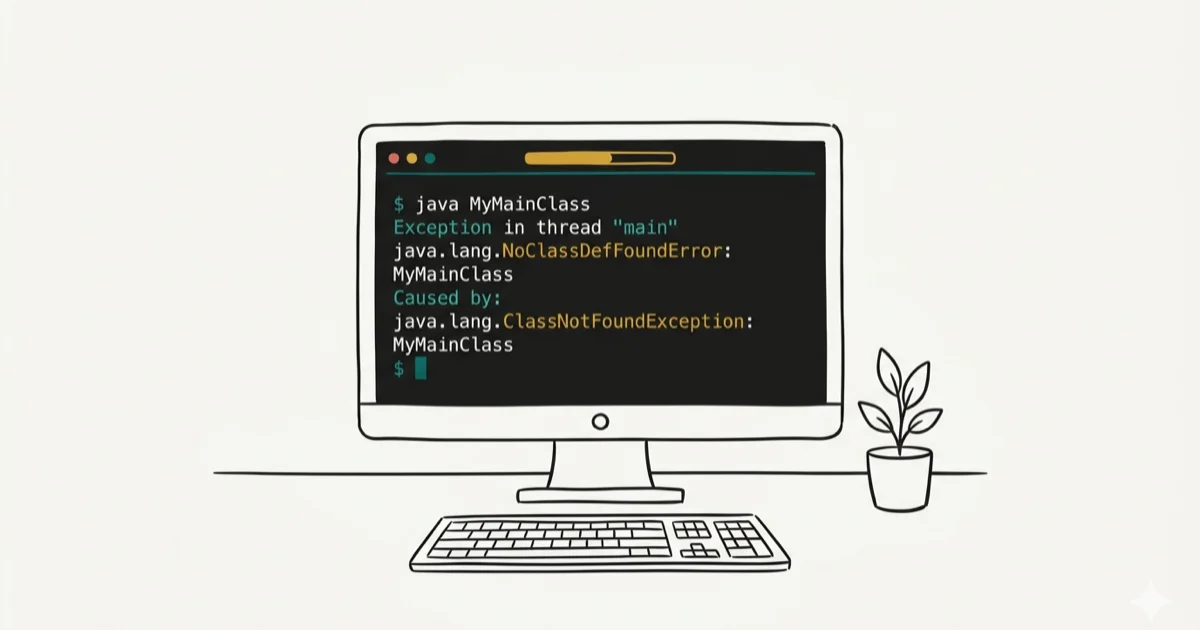
Quick AnswerThe 'Could not find or load main class' error means Java can't locate the class in the classpath. Fix it by using the fully qualified class name (com.example.MyClass), setting the correct classpath with -cp, or running the java command from the correct directory.
The “could not find or load main class” error stops Java programs from launching. Common causes include class-name syntax, classpath roots, missing package directories, and package declaration mismatches.
- The most common cause is using a simple class name like
ListAppinstead of the fully qualified namecom.example.ListApp. - File extensions in the java command like
java MyClass.classorjava MyClass.javaalways trigger this error — use the class name only. - Java class names are case-sensitive, so
myclassandMyClassresolve to different locations in the classpath. - The classpath must point to the root directory of your package hierarchy, not to the folder containing the .class file itself.
- IDEs like IntelliJ IDEA and Eclipse handle classpath configuration automatically, eliminating this error for most development workflows.
#What Causes the “Could Not Find or Load Main Class” Error?
This error occurs when the Java Virtual Machine can’t locate the class file you specified in the java command. The JVM looks for classes by walking down a directory path that matches the package name. When that path doesn’t exist, or the class name is wrong, it fails at the first step before any code runs.
These failure patterns usually come from wrong class name format, incorrect classpath root, missing subdirectory, or package declaration mismatch. Each has a different fix.
Wikipedia’s article on Java class files confirms that the JVM requires the fully qualified class name in the format packagename.ClassName, with no fallback to simple names or filename-based resolution. Any deviation from the fully qualified format produces this error, with no partial match behavior.
#Fix 1: Use the Fully Qualified Class Name
The most common mistake is entering only the simple class name. If your class is in a package, Java requires the full package path in the command.
Wrong:
java ListApp
java ListApp.class
java com/example/ListApp.class
Correct:
java com.example.ListAppAlso watch for case sensitivity. java com.example.listapp fails when the file is named ListApp.class because Java’s class loader treats the name as an exact match including capitalization on all platforms.
See fixing javaw.exe missing errors for related Java executable issues. For other Windows command-line errors, the bad pool caller fixes guide covers similar troubleshooting patterns.
#Fix 2: Set the Correct Classpath
Wrong classpath root is the second most common cause.
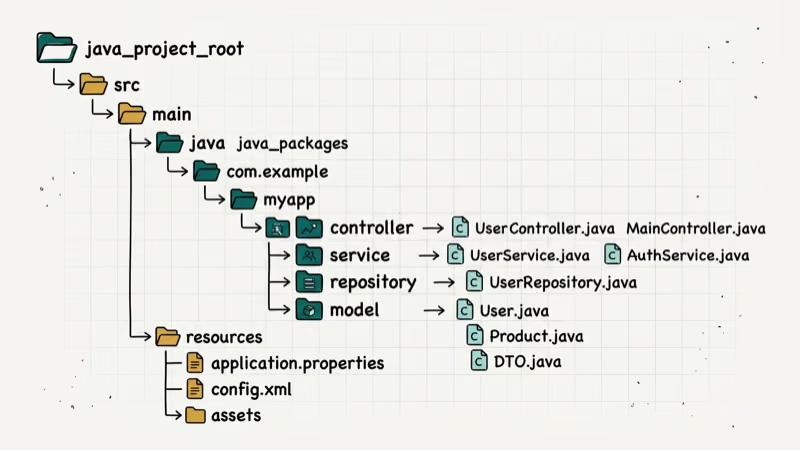
The classpath must reference the root of your package hierarchy, not the folder containing the class file itself. If your class file is at /usr/local/myapp/classes/com/example/ListApp.class, the classpath must be:
java -classpath /usr/local/myapp/classes com.example.ListAppNot:
java -classpath /usr/local/myapp/classes/com/example com.example.ListAppClasspath root misconfiguration is a frequent source of Java errors. Explicitly setting the -cp flag removes ambiguity and avoids relying on environment variable defaults that may differ between machines.
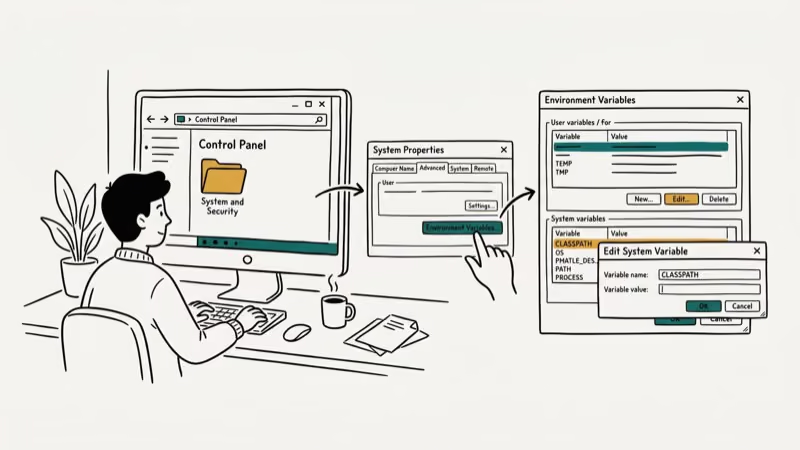
You can also set the classpath as an environment variable:
set CLASSPATH=C:\myapp\classes
java com.example.ListApp#How Do You Fix the Classpath for Multi-Directory Projects?
For projects with multiple classpath entries, separate them with ; on Windows or : on macOS/Linux:
Windows:
java -classpath C:\myapp\classes;C:\libs\mylib.jar com.example.ListAppmacOS/Linux:
java -classpath /usr/local/myapp/classes:/usr/local/libs/mylib.jar com.example.ListAppFor projects with dependency JARs, missing any required classpath entry can produce the same “could not find or load main class” error, even when the main class itself is correctly specified. Each required class needs its directory or JAR in the path.
For development work, see fixing access violation at address errors if you encounter memory errors after fixing the classpath issue. If you’re also seeing JavaScript-related errors in your development environment, the JavaScript error guide covers similar debugging approaches.
#Fix 3: Check the Package Declaration
If you moved a .class file without updating the package declaration in the source code, the class name in the bytecode won’t match the directory structure. Recompile after fixing the package declaration:
-
Open your .java source file.
-
Check the package declaration at the top:
package com.example; -
Confirm the file lives in a folder named
com/example/. -
Recompile with
javac com/example/ListApp.java.
Running the java command without recompiling after moving files is a common mistake. The compiled .class file encodes the package name from the source, so the directory structure must match exactly.
#Fix 4: Use an IDE to Avoid Classpath Errors
IDEs like IntelliJ IDEA, Eclipse, and NetBeans handle classpath configuration automatically. Wikipedia’s overview of integrated development environments confirms that IDEs manage build configuration for you, which is why classpath errors are far less common when working inside a modern IDE than on the command line.
For command-line work, the quickest setup is to use Maven or Gradle. Both build tools manage classpath resolution automatically and are recognized by most modern deployment environments.
#Bottom Line
Start with Fix 1 and verify the fully qualified class name. If that’s correct, check that the classpath root points to the top of your package hierarchy, not to a subdirectory. For ongoing Java development, using an IDE removes this error class entirely by managing classpath configuration automatically. If you’re still getting errors after these fixes, see fixing Java virtual machine errors for JVM-level troubleshooting.
#Frequently Asked Questions
What does “could not find or load main class” mean?
It means the JVM searched for your specified class in the classpath and didn’t find a matching .class file. The class name was either wrong, the classpath didn’t include the correct root directory, or the package declaration doesn’t match the directory structure.
How do I find the correct fully qualified class name?
Look at the package statement at the top of your .java file. If the file says package com.example; and the class is named ListApp, the fully qualified name is com.example.ListApp. Use this exact string in your java command.
Why does adding .class to the class name fail?
The java command takes a class name, not a filename. Use the class name only.
Does this error happen in IntelliJ or Eclipse?
Rarely. IDEs manage the classpath automatically, so this error mainly affects command-line compilation and deployment workflows. If you see it in an IDE, the most common cause is a misconfigured module or a recently moved source file that hasn’t been reindexed by the IDE’s project model. Re-importing the project from its build file (pom.xml or build.gradle) usually resolves the project-model mismatch.
What’s the difference between -classpath, -cp, and CLASSPATH?
They all set the classpath but have different precedence. The -cp flag overrides the CLASSPATH environment variable. Both override the default classpath, which is the current directory.
Can I run Java without setting a classpath?
Yes, if the .class file is in the current directory with no package declaration. For any project using packages, set it explicitly.
Why does this error happen after upgrading Java?
Java version upgrades sometimes change the default classpath behavior. Starting with Java 9, the module system introduced with Project Jigsaw changes how classes in unnamed modules are resolved. According to Oracle’s migration guide, code that ran under Java 8 may need explicit module declarations or classpath entries under Java 11 and later.
How do I debug this error on Windows?
Run java -verbose:class com.example.ListApp 2>&1 | findstr "class" to see every class the JVM attempts to load and where it looks. This output shows the exact classpath entries being searched, making it easy to identify where the lookup fails. On macOS or Linux, replace findstr with grep.

Best Laptop for Running LLMs in 2026: Memory Comes First
The best laptop for running LLMs is a memory purchase first. Compare MacBook unified memory against NVIDIA laptop VRAM, and see what each tier really runs.

How to Run a Local LLM on Windows: A 2026 Setup Guide
Run a local LLM on Windows with LM Studio or Ollama. Pick a model that fits your GPU memory, keep every prompt offline, and skip the monthly bill.

Bluetooth Not Working on Snapdragon X? Fixes for 2026
Bluetooth not working on your Snapdragon X Copilot+ PC? Generic audio, mice, and keyboards work, but vendor apps often lack an ARM build. Fixes inside.

Docker Desktop and WSL2 Not Working on Snapdragon X? Fix It
WSL2 runs fine on Snapdragon X, but Docker Desktop ARM is Early Access and throws WSL errors. Use WSL2 plus native ARM64 Ubuntu and Docker Engine.