Fix Can't Read From the Source File or Disk on Windows
Fix the 'can't read from source file or disk' error on Windows with 4 methods: convert FAT32, run CHKDSK, reset permissions, and recover corrupted files.
Quick AnswerRight-click the file you want to move, select Properties, go to the Security tab, click Edit, add your username with Full Control permissions, and try copying again. If that fails, open Command Prompt as administrator and run chkdsk D: /f /r on the source drive to fix bad sectors.
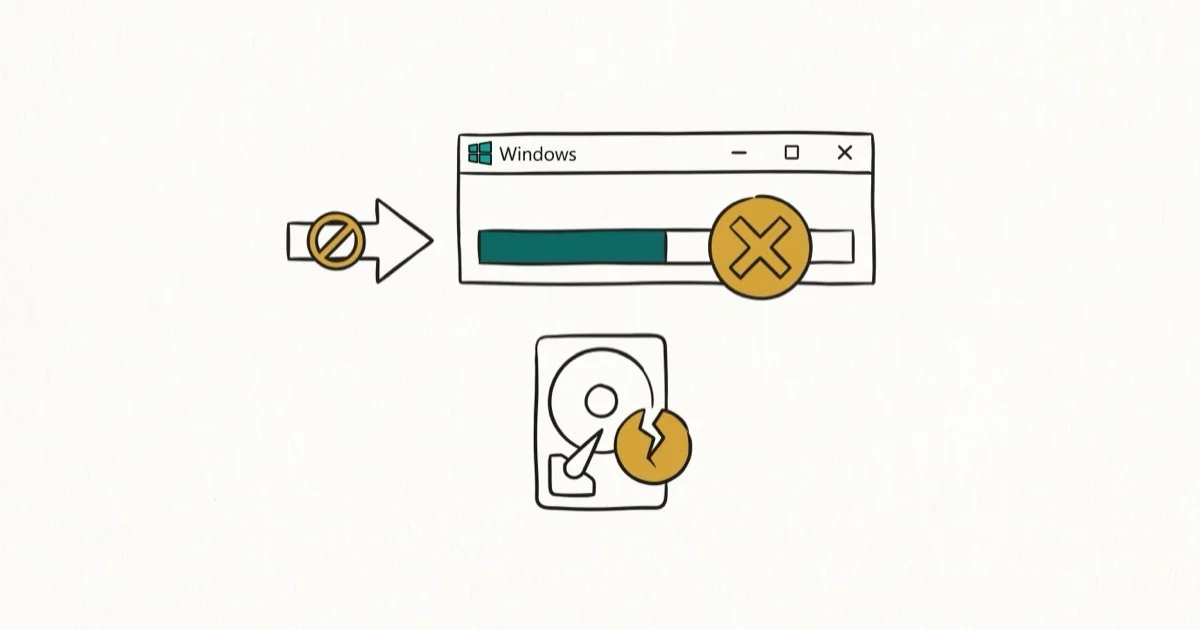
The “can’t read from the source file or disk” error appears when Windows loses access to the source data during a file transfer. The fix depends on which of three causes is responsible: a mismatched file system, bad sectors on the disk, or a file permission problem.
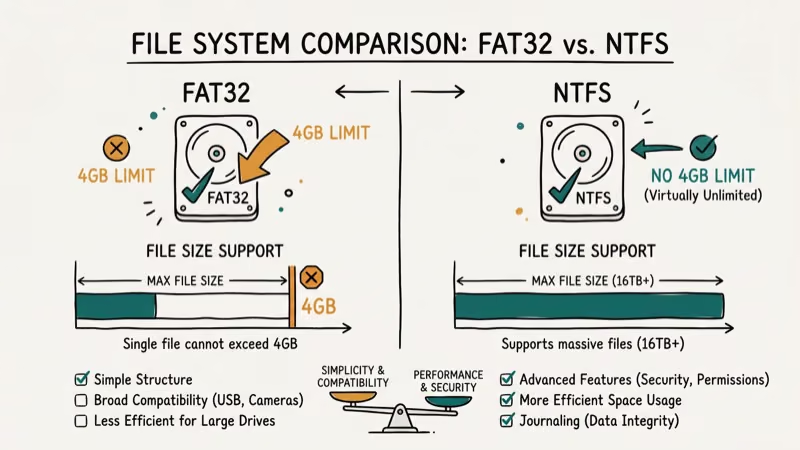
- FAT32 drives have a 4GB single-file size limit; files at or above that size trigger this error when the destination is FAT32
- Bad sectors on the source drive prevent Windows from reading the file data during transfer, requiring a CHKDSK scan
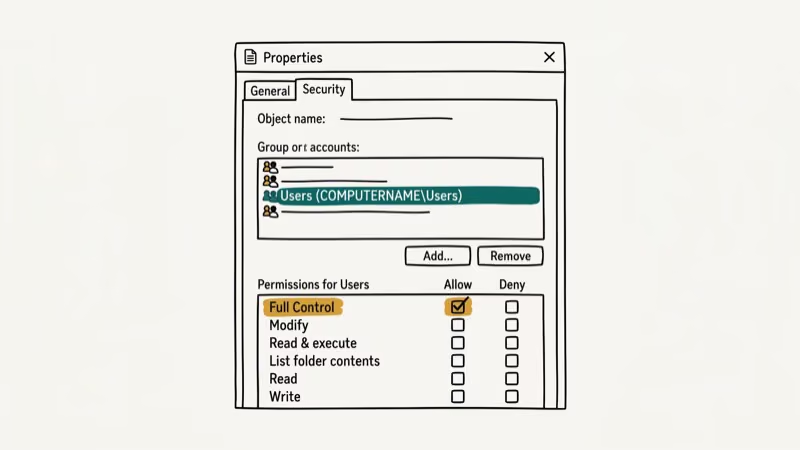
- File permission errors block Windows from releasing the file to a new destination, fixed by adding Full Control permissions for your user account
- Running chkdsk /f /r on the source drive marks bad sectors and attempts to recover data before the drive gets worse
- Corrupted files that survive a CHKDSK scan often need dedicated data recovery software like EaseUS to retrieve usable content
#Three Causes of This Error
Windows returns “can’t read from the source file or disk” when it starts a file copy but then loses the ability to read from the source mid-transfer. Three conditions cause this.
The first cause is simple: FAT32 caps any single file at 4 GB, and a 3.9 GB video transferred to a FAT32 drive fails the moment Windows hits that ceiling.
The second cause is bad sectors: physical or logical damage on the source drive that prevents Windows from reading the data blocks that make up the file. The third cause is a permission conflict, where Windows treats the file as locked or owned by a different account.
According to Microsoft’s Win32 file system reference, NTFS scales to 16 TB per file while FAT32 caps single files at 4 GB, which is why large transfers fail silently on older external drives formatted with FAT32. The file system functionality comparison documents the full limits.
#Fix 1: Resolve the File System Mismatch
If your source or destination drive is formatted as FAT32 and you’re transferring files larger than 4GB, you have two options.
Option 1: Convert the destination drive to NTFS. This is the permanent fix. Open Command Prompt as administrator and run:
convert E: /fs:ntfsReplace E: with your drive letter. The conversion preserves your existing files. Back up the drive first anyway. The conversion usually finishes quickly even on a large drive with tens of gigabytes of data.
Option 2: Use a file splitter. Split the file into pieces under 4GB each, transfer them, then rejoin on the destination. This works but requires extra steps and a compatible tool on both ends.
Check whether your source and destination drives are using NTFS by right-clicking each in File Explorer and selecting Properties. The file system displays on the General tab. If the destination says FAT32 and you’re moving files over 4GB, converting to NTFS resolves the issue permanently. If both drives show the file is too large for the destination file system, that guide covers the FAT32 size ceiling in more depth.
#How Do You Fix Bad Sectors on the Source Drive?
Bad sectors are damaged storage segments on a hard drive that the OS can’t read reliably anymore. When a large file spans multiple sectors and one of them is unreadable, Windows stops the copy and returns the source file error.
You can check for bad sectors using Windows’ built-in disk check tool. Right-click the source drive in File Explorer, select Properties, go to the Tools tab, and click Check under Error checking. Windows will scan for and attempt to repair logical bad sectors.
For a more thorough repair, use Command Prompt. Open it as administrator and run:
chkdsk D: /f /rReplace D: with the letter of your source drive. The /r flag performs a sector-by-sector surface scan and recovers data from bad sectors where possible. PCMag’s hard drive maintenance guide confirms that running chkdsk with both /f and /r flags in 1 pass addresses file system errors and physical sector damage at the same time.
On a drive that has been throwing copy errors, a full CHKDSK scan can take a while to complete, but it often clears the bad sectors so the problematic files transfer successfully afterward.
#Fix 3: Reset File Permissions
Windows can block file access when the ownership or permission settings on a file don’t match your user account. This happens most often with files copied from another computer, downloaded from the internet, or recovered from a failed system.
- Right-click the file you’re trying to move
- Select Properties and go to the Security tab
- Click Edit, then Add
- Type your Windows username in the text field
- Click Check Names to verify it resolves correctly
- Click OK, then check Full Control for your username
- Click Apply and OK
Try the file transfer again. This grants your account unrestricted access to the file regardless of where it came from. According to Microsoft’s file permissions guide, NTFS permissions can persist across drive copies, which is why files moved between machines often need permission resets before they’re fully accessible.
If you’re also struggling to recover data from an NTFS hard drive, the source file may have suffered file allocation table damage that goes beyond permission issues.
#Fix 4: Use Data Recovery Software for Corrupted Files
If the file transfer fails despite fixing permissions and running CHKDSK, the source file itself may be corrupted beyond what Windows can repair natively.
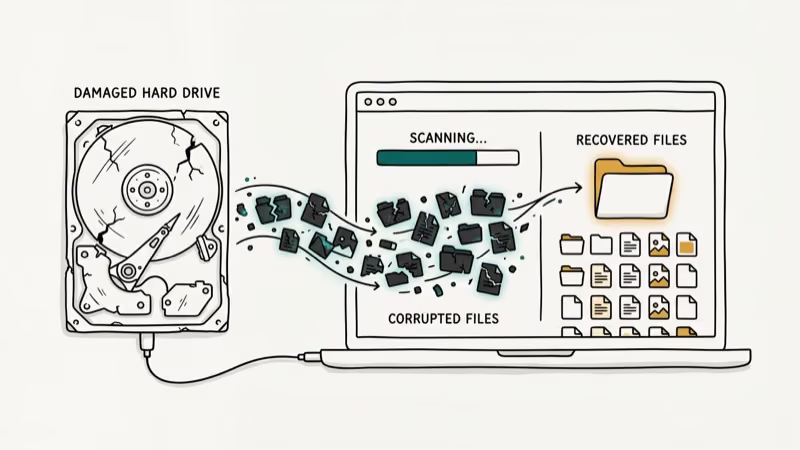
EaseUS Data Recovery Wizard scans drives at the sector level and reconstructs files from partial data. On a drive where several files fail to copy with the source error, it can often recover most of them as intact, usable documents:
- Install EaseUS Data Recovery on a healthy drive (not the problem drive)
- Launch the software and select the source drive
- Click Scan and wait for the deep scan to complete (10 to 40 minutes)
- Browse the recovered files and preview them before restoring
- Save recovered files to a different drive
Get EaseUS Data Recovery for corrupted files that standard tools can’t reach. For drives with partition errors, EaseUS Partition Master adds surface testing and partition repair tools.
Some links on this page are affiliate links, which means fone.tips may earn a commission at no extra cost to you.
#Why Does This Error Happen More With External Drives?
External drives face conditions that internal drives don’t have to deal with. They get unplugged without using the Eject option, which leaves write operations incomplete and can corrupt the file allocation tables that map data on the drive. They also experience power fluctuations through USB connections, especially on hubs that share power with other peripherals, and they often stay formatted as FAT32 from the factory because that format works with both Windows and macOS without extra drivers.
Improper ejection is particularly damaging for files that were being written at the time. Windows marks those file entries as open, but the actual data is incomplete. When you try to copy those files later, Windows finds the file entry but can’t read the data blocks it references.
Safely ejecting drives before unplugging prevents the vast majority of these corruption events. PCMag’s storage device safety guide recommends using the Eject function so Windows gets enough time to flush write caches and close all open file handles before disconnecting.
The USB device not recognized error is a related problem that can appear alongside source file errors when the connection itself is unstable.
For drive-level corruption that survives a copy retry, our file or directory is corrupted and unreadable guide is the next step.
#Bottom Line
Check the file system first: if the destination is FAT32 and you’re moving files over 4GB, convert it to NTFS. Run CHKDSK on the source drive to repair bad sectors. Fix permissions if the file came from another machine. Use data recovery software only for files that survive CHKDSK but still won’t copy.
#Frequently Asked Questions
Can I fix this error without losing the file?
In most cases, yes. Bad sector repairs, permission fixes, and the convert command all preserve existing data and won’t delete files.
Why does the error say “source file or disk” if the problem is on the destination?
It doesn’t — the error specifically means Windows can’t read from the source. If the destination drive has the problem, you’ll see a different message about insufficient space or the destination being read-only. So when you see the source file or disk message, focus your troubleshooting on the drive or folder you’re copying from rather than the target drive.
Does this error only happen with large files?
Large files trigger it more often because they span more sectors. But the error can hit any file size when permissions are wrong or the file entry is corrupted.
Can I copy a corrupted file at all?
Yes, with Robocopy. The built-in Windows tool has a retry feature that can skip over bad sectors and copy partial file data, so open Command Prompt as administrator and run robocopy "C:\source" "C:\dest" filename.ext /R:3 /W:5, which attempts 3 retries with 5-second waits between each attempt. According to Microsoft’s Robocopy documentation, the default /R count is 1 million and the default /W wait time is 30 seconds. Partial recovery is often enough for media files where missing chunks remain playable.
What if chkdsk finds errors but can’t fix them?
Errors that CHKDSK can’t fix usually indicate physical drive failure rather than logical corruption. Back up files you can still access immediately, then replace the drive before it fails completely.
Should I use the same drive after fixing this error?
It depends on what CHKDSK reported. If CHKDSK fixed only logical errors and zero bad sectors appeared, the drive is probably fine. If CHKDSK found bad sectors (reported as “bad clusters” or “unreadable sectors”), the drive is degrading physically and won’t recover, so monitor it with a SMART tool like CrystalDiskInfo and plan to replace it within 3 to 6 months. Until then, copy critical data off the drive weekly so you don’t lose anything new.

Best Laptop for Running LLMs in 2026: Memory Comes First
The best laptop for running LLMs is a memory purchase first. Compare MacBook unified memory against NVIDIA laptop VRAM, and see what each tier really runs.

How to Run a Local LLM on Windows: A 2026 Setup Guide
Run a local LLM on Windows with LM Studio or Ollama. Pick a model that fits your GPU memory, keep every prompt offline, and skip the monthly bill.

Bluetooth Not Working on Snapdragon X? Fixes for 2026
Bluetooth not working on your Snapdragon X Copilot+ PC? Generic audio, mice, and keyboards work, but vendor apps often lack an ARM build. Fixes inside.

Docker Desktop and WSL2 Not Working on Snapdragon X? Fix It
WSL2 runs fine on Snapdragon X, but Docker Desktop ARM is Early Access and throws WSL errors. Use WSL2 plus native ARM64 Ubuntu and Docker Engine.