Clock widgets seem simple until you spend 20 minutes scrolling Google Play and realize half of them look identical or haven’t been updated since 2019. The good news: a handful of apps are worth your time, and they cover every style from dead-simple to pixel-perfect custom builds.
This list covers 10 of the best clock widgets for Android right now, split by type so you can skip straight to what you actually want.
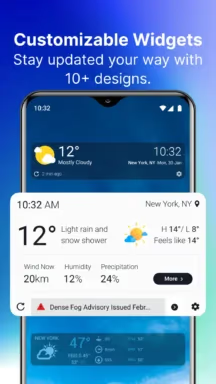
- 1Weather is the best free clock-plus-weather combo widget, offering a live weather theme that changes visually with conditions, a 10-day forecast, and an ad-free upgrade for $1.99.
- Google Clock ships pre-installed on most Android devices, received a Material 3 Expressive redesign in August 2025, and now offers 6 widget styles including Analog, Digital, and Timer Starter.
- KWGT Kustom Widget Maker lets you build fully custom clock widgets from scratch or import thousands of free community templates. The pro unlock costs $4.49 one-time and is required to save custom designs.
- Weather-integrated widgets like Transparent Clock and Weather draw more battery than static clocks because they refresh live data. On older phones, a clock-only widget is better for battery life.
- Material You color adaptation (where widgets automatically match your wallpaper) requires Android 12 or later, so older Android versions won’t see that feature in supported apps.
#What Makes a Clock Widget Worth Using
Before jumping into the picks, a few things separate the good ones from the junk.
Battery drain is the main concern people miss. Widgets that pull live weather or animate constantly will drain more battery than a static clock. Most modern clock-only widgets have negligible impact, but weather-integrated ones can add up if you’re not on a newer phone.
Android version compatibility matters too. If you’re on Android 12 or later, Material You support (where widgets adapt to your wallpaper colors) is a real quality-of-life feature. Older apps that haven’t been updated won’t have it.
The other thing to check: does the app still receive updates? Several popular clock widgets from 2018-2020 are now abandoned. I’ve only included apps with active maintenance here. And if you’re wondering whether alarms still fire when you have quiet hours active, see will my alarm go off on Do Not Disturb for the full breakdown.
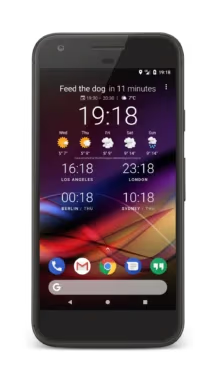
For anyone doing more general Android home screen organization, Android Authority’s roundup of the best Android widgets is a solid reference for what’s available beyond just clocks.
#Top Digital Clock Widgets
#1. 1Weather
1Weather is the best pick if you want a clock and weather in one widget without paying anything. The free version covers the basics well, and the $1.99 upgrade removes ads.
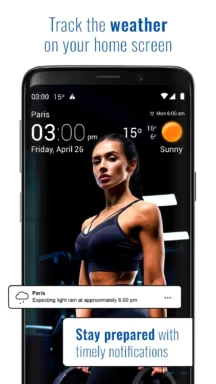
What sets it apart from similar apps: you can match the widget’s look to your wallpaper with a live weather theme option, so it shows rain or sunshine visually. The 10-day forecast and radar are actually useful rather than just decoration.
Key features:
- Customizable text color and background opacity
- Live weather theme that changes with conditions
- 10-day forecast and radar
Price: Free with ads, $1.99 ad-free
Download 1Weather on Google Play
#2. Chronus Information Widgets
Chronus is probably the most versatile clock widget app on Android. It goes beyond just time, pulling in weather, calendar events, Gmail, missed calls, news, and stocks, all into a single configurable widget.
The DashClock extension support is a legacy feature longtime Android users will appreciate. Updated in January 2026 and still one of Android Authority’s top clock widget recommendations.
Key features:
- Multiple widget styles (digital, analog, flip clock)
- Calendar and weather integration
- DashClock extension support
Price: Free, in-app purchases up to $2.99
Download Chronus on Google Play
#3. Digital Clock and Weather Widget
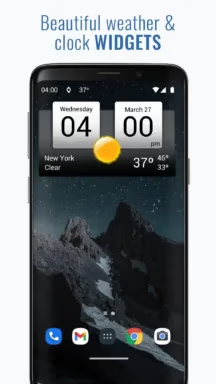
This one mimics the Sony Xperia stock clock style, which happens to be one of the cleaner digital clock designs out there. Good option if you want something that looks like it belongs on the phone rather than a third-party add-on.
Key features:
- Various widget sizes
- Adjustable font size, color, and transparency
- Optional weather overlay
Price: Free, $1.49 for premium
Download Digital Clock and Weather Widget
#4. Google Clock
The easiest recommendation for anyone who doesn’t want to install anything new. Google Clock comes pre-installed on most Android devices and received a Material 3 Expressive redesign in August 2025, per 9to5Google’s coverage. It now offers six widget styles: World, Analog, Digital, Stacked, Stopwatch, and the newer Timer Starter.
The widgets adapt to your wallpaper colors automatically on Android 12+. Zero setup required.
Price: Free (pre-installed)
#Best Analog Clock Widgets
#5. Simple Analog Clock
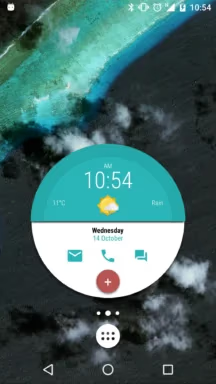
Clean, battery-efficient, and does exactly what it says. Multiple clock face designs and customizable hands without the bloat of weather data pulling in the background. Good for minimalist setups.
Key features:
- Multiple clock face designs
- Customizable hands
- Very low battery usage
Price: Free
#6. Animated Analog Clock Widget
This one adds moving hands with smooth animations, which sounds gimmicky but actually looks good on the right wallpaper. Optional date display and several face styles.
Key features:
- Smooth hand animations
- Various clock face styles
- Optional date display
Price: Free with in-app purchases
Download Animated Analog Clock Widget
#Weather-Integrated Clock Widgets
#7. Transparent Clock and Weather
The standout feature here is the adjustable transparency, which lets the widget sit over your wallpaper without blocking it. Works particularly well with landscape or nature wallpapers.
Detailed weather data including hourly forecasts, multiple widget sizes, and a clean UI that doesn’t feel cluttered. The lifetime purchase option ($12.99) is worth it if you use weather widgets daily.
Key features:
- Adjustable transparency
- Detailed weather data
- Multiple widget sizes
Price: Free trial, $3.99/month or $12.99 lifetime
Download Transparent Clock and Weather
#8. Weather and Clock Widget
A popular choice with a wide variety of widget styles and themes. Does well if you want the visual options of a dedicated weather app but don’t want to leave your home screen to check conditions.
Key features:
- Dozens of widget designs
- Detailed weather forecasts
- Customizable themes and layouts
Price: Free, $4.49 for premium
Download Weather and Clock Widget
If you use location-based services regularly, pairing your clock widget with one of these geofencing apps can automate phone actions based on where you are.
#Fully Customizable Clock Widgets
#9. KWGT Kustom Widget Maker
KWGT is in a different category from everything else on this list. It’s not a clock widget; it’s a widget-building engine where you design clocks (and anything else) from scratch. The learning curve is real, but the output is unlike anything you can get from a pre-made app.
The free version is usable, but the $4.49 pro unlock is necessary for saving custom widgets. More importantly, the KWGT community on Google Play and GitHub has thousands of free templates, including clock packs with Nothing OS, Material You, and retro flip-clock styles. You can be up and running with a quality clock in 10 minutes if you use a community pack.
The KWGT Google Play page lists available widget packs directly, which makes finding a starting point easy.
Key features:
- Design widgets from scratch
- Import community templates (thousands available)
- Supports weather, battery, calendar data in custom layouts
Price: Free, $4.49 pro
#10. Pixel Clock Widgets and Themes
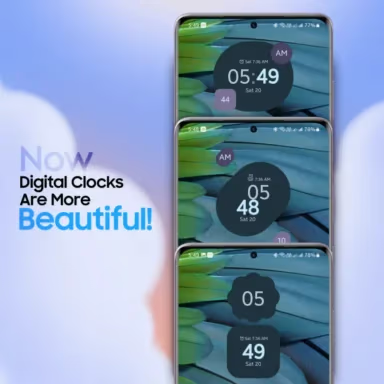
Brings the Android 12+ Material You design language to any Android device, even older ones that didn’t ship with it. The widgets adapt colors to match your wallpaper and use the same visual style as Pixel phones.
Key features:
- Material You design
- Extensive color and shape options
- Battery-efficient
Price: Free with in-app purchases
Download Pixel Clock Widgets and Themes
#How to Add a Clock Widget to Your Home Screen
- Long-press on an empty area of your home screen
- Tap Widgets in the menu that appears
- Find the clock widget app you installed (or Google Clock if you want built-in)
- Long-press the specific widget style and drag it to your home screen
- Release to place it, then drag the edges to resize
- Tap the widget to open customization options (most apps open their settings this way)
A few placement tips that actually make a difference: if your live wallpaper isn’t working correctly behind your widgets, fix that first since it affects how transparent clock widgets render. Put your clock widget on the primary home screen, not a secondary one. If you’re combining it with a weather widget, stacking them vertically on the left side of the screen leaves room for app shortcuts on the right. And if you’re having trouble with delayed notifications on Android, that’s worth sorting before adding more widgets that rely on internet connections.
If you want to take widget customization further, the add text to photos on Android guide is useful for personalizing wallpapers that sit behind your widgets.
#Bottom Line
For most people: start with 1Weather (free, looks great, covers weather too) or just use Google Clock if you want zero setup. If you track work hours or need a productivity angle, combining your clock widget with one of these time tracker apps makes a useful home screen setup. If the look matters more than features, KWGT with a community template is the best-looking option available, full stop. The analog options like Simple Analog Clock and Animated Analog Clock Widget are solid secondary choices when you want something more visual.
One thing worth checking before installing anything: your phone’s built-in clock app may already have widget options you haven’t explored. Samsung One UI, MIUI, and stock Android all ship with at least basic clock widgets that are well-optimized for their respective devices.
#Frequently Asked Questions
#Do clock widgets drain battery?
Static clock widgets use almost no battery. The ones that pull live weather data, especially if set to update every 15-30 minutes, will use slightly more. On a modern Android phone with a big battery this is negligible. On an older device, stick to a clock-only widget if battery life is a concern.
#Can I use multiple clock widgets on the same phone?
Yes. You can place different widgets on different home screen pages, or even stack them on the same page depending on your launcher. Some people run a minimal Google Clock on their main screen and a more detailed Chronus widget on a secondary page.
#What’s the best free clock widget with no ads?
Google Clock has no ads and ships with Android. DIGI Clock Widget is also free and ad-light. Chronus has a free tier that most people find sufficient without paying for the upgrade.
#Do clock widgets work on all Android versions?
Most of the apps listed here work on Android 7.0 and up. Material You color adaptation requires Android 12+. If you’re on a very old Android version, check the minimum requirements on the app’s Play Store page before downloading.
#How do I remove a clock widget?
Long-press the widget on your home screen, then drag it to the Remove or trash icon that appears at the top or bottom of the screen. This removes the widget but doesn’t uninstall the app.
#What’s the difference between KWGT free and pro?
The free version lets you view and preview widgets but you can’t save custom designs you’ve built. The pro unlock ($4.49 one-time) enables saving, plus full access to preset packs. If you’re just importing a community template and not editing it, you may need the pro version depending on how the template was packaged.
#Is Chronus still being updated in 2026?
Yes. Chronus received an update in January 2026 and remains one of the most actively maintained widget apps on Android. The developer’s site at dvtonder.com lists current version information.
#Can clock widgets show calendar events?
Chronus, 1Weather, and several KWGT templates support calendar integration. Chronus is the best built-in option for this since it pulls calendar data directly into the widget without any manual configuration.